Cash Manager
Introduction
The ideal tool to manage the cash account of small sized companies, associations, private enterprises or project planning.
It can be configured with or without VAT. On the other hand, it does not have the multi-currency functions.
Features
- Manages your cash account, or another estate account and income and expenses
- VAT option allows VAT calculations and VAT tax returns
- Process all your accounting records: accounting journal, account cards, periodical and annual reporting
- Manage the Cost Centers and Segments
- Several possibilites to submit and present your data
- Export to Excel, Html, Xml, Pdf
- Import various types of data files.
Tables and Properties files
The Cash book is part of the Income & Expense accounting type. It contains the following tables:
- Accounts
Where you find the Cash account or another estate account you manage and the relative opening balance. - Categories
Define the categories of Income & Expense here, the Cost Centres and their segments. - Transactions
Record your transactions here. - VAT Codes
If you have selected the VAT option, enter your VAT codes here. By selecting one of the VAT templates, VAT codes will be allocated correctly, allowing you to have a facsimile of your official VAT statement. - File and accounting properties
Manage the general settings of your accounting here.
Immediate information
The account balances will be displayed instantly in the Accounts and Categories tables, after the income and expense recordings.
Balances will be adjusted automatically after each registration of a transaction and you will not need to require a specific report to have an overview of your financial situation, which you can call up via the Accounts and Categories tabs.
Support
- Detailed information on the different functionalities of the program, with concrete examples and screenshots of the software, for your use.
Topics similar to Double-entry accounting
Commands
Printouts
How to Start a Cash Manager
Creating an accounting file, starting from a template
Proceed as follows:
- File menu, New command
- Select the Region, the Category and the Accounting type
- From the list of the templates that appears, select the template that is closest to your own needs.
- Click on the Create button
In the Search area, when entering a key word, the program displays the templates that contain the entered key word.
It is equally possible to start from a blank file, by activating the Create blank file option. In any case, in order to facilitate the start and avoid grouping errors, we recommend that you always start from an existing model.
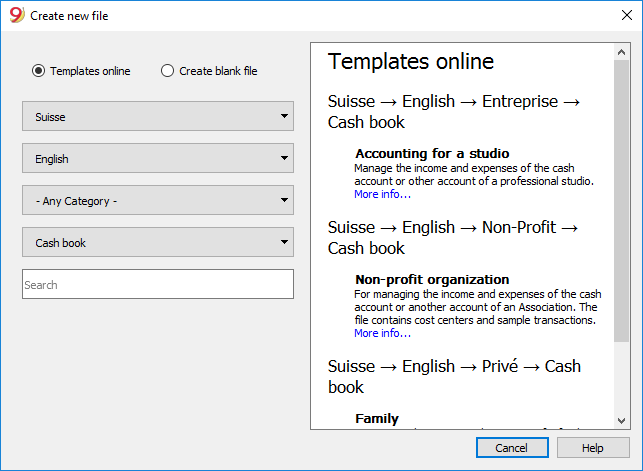
More information on how to create a new file is available on the Create New File page.
Setting up the File properties
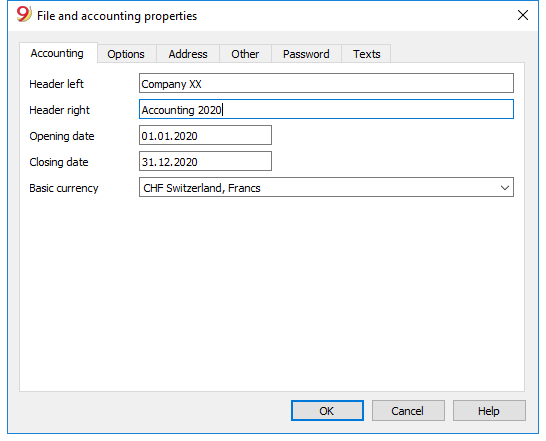
Set up your own data from the File and Accounting properties command and save with your own file name.
Save to disk
With the File-> Save As command, save the data and also assign a name to the file. The typical save dialog of your operating system appears.
- It is advisable to use the name of the company followed by the year "Company-2020." to distinguish it from other accounting files.
The program will add the "ac2" extension. - You can keep as many accountings as you need, each will have its own name.
- You can choose the folder you want, (for example, Documents -> Accounting) or the support you want like a disk, usb or cloud.
If you also expect to have documents linked to the current year's accounts, it is suggested that you create a separate directory for each accounting year having to group all the files.
Inserting the opening balance of the account
Enter the account you wish to manage in the Accounts table of the Cash Manager and the initial amount in the Opening column. At the start of a new year, activating the Create a new year ... command in the Account2 menu will automatically generate the opening balances to be carried forward.
Only one account can be entered.
Customizing the Categories table
In the Categories table, customize the income and expense categories, according to your own needs. It is possible to:
- change the category numbers
- change the description
- delete categories
- add categories
- insert subgroups
- delete subgroups
All balances of the categories will determine the result of the accounting year (profit or loss) and must therefore not contain any balances at the start of the year.
Add new categories
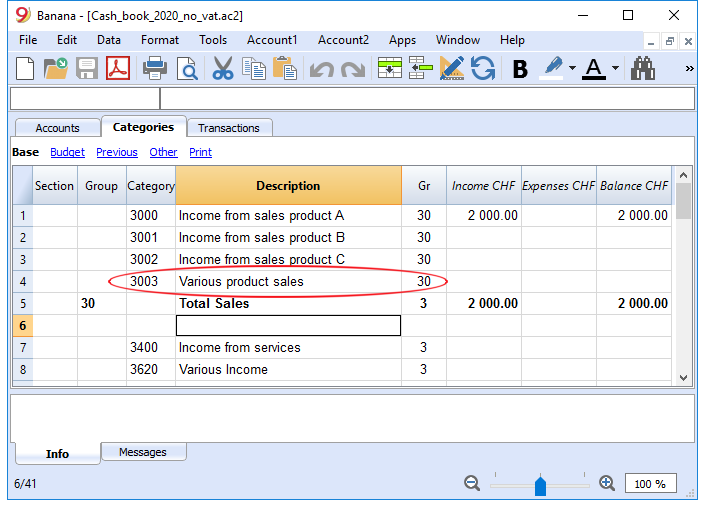
If new categories need to be added in an already existing group, proceed as follows:
- Insert an empty row (Edit menu, Insert rows ... command) before the Total of the Group
- Insert the number or code for the category in the Category column
- Insert the description that identifies the category
- Insert the identical Gr of the other categories belonging to the Group Total in the Gr column.
Add subgroups
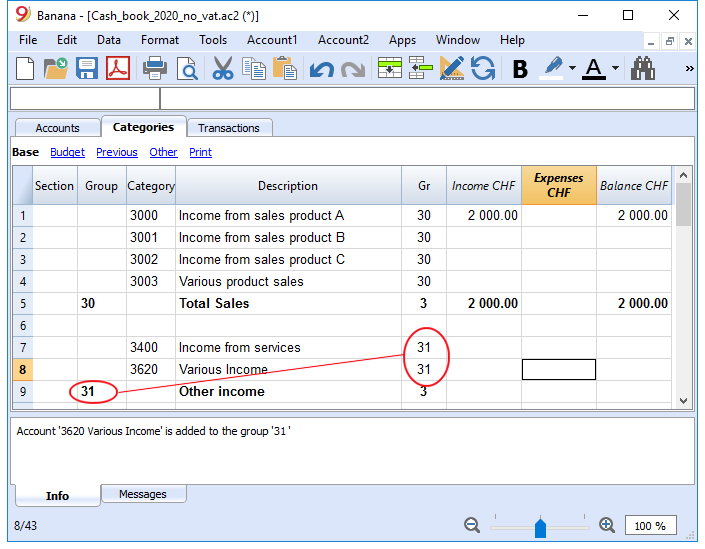
To add new subgroups, proceed as follows:
- Insert an empty row (Edit menu, Insert rows ... command) where you wish to add a new subgroup
- Insert a number or code in the last empty row of the Group column (in our example 31 - Other income)
- Insert the description that identifies the new subgroup
- Insert the Group Totaling number in the Gr column (in our example 3 - Total sales).
Delete categories or subgroups
Select the categories or subgroups you wish to delete and proceed in the Edit menu, Delete rows ... command to eliminate.
Transactions
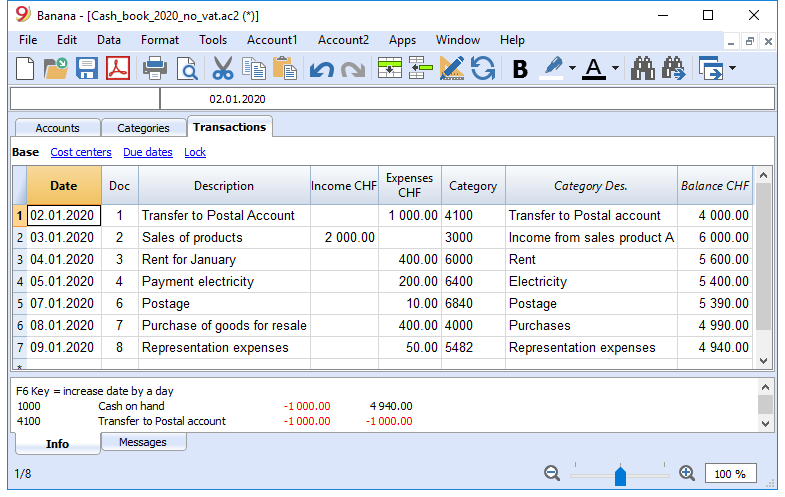
In the Transactions table, income and expense transactions are entered, indicating the category to which the income or expense is attributed.
Speeding up the recording of the transactions
In order to speed up the recording of your transactions, you can use:
- the Smart fill function that allows the automatic autocomplete of data that have already been entered at an earlier date.
- the Recurring transactions function (Account2 menu), used to memorize recurring transactions into a separate table.
- import of your bank or postal account statement.
Transactions with VAT
In order to enter transactions with VAT please proceed as follows:
- from the File menu, choose New command and choose Income /Expenses accounting - Cash Manager with VAT/Sales tax
- Choose one of the existing templates for your nation.In order to enter transactions with VAT, please refer to the Transactions page.
The Category or Group card
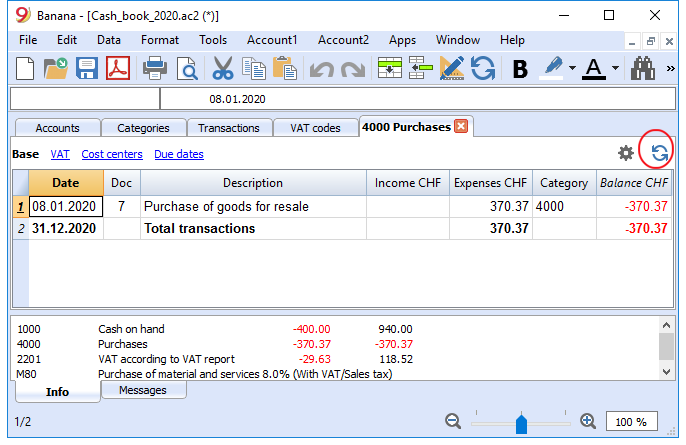
The Category or Group card allows you to have a complete list of accounting entries relating to the same category or group.
- To open an category or group card you click once on the account number cell and then click once on the small blue arrow appearing in the upper right corner of the cell.
- To open multiple category or group cards you must select the Account cards command from Account1 menu.
- To update the category or group cards, following changes in the Transactions table, you must click on the two circular arrows symbol, located at the top right corner of the account card.
Account cards per period
To open an category cards with account balances referring to a predefined period, click on the Account1 menu, Account/Category cards ...command and click Period selected in the Period tab to insert your selected period.
Consult the Period page for further information.
Print the Category card
To print a Category card, open it from any table (Accounts or Transactions) and start printing from the File menu.
To print out several or all the Account/category cards, click Account1 menu, select Account/category cards and select the accounts/categories you wish to print. The filter in the window allows you to select automatic selection of all categories, cost centers, segments, groups etc ...
For further information refer to the Account Cards page.
Enhanced Statement
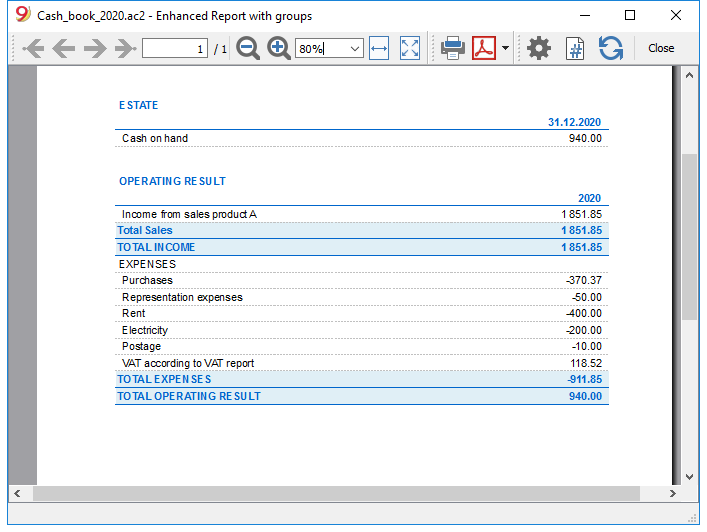
To view the Enhanced Statement and the Enhanced Statement with groups, choose the Account1 menu and then the Enhanced statement or Enhanced statement with groups command. You can also obtain statements by period.
- The Enhanced statement displays all accounts and categories without any subgroups
- The Enhanced statement with groups displays all accounts and categories also with subgroups
Archive data in PDF format
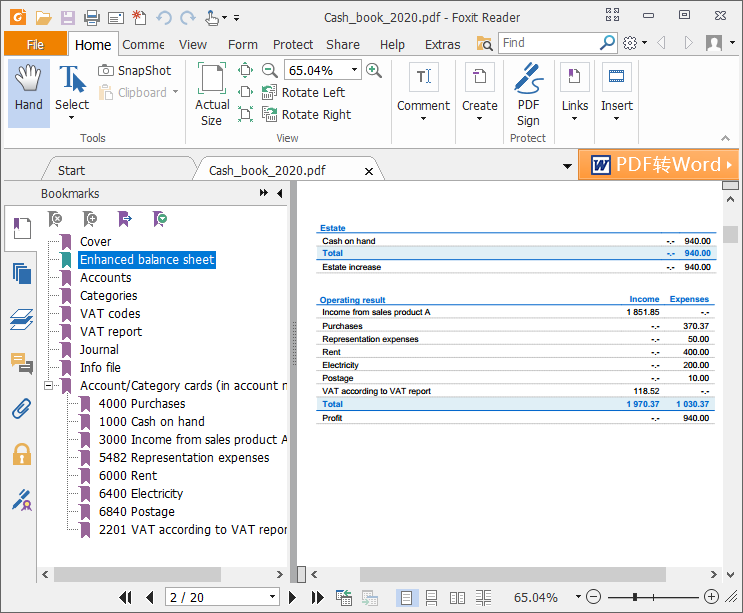
At the end of the year, when the accounting is done, corrected and revised, you can store all accounting data with the Create Pdf dossier command from the File menu.
The Budget
Before starting your accounting year, you can create a budget with your assumed expenses and revenue, in order to have control over the financial and economic situation of your company.
The budget can be set in two different ways:
- From the Budget column of the Categories table. For each account the yearly budget is indicated.
In this case, when you process the Budget from the Account1 menu, Enhanced statement with groups command, the Budget column shows the amounts that relate to the entire year. - From the Budget table, that you need to manually activate using the Add new functionalities command from the Tools menu.
In this table all estimates are entered as budget transactions, either income or expenses. If you activate this table, the Budget column of the Accounts table is automatically deactivated.
In the Budget table you can setup a detailed budget that takes into account possible variations during the year and in different periods of the year.
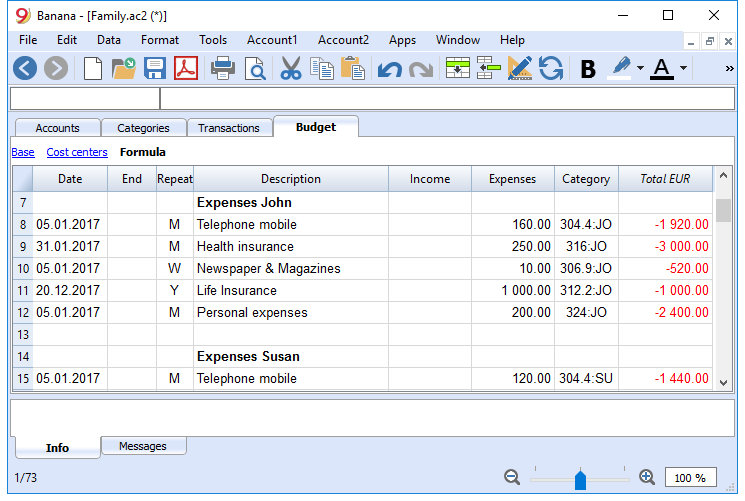
Tabella Conti
La tabella Conti del Cash Manager contiene un solo conto e non è possibile aggiungere altri conti.

Le colonne della tabella Conti:
Gruppo
La colonna rimane vuota.
Conto
Si inserisce il numero o sigla del conto da gestire (cassa, banca, posta).
Descrizione
Si inserisce una descrizione relativa al conto inserito.
Apertura
Solo la prima volta che si usa un file nuovo o si usa per la prima volta Banana contabilità, occorre inserire il saldo di apertura. All'inizio del nuovo anno con l'apertura in automatico, il saldo del conto viene aggiornato automaticamente.
Entrate
La colonna è protetta e riporta il saldo delle registrazioni in entrata. Dopo ogni registrazione il saldo è aggiornato in automatico.
Uscite
La colonna è protetta e riporta il saldo delle registrazioni in uscita. Dopo ogni registrazione il saldo è aggiornato in automatico.
Saldo
La colonna è protetta e riporta il saldo complessivo tra le entrate e le uscite. Dopo ogni registrazione il saldo è aggiornato in automatico.
Caratteristiche del Cash Manager (Libro cassa)
Il Cash Manager è un applicativo di Banana contabilità, completamente gratuito. Possono utilizzarlo tutti, dai ragazzi agli adulti e senza alcuna conoscenza contabile. È semplice e intuitivo, con una struttura a tabelle, simili a Excel.
È ideale per gestire la liquidità di piccole aziende, associazioni, imprese individuali o per gestire progetti. Per alleggerire il file della contabilità, puoi tenere il file della cassa separato e poi periodicamente importare i movimenti, raggruppati per periodo, nel file della contabilità principale.
Grazie al Cash Manager puoi registrare velocemente tutti gli scontrini e con la loro scansione puoi allegare la documentazione in pdf direttamente nel file della cassa. Tutto è ordinato e a portata di mano e se devi controllare qualche movimento, basta un click per aprire il documento.
Le caratteristiche del Cash Manager sono del tutto simili a quelle della contabilità Entrate e Uscite, con la differenza che nella tabella Conti del Cash Manager puoi inserire un solo conto, mentre nella contabilità Entrate e Uscite puoi inserire quanti conti desideri, di natura patrimoniale.
Puoi scoprire tutte le caratteristiche al link seguente:
- https://www.banana.ch/doc/it/node/9731
Tabelle Kategorien
In der Tabelle Kategorien sind die Einnahmen- und Ausgabenposten enthalten.
Folgendes kann frei definierbar eingegeben werden:
- Die Kategorien; Einnahmen- und Ausgabenposten.
- Beliebige Kosten- und Profitstellen.
- Totalisierungsgruppen.
Weitere Informationen zum Gruppierungs- und Totalisierungssystem finden Sie auf der Seite Gruppen der doppelten Buchhaltung.
Im folgenden Beispiel sind zwei Hauptgruppen vorhanden:
- Gruppe 3 - Totalisiert alle Kategorien, welche in der Spalte 'Gr' über den Wert "3" (Total Einnahmen) enthalten
- Gruppe 4 - Totalisiert alle Kategorien, welche in der Spalte 'Gr' den Wert "4" (Total Ausgaben) enthalten
- Gruppe 00 - Totalisiert Gruppen 3 und 4 (Totale Einnahmen und Total Ausgaben) und ergibt das Geschäftsresultat des Buchhaltungsjahres.

Die Spalten der Tabelle Kategorien:
Sektion
In der Spalte 'Sektion' wird dort ein Stern (*) erfasst, wo ein Titel eingefügt wird, der im Formatierten Ausdrucks nach Gruppen übernommen werden soll. Im obigen Beispiel wurde der Stern auf der Zeile mit 'Beschreibung' "Betriebsergebnis" erfasst.
Sind ausser Einnahmen und Ausgaben andere Sektionen vorgesehen, z.B. Kosten- und Profitstellen, wird in der Spalte 'Sektion' der Zeile mit dem Titel ein weiterer Stern eingefügt. Für weitere Details sehen Sie bitte unsere Anleitung Spalte Sektion.
Gruppe
In der Spalte 'Gruppe' werden Identifikationen (Nummer oder Code/Kürzel) eingefügt, welche diejenigen Kategorien der Tabelle Kategorien totalisieren, deren Spalten 'Gr' denselben Wert enthalten. Dies ist für die Totalisierung alle Kategorien mit demselben 'Gr' notwendig (im obigen Beispiel totalisiert die Gruppe 3 alle Einnahmen-Kategorien und die Gruppe 4 alle Ausgabenkategorien).
Beschreibung
In dieser Spalte wird eine Beschreibung für die Identifikation der Einnahmen-Kategorie oder Ausgabenkategorie erfasst.
Gr
Jede Kategorie hat eine Identifikation, die bestimmt, in welcher Gruppe sie totalisiert werden soll (im obigen Beispiel verfügen alle Einnahmen-Kategorien in der Spalte 'Gr' über den Wert "3", um sie in der Gruppe 3 "Total Einnahmen" zu totalisieren.
Einnahmen
Diese Spalte ist geschützt und gibt den Saldo der Einnahmen-Buchungen wieder. Der Saldo wird nach jeder Buchung automatisch aktualisiert.
Ausgaben
Diese Spalte ist geschützt und gibt den Saldo der Ausgaben-Buchungen wieder. Der Saldo wird nach jeder Buchung automatisch aktualisiert.
Saldo
Diese Spalte ist geschützt und gibt den insgesamten Saldo der Einnahmen- und Ausgaben-Buchungen wieder. Der Saldo wird nach jeder Buchung automatisch aktualisiert.
Budget
Für das Eingeben der Budgetwerte sehen Sie bitte unsere Anleitung Einfaches Jahresbudget.
Registrazioni Preventivo
Nella tabella Preventivo si esegue la pianificazione finanziaria.
Le previsioni vengono inserire come se fossero delle normali registrazioni, come nella tabella Registrazioni.
Si possono anche inserire Quantità e Prezzi e anche delle Formule di calcolo.
Per maggiori informazioni sul Preventivo, consultare la pagina Tabella Preventivo.

Transactions
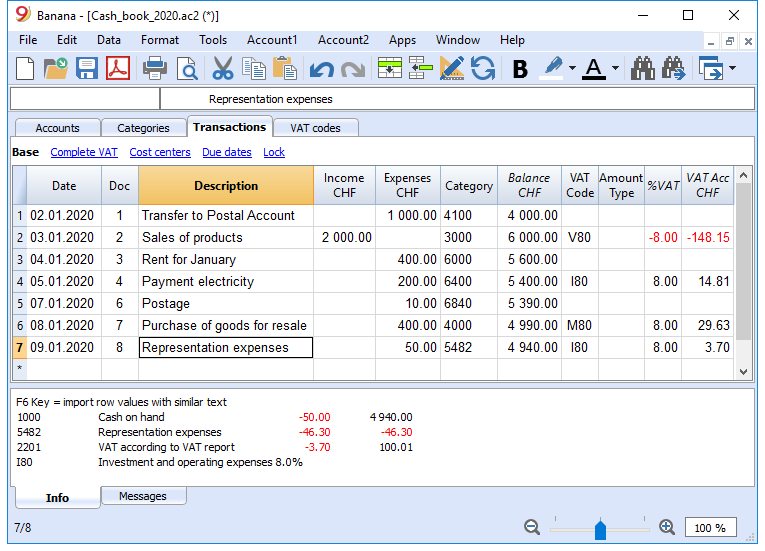
The transactions are entered in the Transactions table.
For further information relative to the columns used in the Transactions table of the Cash book, refer to the Transctions (Income & Expense accounting) page.
For each operation enter the following:
- the date
- the document number
- the description
- the income or expense amount
- the category relevant to the income or expense in the Category table
- should the transaction be subject to VAT tax, enter the VAT code in the VAT code column.
The VAT codes are listed in the VAT codes table.
Speeding up the recording of the transactions
In order to accelerate the recording of the transactions, you can use
- the Smart fill function that allows the automatic autocomplete of data that have already been entered at an earlier date.
- the Recurring transactions function, used to memorize recurring transactions into an appropriate table.
- importing bank or post office statement.
Examples of transactions without VAT
Examples of transactions with VAT
Category card
To display the entries of a category, click once on the small blue arrow appearing in the upper right corner of the cell.
The display of entries in the Categories table is identical to the one in the Transactions table.
To update the category or group cards, following new entries or changes in the Transactions table, you must click on the two circular arrows symbol, located at the top right corner of the category or group card.
Printouts
Instant information
The account balance and those of the income and expense categories are on ready display in the Accounts and Category tables.
After each entry of a transaction, balances are adjusted automatically and there is no need to run a report, as you can simply display the Accounts or Categories tables.
Advanced printouts
All printing is run from the Account1 menu, where the different functions for prining are located:
-
Journal - command to define the period. You can display and print the whole table or just a specified period.
-
Account/Category cards command. You may select all cards or define your selection.
Define the required period in the Period tab and click the required settings in the Options tab. Print settings can be saved in the Composition tab so they can be resumed without them to be having defined again. -
Enhanced statement command. You may also print a defined period and various options and compositions may be included.
-
Enhanced statement with groups command. You may also print a defined period and various options and compositions may be included.
-
Accounting report command. The required options are displayed in the Accounts table. Reports are possible for current, previous periods or previous years; each period may contain subdivisions and the compositions can be saved.
Example of printout of Enhanced statement with groups