Customers sub-menu
Customers' register and checking of open invoices
Directly in the accounting you can:
- Prepare customers' accounts, with the related addresses and other customers' data.
- Add to the transactions:
- the data related to the issued invoices (invoice number, customer, amount, due date).
- the data related to the payment for the invoices and the issuing of credit notes, if any.
- Retrieve the list of your Payments schedule
Other features available:
Setting up and using the customers and invoices features
- Setting up accounting on actual bills issued (accrual principal) or setting up accounting on a collected cash basis.
- Setting up Customers and Suppliers' settings
- Setting up the Transactions table and entering the invoices
- Reports for open, overdue and issued invoices
- Generating invoices
Notes
- Multi-currency accounts: reports are based on the customer's account currency balances; possible exchange rate differences will not be taken into account.
In the Issued invoices table, the recordings of exchange rate differences are also listed, while in other prints only the customer's currency amount is used. - The Description column will replicate the first for recorded row for each invoice.
- For the accounting files based on cash received, you can setup a customers register with the Cost Centers.
Example file
Customers setup with the accrual method
Introduction
Banana Accounting allows you to manage the accounts and also the customer and supplier invoices both on an accrual basis and on a cash basis.
The following explains how to set up separate accounts for each customer and a group for customers, so that you can have a list of separate invoices per customer available.
In case you only have a few invoices and don't want to keep a detail per customer, you may also keep one account only to record all customer invoices. The list of invoices will thus apply for all customers and not for any single customer.
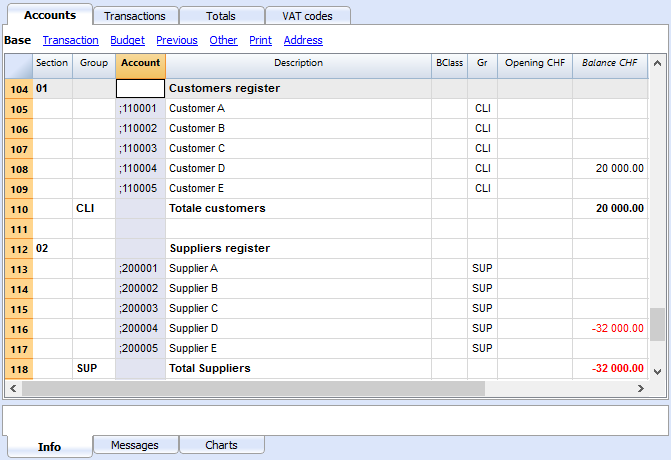
Setting up the Clients' register
- A * section (header) (see Sections)
- A 01 section for the Clients (see Sections)
- The Clients accounts that are required (see Adding a new account). Each customer will be allocated one row in the Plan of Accounts and a his/her single account number. Account numbers is at your discretion (see Accounts) it is however advisable to use numbers only, especially for the management of payments.
- A group where all customer accounts are totalled.
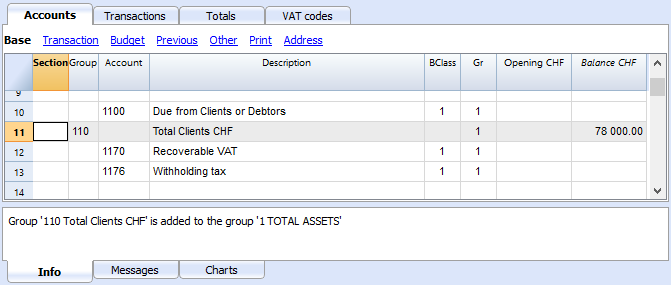
- This group, in turn, is totalised into a group present in the Assets.
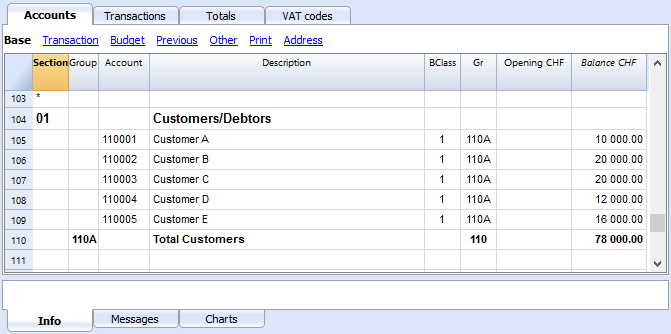
- The total for Clients will be totalised in the summary group 110A of the Gr column.
- The same code or number used for the Gr (110A), must be used in the Assets Group column, in the row corresponding to the Total Customers of the Balance Sheet.
The groups' numbering can be freely chosen (see Groups).
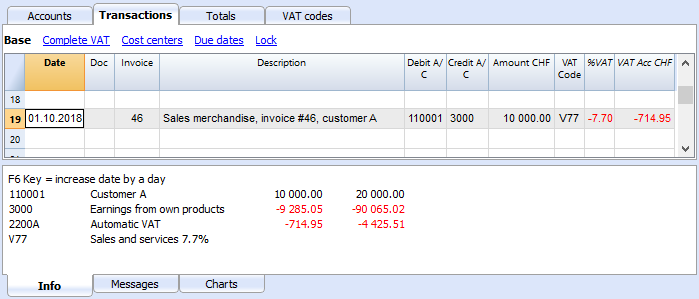
Recording an issued invoice
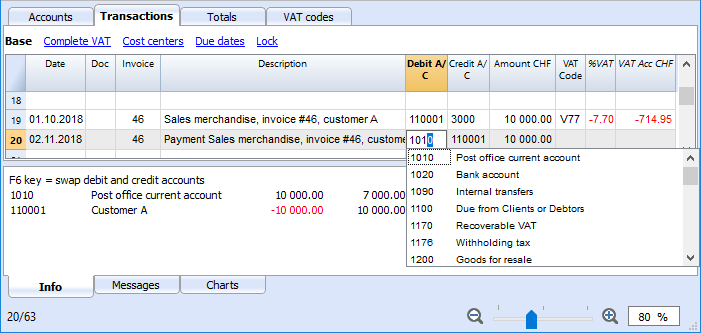
Recording a payment
- Enter the transaction date
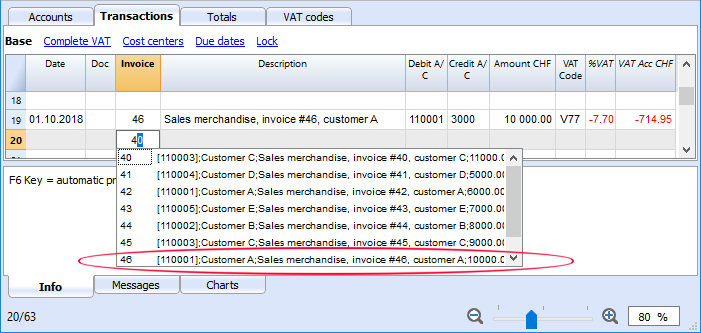
- Position yourself in the Invoice column cell and click on the F2 button. If the F2 button doesn't work, you need to activate your customers/suppliers settings, by entering your register's group (ex.: Account2 menu, Customers, Settings). A list of all open invoices will display.
- Alternatively, you may also start by entering the invoice number, the customer/supplier name or the amount, and the program will show you the list of the open invoices according to your search data.
- Select the desired invoice and press Enter.
- The program completes the Transaction with the Description column, the Credit account and the Amount. The program will report a difference if the account number of the counterpart is not inserted.
Enter the account into which the invoice amount has been transferred
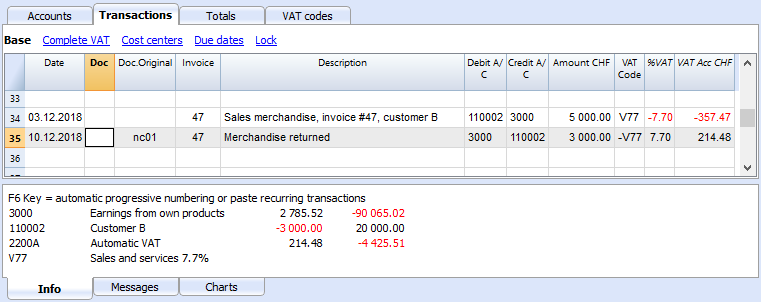
Recording a credit note
In order for the amount to be deducted from the original invoice, the same invoice number needs to be used. If the corrective document (for example, a credit note) presents a different number that needs to remain available, such a reference can be entered in another column, such as Doc. Original. Refer also to Print credit notes.
Customers setup with the cash method
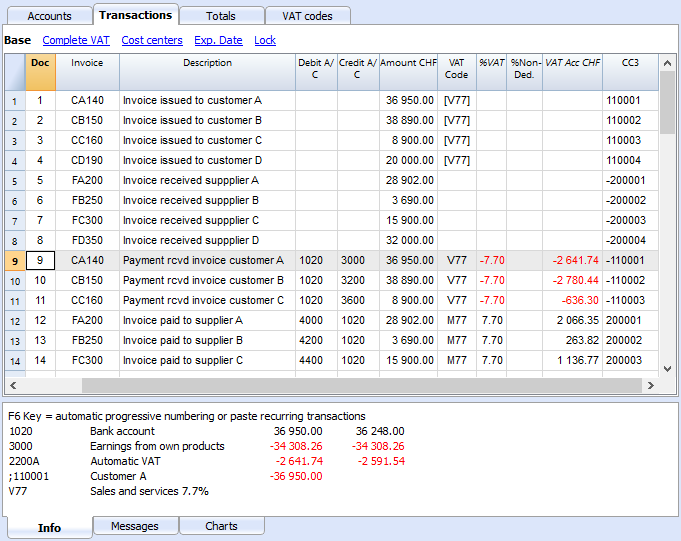
Setting up the clients/suppliers register with cost centres
For all Swiss users who manage the VAT on cash received, this setup is the best to manage the VAT.
It is possible to manage the customers/suppliers register as cost centres (see also the Cost and Profit Centers page). A detailed explication is available in the Accounting on turnover or collected page.
- It is advisable to use the CC3 cost centre (where the accounts are preceded by a semi-colon ";")
- The cost centre balances for customers and suppliers will not appear in the Balance Sheet.
Transactions
More information is available at the page Clients and suppliers with VAT, using the Cash principle.
Miscellaneous operations
- Displaying the Invoice column in the Transactions table
- Autocomplete of invoice data
- Extract invoice rows and Open invoice link commands
- Activating the Address columns (optional)
- Setting up the expiration date for invoices
- Setting up the Customers' parameters
Displaying the Invoice column in the Transactions table
The invoice number has to be entered in the Invoice column (DocInvoice) which, in the default settings, is not visible in the Transactions table.
In order to display the column:
- Select the Transactions table
- Data menu
- Columns setup command
- Activate the Visible option for the DocInvoice column
The Invoice columns becomes visible.
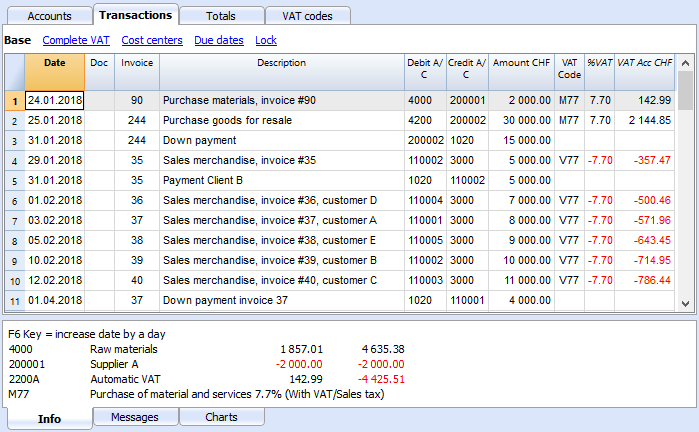
The Open Invoice link and Extract invoice rows commands, described below, are linked to the Invoice column (right click on the Invoice column's cell).
Autocomplete of invoice data
When a payment is being recorded or an issued invoice is being corrected, the program offers suggestions to complete the transaction automatically. Proceed as follows:
- Create a new transaction row and add the date
- In the Invoice column, press the F2 key; the list of open invoices will appear. If you type an invoice number or an account number, the list will be filtered based on the entered text.
- Select the required invoice and press Enter. The program will automatically complete the transaction with the description, debit or credit account and the amount. These data can also be modified manually.
- Apart from the date, you may also indicate the Customer account before pressing F2 in order to display the list of open invoices; in this case the list will be filtered, based on the Customers account of the transaction row.
Note
The list displayed in the Invoice column includes both the Customers' and Suppliers' invoices. A supplier's invoice may have the same number as the invoice of another supplier, because the criterion for display takes into consideration the invoice number besides the Supplier's account number.
The Open Invoice link and Extract invoice rows commands, described hereunder, are linked to the Invoice column (right click on the Invoice column's cell).
Extract invoice rows and Open invoice link commands
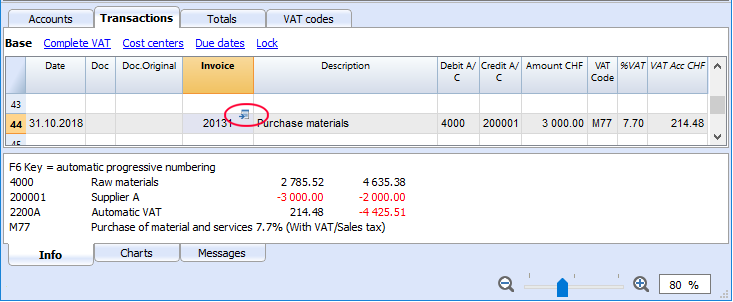
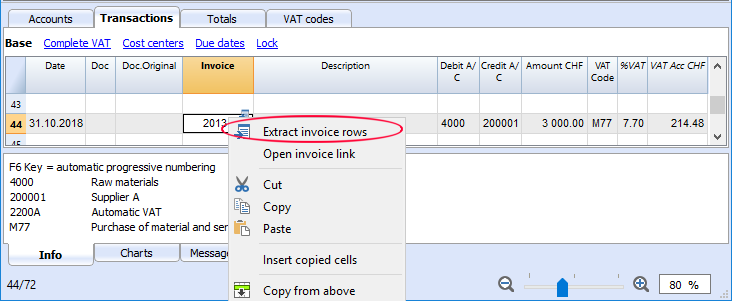
The Extract invoice rows command displays the transactions for the selected invoice.
The command is available by clicking on the small blue symbol at the upper right corner of the cell or with the right mouse button.
The Open Invoice link command provides the text, as defined in the Customers' settings (Account 2 - Customers - Settings - Advanced - Link to the Invoice document).
For example, if the invoices have been created with Winword and saved in the Documents folder, these files can directly be opened by setting up the command line with the text 'C:\Users\myname\Documents\<DocInvoice>.doc' . The program substitutes <DocInvoice> with the text corresponding to the column and executes the command.
In the command line, it is also possible to indicate other columns of the table by using their XML names.
If the message 'File with extension considered unsecure' is displayed, add the extension (for example .doc) using the command Tools - Program Options, Advanced, File extension command.
Activating the Address columns (optional)
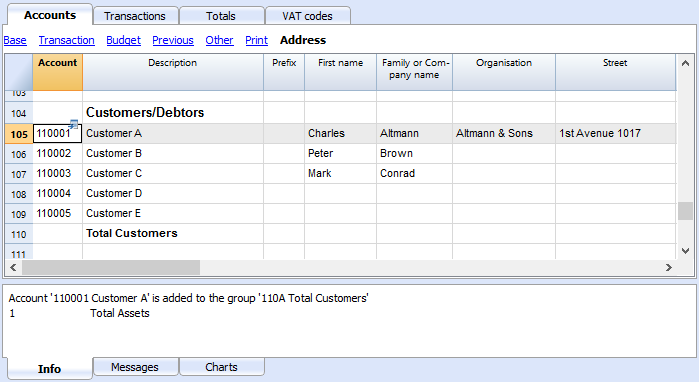
It is possible to add some specific columns in the Chart of Accounts, to insert the address and other customers data:
- Choose the Add new functionalities command from the Tools menu
- Choose the Add addresses columns in the Accounts table command
(If you don't see this option in the list, it means that this function has already been activated).
In the Accounts table the program will add :
- An Address view, where the added columns are made visible.
- The columns that allow the insertion of the address data and other information.
- To display one or more of these columns, use the Columns setup command from the Data menu.
- To create other views with only selected columns, use the Tables setup command (Data menu).
Select Accounts table, Address view and add the required information to the customers' accounts.
Setting up the expiration date for invoices
To set / modify invoice expiration dates, you may intervene on three levels, where higher priority is given to the first one. Expiration data will be displayed in the payments schedule and printed out on the invoice document.
1. level - setting the expiration date on an individual invoice
In the row of the Transactions table, where your invoice is entered, you will find an Date Exp. column when using the Due Date view. If a date is set up, it will have priority over dates set up on the 2nd or 3rd level.
2. level - setting the expiration date on an individual customer/supplier account
In order to set up an expiration date on a client level, for example +20 days after issuance of the invoice, select the account in the Accounts table, using the Address view, go to the Days Column (PaymentTermInDays) to set up the number of days to be used.
3. level - general setup
Expiration dates applying to all Customers/Suppliers can be set up via menu Account2>Customers>Settings...
Setting up the Customers' parameters
- Select the Account2 - Customers - Settings command
- Please indicate the group of the Chart of Accounts in which the different customers' accounts are grouped in "Group or account".
- For an explanation of the different options, go to Customers and Suppliers settings.
Payments schedule
Displaying invoices issued to customers
Account2 menu - Customers command - Invoices issued to customers...
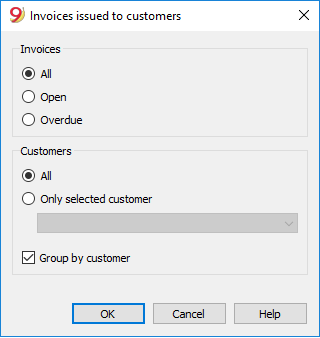
This dialog box is identical for both Customers and Suppliers functions.
The following explains the functions related to customers, but they also apply to suppliers.
All customers
Displays the account statement of all customers belonging to the group, as defined in the Customers and Suppliers settings.
A single customer
Displays the account statement for the customer selected belonging to the group defined in the Customers and Suppliers settings.
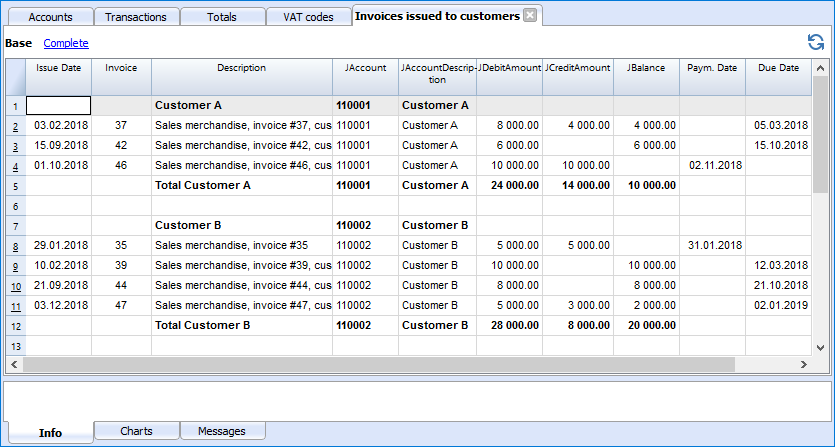
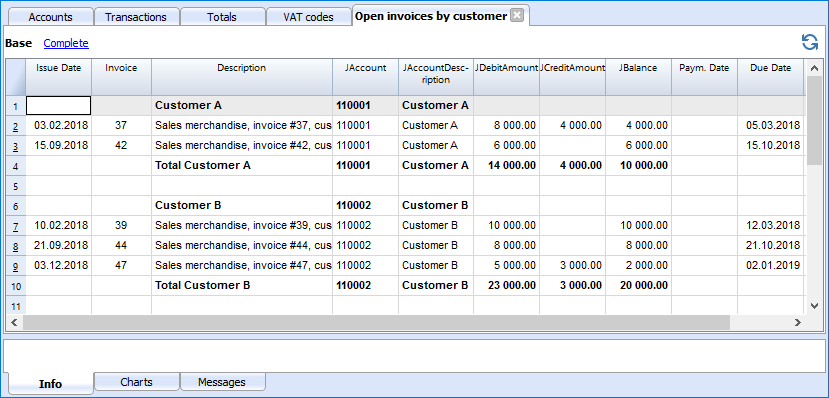
Displaying open invoices
Command: Account2 - Customers - Open invoices by customer
Invoices showing an open balance are being listed in this table.
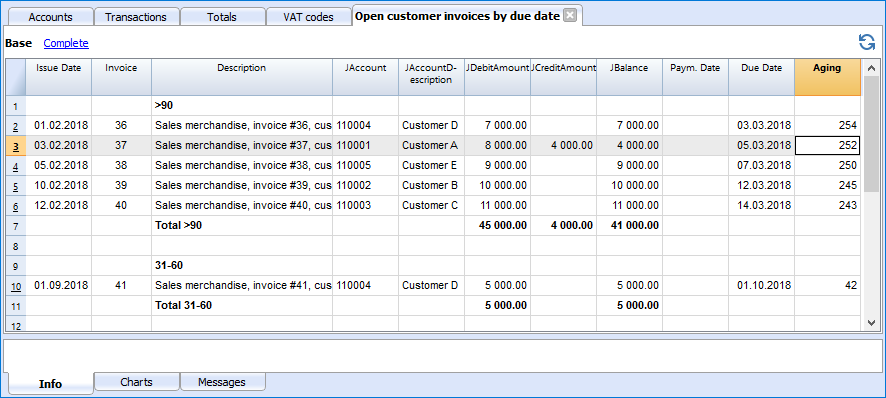
Displaying overdue invoices
Command: Account2 - Customers - Open invoices by due date
In this table, invoices showing an open balance are being listed, filtered by expiration period.
Customers' & suppliers' settings
This dialog box is identical for both customers and suppliers functions.
The following explains the functions related to customers, but they also apply to suppliers.
As long as you have not indicated the customer or supplier group, the customer menu choices are disabled.
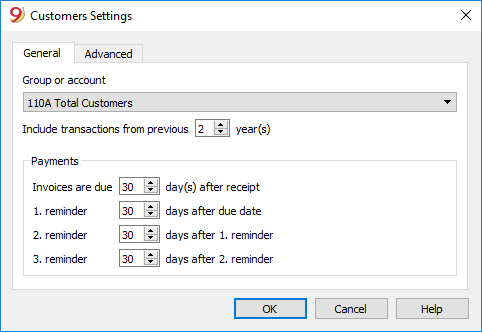
General
Group or account
Select the generic group or account that contains the Customers or Suppliers list. The group or the account needs to be already present in the Accounts table. See Setting up the Customers' register and Setting up the Suppliers' register.
Due date invoices (in days)
The program uses the following order of priority to calculate the invoice deadline:
- The due date if you entered it into the transaction row.
If there is more than one date for the same invoice number, the most recent one applies. - If the number of days is indicated in the PaymentTermInDays column of the Accounts' table, the date of the transaction, incremented by the number of days set.
- The date of the transaction is incremented by the days indicated in the settings dialog box.
Include transactions from previous (years)
- If 0, the program will not display invoices from the previous year, but only the opening balances of the customer account.
- If 1, the program will also include the invoices of the previous year in the customer card.
- If 2 or more, the program will also include invoices from years before in the customer card.
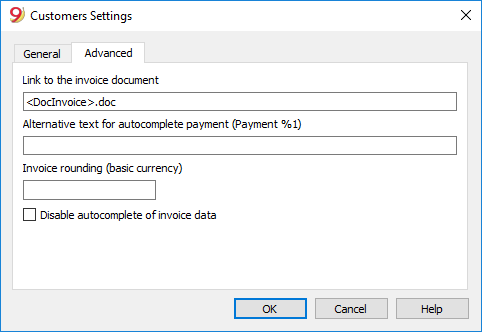
Advanced
Link to the invoice document
You can insert a link to an invoice file (pdf, doc or other) in the Link to an invoice field. If a link is inserted in the Transactions table and the invoice number is entered in the Invoice column, the program will open the document, allowing you to access all the data contained.
The link may contain:
- The XML name <DocInvoice> or the name of another column contained between <>.
If you use the "<DocInvoice>.pdf" command and you are on the row with invoice number 100, the program will try to open the "100.pdf" file. You can also prefix the filename with the name of a directory. -
You can use any file name extension. This extension must, however, be included in the list of file extensions considered safe (Tools- Program options-Advanced).
- It is also possible to indicate a path preceding the field name, that consists of the name for the document to be opened.
- With the link "c:\temp\<DocInvoice>.pdf" and the invoice number 100, the program proceeds to open the file c:\temp\100.pdf.
- The name of the directory is relative to the directory where the file is located.
Opening an invoice document
- Position yourself in the Invoice column of the transaction row related to the invoice you wish to open
- Click the right mouse button to open the context menu
- Choose the command Open invoice link.