全球通用的财务会计软件
创建自定义的会计文件
Banana 财务会计软件是一款全球通用的专业财会软件, 可用于任何国家,部门或操作系统。
多功能,多用途,用户可进行自定义的设置,并可以完全适应用户的会计文件:
- 创建具有任何编号和结构的会计计划。
- 使用您首选的语言和本地设置。
- 定义帐户应该如何被组在一起。
- 定义成本中心和分部。
- 在账户和发生业务表内添加列,并在其中添加任何您所需的信息。
- 定义增值税计算自动化的增值税代码(或销售税代码)。
- 客制化资产负债表和损益表。
- 创建用于打印或导入或导出数据的扩展名。
与Excel相似
Banana 财务会计软件,类似于Excel,基于相同的电子表格概念,灵活易使用,并且像Excel一样,一次只可有一人在同一个文件上工作。
选择不同的记账方法
它提供预定义的会计电子表格,支持的会计方法有:
- 现金簿记账
- 收益&费用核算
- 复式记账
- 多汇率的复式记账
它还具有预定义的电子表格:
- 地址簿管理。
- 文库与图书管理。
Banana财务会计软件在不同的国家和地区
Banana 财务会计软件可用于不同的国家和不同的行业
- 复式记账是全球通用的记账方法
- Banana 财务会计软件支持不同的语言和本地化的设置
- Banana 财务会计软件可以很容易的参数化
- 通过 Banana应用程序(Apps),可以轻松扩展 Banana 财务会计软件
创建您所需要的会计文件
通过Banana财务会计软件, 您可以轻松创建完全符合您需求的会计解决方案。
- 查看不同国家和行业的大量预定义模板。
- 选择和您所需相似的模板 (语言和方法),然后再根据您的需要进行更改。
- 查看在线必备文件。
瑞士Banana财务会计公司拥有专业的国际会计团队
我们的会计团队拥有丰富的国际经验,会竭诚为您服务,为您创建最好的会计解决方案。
- 我们在全球120多个国家拥有客户。
- 多语言的工作环境。
- 我们拥有许多会计和财务系统的经验。
Banana应用程序(Apps)
通过Banana应用程序,您可以扩展Banana财务会计软件来满足您所有的需求:
- 组合不同账户,部门的报表。
- 使用不同帐户分组的报表。
- 打印所需资产负债表的传真。
- 打印每月增值税报告的传真。
- 根据税务要求创建导出文件。
- 创建尚未支付到期金额的关联列表。
- 检查会计数据,使其符合特定标准。
- 计算利率。
- 在不同的人中划分费用。
- 规划您的业务。
- 计算比例。
- 创见图表。
现有的Banana应用程序(Apps)
以下是一些例子,并且发布有 Apache 2.0 开放资源的许可证。
- 奥地利
- 中国
- 中小企业会计模板
根据中国标准会计计划和标准增值税(中英文本)创建的模板
- 中小企业会计模板
- 德国
- 为GLS银行网银对账单格式导入文件
Project by Bernhard Fürst
- 为GLS银行网银对账单格式导入文件
- 意大利
- 威尼托(意大利东北部的一个政区)非营利组织的会计计划
被区域和国家当局要求的会计计划和报告。
与帕多瓦志愿者服务中心共同开发的项目。
- 威尼托(意大利东北部的一个政区)非营利组织的会计计划
- 荷兰
- 审计文件 (根据荷兰税务局要求导出格式为XML的会计数据)
- 瑞士 - 提挈诺州
- 美国非营利组织
- 非利润账户统一图表(UCOA)。
根据UCOA的要求设置会计计划。
- 非利润账户统一图表(UCOA)。
您将使用的工具介绍
- 当创建新的会计计划的时候,您可以选择会计的类型,语言以及更适合您的模板。
- 在文件和会计属性中,您可以设置会计文件内的基本货币,地址和其它选项。
- 您现在可以保存文件并根据需要进行调整,随后将其用作模板。
对于每年和每个公司,您需要设定不同的文件名。 - 在帐户表中,您可以设置您所需的帐号,摘要,分组,成本中心和部门。
- 如果您要管理增值税,请在增值税代码表中输入不同的增值税百分比。
- 如果您选择了多币种的记账方式,汇率表将允许您指定不同的货币和汇率。
- 一旦您完成了设置,便可开始记账。
- 在按组生成资产负债表中,您可以设置和保存不同的打印输出设置。
- 使用 Banana应用程序,您可以创建适合税务申报,特定行业的数据,呈现出所需的打印输出。
- 如果您的银行存在一个特定的网银对账单格式,那么您可以创建一个导入过滤器,将银行数据转换入Banana会计软件内的发生业务中。
创建一个新的会计记账文件
请您查看创建一个新的模板。
XBRL 分类法
也可以创建一个特定于一个国家XBRL格式的实例文件。
文件尚未准备好,如有需要,请随时与我们联系。
Case guide
Banana Accounting is a versatile accounting software. It can be used for different purposes.
When accounting is mandated by law
Business
- Required to do double entry accounting
Double entry accounting, with/without VAT or with/without multicurrency- Small companies (10 or more employees).
- Micro companies (1-9 employees).
- Companies or other organization with no employees.
Financial and Holding companies, Foundations, Asset management, Trusts.
- Required to report Revenue and Expenses.
- Small companies with revenue less then a specified amount
- Self employed individuals.
Certified public accountants (CPA)
CPA doing accounting for small businesses usually prefer to use Double entry accounting.
Not for profit organizations
- Small non profit organization.
Income and expense accounting or double entry accounting. - Entities with institutional and commercial activities.
Double entry accounting. - International NGO
Double entry accounting with multi-currency.
Public sectors
- Small public entities.
Double entry accounting
Private and family accounting
- Private and Family accounting.
Income and Expense accounting. - Private and Family accounting with international investments.
Double entry accounting.
Auxiliary accounting
- Cash and liquidity management.
Income and Expense accounting.- Simple cash manager.
- Liquidity manager.
Companies that have a person that keep track of cash and banks.
- Project and Department accounting.
Income and Expense accounting.- Internal projects within larger organizations.
- Construction accounting.
Double entry or Income and Expense accounting.- Owners that build a property and keep track of the investment and progress.
- Contractors or architects that have responsibility of the construction’s project.
- Property management accounting.
Income and Expense accounting or Income and Expenses accounting.- Owner that mange a rented property.
- Condominiums.
- Professionals that manage properties for others.
Education
Banana Accounting is used as a tool to learn and exercise Double Entry Accounting.
- Basic accounting in low grade school.
- Introduction to accounting.
Show how the accounting works, with possibility. - Accounting training.
Students enter transactions (exercises on double entry accounting). - Accounting for a virtual company..
Budgeting and financial planning
Use the financial planning functionalities of Banana Accounting.
- Budgeting.
- Financial plan for a startup.
- Retirement planning.
创建文件模板
第一步是通过选择更合适的类型和语言来创建一个新的会计文件 (点击文件菜单中新建的命令)。
- 选择适合您的模板,然后您可以在模板中根据自己的所需进行更改。
- 在以下的示例中,我们假设您选择的是企业复式记账的模式。
- 一旦您创建了新的文件并且进行了命名及保存,那么此文件便可用作您的会计核算文件,也可用作其它公司的模板。
软件中不存在该语言的选项
您可以创建所需语言的会计文件,即使在软件中没有该语言的选项。
- 通过使用与您所需相似语言的模板来创建一个新的模板。
- 翻译会计计划。
根据所需翻译并调试会计计划中的摘要。 - 翻译列标题。
- 数据菜单 -> 列设置。
- 更改每列的标题。
使用不同的设置来创建一个会计文件
如果模板的设置不适合您,那么您可以进行以下的操作:
- 工具栏菜单 -> 转换到新套账的命令, 您将创建该文件的副本
- 选择文件的类型
- 在跳出的窗口中设置您所需的语言及小数点的位数。
会计文件的属性
点击文件菜单中文件和账户属性的命令,在跳出的窗口中输入公司的名称,开账日期及结账日期。
您可以选择会计文件中的记账本位币。如果你所需的货币单位不在列表中,那么您可以手动输入。
会计计划
您所在的国家可能有自己特定的会计科目号及分组号码。
您需要在账户表内输入,或复制,粘贴所需的数据。
- 类会把会计计划定义为不同的部分。
- 资产负债表
- 收入报表
- 成本中心
- 部门
- 账号列 (账户号码)
是输入账户号码的地方。 - 总组列是输入总组号码的地方。
- 所属组列是您输入总组代码的地方,也是账户或总组被加总的地方。
当创建一个新的会计文件结构的时候,请您注意:
- 添加您所需的账号,如果没有需要,就没有必要创建一个非常庞大的会计计划。
用户可以随时添加新的账户。 - 请保持分组简单,以满足您国家分组的所需。
分组通常也符合国家的具体要求。 - 为了税收的目的, 您可能还需要一种不同于您用于资产负债表或收入表现的常规方案:
- 使用所属组1和所属组2的列, 为每个帐户分配不同的分组方案。
您将使用外部报告或者创建一个Banana应用程序,使用该号码将不同的帐户组合在一起。 - 如果您有严格的会计编号方案,还可以根据特定的号码来创建对帐户进行分组的Banana应用程序。
- 使用所属组1和所属组2的列, 为每个帐户分配不同的分组方案。
- 如果您需要具体的其它需求,请考虑创建一个Banana应用程序或Excel表格,该表单从会计文件中获取数据。
成本中心和部门
考虑使用成本中心和部门来进行更详细的报告。如果您没有如此特定的需要,也可以稍后再添加。
在Banana财务会计软件中,您可以最多定义:
- 3种类型的成本中心,每种类型的数量不限。
- 10个级别的部门,每种级别的数量不限。
您可以在记账的过程中使用成本中心和部门。
您指定业务的业务代码。成本中心非常灵活,它们通常被用作:
- 项目收支管理
- 注意特殊的发生业务
- 有一个平行的会计计划 (例如大型国际非政府组织)
有了借方和贷记账户,他们就有了内部的会计套账。
在成本中心,他们有捐助者会计计划记录的交易。 在任何时候,他们都有报告供内部使用或向捐赠者呈现。
在您输入账户时指定发生业务中的部门。您可以拥有一个不同于账户借方和贷方的部门。考虑用其来管理:
- 分支, 机构, 部门
- 不同类型的生意
增值税代码
在账户表中,您可以设置所需的所有增值税税率。 基本上有两种类型的增值税代码 :
- 增值税到期
- 可回收增值税
您可以根据所需百分比和目标来设置相关的代码。
您的国家将有一个具体的报告。使用Banana应用程序, 您可以创建一个打印输出,该打印输出是传真的形式,其金额已分组,并已根据需要进行了合计。
使用所属组1列或所属组2列来输入纳税申报表格内的编号,进行增值税代码的分组。 如果增值税代码需要被分组在多个地方,请使用分号“;”进行分隔。
使用增值税代码的优点是您可以配置会计,以便只使用适当的增值税代码来提取增值税报告所需的数据。 您可以只有一个账户,在此账户里正负增值税都会被记录。会计计划仍然会非常简单,使您可以专注于公司的需求。
还有其它的方法。例如在德国,Datev会计计划使用账户作为增值税报告的基础。对于每个具体的增值税案例,必须有相应的帐户。这种方法的缺点是具有特定意义的帐户(例如自动帐户),具有预定义的增值税百分比和规则是用户不可见的。这种会计更难以使用,除非您确切地了解目的。使用增值税代码,增值税的复杂性在增值税表中得到了解决。
因此,您可以选择创建一个会计计划,这是根据公司的需要,并使用增值税代码功能进行报告,或者为每种情况分配每个增值税交易,并在会计计划中增加许多的增值税帐户。
汇率表
如果您在汇率表中选择了多币种选项,您将设置要使用的货币。
一旦您指定了一种货币,就可以在账户中使用了。
合成资产负债表和损益表
您可以通过新的合成来创建资产负债表和损益表的预定义预览。
可以创建以下预定义的合成:
- 年末报表
- 试算表
- 实际与预算
- 按季度计算的列
- 按部门计算的列
调整账户表
在下面我们将解释为特定国家创建一个新的账户表时应考虑的事项。
- 创建账户结构并为特定国家进行分组。
- 使用 Banana API 提供的功能创建国家特定报告或导出文件。
必备文件
示例文件
- 示例文件在github/General/CaseStudies上可以使用。
- 下面将使用文件 "scalar_income.ac2" 作为标量会计计划的示例。
使用现有的会计制度
通常国家的会计制度包括:
- 账户编号
- 账户说明
- 账户分组和总计
国家或部门特定的会计制度通常着重于帮助准备资产负债表和利润表报告。
根据这个会计制度,如果税务部门要求的报表不同于资产负债表的结构,则还需要生成为特定的税收目的提供的报告。
账户表
在Banana财务会计软件中,账户表的分组被指定。
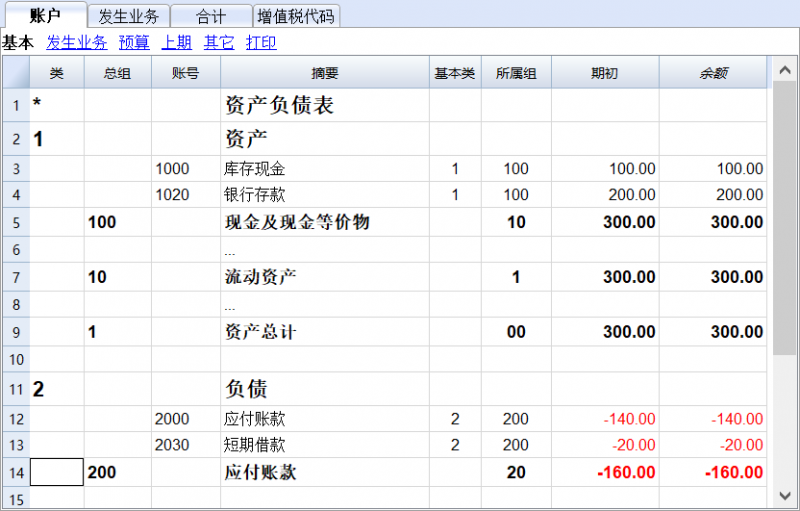
Banana财务会计软件可以适应不同国家或部门的具体要求,但是在刚开始Banana的分组系统看起来有点混淆,是因为不同的列包含了相似的信息。
账号,总组和类
账户表有三种不同类型的行
- 账号
在账号列中有一个账号编号的行。
账号可以是一般的账号,成本中心或部门 - 总组
在总组列具有总组编号的行 - 类
在类列具有类编号的行
账户表中的行可以是账号,总组或类。它们不能同时存在,所以如果在同一行上存在账号,总组或类,则会出现错误。
在上面的例子中有类,总组和账号的行。
这里意思是
- 账号
用于记录发生业务。 - 总组
用于创建总和。 - 类
用于分隔报告的不同部分。
合计和创建总计
在Banana财务会计软件中,您可以通过使用以下组合创建合计:
- 总组列
您输入总组编号,该行成为一个组。 - 所属组
在您输入总组编号的那一行,应该被总计。
账号和总组可以有一个所属组。
在上面的例子中。
- 账号1000和1020被累计到所属组100上。
- 总组100被累计到所属组10上。
- 总组10 被累计到所属组1上。
- 总组1被累计到所属组00上。
通过在所属组中创建组行并指定每个行是否分组,您可以创建一个总计。
借方总计 = 贷方总计
计算机表示的借方金额为正数,贷方金额为负数,因此我们应当在最终组中把所有账号和总组进行总计,如果计算正确,则应该将金额归零。
在分组结束时,我们将会有一个名为"差额应当为0(零)" 的组,在上面的会计示例中的数字是00。
基本上复式记账系统的总计是这样完成的。
- 收入和费用的组 (示例中组 E7)
这是收入和费用账户的合计。
年度利润或亏损在权益中进一步合计作为当年利润的结果。 - 资产的组 (示例中组2)
包含所有的资产类账户。
资产在组中被总计,差额应当为零。 - 负债和权益 (示例中组 2)
是所有负债和权益的合计,是所有负债和权益科目的总计,加上当年收入和支出总额的损益。
负债和权益的差额应当为0。 -
差异应该是0 = 0 (例如组00)
如果计算是正确的,所有账户和余额的总计应该为空。
基本类的列
在Banana中,每一列都有一个 (Banana 类的号码) ,表明该账户是否属于:
- 1 总资产
- 2 总负债
- 3 总费用
- 4 总收入
- 5 资产负债表外总计: 资产
- 6 资产负债表外总计:负债
- 7 总级别 7
- 8 总级别 8
- 9 总级别 9
基本类是一个有点多余的信息,但是如果让Banana会计正确也是很有必要的。
基本类有时也有些混淆,因为国家特定的会计制度通常具有与Banana中基本类不同的类别编号。
类栏
有时也是冗余的信息,但为了有可能定制资产负债表和其他的报告也是有必要的。
为平衡分组
- 资产
您需要去创建一个总资产组和中间的组(如固定资产)以便将特定于该资产的账户进行分组。 - 负债 (第三方资本和权益)
有子组- 第三方资本 (anglo saxan术语中的负债)
- 权益
损益表的分组
它将属于损益表的所有账户分组。最后应该有一组"亏损 (+) 利润 (-)。
有两个根本不同的制度来介绍损益表。一个分别合计收入和成本,另一个是 (标量系统) 利润和损失是从收入开始计算并得到中间结果。
收入和成本分开
有两个组被归纳在损益表里
- 总毛收入
- 总净收入
标量系统
(E1) 总经营
- 所有账户收入和产生成本总和
- (E2) 扣除人员费用后的经营业绩和总额
总经营组(E1) 和账户人员成本总计 -
(E3) 折旧和价值调整前的经营结果,财务业绩和税收(EBITDA)
E2和经营成本总计 -
(E4) 财务业绩和税前的经营业绩 (EBIT)
E3和折旧总计 -
(E5) 税前经营业绩 (EBT)
E4 和财务成本总计 -
(E6) 税前利润或亏损
E6 和特别成本总计 -
(E7) 年度损益
E6 和税收总计 - 在这种形式中,有必要创建中间组。
调整增值税表
In the following we will explain what need to be considered when creating a BananaApps for VAT reporting suitable a specific country.
- Creating the Vat code for the specific country.
- Creating the country specific reports or export files, using the functionalities offered by the Banana API .
Documentation
Examples files
- The examples files are available on github/General/CaseStudies.
- Solutions making use of the vat api.
Vat Table
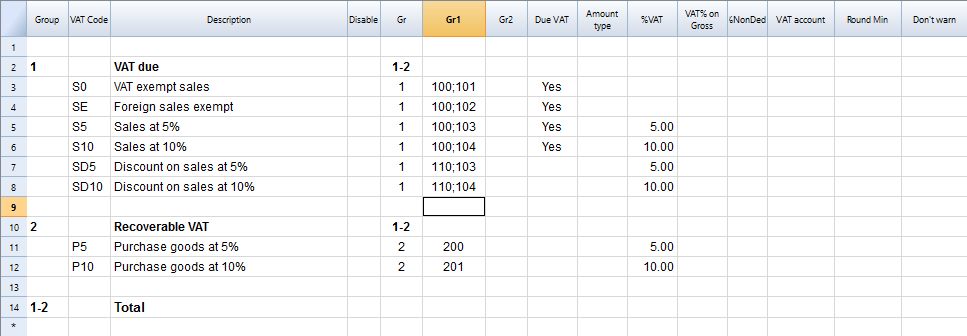
We have 2 main groups:
- Vat due to the tax autorithy.
- Vat recoverable
Creating the VatCode for a specific country
When you use Banana Accounting in a new country you need to adapt the VatCode table to your country needs. Basically you should procede as described here.
- You should be aware of how the Vat reporting form is. You need to create the VatCode so that the user can assign to the transcaction the correct code so that the Vat is calculated and the amount can be assigned to a specific item in the Vat declaration.
- If there are different Vat percentage you should create a VatCode for sales and a VatCode for recoverable, due the the fact that when there is a Vat declaration the Vat payable must be separated from the Vat recoverable.
- You may nedd to create more Vat code for the same percentage if the Vat tax form require you to separate some amounts.
Example, for a country that has a Vat percentage of 5% and 10%.
- For the 0% you need to report both the sales exempt and the export:
- Create a Vat code S0 for Vat Exempt (Vat due Yes even if percentage is 0)
- Create a Vat code SE for Vat Export. (Vat due Yes even if percentage is 0)
- For the 5%
- Create a Vat code S5 for sales at 5% (Vat due Yes)
- Create a Vat code P5 for purchase. (Vat due void, means recoverable)
- If you need to show separatly on the tax form the discounts create a Vat code SD5 for discount on sales at 5%.
If it is not necessary to show separatly the discounts, when entering the transactions for discount we precede the Vat code with the "-S5" so the amount will be reversed.
There are countries where the are many Vat percentage and a complex tax reporting form. In this case you will end up having a Vat table with many codes.
Use the Gr1 to groups Vat Code toghether
If the Vat amounts for different Vat code need to be grouped together you can use the Gr1 to enter to witch field the Vat code belong.
- When creating a BananaApps to groups the amounts together you can use this groups to report the amounts.
- In case the user need to add a new VatCode that fit in a form it can do it and it get correctly summed in the tax form.
Specify in the Gr1 the field number of the Vat form, separating the number with a ";" if the same goes in more then on group. For examples:
- The field 100 of the tax form requre to declare all sales amounts.
- The different sales need also to be indicated in the specific tax field, so we specify also the other tax field.
- Discount need to be indicate separately so we specify for a discount the specific field. The same for purchases.
Give the full Vat code table
It is possible that you will end up with a very complex Vat table.
Some user will probably use only few Vat code, the one that are necessary for their actitivity.
But it is better not to give to the user a stripped down Vat table, for the fact that it may need one specific Vat code.
In this case enter the 1 in the Disable columns. The user will be able to use the code but this will not appear in the list of available VatCode when entering it in the Transactions table.
Assigning vat code to the accounts table
For each account you can assign a default Vat Code (column Vat code).
When you enter or import transactions the Vat code will be retrived, but you can in case changte it.
Vat Transactions
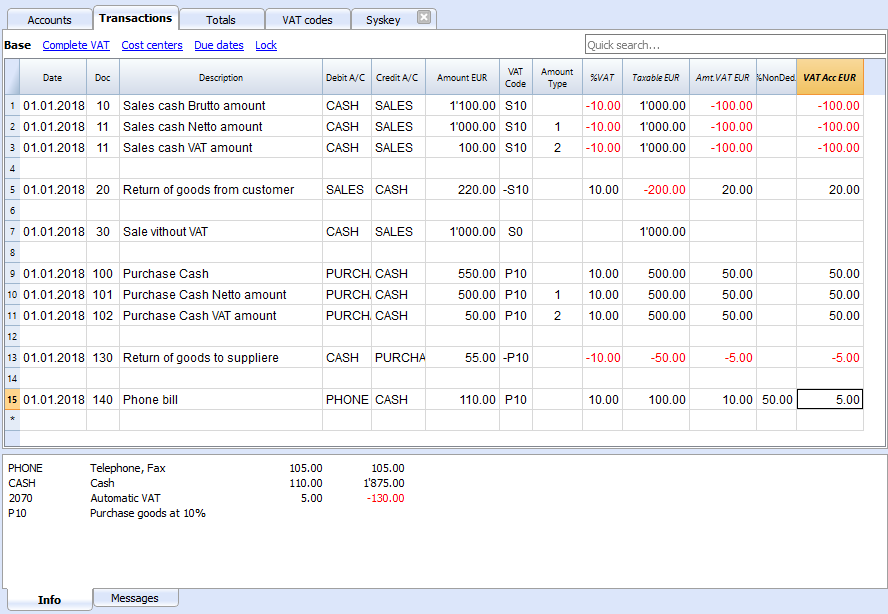
We see above different example of VAT transactions.
- Doc 10-11.
We record cash sale usind different Amount type.
We see that the transaction amount is different but the Taxable amount and Vat amount are always the sames.
VAT amount is in negative for the fact that the VAT amount is registered in credit, and therefore the amount must be pay to the tax authority. - Doc 20.
Return of goods from customer.
We use the same VAT code, but preceded by the minus sing. The taxable amount and VAT amout sign is inverted.
Vat Amount is positive (debit) meaning we recover the vat from the tax authoriy. - Doc 100-102.
Purchase the VAT amount is positive (debit) meaning we recover the vat from the tax authortity. - Doc 130.
Return of good to suppliers the VAT code is inverted, and we own the taxt to the authority.
Excel summary
With Banana ExcelSync we have created a excel spreadshed with the summary value of the vat code.
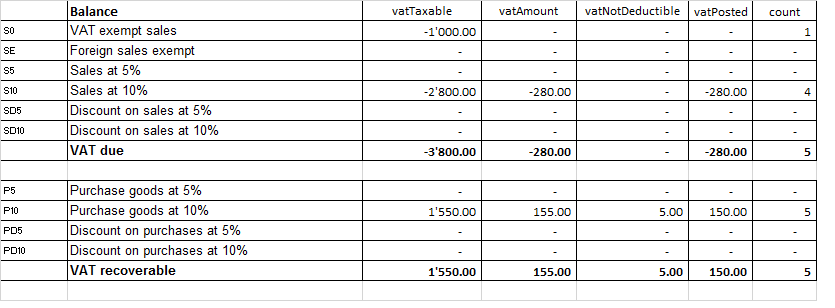
Javascipt API equivalent
The API to retrieve the values above would be.
//get the description of the vat code
Banana.document.vatDescription("S10");
// use the vatCurrent Balance to retrieve the different values
Banana.document.vatCurrentBalance("S10").vatTaxable;
Banana.document.vatCurrentBalance("S10").vatAmount;
Banana.document.vatCurrentBalance("S102").vatNotDeductible;
Banana.document.vatCurrentBalance("S10").vatPosted;
Banana.document.vatCurrentBalance("S10").rowCount;
- vatTaxable is the amount netto, the one tha usually must figure on the vat report as the amount of revenue to declare.
- vatAmount is the Vat amount.
- vatTaxable + vatAmount is the amount inclusive Vat..
- vatNotDeductible is the amount of vat that cannot be fiscally deducted. In case you have an expense where the Vat cannot be totally deducted.
- vatPosted (vatAmount - vatNotDeductible) is the amount that has been posted on tha vat account.
- count is the number of row that have been found to use the vatCode.
The sign of the vatAmount
The sign of the vatAmount follows the accounting convention.
- If the sign of the vatAmount is negative (debit) it means that the vat is due.
- If the sign of the vatAmount is positive it means that the vat is recoverable.
The sign of the vatTaxable follow the sign of the vatAmount. In case the vatAmount is zero the vatTaxable sign is negative if the isDue of the vatCode is true.
If you use the vatAmount to create a tax form you should take care to invert the amount.
vatAmount sign and isDue flag:
- Vat code that have the isDue to true (1) normally have the vatAmount in negative, but the vatAmount could also be positive in case the user has used the vatCode with the minus sign "-S10".
The minus sign before the vatCode is used in case of reversal transaction (correction of an incorrect transactions). In this case the vatAmount would be recorded in the positive. - Vat code that have the isDue to false (void) normally have the vatAmount in positive, but the vatAmount could also be necative in in case the user has used the vatCode with the minus sign "-P10".
In this case the vatAmount would be recorded in negative.
Amount used in the vat report for the tax authorities
Vat due
The amounts are usually in negative,so they must be inverted.
Banana.document.vatCurrentBalance("S10").vatTaxable * (-1);
Banana.document.vatCurrentBalance("S10").vatAmount * (-1);
They could be positive in the case that there have been a good returned from clients that exceed the amount of sales.
Vat recoverable
The amounts are usually in negative,so they must be inverted.
Banana.document.vatCurrentBalance("P10").vatTaxable;
Banana.document.vatCurrentBalance("P10").vatAmount;
They could be negative in the case that there have been a good returned to suppliers that exceed the amount of sales.
Period
Vat report are usually done for a period (month, quarter or semester).
You should use the vatCurrentBalance with tha startDate and endDate
//vat report for January 2018
var startDate = "2018-01-01";
var endDate = "2018-01-31
Banana.document.vatCurrentBalance("S10", startDate, endDate).vatTaxable;
Banana.document.vatCurrentBalance("P10", startDate, endDate).vatTaxable;
Summing many Vat codes
You can have the total of different code by separating the vat code with the sign "|"
//vat report for January 2018
var startDate = "2018-01-01";
var endDate = "2018-01-31
// The taxable amount
Banana.document.vatCurrentBalance("S0|S5|S10|SD5|SD10", startDate, endDate).vatTaxable * (-1);
// The vat due
Banana.document.vatCurrentBalance("S0|S5|S10|SD5|SD10", startDate, endDate).vatAmount * (-1);
// The vat taxable vat recoverable
Banana.document.vatCurrentBalance("P0|P5|P10|PD5|PD10", startDate, endDate).vatTaxable;
// The vat vat recoverable
Banana.document.vatCurrentBalance("P0|P5|P10|PD5|PD10", startDate, endDate).vatAmount;
Printing the vat tansactions list
To print the transactions with Vat or doing Vat calculation use the function Banana.document.journal().
// use the data from the transactions and only normal accounts (exclude cost centers)
var journal = Banana.document.journal(Banana.document.ORIGINTYPE_CURRENT, Banana.document.ACCOUNTTYPE_NORMAL);
for (i = 0; i < journal.rowCount; i++) {
  var tRow = journal.row(i);
  // we get the vat values
  var vatTaxable = tRow.value('JVatTaxable');
  var vatAmount = tRow.value('VatAmount');
  var vatPosted = tRow.value('VatPosted');
}
Within the samples apps repository you find two examples of transactions list:
- List of transactions with vatTaxable, vatAmount and vatPosted.
- List of transctions with vatTaxable, vatAmount and vatPosted also converted in the transaction's currency.
两种语言的会计文件
Banana Accounting software lets you setup the accounting file to use different languages.
- Create the accounting file with a main language.
- Add the second language by adding the columns for the description in the other language.
- Customize the printout.
Program language
Every user can select and change the program language any time. Changing the program language will have no effect on the accounting data and accounting setup.
Adding columns for a different language
You can use the command Add column to create a supplementary column for the description in second language, in the accounting plan, VAT table or Transaction's table.
You can create a new view or modify an existing one to have a printout only in the desired column's language.
Enhanced Balance sheet with in different languages
In the Enhanced Balance sheet you can choose witch column to use as description.
Under Columns select Add and choose the column you want to show.
You can create a Composition to save the setting for the printout. This way you can create printout for each language.
BananaApps
With BananaApps you can program a report to adapt to your necessity.
日记账报表
In the following we will explain what need to be considered when creating a new BananaApps for a journal reporting.
- Retrieving the transactions data.
- Creating specific reports using the functionalities offered by the Banana API.
Documentation
Example files
- The examples files are available on github/General/CaseStudies/JournalReport.
- Solutions making use of the journal api:
- China, Voucher report
- Netherlands, Auditfile
Transactions table
The following table is an example of transactions:
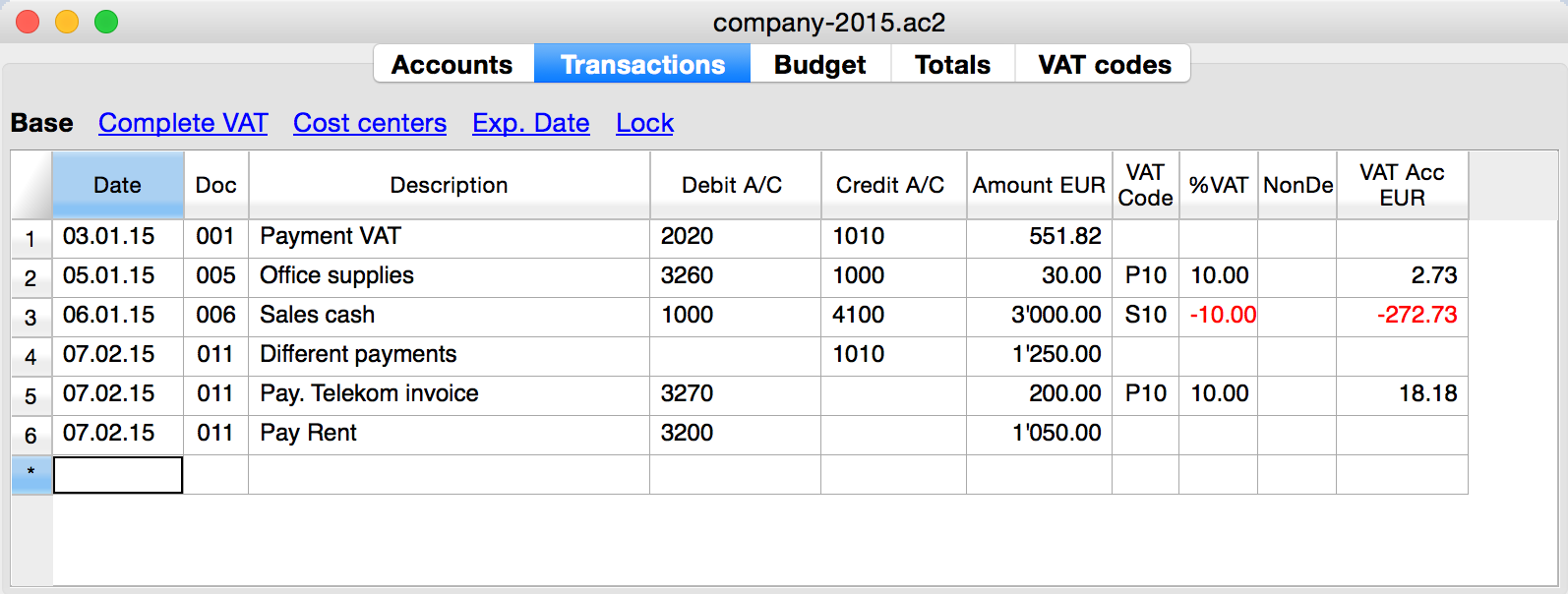
We see above different types of transactions. The transactions can be on a single line or over multiple lines, with or without VAT.
The idea here is to print a journal’s table that contains all the accounts and the transactions. The final result it’s the following one:
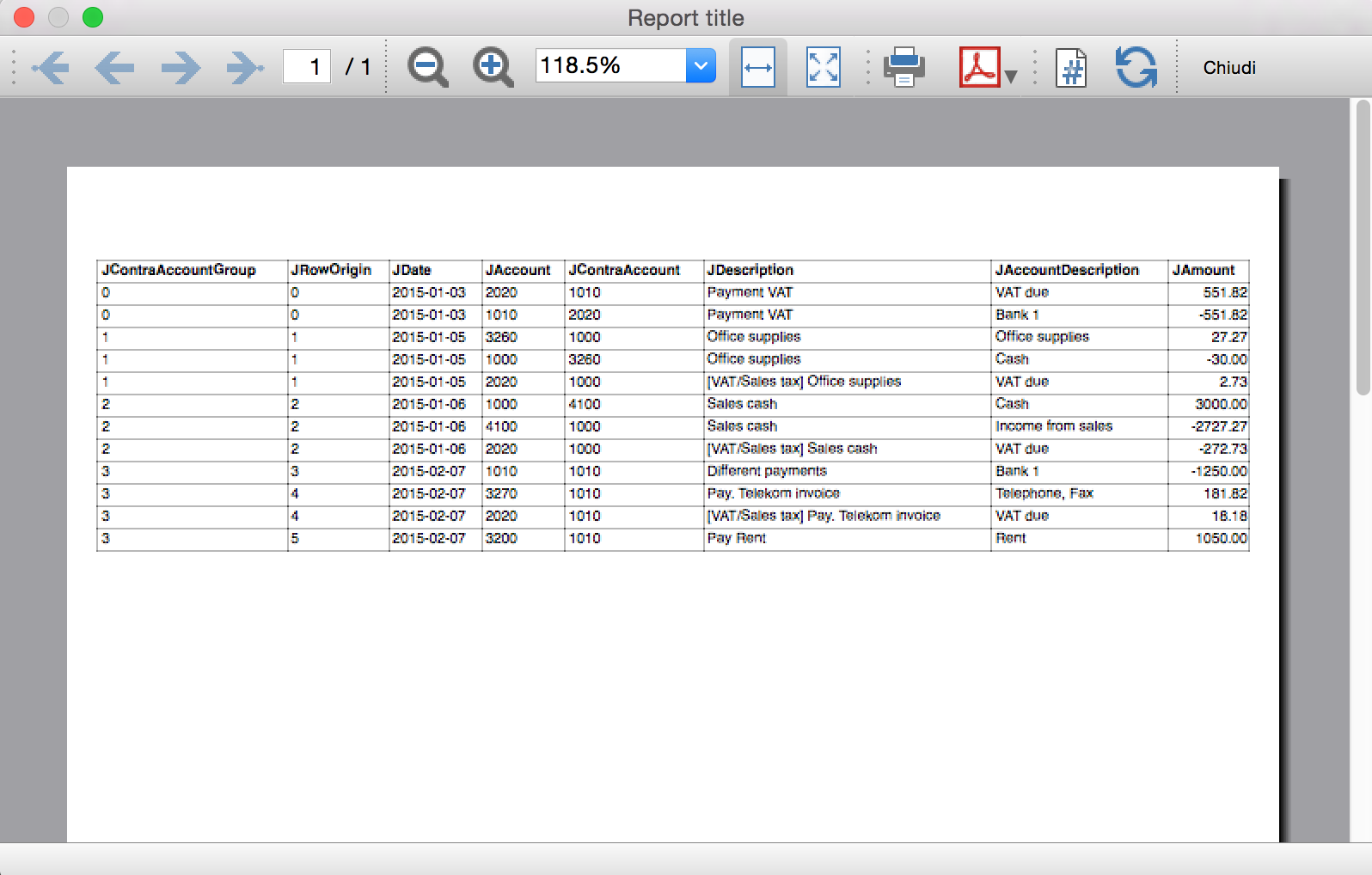
Javascript API equivalent
To retrieve a Table object with all the amount registered on the accounts, we use the Journal’s API:
var journal = Banana.document.journal(Banana.document.originType, Banana.document.accountType);
where
originType specifies the row to be filtered for. Can be one of:
- ORIGINTYPE_NONE no filter is applyied and all rows are returned (current and budget)
- ORIGINTYPE_CURRENT only the normal transactions are returned
- ORIGINTYPE_BUDGET only the budget transactions are returned
accountType specifies the row to be filtered for. Can be one of:
- ACCOUNTTYPE_NONE no filter is applied and all rows are returned.
- ACCOUNTTYPE_NORMAL only rows for normal accounts are returned
- ACCOUNTTYPE_CC1 only rows for Cost Center 1 are returned
- ACCOUNTTYPE_CC2 only rows for Cost Center 2 are returned
- ACCOUNTTYPE_CC3 only rows for Cost Center 1 are returned
- ACCOUNTTYPE_CC Cost Center rows are returned same as using (ACCOUNTTYPE_CC1 | ACCOUNTTYPE_CC2 | ACCOUNTTYPE_CC3)
The returned table has all the columns of the transaction's table plus many other (please, visit the Journal's API for more information).
Code example
A common use to create and use a journal table to retrieve transactions data would be:
// Create the journal table
var journal = Banana.document.journal(Banana.document.ORIGINTYPE_CURRENT, Banana.document.ACCOUNTTYPE_NORMAL);

// Read the table row by row and save some values
for (var i = 0; i < journal.rowCount; i++) {
       var tRow = journal.row(i);

       // From the journal table we take only the transactions rows
       if (tRow.value('JOperationType') == Banana.document.OPERATIONTYPE_TRANSACTION) {

              // Save some column values
              var jContraAccountGroup = tRow.value('JContraAccountGroup');
              var jRowOrigin = tRow.value('JRowOrigin');
              var jDate = tRow.value('JDate');
              var jAccount = tRow.value('JAccount');
              var jContraAccount = tRow.value('JContraAccount');
              var jDescription = tRow.value('JDescription');
              var jAccountDescription = tRow.value('JAccountDescription');
              var jAmount = tRow.value('JAmount');
              //...
       }
}
Results of the Journal’s table for each transaction
The journal’s table above is useful to better understand exactly how the journal works.
In general:
- For each account used in the transaction table (AccountDebit, AccountCredit, CC1, CC2, CC3) the program generates a journal row with the JAccount column set with the specific account.
- For a double entry account transaction that use AccountDebit, AccountCredit, AccountVat, CC1, CC2, CC3 the Journal will contain six rows. If the transaction has only AccountDebit and AccountCredit, then two rows will be generated.
All transactions in specific:
- Doc 001 – Single line transaction without VAT
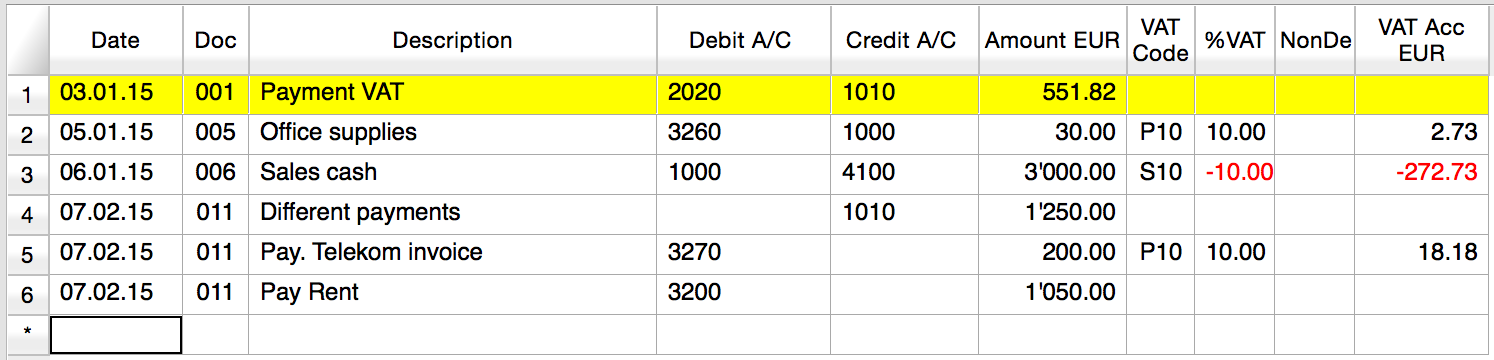
Journal:

One line for the 2020 JAccount
One line for the 1010 JAccount
- Doc 005 – Single line transaction with VAT
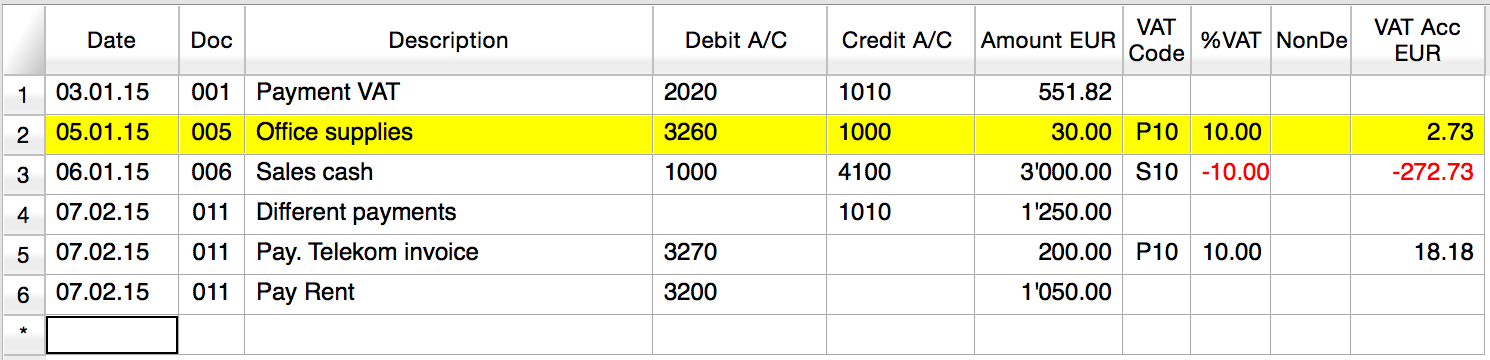
Journal:

One line for the 3260 JAccount
One line for the 1000 JAccount
One line for the 2020 JAccount
- Doc 006 – Single line transaction with negative VAT
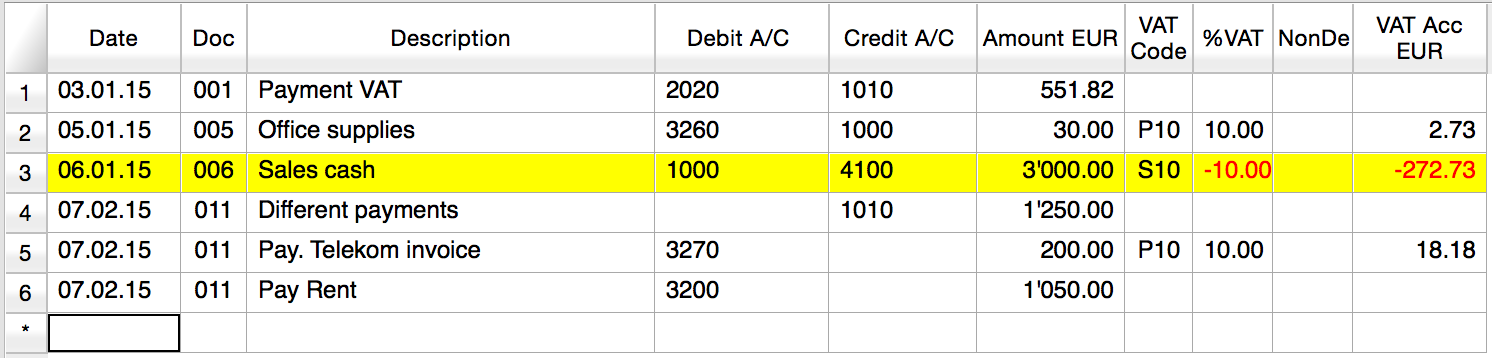
Journal:

One line for the 1000 JAccount
One line for the 4100 JAccount
One line for the 2020 JAccount. The VAT amount is in negative for the fact that the VAT amount is registered in credit, and therefore the amount must be pay to the tax authority
- Doc 011 – Multiple lines transaction with VAT
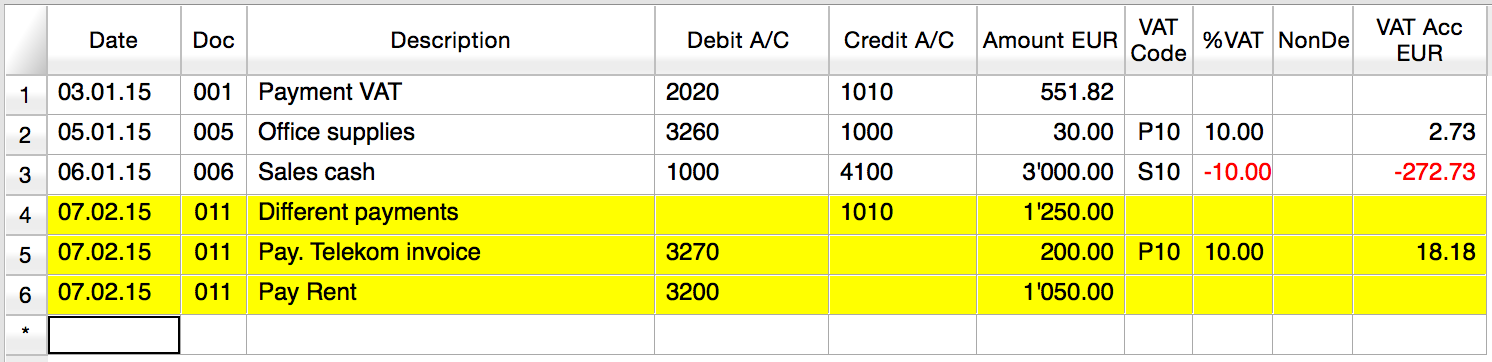
Journal:

One line for the 1010 JAccount
One line for the 3270 JAccount
One line for the 2020 JAccount
One line for the 3200 JAccount
分布式会计
The Banana Accounting software is used by thousands of organisations and projects as a distributed accounting system.
Banana.ch has been a world pioneer in using blockchain technology, which faciltates the creation of a distributed accounting system.
Examples are:
- Entities that keep track of accounting transactions in different places and integrate the data in one central accounting.
- Projects accounting, with specific and detailed reporting, not available on the central system.
- A Non-profit organization that has projects worldwide, lets each project keep their accounting, and the data are integrated in the central accounting system (See Helvetas - Blockchain decentralized accounting).
- A large public organization that uses SAP, lets some organizations keep their accounting with Banana. (See Example of Kanton Basel City - German).
- Companies with different branches, that operate in different countries, with different currencies and accounting setup.
When Distributed accounting makes sense
Organizations tend to centralize their accounting system, so that all data reside in one system only.
Cloud computing makes it easier for organizations to share a centralized system. But distributed accounting still is the best choice:
- Connections are slow or costly.
- Using the central system is difficult:
- Require specifically trained personal
- Have high license costs.
- It is not flexible.
- Have a different workflow.
- Local accountings have specific needs, and customizing the central system would be too difficult and costly:
- different accounting plans and requirements
- different legal requirements
- different currencies.
- Accounting documents are kept at the branch level.
- Branches need a lot of flexibility but at the same time you do want to limit data access.
- The different branches have few interactions.
- There is no need to have all the detail-information in a central system.
In these cases it makes sense to have people in the branches use Banana Accounting.
Setting up the distributed accounting system
Organizations that use a distributed accounting system will then need to integrate the data in a central system, in order to have financial statements that include all branches and projects.
The data integration process must consider:
- With what frequency the data need to be integrated (monthly, quarterly, yearly, ...).
- The detail-transactions that need to be integrated in the central system.
- Whether only summary data are being integrated in the main system.
- How the data will be made available to the center.
Integrating all transactions into the central system
The requirements for working this way are:
- The distributed accounting and the central accounting use the same account numbers, same currency.
- In this case the integration process is done by importing the transactions from the branch into the central system.
- In Banana you have a central accounting system and use the import function.
- The distributed accounting and the central accounting have different account numbers or currencies
- The transactions must be converted to a format that is suitable for importing.
You can create a BananaApps that exports the data from the Banana Accounting file into the requested format's data. - Currency conversion.
You need to define at what rate the amounts from one currency are converted to the other currency. - If you use Banana for the central and distributed accounting see
- Import transactions
- Import file (this function also allows to convert account numbers).
- The transactions must be converted to a format that is suitable for importing.
Integrating only the summary data into the central system
This approach facilitates the integration process and is particularly adequate when:
- The central accounting system differs from the local one.
- Local accountings use different settings (currency, accounting plan), making the integration complex.
- There is no need to have detailed transactional information in the central system.
Detailed information can easily be accessed with the Banana accounting file. - There are large quantities of data and integrating it makes managing the central system more complex and costly.
Therefore, in the central system only the summary data are integrated:
- The period of the data that should be integrated (monthly, quarter, year) are defined
- Defined is whether the integration is done at the accounting level or at the group level (see below).
- Each branch accounting prints a summary of transactions (see BananaApps Trial Balance with blockchain) that includes:
- accounts or group number
- total debit and credit for the period.
- these amounts are registered unto the central accounting:
- Manually (directly from the report)
- With the import function. In this case the data should be exported from Banana Accounting.
Using blockchain lock function
If you use a distributed accounting system, it is important that, once you have integrated the data into the central system, the local data are not changed. In case the local data have been changed you will have difficulty in reconciling the different systems. The situation will get complicated if you have many accounting files.
The branch cannot be prevented to modify the file, for the fact that they have the file on their local system.
The only way to make sure that the data have not been changed, is to use a blockchain security mechanism embedded in Banana and named Lock transaction:
Each branch, at the end of each period, is required to:
- Check that the progressive lock of the previous period is the same as the one that has been printed.
- Lock the accounting for the period.
- Print the lock report, sign it and send it to the headquarters, together with the accounting file.
Once the accounting has been locked, the branch, should:
- Continue to work on the same file.
- Do not unlock or change the locked transactions.
The headquarter should:
- Keep note of the progrLock and number when they integrate the data.
- Keep a copy of the file that has been integrated previously.
The best is to put in a directory with the date or have a date in the file name. - When they receive the file, check that the lockProgressive of the last period is the same.
- If is not the same require the branch to fix the problem.
- do not proceed with the data integration.
- Use the BananaApps Compare two files to see the differences.
- In this case, it will be worth it to return the previous file, so that they can start from this and add the new transactions.
- If it is the same
- Proceed with the integration.
- Keep note of the last LockProgr and LockNumber.
- If is not the same require the branch to fix the problem.
Structuring the accounting plan to facilitate the data integration
Keep the same account numbers
If you need to use in the branch the same accounts number that you use in the central system, the best way is to use the same accounts number in the branch accounting file.
Using different account numbers
This is necessary in case local accounting should use a different accounting plan (local rules) or a more detailed accounting.
There are different options:
Add a column to the accounting plan for the central accounting number, so that each account will also have a corresponding central account number:
- The account column will use a local account number.
- In the columns Central account you enter for each account the number of the account used in the central system.
- Different accounts can have the same central account number.
Use a grouping schema where the groups in the accounting table corresponds to the account number of the central accounting (see Helvetas example)
- Each group in the accounting plan will correspond to an account number in the central accounting.
- In the accounts table you will have the groups totals corresponding to the accounts in the central accounting.
- You will end up having a lot of groups.
- This approach is useful if the local accounting needs to create many local accounts. For examples many bank accounts.
Multiple levels
If your organization is complex it may make sense to have different level of integration (see Helvetas example) with different approaches:
- Each country integrates the data of the local projects, by importing all transactions in one file.
- The summary data of each country is then integrated in the central accounting system.
Cash book accounting
If the local project only has one account to manage, it make sense to set up a Cash book accounting.
- Create a Cash book file in which the branch keeps track of it's expenses.
- Use the import Cash Book function to integrate the data in the main Banana Accounting file.
翻译 Banana
Prepare for translation
Introduction
This documentation relates to Banana version 8.0.4 and later
Download Banana 8 at https://www.banana.ch/en/download_en
Download and install the tranlsation package
- The translation package contains
- QtLinquist
- The Banana Accounting texts to be translated
- The QtLibrary text (only few to translate)
- In order to access the texts to be translated you have to download the following file:
ban80_translations.zip - (www.banana.ch/accounting/files/banana8/translations/ban80_translations.zip)
last update: 14 january 2016
- Once you downloaded the file, double click on it in order to extract its content - once the process is finished you will have a new directory on your Desktop:
ban80_translations directory, with the following content:- "win_start_linguist.cmd" file - to launch under Windows the software QtLinguist used to translate banana accounting
- "mac_start_linguist.cmd" file - to launch under Mac the software QtLinguist used to translate banana accounting
- "win_compile_translations.cmd" file - to compile under Windows the translations in a binary form readable by banana accounting
- "mac_compile_translations.cmd" file - to compile under Mac the translations in a binary form readable by banana accounting
- "output" directory - once you run "compile_translations.cmd", it contains the compiled translations
- "src/translations" directory - contains the Banana Accounting files with the texts to be translated
- "win_bin", "mac_bin" and "qtrsrc" directories - contain various files
QtLinguist
Is a software tool that allow to insert the translated text.
Before opening the QtLinguist sofware we advise you to read the QtLinquist guide for translators
Start QtLinuist and open the translation file :
- Launch the QtLinguist software with a double on the file "start_linguist.cmd"
- Open the translation file src/translations/ban8000_xxx.ts (where xxx stand for the abbreviation of your language)
QtLinquist Interface
You will face a screenshot similar to this one:
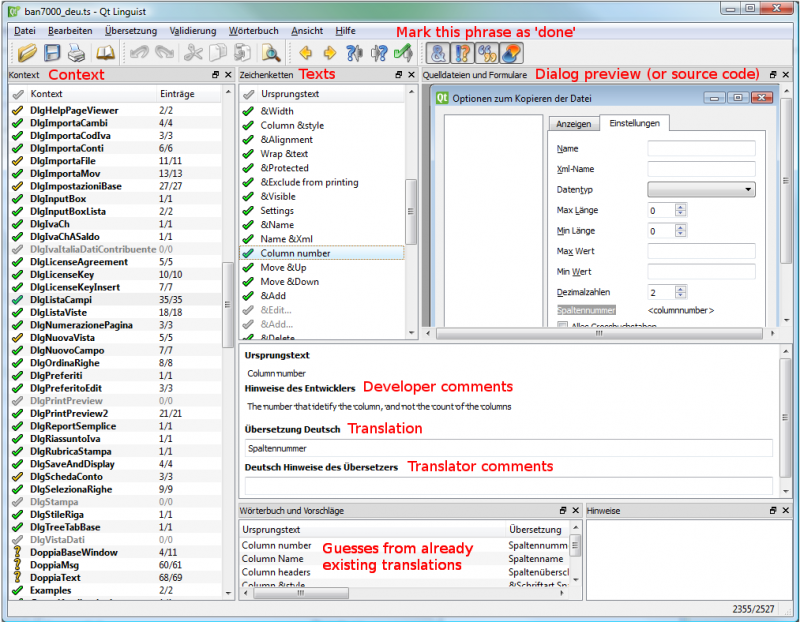
Translate the texts
- You need to translate the missing text and mark every finished text with a green check mark (you will find it
 in the toolbar) until all texts will be marked with either one of these symbols:
  or
or  .
. - We advise you to start with the more general texts, this means leaving for later texts starting with a Dlg (dialog) or Tab symbol - for example "CDate"
- You won't be able to change the English texts - if you find any mistake in English you will have to ask us to correct it.
- If you want to have a comparison with other languages, you just need to open the corresponding *.ts files.
- If it is not Se non è chiaro come tradurre un termine leggere le indicazioni dello sviluppatore
- f you need further information from us in order to translate a specific texts, there is a field called "Translator notes" where you can enter your comments.
Start with the words: "TODO:" this is just a code so later on we will be able to trace and easily extract all your comments.
Special texts and charachters
- You will find %1, %2, %3 within the text.
The symbol %1 will be replaced by the program by the appropriate value (account number, date, file name, etc.).
If there is a %1, %2, %* this should also be present in the translation in the appropriate place. - Banana Accounting columns name an table names.
For example "ReportWithMovements;With mov.;with movements"- The text is separated by the semicolumn ";"
- First part is the field name, in the translated text
- No space or special charachters
- Camel case (first charachter of the word is Capital)
- Second part is the column header. Should possible fit on the columns with.
- Thirt part is the full description, it is displayed as a tooltip when you go with the mouse on the column header.
QtLibrary translation files
- This are the text of the library file. They contains many text but we do need only to translate a fews.
- This texts are in ban80_translations/src/translations/qt_xx.ts file,
- You need to translate it in the same way as the other, and we actually advise you to start from this one. Attention: in the qt_xx.ts file not all the texts are to be translated, but only those that have a green check mark in the Italian file qt_it.ts (which you will have to open for comparison).
Do not translate
- It is not necessary to translate the following texts: ResocontoIvaCh*, ReportIvaItalia*I
After the translation
Send the translation back to us:
Once you finish your translation work:
- Send us as an attachement the *.ts files of your languages, this means the file ban8000_xxx.ts and the file qt_xx.ts if you have it in your language.
- Once you have send us the files back do not translate any more text.
Wait until we will make the next version of the translations files available.
How to get your translation text in Banana Accounting software
You can verify how your translation look in the Banana accounting software - here is how to proceed:
- Check that you have the latest version of Banana Accounting.
Get in touch with with Banana Tecnictian to know if the latest version is available. - Double click on the file compile_translations.cmd
- Copy all the files output/*.qm in the Lang folder of the Banana software (usually the location is C:\Program files\Banana80\Lang or , C:\Program files\BananaExpm80\Lang, but it could vary depending on where you have installed Banana 8)
- Restart Banana 8 and select your language from the Option command (Tools menu)
- If some text does not display at the correct place it is due to different software version (can happen with experimental version)
Tools and links for translators
Microsoft Language portal - it contains all Microsoft translation
KDE Qt Translations - suggestion on how to translate the qt_xx.ts texts
Bing Translator - this is an online translator that you can rely on to translate complete sentences if you have not found a suitable solution with the previous links. Please note that technical and specific terms might not always be translated correctly.
Notes
Please let us know if we can improve this documentation.