Speed up your transactions | Income/Expense accounting
In the Transactions table, to speed up data entry, you can use several automation functions.
Keyboard shortcuts
Keyboard shortcuts let you perform actions instantly, without opening menus or using the mouse.
They are a great way to save time and make your work smoother.
With keyboard shortcuts you can, for example:
- Copy and paste data.
- Quickly move between cells, columns, and tables.
- Insert the current date with one keystroke.
- Apply formatting such as bold text.
- and much more.
Data entry with auto-completion
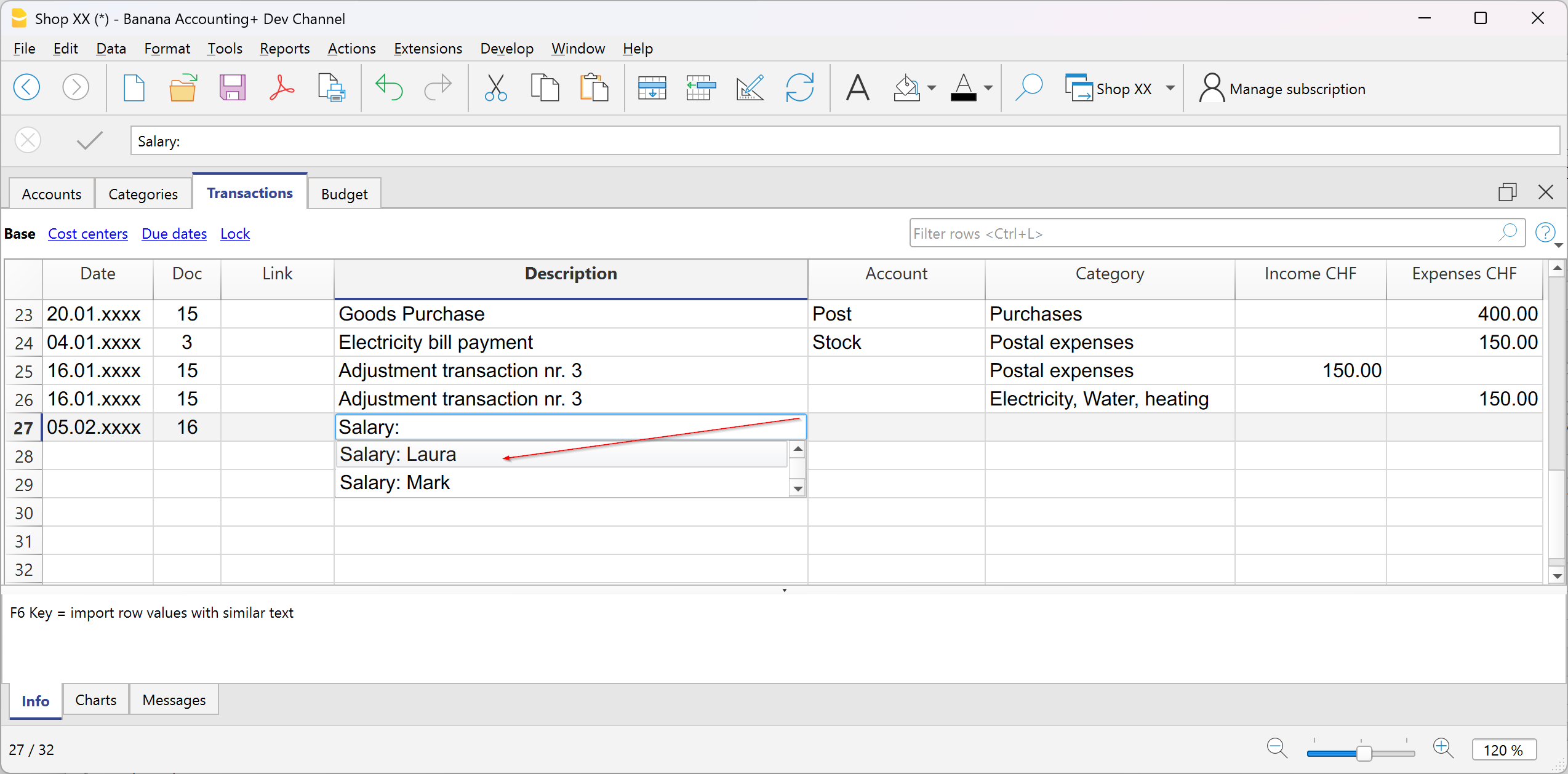
In the Transactions table, when you start typing in the Description column, the program suggests a list of previously entered transactions with the same text at the bottom of the window. If you want to reuse a previous transaction:
- Type the first letters of the description.
- Press F6.
- The transaction is automatically recalled: you just need to adjust the amount (if different) or any other necessary details.
This trick is very useful for repetitive operations, because it saves you from retyping everything each time.
Recurring transactions
In the Recurring transactions table you can save operations that are repeated during the year and reuse them when needed in the Transactions table.
More information can be found on the page:

Importing bank transactions
You can download your bank, credit card, or other account statements, as long as they are in a format compatible with Banana Accounting (csv, ISO 20022, ...), and import all the transactions into the Transactions table. This saves a lot of time and avoids errors.
More information about importing is available on the page:
Setting Rules in automatic import
Even with Income and Expense accounting, you can take advantage of the advanced Rules function to further automate your work.
With Import Rules you can automate the recording of repetitive transactions. For each imported transaction that you expect to recur, you can create a Rule, assigning not only the counterpart account (that is, the reason for the expense or income), but also other details such as cost center, VAT code, row color, and so on. This way, in subsequent imports, the program will automatically apply the Rule to the corresponding transactions, importing them already complete with all the information you have defined.
More information is available on the page:
Import bank transactions | Income/Expense accounting
Download the file with your transactions from your bank and import it directly into the Transactions table. The date, description, account, and amount will already be filled in; you will only need to assign the income or expense category.
Proceed as follows:
- Go to the Actions menu > Import into accounting.
- Select your bank. If you don’t see it in the list, click the button at the bottom left Manage extensions. Search for it and install it in the dialog window that opens, then return here.
- Select the format of the file downloaded from the bank, postal account, or credit card.
- Confirm with the OK button.
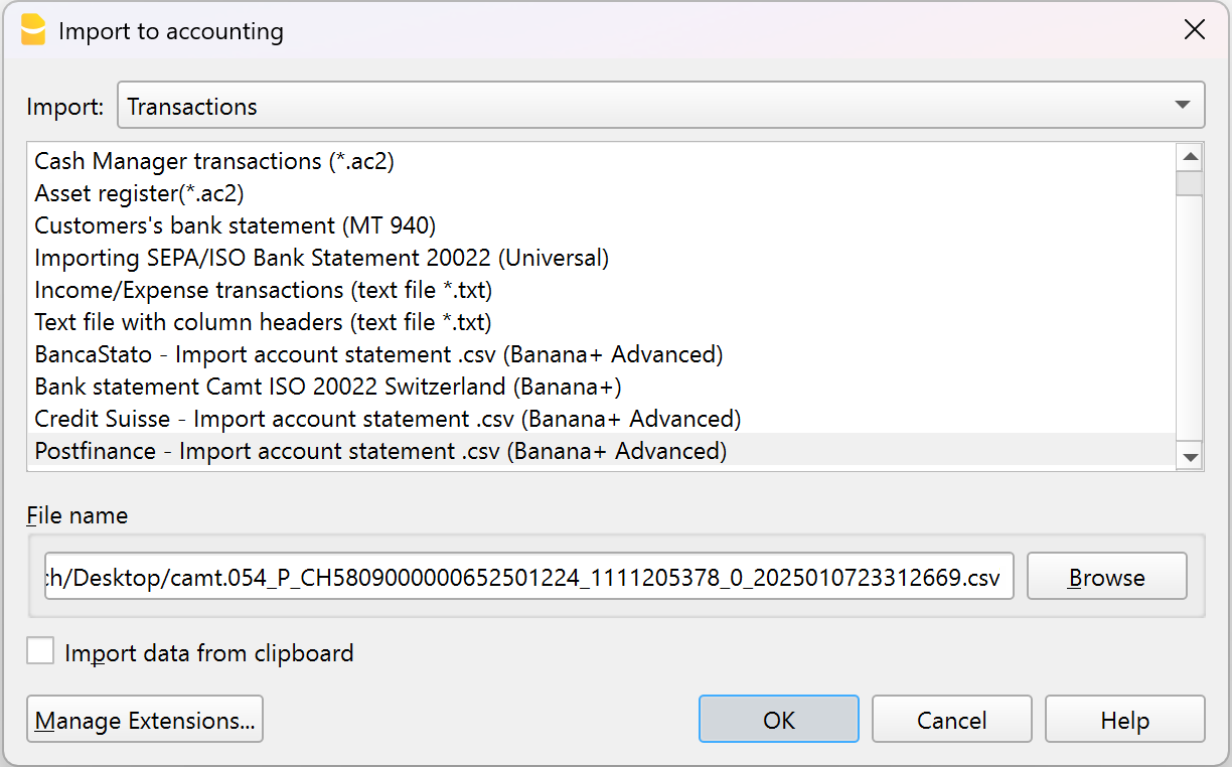
Standard formats such as ISO 20022 and .txt are available with the Professional plan, while bank-specific .csv files are included only in the Advanced plan.
Once you have selected the import file, the next dialog will appear:
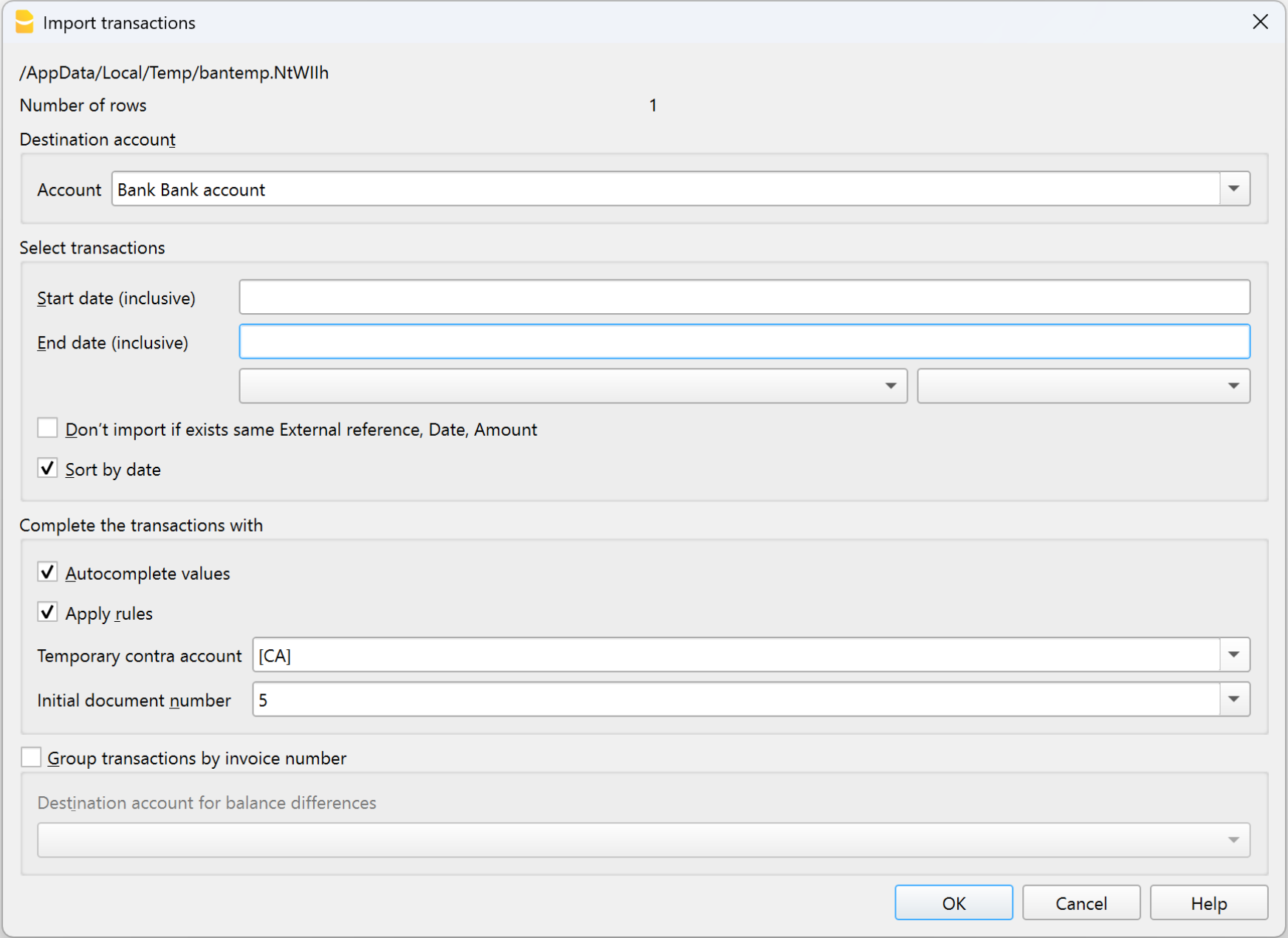
The program will import all transactions into the Transactions table: you will only need to enter the counterpart, any VAT code, cost centers, or segments.
From this dialog, you can also enable the Apply Rules option (available only in the Advanced plan) to further automate transaction entry.
More information about importing is available on the page:
Recurring transactions | Income/Expenses accounting
The Recurring transactions table allows you to save transactions that repeat during the year and automatically recall them in the Transactions table when needed. You can store, for example:
- Salaries
- Rents
- Subscriptions
- Periodic payments
How to save a recurring transaction
- Go to the Transactions table.
- Select one or more transactions that are repeated.
- Copy them (Ctrl+C).
- Paste them into the Recurring transactions table (Ctrl+V).
In the Recurring transactions table you can also manually enter the transactions that are repeated during the year.
How to recall a recurring transaction
- In the Transactions table, place the cursor on the row where you want to insert it.
- Double-click in the Doc column: a list of saved transaction codes will appear.
- Select the code of the transaction you want to use.
- Press Enter.
The program automatically inserts all the transaction data: you only need to update the amount or date if necessary.
Advantage: with this method you avoid rewriting identical operations each time, saving time and reducing the risk of errors.
More information is available on the page:
Rules for automatic completion of imported transactions | Income/Expenses accounting
Even with Income and Expense accounting, you can take advantage of the advanced Auto-completion Rules for imported transactions to further automate your work. Rules are available only in the Advanced plan of Banana Accounting Plus.
With Rules you can automate the recording of recurring transactions. For each imported transaction that you expect to recur, you can create a Rule, assigning not only the counterpart account (i.e. the reason for the expense or income), but also other details such as cost center, VAT code, row color, and so on. This way, in future imports, the program will automatically apply the Rule to the corresponding transactions, importing them already complete with all the information you have defined.
You can set up Rules:
- from the Transactions table
- from the Apply Rules dialog
- from the Recurring transactions table
Below we explain how to set up Rules from the Transactions table
Rules from the Transactions table
In the Transactions table you can use already imported and completed recurring transactions to create Rules.
- Select the imported transactions (after completing counterpart, VAT if applicable, cost centers, and segments).
- Right-click and choose Create rules from selection from the menu that appears.
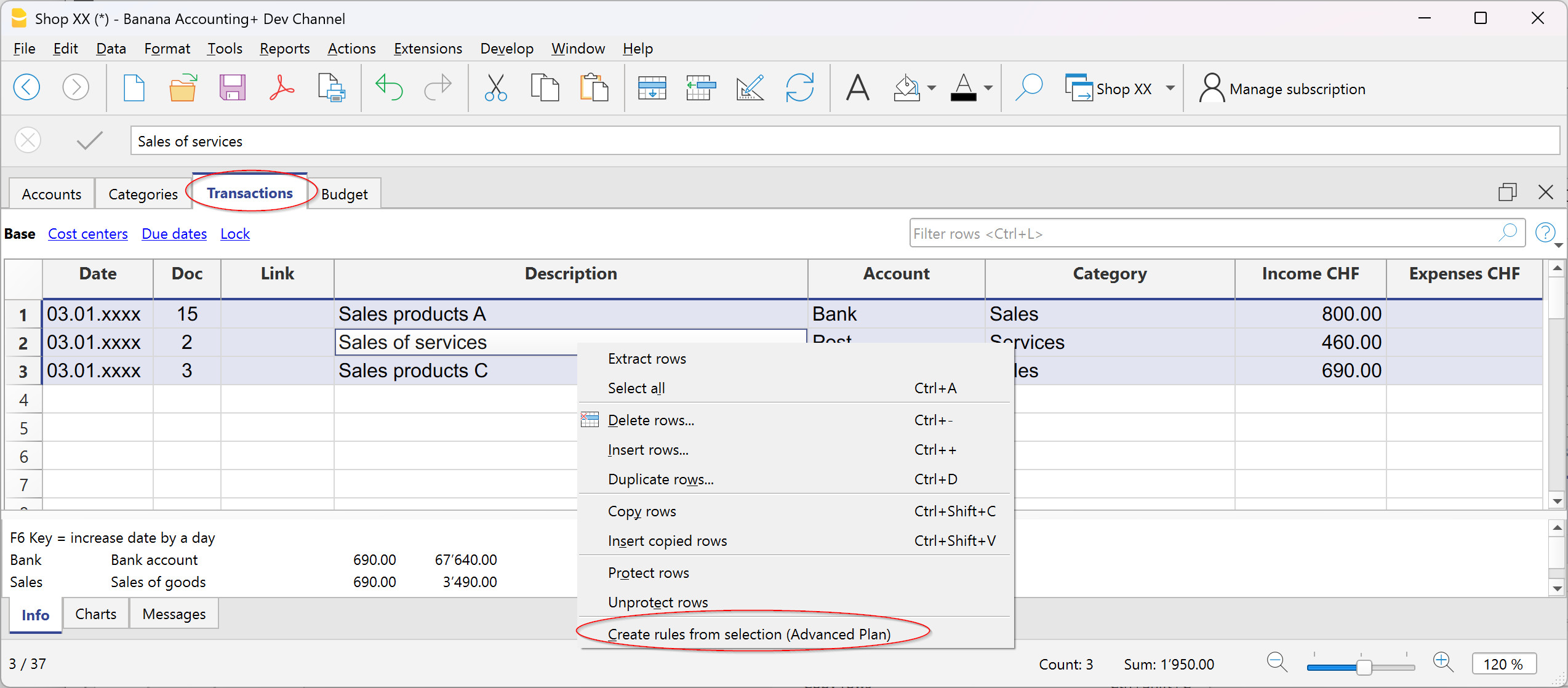
Transactions with rules are saved in the Recurring transactions table and can be identified in the Doc column by the “!Rule” identifier.
By saving rules complete with all details, at the next data import from the bank or postal statement, the program will insert the transactions automatically completing the counterpart and all the other stored elements. The amount is updated based on the latest import.
In the Recurring transactions table you can edit rule-based transactions at any time:
- add more transactions with rules
- delete transactions with rules that are no longer needed
- modify rules of already existing transactions
Rules from the Apply Rules dialog
Rules can also be set at the moment when transactions are imported from the bank statement or other statements through the Apply Rules dialog.

More information is available on the following pages:
The indicated pages use double-entry accounting files as examples, but the principles are the same for income/expense accounting.
Rules from the Recurring transactions table
This procedure requires manually entering recurring transactions directly in the Recurring transactions table before recording the transactions in the Transactions table.
To follow this procedure, see the information on the following page:
The indicated page uses double-entry accounting files as examples, but the principles are the same for income/expense accounting.