Data control and security
The control and verification functions of Banana Accounting help you ensure that your accounting is accurate, complete, and consistent.
With simple yet powerful tools, you can detect errors, prevent unwanted changes, and monitor balances in real time.
These functions are designed to let you work securely while saving time on checks.
Thanks to these functions, you can:
- Filter data to search, verify, and instantly change accounts, amounts, and text.
- Quickly and automatically check the correctness of the accounting;
- Detect and correct errors before closing or printing reports;
- Instantly view accounting differences
- Work with more confidence, accuracy, and peace of mind.
Row filter
The Row filter allows you to display only the transactions you are interested in, based on criteria such as dates, accounts, amounts, or text.
You can use it to specifically check data, identify inconsistencies, and edit directly on the filtered rows.
The filter is available in many tables and reports, allowing you to easily isolate and review the desired data.
Check accounting
The Check accounting function performs an automatic check of the entire file, highlighting errors, imbalances, or missing data.
Banana checks the accuracy of balances, consistency between debit/credit accounts, and any incorrect amounts.
It is an essential tool to quickly identify issues before printing the balance sheet or closing the year.
Lock transactions
The Lock transactions feature prevents accidental or unauthorised changes to already verified transactions.
You can lock all transactions up to a specific date or only a specific period, ensuring data integrity once verified or approved.
Balance Column
The Balance Column checks that, for each transaction row, the debit and credit amounts balance correctly.
When the two sides do not match, Banana highlights the difference, allowing you to immediately detect and fix any entry errors.
It is an instant check that helps you keep your balance sheet always in order.
The temporary Filter rows feature
With the Temporary Row Filter of Banana Accounting Plus, you can display only the rows that match a keyword (or other search criteria), quickly finding the desired transactions.
The big advantage is the direct editing of data and significant time saving , without altering the permanent order of the table. Once the Filter is removed, the rows return to their original order.
The Temporary Row Filter function is only available in the Advanced plan of Banana Accounting Plus. It’s also possible to test it with the Free or Professional plans, up to 70 transaction rows.
The most common uses of the Temporary Row Filter are the following:
Note: the Temporary Row Filter is different from the Sort Rows command (from the Data menu), which permanently changes the order of the rows.
Find rows with a keyword
Enter any text (or amount). The Temporary Row Filter immediately displays all rows that contain it.

The text highlighted in green is for explanatory purposes only; it does not appear in the software.
After making the necessary checks and edits, you can simply remove the Filter (delete the text or click the X icon next to the Filter field) and the transactions return to their previous order.
The editable account card
One of the most common uses of the Filter in Banana Accounting Plus is the ability to obtain an editable account (or category) card. In practice, you can view transactions related to a specific account and make the necessary changes directly.
How to obtain an editable account card
In the Temporary Filter field, enter the following combination:
!=account code
For example, if you enter !=1020 you will obtain an editable account card for account 1020. The != sequence tells the Filter to display all rows where a cell contains the code 1020.

How to obtain a modifiable account card when the account is descriptive and made up of two or more words
In the Temporary Filter field, enter the following combination:
!="account text"
For example, if you enter !="Bank XX", you will get a modifiable account card for the account Bank XX.
The sequence != tells the filter to display all rows where a cell contains exactly that value.
When the text you are searching for consists of two or more words separated by spaces, you must place the text in quotation marks.
Edit and return to full view
Within the editable account card you can perform checks and correct the transactions.
Once the verifications are complete, you can remove the Filter:
- by deleting the entered text, or
- by clicking the X icon next to the Filter field.
This way, all transactions will be shown again in their original order.
Highlight colored rows
Rows are often colored when you want to return to them later, for double-checking, for review by someone else, or because they are transactions to be completed. The ability to highlight them all at once avoids scrolling through the Transactions table and gives a clear overview. The time savings and work convenience are evident.
How to highlight colored rows
In the Temporary Filter field, enter the following combination:
!_co! or !_color!
The program displays all colored rows.

It is also possible to display only rows of a certain color. The program assigns each color a style number (from number 2 onward) based on when the color was first applied. You can therefore use, for example:
- !_co!2 to see rows with style color 2 (in the example, light blue)
- !_co!2|3 to see rows with style color 2 and 3 (in the example, light blue and green rows).
After making the necessary checks and edits, you can simply remove the Filter (delete the text or click the X icon next to the Filter field) and the transactions return to their previous order.
Simple Filters
The Filter allows you to find rows simply by entering a text as a search criterion. When you enter the text to search, the program filters all rows that contain the specified text, separated by spaces.
Here are some examples of Filters:
- invoice mario
Shows rows that contain the words "mario" and "invoice" in any position. - mar inv
Depending on the number of rows, the same result can be achieved by entering abbreviated text. - "invoice mario"
Search for text including spaces: if the text is enclosed in quotes, the program considers it as a single word. - "!~Mario"
Normally, the search is case-insensitive.
You can make the search case-sensitive by inserting a special character.
Spaces are always considered as an AND command separator.
- A space means the conditions are additive.
- Never include spaces in the search unless they are within quotes, for example: "invoice mario".
- Examples:
- invoice mario
The program includes rows that contain both "mario" and "invoice".- "invoice mario"
The program considers the quoted text as a single word, including the space. Therefore, it searches all rows that contain exactly "invoice mario" (in that order).
Special characters
You can use almost any character in the search.
Only the exclamation mark "!" and the vertical bar "|" at the beginning of a text sequence have special meaning.
- " " space is considered as command separator and means AND.
- "|" means OR
- At least one of the elements preceded by "|" must be present in the row.
- Example:
- |mario |invoice |fee
the search will display rows that include "mario" OR "invoice" OR "fee". - mario |invoice |fee
the search will display rows that include "mario" AND "invoice" OR "fee". - If you can't find the vertical bar "|" on your keyboard
- On Windows is the Alt-124 character.
- For other OS search on Google
"Windows/mac keyboard layout Italy/Switzerland/US" and look in the image section.
- Command specifier "!".
Any text preceded by the exclamation mark is considered a command and has a specific meaning.
For example, to exclude a text, use the command sequence "!-".
mario !-invoice
Filter Expressions
The Filter Expressions are experimental and may be subject to changes and improvements.
Create powerful filtering conditions using expressions.
The character "!" at the beginning of a text indicates a special search command.
- !
When placed before or after a space, it starts a command sequence. - !!
Is treated as a simple "!" and not as a command sequence. - !-
The minus sign "-" is used to exclude content and can be combined with any other operator.
!-mario !-1000 !-=1000 !-^payment !-~10 - !~
The tilde "~" must be placed immediately after "!" or "!-".
With "~", the search becomes case-sensitive.
!~mario
!-~mario
Command characters
These are the characters that immediately follow the start of the command "!", "!-", "!~", or "!-~".
They can also be used with "-" to exclude and "~" to make the search case-sensitive.
- !=
Finds exactly the specified text in the cell.
!=1000
Can be used with multiple values separated by the "|" character.
!=1000|2000|30000
Empty cell.
Starting from version 10.1.16 selects cells with empty values.
!= - !+
Contains the specified text. Equivalent to a normal search but allows combinations with other characters.
!-+mario excludes rows that contain "mario".
!~+mario excludes rows with "mario" respecting case sensitivity. - !<>
Different from the provided text.
!<>1000 - !.
Wildcard characters (*, ?) for search with special characters.
!.100*
!.100*|2?0* - !^
Starts with the specified text.
^mar
^mar|hom - !$
Ends with the specified text.
!$rio - !_
Search by whole word.
!_100
!_100|200 - !:
Regular expression.
!:\bmario\b
Greater than, Less than, and Ranges
Characters used to compare numeric values or dates.
- Date format: yyyy-mm-dd
2024-12-31 - Amount with "." as decimal separator and no thousands separator.
1999.99
Comparison commands:
- !> Greater than.
!>100 - !>= Greater than or equal.
!>=100 - !< Less than.
!<100 - !<= Less than or equal.
!<=100 - !<> Not equal to.
- !>< Exclusive range.
!><99.99|200 - !>=< Inclusive range.
!>=<100|199.99
Column specification
Allows you to specify the column in which to perform the search.
- !description!
Search in the "description" column.
!description!mario
!description!=
!des*!mario
!des*;doc!mario
!description:xml!mario
!debit*!=1000
Show rows with formatting
With these expressions, the Filter displays the rows that have a formatting bold or italic.
- !_format! or the short form !_fo!
- After the command
- b for bold
- i for italic
Examples of using filter text
- !_fo!
Show rows with specific formatting. - !_fo!b
Show rows in bold. - !_fo!i
Show rows in italic.
Show rows with errors or warnings
The Filter displays the rows that the program has marked as errors (red)or warning (yellows).
- !_error! or the short form !_er!
- After the command
- e for errors
- w for warnings
This command will help you get the lines marked as errors (red) or warning (yellow).
- !_er!
Show rows with errors or warnings. - !_er!e
Show rows with errors. - !_er!w
Show rows with warnings.
Filter Commands Combinations
You can combine multiple commands by separating them with a space.
- Commands separated by the space are considered AND expressions.
- The use of the vertical bar "|" preceding the command is considered an OR expression.

The text highlighted in green is for explanatory purposes only; it does not appear in the software.
Other examples of filter combinations:
- invoice mario fee
Search for "Invoice" AND "Mario" AND "fee" - invoice |mario |fee
Search for "Invoice" AND "Mario" OR "fee" - |invoice |mario |fee
Search for "Invoice" OR "Mario" OR "fee" - 2022 !des*!mario !debit*!=1000
Shows rows with "2022", "mario" in columns "des" and exact "1000" in the "debit" columns. - |!PeriodTotal_?_C:xml!<> |!PeriodEnd_?_C:xml!<>
Shows rows with an amount in columns whose XML name starts with PeriodTotal_ and ends with _C
or whose XML name starts with PeriodEnd_ and ends with _C
Reasoning Behind the Filter Expressions
The Filter Expressions filter may seem unusual, but the goal is to have a syntax that:
Does not interfere with natural searching, allowing users to search intuitively by combining words as they normally do in smartphone apps.
Is not tied to a specific language and uses only symbols.
Supports all possible searches, so it can be used to express user filters similar to those in Excel.
Leaves room to include specific Banana commands, such as color, errors, and others.
We evaluated several other search syntax types, but most of them use common characters such as the minus sign “-”, the plus sign “+”, or others like “\”, “(”, “*”, “?”, which are frequently used in accounting.
For this reason, we decided to create a special syntax where the exclamation mark “!” is used as a command indicator.
Since “!” is normally used at the end of a sentence, it is unlikely to interfere with search terms.
All feedback and suggestions are welcome!
Cursor position
When using the filter, the cursor remains on the cell where it was before the filter was applied, even if that cell is not currently visible.
- To move around the table, you need to click on a cell.
- Once the filter is removed, the cursor does not necessarily return to the original cell.
- To return to the cells you were on before applying the filter, you can use the navigation buttons “<” and “>” located in the toolbar.
Banana Accounting Plus GPT for using the Filter
This Banana Accounting GPT Assistant was created using ChatGPT and is designed to generate advanced search syntax for filtering rows in the Transactions table.
The GPT command generator for advanced search syntax (Filter) is experimental and may be subject to changes and improvements.
Requirements
To use this GPT, you need:
- Download and install the latest version of Banana Accounting Plus
- Have a ChatGPT account.
- To use this GPT, you need a ChatGPT Plus subscription. Without it, you can try the service for free for up to ten requests. After that, you must upgrade to ChatGPT Plus or wait a few hours before making more requests.
How it works
- Open the Banana Accounting Plus GPT from this link:
- In the Message field below, enter a sentence that describes what you want to search for within the Transactions table using the Filter. In general, the more specific your request, the better the results.
- The GPT will process your request and return the corresponding result.
Based on the input given to the GPT, a text string will be generated containing the necessary command to filter the rows in the Transactions table. - Copy the generated text string.
- Paste the copied string into the Filter of the Transactions table in Banana Accounting Plus.

Examples of messages to enter in the GPT
Below are examples of messages to enter in the GPT chat, along with the corresponding generated results:
- "Find all transactions from the third quarter of 2024"
- Result: "!date:xml!>=2024-07-01 !date:xml!<=2024-09-30"
- "Search for rows with an amount of 450.00"
- Result: "!amount:xml!=450.00"
- "Search for rows with an amount greater than 200"
- Result: "!amount:xml!>200"
- "Search for rows with the value 3001 in the Credit Account column"
- Result: "!accountcredit:xml!=3001"
- "Give me the rows with value 1020 in the Credit Account column and an amount between 1500 and 4000"
- Result: "!accountcredit:xml!=1020 !amount:xml!>=<1500|4000"
The temporary Sort rows function
The temporary Sort Rows function in Banana Accounting Plus allows you to temporarily sort the rows of a table without permanently changing their arrangement. It’s a very useful feature for quickly finding data, whether text or amounts.
Once the function is removed, the table rows return to their original order.
To permanently change the order of rows in a table, use the Data > Sort Rows menu.
The temporary Sort Rows feature is one of the new functions available only in the Advanced plan of Banana Accounting Plus. It can also be tested with the Free or Professional plans, up to 70 transaction rows.
This tool allows you to quickly sort the content based on the column from which the Sort function is applied:
- Right-click on the column header where you want to apply the sorting.
- Hover over the small arrow and select ascending or descending sort.
Advantages
- You can sort the displayed rows in ascending or descending order based on the desired column.
- when you remove the sort view, the rows return to their original order without needing to use the Undo command.


An arrow will appear in the header of the column selected for sorting.
Important Note
The Temporary Sort Rows function is different from the Sort Rows command (from the Data menu):
- Temporary Sort Rows is a temporary on-screen sort, designed to speed up the review and editing of previously entered data. It is easy to remove sorting criteria and return to the original row order. This feature is only available with the Advanced plan.
- The Sort Rows command (from the Data menu) permanently changes the order of rows in the table and can only be undone with the Undo command. This command is available in all plans.
Check and recalculate accounting
Banana Accounting offers several commands to recalculate data and verify the accuracy of your accounting. It is good practice to run these checks regularly, especially if the program reports errors or discrepancies.
- Shortcut keys to start the recalculation and primary check of the accounting:
- Shift + F9 (Windows and Mac)
- Cmd + 9 (Mac)
- Menu Actions > Check accounting to run extended accounting checks.
- The Balance column highlights differences in the Transactions table between the Debit and Credit columns. The Balance column can be made visible from the menu Data > Columns setup.
If errors or discrepancies are reported, it is advisable to correct them before proceeding with other accounting operations.
Recalculate and check accounting (primary)
The Shift + F9 key combination automatically performs the following actions:
- Checks the version of the program in use and notifies if updates are available
(it is always recommended to use the latest version). - Resets and recalculates balances for accounts, cost centers, and segments.
- Rewrites all transactions as if they were newly entered.
- Reports any errors in the following tables:
- Accounts
- Transactions
- VAT codes
- Exchange rates
- Multi-currency double-entry
- Updates opening balances.
- Recalculates balances based on the latest exchange rates entered in the Exchange table.
- Accounting with VAT
- Recalculates all VAT values based on the VAT codes used.
- Cash Manager
- Calculates the running balance in the Transactions table.
- Recalculates totals in the Accounts and Categories tables.
- Cash Manager and Income / Expenses
- Recalculates totals in the Accounts and Categories tables.
- Accounting with Budget
- Updates the Budget difference and Previous year columns in the Accounts table.
Check accounting dialog (extended check)
The Actions > Check accounting command opens a dialog window with advanced check options.
This command is recommended when you want to perform more thorough checks on the structure and consistency of the data.

Recalculate accounting and run extended checks
This is one of the most important commands for verifying accounting because:
- it recalculates the entire accounting,
- performs thorough checks,
- reports any errors in the Messages window.
It also updates the texts of the Account Description and Category columns in the Transactions table, if modified.
Basic data properties
This option is enabled by default and checks the consistency of the data set in File > File properties (basic data), such as:
- opening and closing dates,
- VAT accounts,
- accounts for exchange rate differences.
Transactions
Transaction differences
- Checks for any differences between Debit and Credit (or between Accounts and Categories).
- The affected rows are shown in the Messages window.
- The total amount of the difference is displayed in the information window at the bottom.
- The differences are also highlighted in the Balance column.
Include intermediate differences
- Verifies that there are no intermediate differences in multi-line transactions.
- Differences are often due to incomplete transactions or incorrect amounts.
Check balances (#CheckBalance)
- Compares the accounting balance with the real balance (bank or post) entered manually.
- Any differences are reported by indicating the affected accounts.
More information on Check Balance transactions is available at Transactions #CheckBalance.
Same document with different dates
- Alerts if the same document number is associated with different dates.
- This situation can prevent the program from correctly determining the contra account.
Accounts
Chart of accounts structure
- Checks that the structure of accounting groups is correct.
Presence of exchange rate differences
- Reports any unrecorded exchange rate differences.
Opening balances differ from previous year's closing balances
- Checks that the opening balances of the new year match those of the previous year's closing balances.
- The differences between the previous year’s closing balances and the new year’s opening balances are shown as a total amount in the Messages window.
Items
Opening balances of Asset accounts
- Verifies that the opening value of the Items matches the balance of the associated Asset account.
- The check is performed only for items with an assigned Asset account.
Include extended checks with the Shift + F9 key
If the option "Include extended checks with the Shift + F9 key" is enabled, the program automatically performs all the checks selected in the Check accounting dialog also via the shortcut key.
If the option is not enabled, pressing Shift + F9 only performs the accounting recalculation.
Lock transactions with the Blockchain technology
Banana uses an accounting data certification system based on a technique that today is called blockchain. The certification method based on the chaining of data blocks "blockchain" is considered so reliable that it is used to ensure the validity of bitcoins and all modern crypto-currencies.
Banana.ch was the first company in the world to use blockchain technology in accounting. The method was filed as a patent in 2002 (US Patent No. 7,020,640). This method ensures high levels of data integrity and compliance with legal regulations.
For more information, see Blockchain for ensuring the integrity of accounting movements.
The lock transactions command
With the Lock transactions command of the Actions menu, the accounting transactions are locked and marked with control codes that can certify, over the years, that the transactions have not been modified.
- The validity of a possible already existing lock is being verified
- The transactions until the lock date are being numbered progressively and are being locked. For each transaction, the digital code of the row and the progressive one are being calculated.
The calculation of the digital codes is being done according to the sequence of the columns. - In the accounting is being indicated that transactions with an equal or earlier date than the lock date will no longer be accepted.
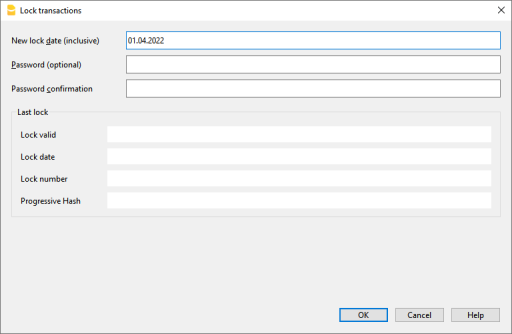
Date of new lock (inclusive)
Specify the date up until when the transactions will be locked.
Password (optional)
It is possible to insert a password to eventually unlock the transactions or to carry out a new lock in the future.
If the program finds no errors in the transactions included in the lock date, it will lock the transactions, calculate and assign individual numbers and codes to each row of transactions which can be viewed in the Lock view on the Transactions table.
Last lock
The data of the following fields are automatically filled out by the program based on the last executed lock.
Lock valid
A "Yes" is shown if the lock is valid.
Date of lock
The date of the last executed lock is shown.
Lock number
This is the value automatically entered by the program in the last row of the LockNum column.
When the lock is repeated, if the value of the last row lock number is unchanged, it means that the lock is valid and that the data have not been altered; if however the value is changed, the program shows the following codes:
- (-1) if the lock is invalid from the first row
- (-2) if there are rows that have the same LockNum.
Progressive Hash
This is the control code present in the last transaction.
Transactions: Lock View
All digital codes are shown along with all the information that the program used to create the digital signature.

- LockNum: the progressive number that identifies the row
- LockAmt: the cumulative transactions total, similar to the total at the end of the page, as required by some national regulations
- LockLine (hidden column): the digital code calculated according to the row values.
- LockProg: the global electronic signature (SHA-256).
The digital code LockProg
This is the main element of the certification; it uses the blockchain methodology.
The digital code is calculated according to the following values:
- The contents of the current entry, including amounts, descriptions and the description of the account at the moment of the lock
- The progressive number (LockNum)
- The cumulative balance (LockAmt)
- The progressive code of the preceding entry (LockProg).
In case the accounting data undergo even the slightest modification (for example, a date or an amount is changed), the digital code will be different. If the control number remains the same, it implies that the data are original and therefore have not been changed.
Check Lock
With the Actions menu → Check lock info command, the program verifies the validity of the lock and displays the data.
- The program recalculates the digital control codes and verifies if they correspond with the ones related to the transactions.
- If the codes correspond, the lock is considered valid, and therefore the data are original
- If they do not correspond, it means that the data have been changed and that they are not the original ones calculated at the time of the lock.

Unlock transactions
The Menu Actions → Unlock transactions command removes the lock and the control codes. If the lock was set with a password it will be necessary to reenter the password in order to remove the lock.
If later on you want to relock the transactions, and they have not been modified, the control numbers will be the same as the ones of the earlier lock; if however some data have been changed, the control numbers will be different.
Partial lock
If the transactions have been locked, it is possible to unlock them even partially, from a specified date. If a lock password has been set, in order proceed unlocking the transactions, you need to enter it in the specific field.

Why unlock the accounting?
In principle, the locked accounting should not be unlocked. It might happen that, after the lock, you find errors in the accounting and see the need to make corrections.
To have the opportunity to make further changes, users kept a copy of the file before the lock. If they found errors, they would restore the previous situation. In the meantime other transactions had perhaps been made, so often it happened that restoring previous versions of the accounting proved wrong. To avoid this unnecessary waste of time it was decided to make the Unlock transactions command available.
The certification must not be confused with data security. The data certification is a methodology that ensures that the accounting data are original. To prevent data from being modified, the methodology is the one related to data security. Data security procedures, however, can only be implemented in an environment that limits data access.
If the file is fully available to the user, such as when it is on a PC, people have complete control of the data. They can thus replace files easily. With a certification one cannot prevent that the data are being altered, but it will allow you to know if the data are the original ones.
The person who keeps the books is responsible for the accounting and decides whether a change is permissible or not.
Organizing the certification and data verification
Once you locked the transactions of the period, you need to:
- Print the lock information or print the last certified transaction row with its specific certification number (LockProgr).
- Sign and store this information along with the accounting documentation or in any other safe place.
In order to check that the accounting data are the original ones, you need to proceed as follows:
- Impart the Show lock info command.
- Go back to the document that shows the digital control number
- Check whether the row identified with the LockNum still has the same digital control number
- If the number matches , the accounting data are the same as those certified
- If the number does not match , it means that the accounting data have been modified.
Banana works on developing applications that make it possible to compare two files and obtain indications regarding data that have been altered.
Data security
Digital certification ensures that the data are still the original ones. It does not prevent the modification of data.
It is the responsability of the accountant to ensure that the data are not altered. Each administration must be organized according to its size and needs.
Those who want to make sure that the data are not being altered by unauthorized persons , must employ other methods and tools, such as :
- Save the data to a secure system (protected network drive), password protected.
- Keep the copies of the data.
- Encrypt archives.
Long-term archiving
The accounting file contains the entered data. In order to open the file and obtain a report or an account card, you need to have the program at your disposition.
Banana Accounting gives the possibility to export all the accounting data, and its printouts as well, to Pdf, Html and Xml.
The generated file can be saved on a CD and accessed on any computer even after many years, even by persons who do not have the Banana Accounting software.
Balance column to detect accounting differences
The Balance column is present in the Transactions table in the double-entry accounting, multi-currency accounting, income/expenses accounting, and cash manager files. It is very useful because it detects accounting discrepancies in the Transactions table.
The Balance column only shows a value when there is an accounting difference.
If the transaction is correct and the balance is zero, the cell remains empty and the column does not highlight any anomaly.
The presence of an amount in the Balance column therefore indicates that the transaction is incomplete or contains an error that needs to be checked and corrected.
▶ Watch the video: The new Balance column
How to activate the Balance column
The Balance column is not visible by default. It can be displayed via the menu:
Data > Columns setup > Balance
The Balance column can be positioned as desired using the Up (moves the column to the left) and Down (moves the column to the right) buttons in the Columns setup dialog.
Reasons for differences in the Balance column
When accounting discrepancies are encountered, it is essential to identify the cause and proceed with the correction.
Errors are likely due to the following reasons:
- The cell where the Debit account, Credit account, or Category is recorded was inadvertently left blank or is incorrect.
- For an entry spanning multiple accounts or categories, the total amounts do not match.
- In an entry with a VAT code, the VAT breakdown or the VAT account is incorrect.
Note: In composed transactions of several rows, the program will display a difference between Debit and Credit until the entry is completed.
The Balance column in Double-Entry Accounting
In double-entry accounting, the Balance column shows the differences between the Debit and Credit columns.
When the accounting is correct, the Balance column should have no value (empty cells):
- The balance is zero if the sum of the amounts in the Debit and Credit columns offset each other (no difference).
- For entries spanning multiple accounts, a balance is displayed until the entry is completed for all the accounts and/or categories involved. With the final entry, the balance should reach zero.

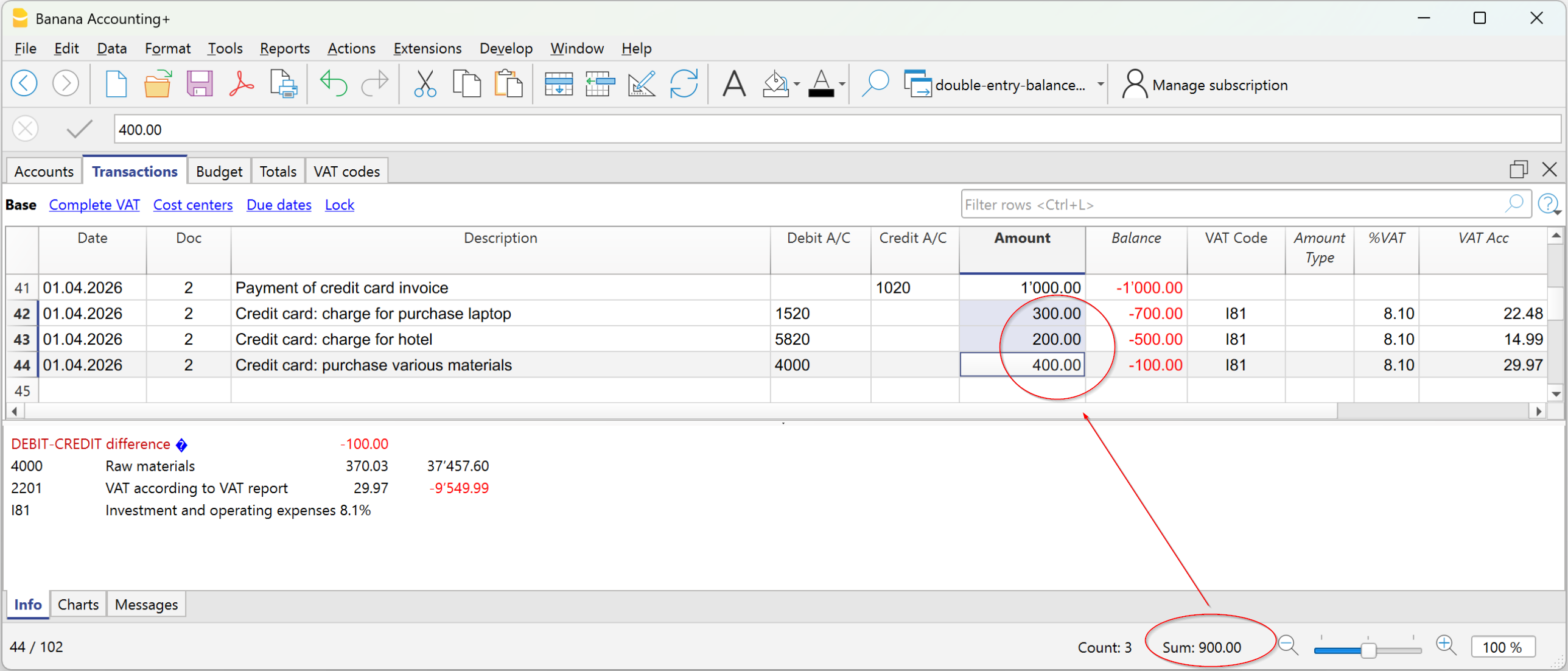
The example shown in the image concerns a transaction relating to the payment of multiple invoices. The accounts and their corresponding amounts are entered on multiple lines:
- In the first line, in the Credit column, bank account 1020 is recorded for a total amount paid of 1'000.
- In the following lines, in the Debit column, the following accounts are recorded:
- account 1520 – Investments, for 300
- account 5820 – Travel, for 200
- account 4000 – Material Purchases, for 400.
The total amount recorded in Debit is therefore 900, while the amount recorded in Credit is 1'000.
The transaction therefore has a difference of 100. This difference is highlighted in the Balance column, in the last line of the transaction, making it immediately clear that the transaction is not balanced.
The Balance column in Income/Expense Accounting
In Income/Expenses Accounting and Cash Manager, the Balance column shows the differences between the Account and Category columns.
When the accounting is correct, the Balance column should have no value (empty cells):
- The balance is zero if the sum of the amounts in the Account and Category columns offset each other (no difference).
- For entries spanning multiple accounts, a balance is displayed until the entry is completed for all the accounts and categories involved. With the final entry, the balance should reach zero.
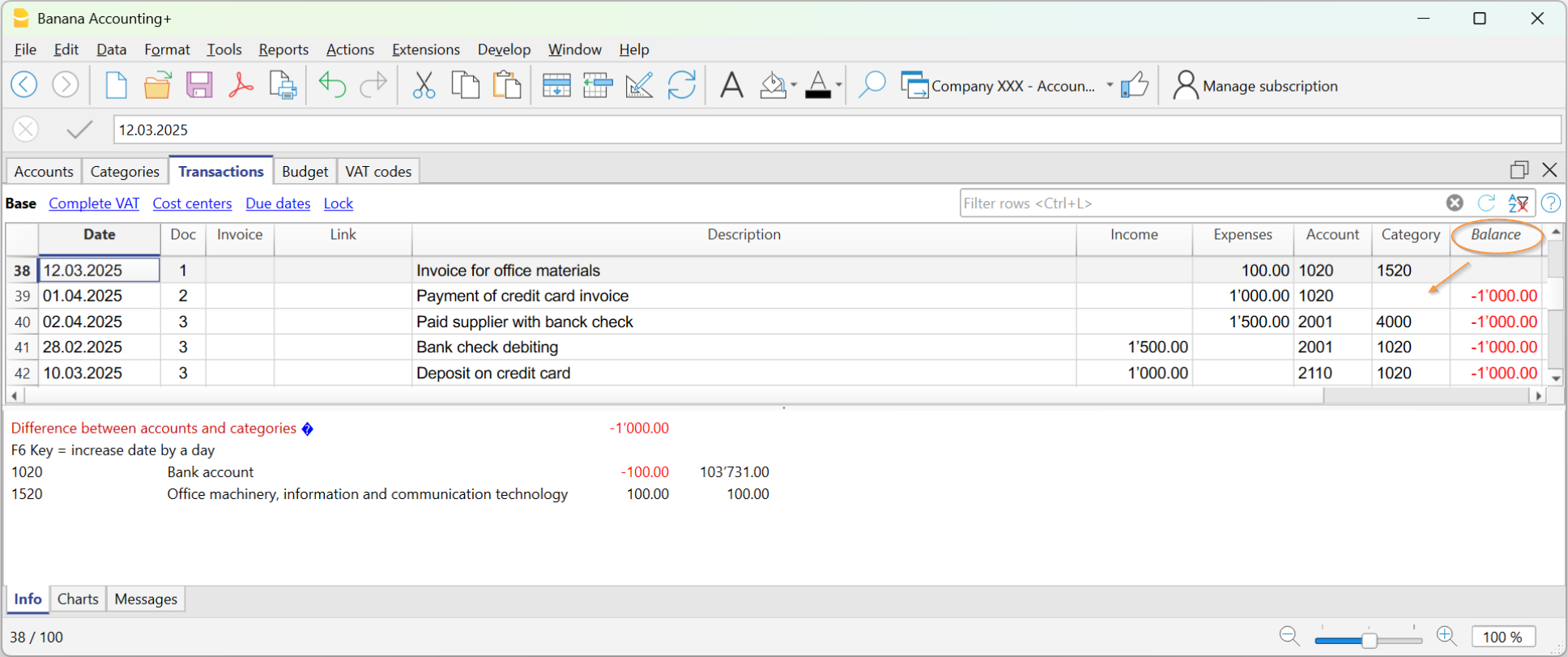
In the example image, a difference of 1000 was generated:
- In the entry on line Doc 2, the category was not entered in the Category column. Therefore, the amount, having been recorded only in the Account, resulted in a difference of 1000.
Checking the Accounting
The Check accounting command also includes a check of the Balance column.
If the Balance column is not zero, it means there are errors. To locate the first row where the accounting discrepancy occurred:
- Scroll through the Balance column to identify the first row where the discrepancy starts.
- Use the Recalculate accounting command, which indicates the row where the discrepancy begins.