Developer Guide: Importing Data into Banana Accounting
Banana Accounting is an accounting software that runs on the user's computer. It is not a cloud solution, and there is no internet service used to add data to the accounting file.
When integrating data, there are two options:
- The user can manually run a command to import the data.
- You can automate the task by running Banana with command-line parameters for import.
Import the file into Banana Accounting
You can import data into Banana Accounting using one of the predefined formats or an Import Extension.
- Import bank statement transactions.
This is the most common type of import. See Import Transactions from E-banking. - Use the Actions menu > Import into Accounting and Automation.
Use it to import data into the Transactions, Accounts, and VAT Codes tables.
This is a more specific import function that includes autocomplete and other useful features. - You can also use the command Data menu > Import rows.
This is a general-purpose function that imports data directly into any table as it appears in the import file.
Complete and modify imported transactions
After data is imported into the accounting file, the user can add more information, modify existing information, or undo the import.
This makes it very easy to test imports and automate tasks. You do not have to define every possible case, as the user can handle exceptions and make changes when needed.
Create an export file from your application
This is the most common use case, where your application directly creates an export file that can be easily imported into Banana Accounting.
By providing an export file for Banana Accounting, your application can appeal to a large number of Banana Accounting users. You can focus on improving your application without having to spend time developing accounting functionality.
- Payroll and salaries
End-of-month summary data is exported as double-entry transactions.
See: Import Double-entry transactions in CSV format. - Accounting data from another accounting software application is integrated into Banana Accounting.
See: Import Double-entry transactions in CSV format. - Export sales data from an online shop.
- Customer information is exported as account data and imported into the Accounts table.
See: Import Accounts. - Invoice information or payments are exported as transactions and imported into the Transactions table.
See: Import Double-entry transactions in CSV format.
- Customer information is exported as account data and imported into the Accounts table.
- Export cash book data (Income and Expenses).
See: Import Income & Expenses transactions in CSV format. - You can create an export file for any table and then use the command
Data > Import Rows.
Create an Import Extension to convert data from other formats
Most software applications allow you to export data in a predefined format but do not let you create an export format specifically for Banana Accounting. By creating an Import Extension, the imported file can be converted into the Banana Accounting format during the import process.
This is the best solution when you are using standard software and need to integrate data into Banana Accounting, or when a customer needs a customized solution, for example to automate specific tasks.
In this case, you can:
Use the free version for testing
For development and import testing, you can download the version of Banana Accounting available on our website. You can use all features and save up to 70 transactions. This version is normally sufficient for development and testing.
If you are an independent software developer and need full functionality, we can provide a time-limited full license.
The request must include a link to the developer's website.
Cloud integration
Banana Accounting is a desktop solution that runs on the user's computer. The accounting file is saved on the user's computer.
There is no API that allows data to be integrated directly from other cloud services.
If you need to integrate data from a cloud solution:
- Export the data to a local file.
- Import the data into Banana Accounting as explained above.
Community
If you are a software developer who provides solutions that integrate with or extend Banana Accounting, we also invite you to explore the benefits available through our Community.
Import "Text file with columns header"
The Banana import format is "Text file with column headers".
- Fields and column names must be separated by the tab character "\t".
- Each line (after a "\n") is a new record.
- Character encoding should preferably be UTF-8; otherwise, use the local encoding.
The first line contains the column header names.
- You can use any column name available in the table.
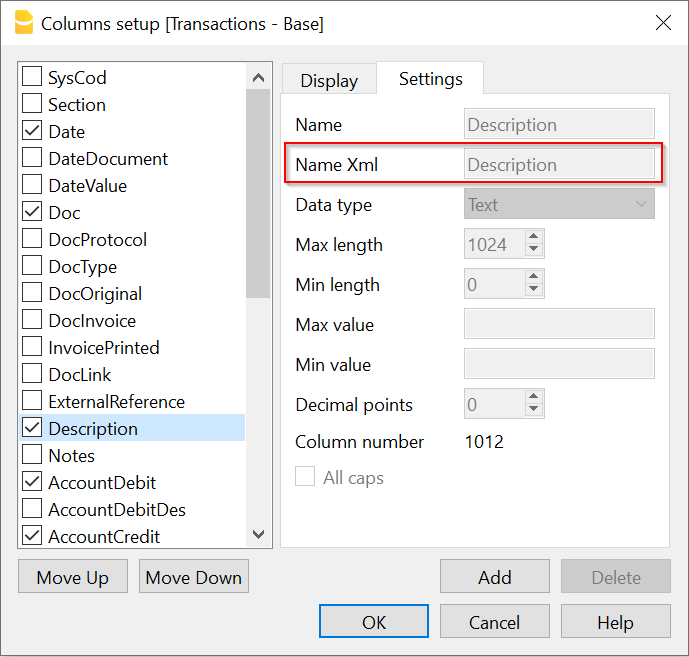
- Column names are case-sensitive and must correspond to the Banana NameXml (English) of the column. You can find the NameXml of a column by clicking its header and selecting Settings, as shown in the example:
- From line 2 onward, the file contains the data to be imported.
- The format for Date fields is yyyy-mm-dd.
- Use a decimal point "." as the decimal separator.
- Amounts should not contain a thousands separator.
Example file format:
Date	Doc	Description	AccountDebit	AccountCredit	Amount

2023-10-12	1	Description 01	1020	2800	2000.00
2023-10-19	2	Description 02	6580	1000	300.00
2023-10-12	3	Description 03	1000	2800	3240.00
2023-10-19	4	Description 04	6570	1020	700.00
Import Accounts
For creating new accounts, customers, suppliers, and cost centers, see the Chart of accounts documentation for a list of the available columns.
Go to the Actions menu > Import into accounting > Accounts
The file type to use is "TXT with headers".
- You can use any column name available in the table.
- Account
The account number. - Description
A short description, organization name, or customer name. - BClass
Required (1, 2, 3, or 4). - Gr1
Required. It is also used to sort the data when it is imported. - Address fields
- Account
- Field headers must be included in the first line of the file.
Field names are case-sensitive and must correspond to the NameXml (English) values found in the Settings tab of the Columns setup. - Field headers and field data must use the tab character as the separator "\t".
- Each line (after a "\n") represents a new record.
- The format for Date fields is yyyy-mm-dd.
- Character encoding should preferably be UTF-8; otherwise, use the local encoding.
When importing, the user can choose to import only the new lines.
Import Double-entry transactions in CSV format
For details about importing double-entry transactions, see Import Double-entry accounting transactions.
Go to the Actions menu > Import into accounting
The file type to use is "Text file with column headers".
File format and main columns for import
For double-entry accounting files
- You can use any column available in the Transactions table
(see: Transactions table for double-entry accounting), and you can view the available columns in the Columns setup list. - Main columns for double-entry accounting
- Date of the transaction (2014-12-31).
- Description a short description.
- AccountDebit the customer's account number or the general customer account.
- AccountCredit the revenue account number.
- Amount the amount in the accounting currency.
- VatCode the VAT code to use.
- AmountCurrency for multi-currency accounting, the invoice amount in the original currency, which must be the currency of the AccountDebit account.
- Field headers must be included in the first line of the file.
Field names are case-sensitive and must correspond to the NameXml (English) values found in the Settings tab of the Columns setup. - Field headers and field data must use the tab character as the separator "\t".
- Each line (after a "\n") is a new record.
- The format for Date fields is yyyy-mm-dd.
- Character encoding should preferably be UTF-8; otherwise, use the local encoding.
Example double-entry file format
In the example, the values are shown in an Excel document.

Options
- Import using clipboard data uses the contents of the clipboard instead of a file.
- Autocomplete values: Some transaction fields are completed automatically (see "Importing transactions for multi-currency double-entry accounting").
- Unicode (UTF-8): The file content is encoded in Unicode UTF-8, which supports any character set.
Importing other transaction columns
You can import any other field defined in the Transactions table.
We also suggest importing the following values, if available:
- DateDocument the date of the original document (for example, the invoice date).
- DocInvoice the invoice number.
- DocOriginal the document number, for example the invoice number.
- DocLink the address of the file that links to a scanned document (PDF, JPG, etc.).
You can use a path relative to the accounting file. - DateExpiration the invoice due date.
- ExternalReference information that helps identify each transaction as unique.
In a future version of Banana, it will be used (together with the date) to warn the user if the transaction has already been imported.
This should be an external reference generated by the software that creates the transactions to be imported.
We suggest using the program name and a number that is unique for the accounting period.
For example, "invoice-2013-00001.001", with the year, invoice number, and a progressive number related to the invoice if multiple transaction lines are required for the same invoice.
Importing transactions for multi-currency double-entry accounting
When importing multi-currency data, rounding or calculation differences may occur because different development tools are used. To avoid these differences, provide only certain fields. During import, the program will calculate the missing field values (with the "Autocomplete values" option).
- If you provide only "AmountCurrency", the program will use the default exchange rate and calculate the "Amount".
- To avoid errors, always provide the "ExchangeCurrency" value.
- If you provide "AmountCurrency" and both "ExchangeRate" and "Amount" are 0 or not present, the program will calculate the exchange rate based on the "Amount" and "AmountCurrency" columns.
Importing invoice data
Data from your invoicing software can be imported into Banana.
There are two ways to do this:
- Have your invoicing software generate a file for Banana as described in "Import Double-entry transactions in txt format".
- Use the data exported by your existing invoicing software.
To import data from a proprietary format into Banana, you need to create a JavaScript Banana Extension that converts the data into a format accepted by Banana.
The script takes the contents of a file as input and creates a tab-separated text file with column headers as output.
See also the GitHub repository.
Invoices on multiple rows
Most invoices contain different items that need to be recorded in different revenue accounts or have different VAT rates.
In this case, each invoice requires multiple import rows.
Date, DateDocument, and DocInvoice always have the same values.
- The first row contains:
- AccountDebit: the customer account number.
- AccountCredit is empty.
- Amount: the total amount of the invoice, which is the amount due from the customer.
- VatCode is empty.
- For each item with a different revenue account or VAT rate, you should add another row:
- AccountDebit is empty.
- AccountCredit: the revenue account for this item.
- Amount: the total amount to be recorded in this account.
If you use a VatCode, it may be convenient to use the amount excluding VAT. - VatCode: the VatCode that applies to this item.
If the Amount is net of VAT, define a VAT code that is calculated on the net amount.
Group transactions by invoice number
If the imported data contains the "DocInvoice" column, when Banana Accounting displays a second dialog box, you can choose to have Banana group the transactions by DocInvoice.
In this case, Banana Accounting automatically creates a transaction for any rounding differences, if necessary.
Use a cost center instead of a customer account
If you want to keep track of registered invoices but do not want them to be recorded in individual accounts, you can use the Cost center (CC3). See also the Clients/Suppliers register.
Import Income & Expenses transactions in CSV format
This "Transactions.simple" file format is used to import transaction data from an account statement or bank statement, with amounts entered as positive or negative values.
Use with Import into accounting
You can import the file by using:
- Actions menu > Import into accounting
- Import into the Transactions table
- The file type to use is "Income & Expenses transactions".
Options
- Import using clipboard data uses the contents of the clipboard instead of a file.
- Autocomplete values: Some transaction fields are completed automatically (see "Importing transactions for multi-currency Double-entry accounting").
Once the import is complete, the contra account must be entered manually. - Unicode (UTF-8): The file content is encoded in Unicode UTF-8, which supports any character set.
File format "transactions.simple" (Income & Expenses)
- Tab-separated values (TSV).
- Column headers and data must use the tab character as the separator "\t".
- Each line (after a "\n") is a new record.
- Column headers
- The first line of the file contains the column headers.
- They specify the names of the columns.
- Column names are case-sensitive.
- The transaction data lines follow the header.
- Transaction data in column format
- Tab-separated values following the headers.
- Date columns should use the format "yyyy-mm-dd".
- Amounts should use the standard JavaScript decimal number format:
- The decimal separator is a point ".".
- No thousands separators.
- Numeric characters only, for example "12345678.90".
- Negative numbers use a minus sign "-" before the number (e.g. "-100.00").
Columns in "transactions.simple"
- Required columns
- Date
The date of the transaction.
The date should use the format "yyyy-mm-dd" (e.g. "2024-12-31"). - Description
A brief description of the transaction. - Income
The income amount.
For double-entry accounting, this is the debit amount; if negative, it is treated as a credit amount.
The amount should use a simple numeric format, with the point "." as the decimal separator.
- Date
- Optional predefined columns:
When present, the import function uses their contents.- Expenses
The expense amount.
For double-entry accounting, this is the credit amount.
The expense can also be specified as a negative number in the "Income" column. - DocInvoice
The invoice number. - ContraAccount
The account number (debit/credit) or category.
Enter square brackets [] to keep the field empty. - Account
The transaction account when the file contains transactions for multiple accounts.
Enter square brackets [] to keep the field empty. - VatCode
The VAT code to use.
The VatCode should be defined in the VatCodes table.
Precede it with the minus sign "-" if the transaction is a correction of an existing transaction. - IsDetail
For composed transactions, an "S" identifies a counterpart transaction and a "D" identifies a detail transaction.
- Expenses
Transform a bank statement file
Banks provide CSV or Excel files containing transactions.
These files can be transformed in different ways:
- With a Banana Accounting Import Extension
Import Extensions "transactions.simple" Income & Expenses for Digital Bank Statements - By using an AI assistant that transforms a bank CSV file into the TSV "transactions.simple" format.
Information for an AI assistant transforming bank files
When converting data from a bank statement to the "transactions.simple" file format, it is important to analyze the bank statement carefully.
A bank statement file contains a series of transactions corresponding to the income and expenses recorded by the bank.
The structure of a bank statement CSV file usually consists of different parts:
- Optional information about the account and account holder.
- Unstructured data at the beginning of the file.
- The column headers.
- A line containing the column names.
For example: "Date,Description,Income,Expense" - Column names are usually in the user's language and not in English.
- Column names are separated by a character, usually a comma "," or a semicolon ";".
- Column names often use similar terminology but are usually in a language specific to the customer. For example:
- German: "Datum,Buchungstext,Einnahmen,Ausgaben"
- A line containing the column names.
- The transaction movements.
- Multiple lines, each containing a single movement.
- Dates may use a specific format.
- Numbers may use a specific localized format.
- For example:
- "31.12.2024,"Payment to Albert",,"1'344,22",
- "31.12.2024,"Income from Albert","344,22",
- Other optional information.
- Unstructured data at the end of the file.
Banks use different names for columns containing income and expense amounts.
- Double-entry column naming convention:
Debit and Credit usually refer to the bank's point of view: "We have debited you" and "We have credited you".- A debit for the customer is an expense (credit amount).
- A credit for the customer is income (debit amount).
If necessary, the AI assistant should ask the user for information about:
- The thousands and decimal separators for amounts.
For example: thousands separator "'", decimal separator ".". - The date separator or the date format used.
For example: dd.mm.yyyy. - The meaning of a particular column name.