Report Extensions
Account Statement Letter
Account Statement LetterInstall the extension
To install the extension:
- Open Banana Accounting Plus.
- Menu Extensions > Manage Extensions.
- In the search field enter Account Statement Letter.
- From the extensions list select Account Statement Letter.
- Select the extension and click Install.
- Click Close to close the window.
Create the report
To creare the report:
- Open an accounting file.
- From the menu File > File and accounting properties > Address, enter the sender address.
- In the Accounts table (Address view) enter the receiver address for the account.
- From the Extensions menu select the Account Statement Letter.
- Enter the account number.
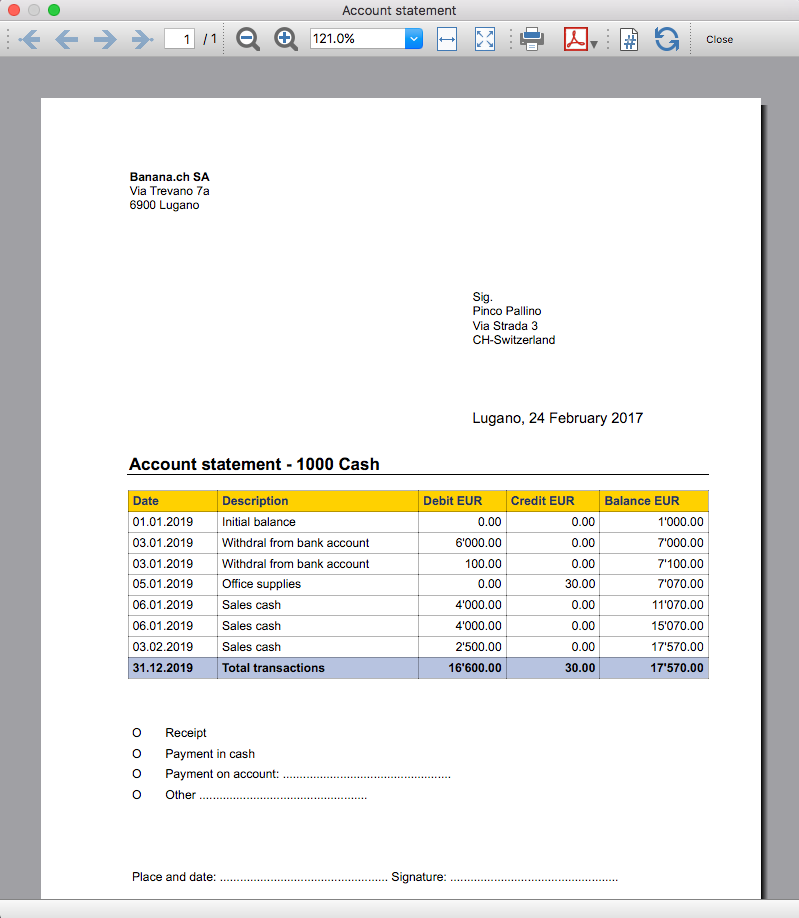
Example of account statement report:
Account balance by day within a period
Account balance by day within a periodInstall the extension
To install the extension:
- Open Banana Accounting Plus.
- Menu Extensions > Manage Extensions.
- In the search field enter Account balance by day within a period.
- From the extensions list select Account balance by day within a period.
- Select the extension and click Install.
- Click Close to close the window.
Create the report
To creare the report:
- Open an accounting file.
- From the Extensions menu select the Account balance by day within a period.
- Enter the account number.
- Select the period.
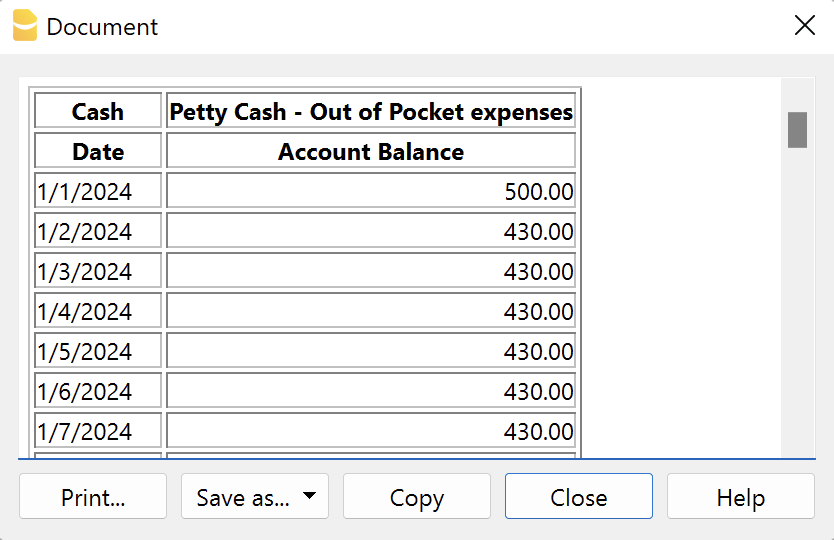
A window with results is displayed. You can copy, save and print the results.
Account balance for all days in a month
Account balance for all days in a monthInstall the extension
To install the extension:
- Open Banana Accounting Plus.
- Menu Extensions > Manage Extensions.
- In the search field enter Account balance for all days in a month.
- From the extensions list select Account balance for all days in a month.
- Select the extension and click Install.
- Click Close to close the window.
Create the report
To creare the report:
- Open an accounting file.
- From the Extensions menu select Account balance for all days in a month.
- Enter the month number.
- Enter the account number.
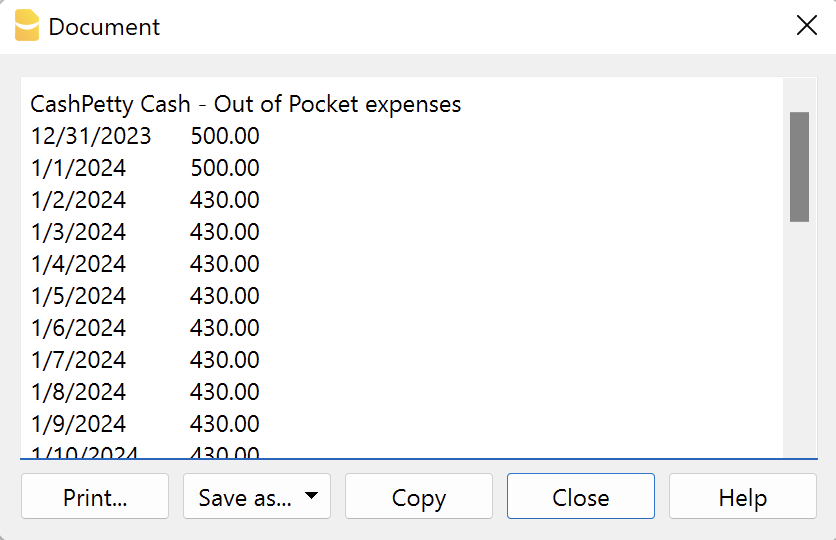
A window with results is displayed. You can copy, save and print the results.
Audit Reports [BETA]
Audit Reports [BETA]The main purpose of this extension is to provide reports that can be easily copied into excel, summarising and showing the main accounting data that are normally taken as a basis by auditors when preparing their analysis.
Useful reports for Banana users who need to send their auditor accounting data, but also for auditors who use Banana themselves, as these reports are based on the functionalities already offered by Banana and therefore facilitate and speed up the collection of accounting data.
Reports
The following reports can be generated:
- General Ledger: Shows the transactions for each account, like in the account card.
- Journal: Shows the details of each transaction.
- VAT Journal: Shows the details of each VAT transaction.
- Trial Balance: Shows the balance of all accounting items in two columns (debit and credit).
- Customers And Suppliers: Shows list of customers and suppliers and information about them.
Through a dialogue it is possible to decide the time of year to be taken into account in the reports.
Adding extra columns
Through the command "Columns Settings" additional columns can be inserted in each report, except for the trial balance, which remains as it is. To add a column to the report, simply enter its xml name in the dialogue. To add several columns, separate them with a semicolon ";" as shown in the example.

The columns you can add are the same present in the Transactions table, except for the Customers and Suppliers report, for which you find the data in the Accounts table.
If you accidentally add a column that is not contained in the tables mentioned, no error is currently raised, the column will be added but no value will be present.
Copy to Excel
Reports are easily copied to Excel, when the report preview is generated, just click on the "copy" icon and paste the copied table into an Excel sheet.

Once the whole table has been copied, you can arrange the file as you want and customise your report with Excel tools.

Messages
- Total debit and total credit are different: The total Debit and total Credit do not match, check if the same error is present in your Accounting file, if it is only present in the report send us a feedback
Free text letter (Banana+) [BETA]
Free text letter (Banana+) [BETA]
The extension presented below allows you to create a free text letter for the members registered in Banana Accounting Plus (Accounts table).
It is essential to have the members set up with cost centres, using cost centre CC3.
Prerequisites
To use this extension you must:
- Download and install Banana Accounting+ (version 10.1.7 or later).
- Have the Banana Accounting Plus Advanced plan.
Beta version
The extension is currently released as a beta version. This means that some details may change without notice.
Installing and using the extension
- Install Banana Accounting Plus Dev-Channel
- Install the Letter extension (Banana+). Visit the Manage extensions documentation.
- Once installed, the extension will be visible in the Extensions menu where it can be executed.
Create a letter
- Enter the Association data in the Address tab of the accounting file.
- From the Extensions menu select the extension Letter (Banana+) .
- Complete the fields in the Settings dialogue and click OK.
Settings dialogue
Run the extension from the Extensions menu > Letter (Banana Plus).
The extension Settings dialogue will open, where you can define the information required to create the letter printout.
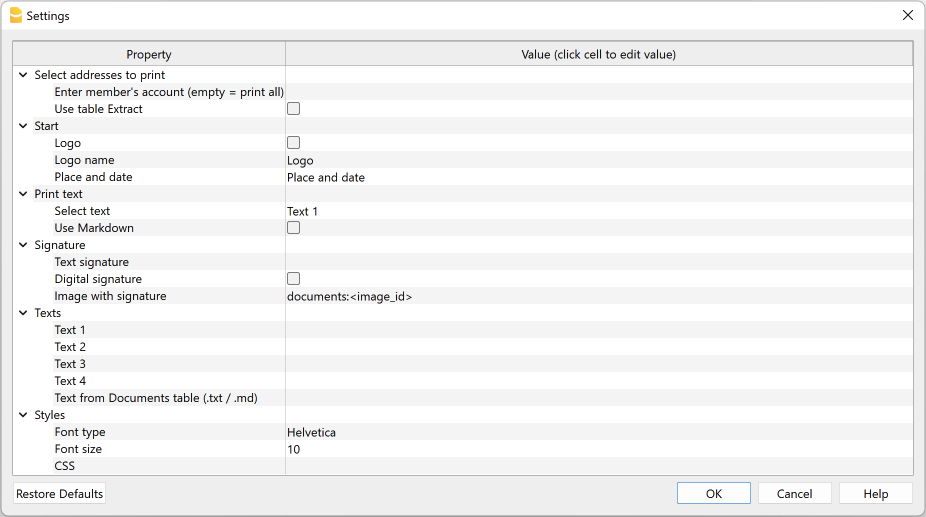
For data entry, click in the field of the Value column.
The settings are divided into the following groups:
- Select addresses to print
- Define the member accounts for which the donation statement is to be created.
- Start
- Define logo for header, location and date.
- Print text
- Define which text to use and decide whether to include donation records.
- Signature
- Define text and image for signature.
- Texts
- Define up to four different texts or take a text from the Documents table.
- Styles
- Define font type and size for the letter texts.
The entered data are used to generate the report, which you can then save and print.
Select addresses to print
Here you can decide for which members, defined with CC3 cost centres, to create the letter.
- Enter member's account (empty = print all)
- Enter a single account (e.g. "10001").
- Enter several accounts divided by a "," (e.g. "10001,10002,10005").
- If you do not enter anything, statements will be printed for all registered members.
- Use Extract table
- Use the extracted accounts in the Extract table.
- You must first use the command from the Data menu > Extract and sort rows to extract the rows with the accounts you want to use.
Start
Here you define the logo for the header, place and date.
- Logo
- Include a logo in the header. The logo is defined via the command in File → Logo setup.
- Logo name
- Enter the name of the logo to be used.
- Place and Date
- Enter the location and date of issue of the statement.
Print text
Here you can decide which text to use from the ones you have entered.
- Select text
- Select the text you wish to use from the list.
- See below for inserting text.
- Use Markdown
- The selected text is interpreted as Markdown text (requires the Advanced plan of Banana Accounting Plus).
Signature
Here you define the text and image for the signature of the letter.
- Text signature
- Enter the first and last name of the person issuing the statement.
- Digital signature
- Use an image as signature.
- Image with signature
- Enter the image to be used. You have two ways to do this:
- documents:<nome_id>: to use an image saved in the Documents table, where <name_id> represents the name entered in the ID column of the table (e.g. "documents:signature").
- file:document/<immagine>: to use an image saved externally to Banana, but in the same folder as the .ac2 file. Also indicate the extension of the .png or .jpg image (e.g. "file:document/signature.png").
- Enter the image to be used. You have two ways to do this:
Texts
Here you define the texts of the letter. You can enter up to four different texts or take a text from the Documents table.
- Text 1, Text 2, Text 3, Text 4
- Enter the text you wish to display in the printout. The text can also be on several rows.
- Texts can be of text type and Markdown type.
- You can enter up to four different texts, and then choose which one to use.
- Text from Documents table (.txt / .md)
- You can use the texts entered in the Documents table.
- Enter the document Id (e.g. 'Letter.txt', 'Letter', 'Letter.md', etc.).
- Texts can be of text type and Markdown type.
- For Markdown-type texts, the Id in the Documents table must end with ".md" and the full name, including the final ".md" (e.g. "Letter.md"), must be entered here.
Styles
Here you define the font type and size for the letter texts.
- Font Type:
- Define the font type.
- The default font is 'Helvetica'.
- Font size:
- Define the font size.
-
The default font size is '10'.
- CSS
- Optional.
- You can change the appearance of the print (text formatting, address positioning, etc.) by entering CSS code to customise the style.
- See the documentation for creating CSS styles. (requires the Advanced plan of Banana Accounting Plus).
Extract table (Extract rows command)
The Extract and Sort rows feature can be used to select member accounts for which to create the letter. This is useful when, for example, you only want to print the letter for certain members, without having to enter the list of accounts directly into the extension settings.
For example, by allocating members into several groups (Accounts table), the command from the Data menu > Extract and sort rows can then be used to extract the rows of members belonging only to certain groups (in the example, members belonging to groups S1 and S3).
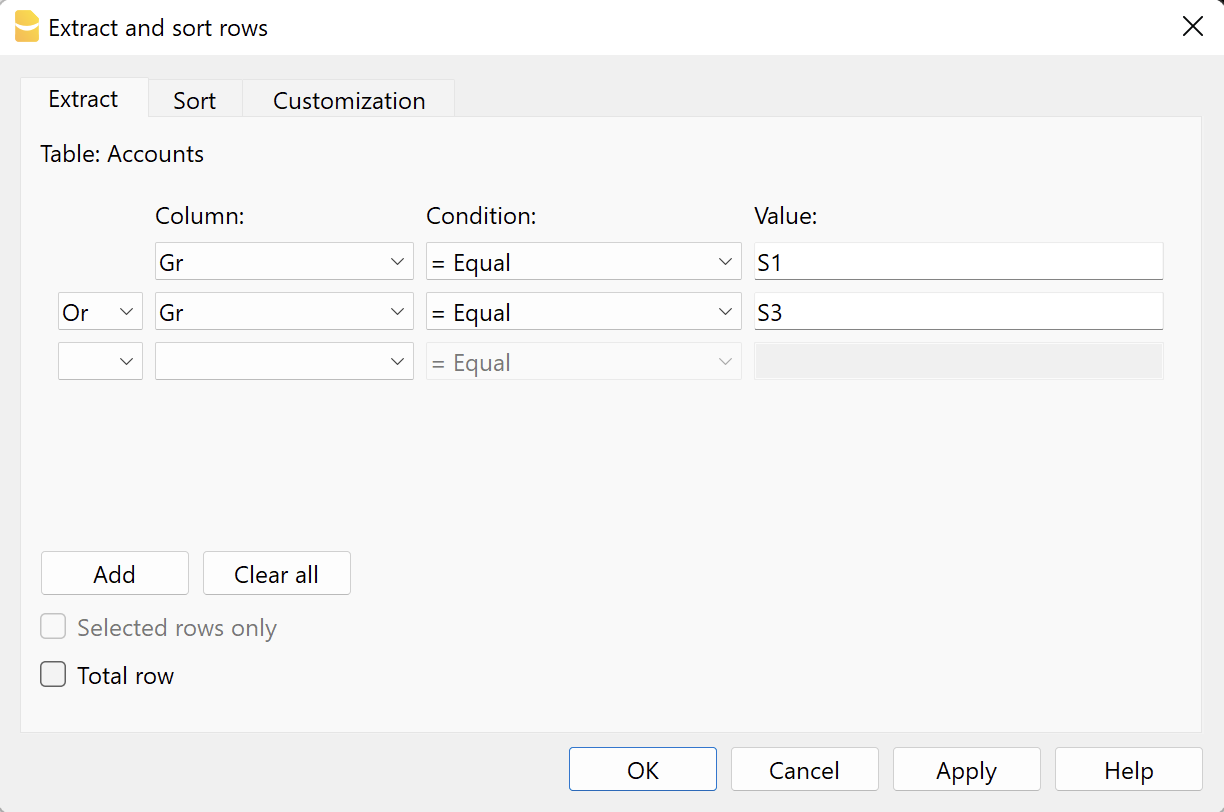
To use the extracted rows:
- Extract rows with the command from the Data menu > Extract and sort rows.
- Run the extension and in the Settings dialogue, section Select addresses to print, check the box Use Extract table.
- If the rows were not extracted before printing was started, a warning message will be displayed and all registered member accounts will be used.
Letter text (plain text)
There are two possibilities for entering and using a plain text:
- Enter the text in the Settings dialogue.
- Enter text in the fields Text 1, Text 2, Text 3 or Text 4.
Up to four texts can be added. - Under Print Text > Select Text, select the text to be used.
- Under Print Text, do NOT select the option Use Markdown.
- Enter text in the fields Text 1, Text 2, Text 3 or Text 4.
- Enter text in the Documents table.
- Add a document by selecting the type Plain text (text/plain).
There is no limit, you can add as much text as you want.
- Add a document by selecting the type Plain text (text/plain).
-
- In the Settings dialogue:
- Under Print Text > Select Text, select the option Text from Documents table (.txt / .md).
- Under Texts >Text from Documents table (.txt / .md), enter the Id of the text entered in the Documents table (e.g. 'text.txt').
- In the Settings dialogue:
For all texts:
- With a specific annotation you can apply the bold style to texts. To do so, include the desired texts between double asterisks ** .
Examples:- **text** = text
- **textA textB** textC = textA textB textC
- If the following values are entered in the text rows, they will be replaced by the corresponding values:
-
- <Account> : member account
- <NamePrefix> : member prefix
- <FirstName> : member's first name
- <FamilyName> : member's last name
- <OrganisationName> : member's organisation
- <Address> : member's address
- <AddressExtra> : extra address
- <Region> : region/state or province
- <Country> : country
- <Currency> : currency
- <Amount> : total amount of donations
Letter text (Markdown text)
Markdown is a language that allows formatted text to be created using a standard text editor and a syntax that is easy to write and read.
To use Markdown, the Banana Accounting Plus Advanced plan is required.
There are two ways to enter and use a Markdown text:
- Enter the text in the Settings dialogue.
- Enter the text in fields Text 1, Text 2, Text 3 or Text 4.
Up to four texts can be added. - Under Print Text > Select Text, select the text to be used.
- Under Print Text, check the option Use Markdown.
- Enter the text in fields Text 1, Text 2, Text 3 or Text 4.
- Enter text in the Documents table.
- Use the Markdown Editor to add a document, selecting the type Markdown-formatted text (text/markdown).
There are no limits, you can add as much text as you want. - The file name in the Id column must end with '.md' (e.g. 'text.md').
- Use the Markdown Editor to add a document, selecting the type Markdown-formatted text (text/markdown).
-
- In the Settings dialogue:
- Under Print Text > Select Text, select the option Text from Documents table (.txt / .md).
- Under Texts > Text from Documents table (.txt / .md), enter the Id of the text entered in the Documents table (e.g. 'text.txt').
- In the Settings dialogue:
For all texts:
- If the following values are entered in the text lines, they will be replaced by the corresponding values:
- {{Account}} : member's account
- {{NamePrefix}} : member's prefix
- {{FirstName}} : member's name
- {{FamilyName}} : member's surname
- {{OrganisationName}} : member's organisation
- {{Address}} : member's address
- {{AddressExtra}} : extra address
- {{Region}} : region/state/province
- {{Country}} : country
- {{Currency}} : currency
- {{Amount}} :total amount of donations
Print example
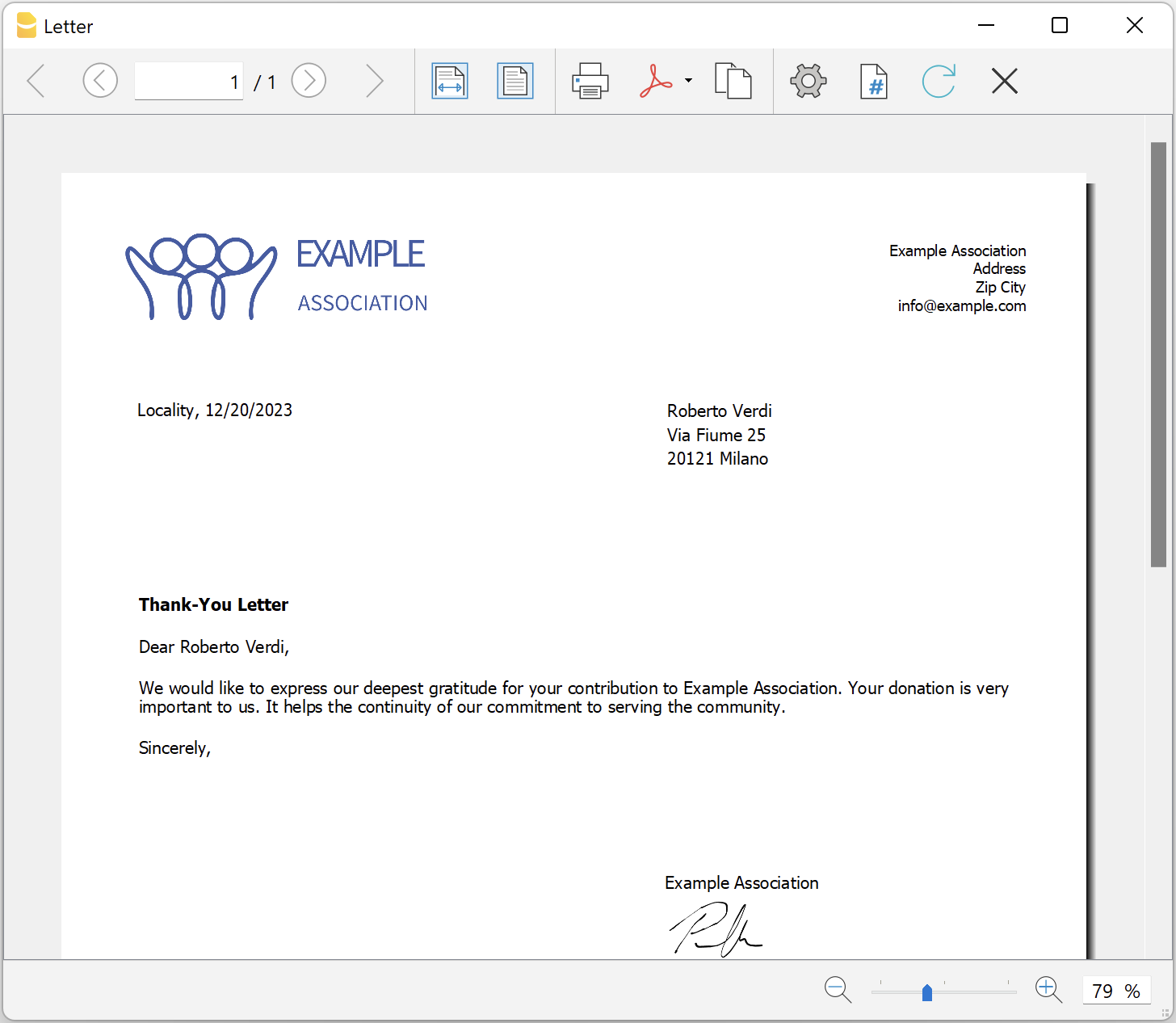
Printing receipts from cash book transactions
Printing receipts from cash book transactionsThis extension prints payment receipts based on transactions from cash book accounting file.
Example of a payment receipt:
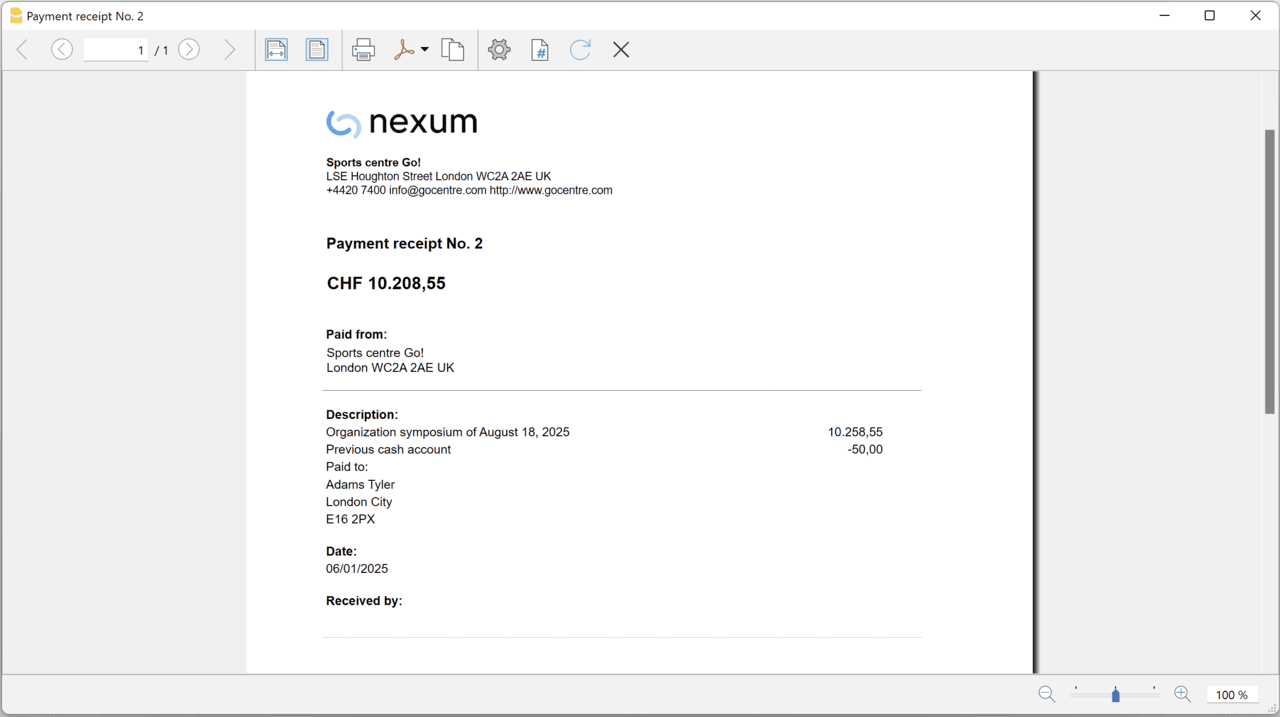
The program prints the receipt using the following logic:
- It takes all the lines with the same Doc Number, of the lines where the cursor is positioned.
- It prints the document number in the "Payment receipt No: "
- It prints the amount by summing all the amounts.
- It prints the Descriptions in different lines.
with the text of the Description column of all the transactions that have the same doc number.
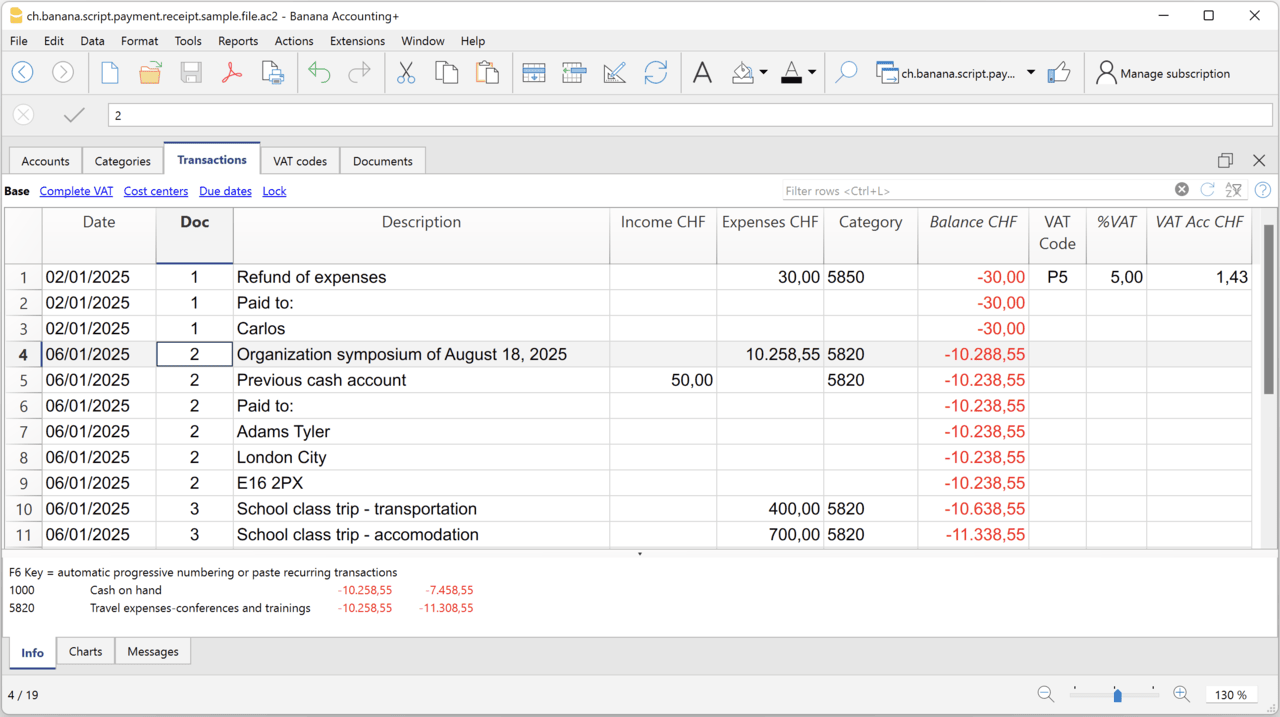
Example file
To created the receipts:
- Open a Cash Book file:
- Or download the example ch.banana.script.payment.receipt.sample.file.ac2 and open it.
- Positions on the line of the transaction group you wish to print.
- From the Extensions menu select the Printing receipts from cash book transactions.
Settings and properties
Prior to printing the receipt you can set the
Extension properties
You can set the following parameters from the menu Extensions > Manage Extensions, select the Printing receipts from cash book transactions extension and click on Settings.
- Include page header (1=yes, 0=no)
The logo and the address information can be included as header of the page. - Automatic date (1=yes, 0=no)
The date of the transaction is used. - Font type
The font type of the texts (Arial, Helvetica, Times New Roman, ...)
Address
Set your address from the menu File > File and accounting properties > Address.
Header logo
A logo for the header can be added as attachment in the Documents table.
- Add the Documents table to the Banana Accounting file.
If it is not already present you need to add the Documents table in the Banana document with the menu command Tools > Add new features > Add document table. - Add a row in the Documents table.
- In the ID column, enter "logo".
- In the Attachments column, double click on the cell and select Image, then choose the logo image you want to use.
Entering transactions
Cash book transactions are entered as usual in the Transactions table.
- Transactions are considered to belong to the same group when they have the same doc number.
- Paid to
- You can enter the text you want to display on the printout (e.g. "Paid to:").
- You can also enter text in bold by enclosing it in double asterisks ** (e.g. **Paid to:**)
- You can enter the text "#paidto" (without quotes) to let the program insert a blank line followed by the text in bold and in the language of the accounting file (it, fr, de, en, nl).
Report Balance and Profit & Loss with transactions details
Report Balance and Profit & Loss with transactions detailsThis extension creates a Balance Sheet and Profit & Loss report with transactions details for each account.
Install the extension
To install the extension:
- Open Banana Accounting Plus.
- Menu Extensions > Manage Extensions.
- In the search field enter Report Balance and Profit & Loss with transactions details.
- From the extensions list select Report Balance and Profit & Loss with transactions details.
- Select the extension and click Install.
- Click Close to close the window.
Create the report
To creare the report:
- Open an accounting file.
- From the Extensions menu select the Report Balance and Profit & Loss with transactions details.
- Select the financial report you want to print:
- Assets / Liabilities
- Income / Expenses
- All
Example of assets details: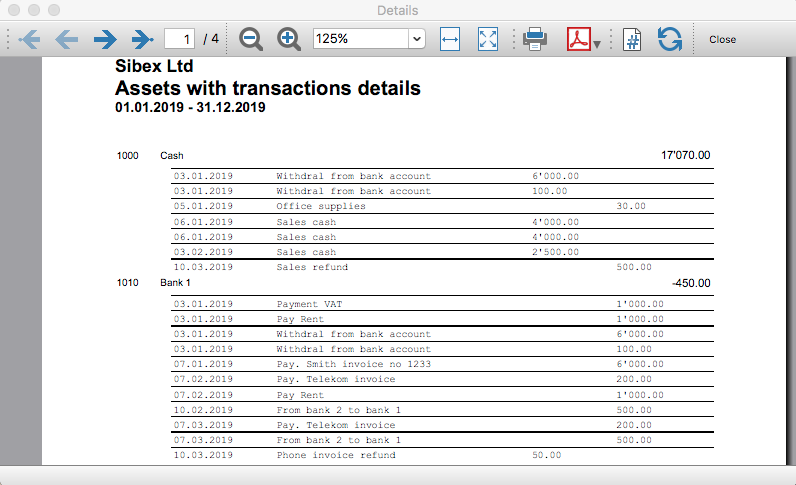
Example of liabilities details: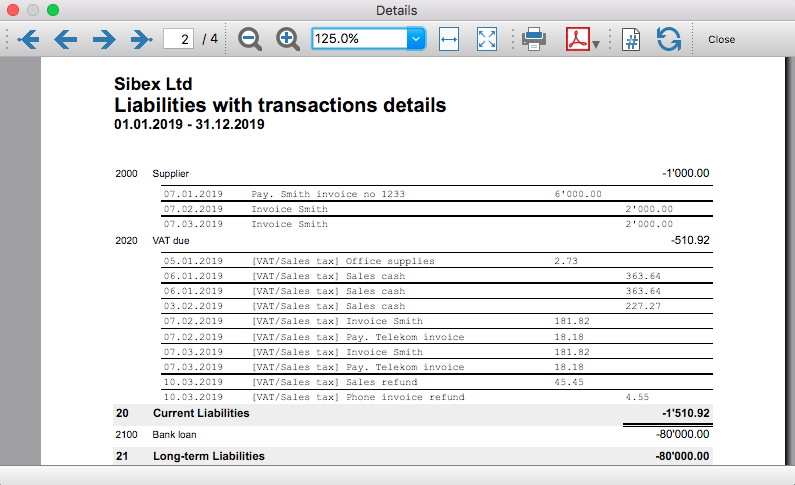
Example of income details: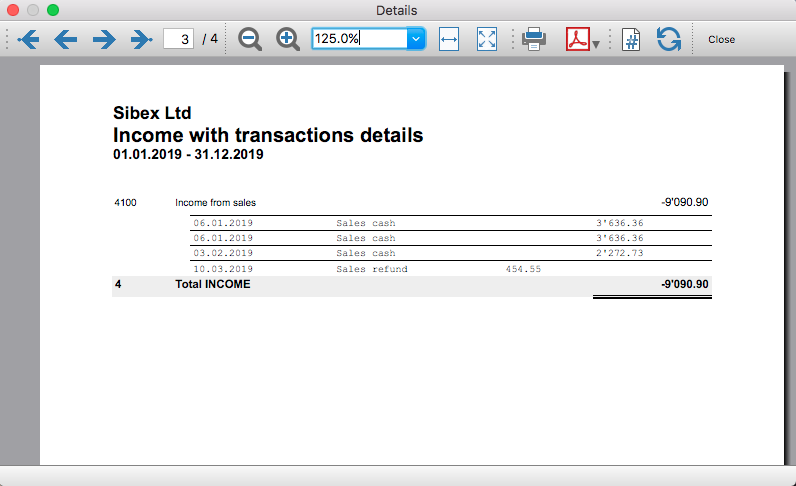
Example of expenses details: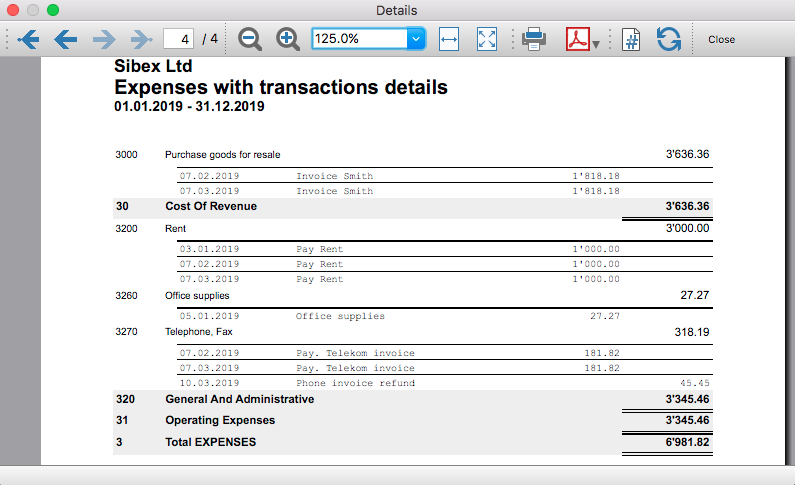
Transaction Voucher (Banana+)
Transaction Voucher (Banana+)Accounting settings
From menu File > File and accounting properties > Accounting Tab, enter the project number/name in the Header Left field.
How it works
- For each transaction of the Transactions table enter the voucher number in the Doc column.
- From the Transactions table of the accounting file select a row with the desired voucher number you want to create the report.
The voucher number is taken from the selected row where the cursor is positioned, but you can also change it manually into settings dialog. - Launch the extension from the menu Extensions > Transaction Voucher (Banana+).
- In the settings dialog window enter the required information.
- Logo
Check to include the logo in the header.
The logo is defined with the command File > Logo setup where you can also set the size, choose how to align it (left, centre, right). - Logo-Name
Enter the name of the logo customisation defined in the menu File > Logo setup, respecting upper and lower case. - Title
- Voucher number
- Paid to
- Paid in
- Cheque No.
- Payment Received by
- Paid by
- Prepared by
- Verified by
- Recommended by
- Approved by
- Logo
- All the values entered are saved and proposed the next time.
- The extension will print the information entered in the dialog plus the data of the transaction with the specified Voucher / Doc number.
Transaction Voucher (Helvetas model)
Transaction Voucher (Helvetas model)How it works
- From the Transactions table of the accounting file select a row with the desired Doc number.
- Launch the extension from the menu Extensions > Transaction Voucher (Helvetas model).
- A dialog window requesting some information will appear.
The voucher number is taken from the row selected where the cursor is positioned, but you can change it manually.
Complete all the remaining fields by entering your data and click Ok.
The values entered are saved and proposed the next time. - The extension will print the information entered in the dialog plus the data of the transactions with the specified Voucher / Doc number.
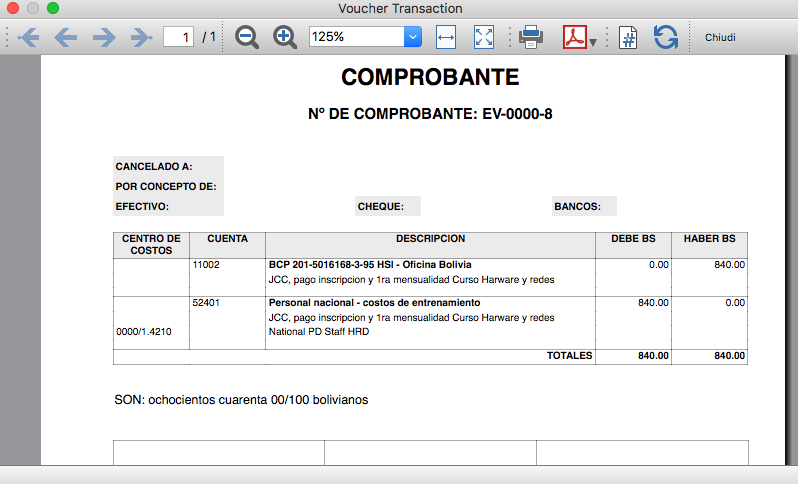
Example of Voucher report:
Transaction Voucher (Swiss Red Cross model)
Transaction Voucher (Swiss Red Cross model)Accounting settings
Two settings are required:
- the Header Left
- click menu File > File and accounting properties > Header Left.
The Header Left field must contain the project number and the project name divided by the "-" character (example: "1234 - Abc")
- click menu File > File and accounting properties > Header Left.
- add a small image/logo
- Add the Documents table to the Banana Accounting file.
If it is not already present you need to add the Documents table in the Banana document with the menu command Tools > Add new features > Add document table. - In the Id column, of the documents table insert transaction_voucher_image.
- In the Attachments column, double click on the cell, select Image and add the desired image.
- Add the Documents table to the Banana Accounting file.
How it works
- From the Transactions table of the accounting file select a row with the desired Doc number.
For example: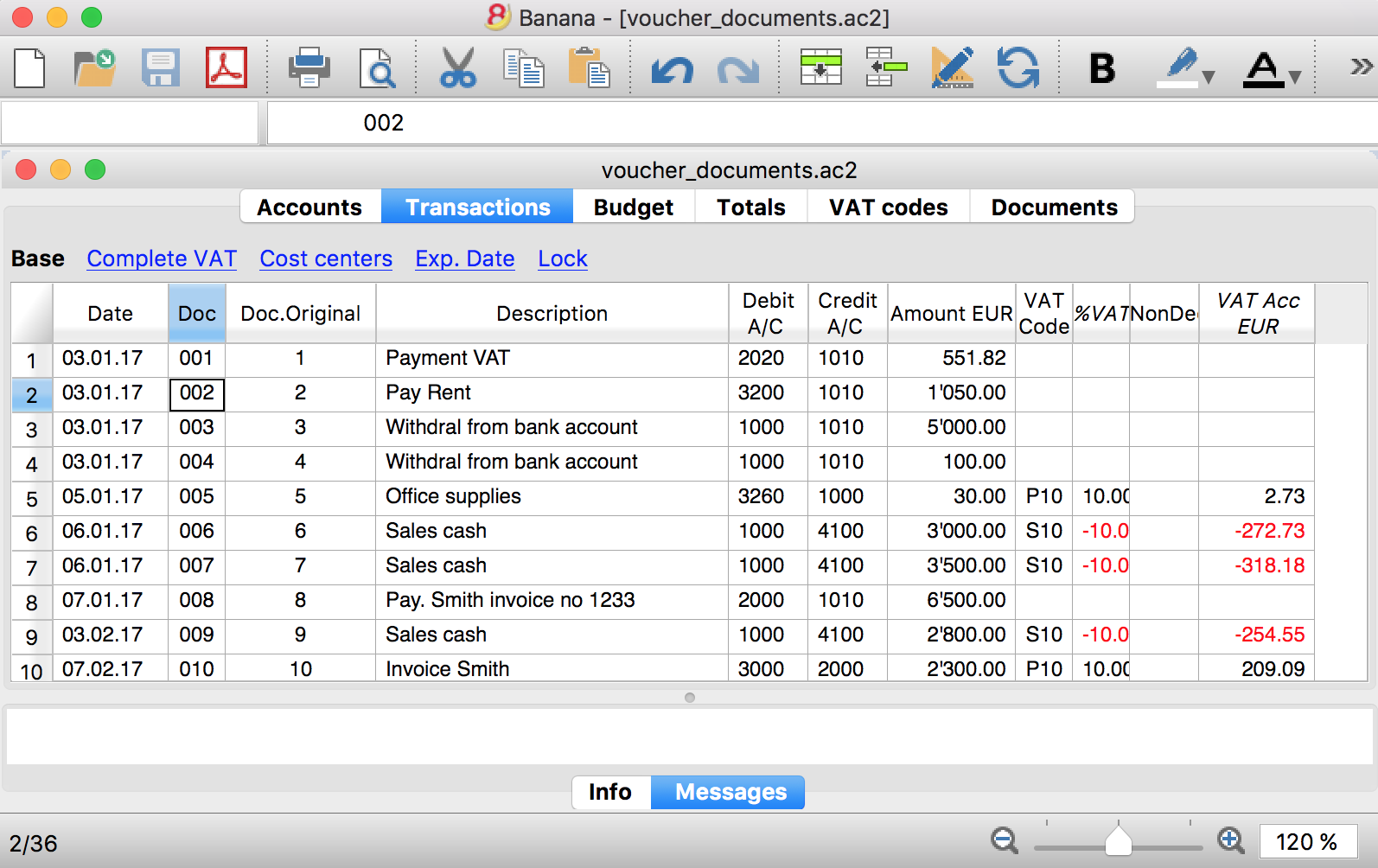
- Launch the extensions from the menu Extension > Transaction Voucher. A dialog window requesting some information will appear.
- The voucher number is taken from the row selected where the cursor is positioned, but you can change it manually.
- Complete all the remaining fields by entering your data and click Ok.
The values entered are proposed the next time.
Dialog example: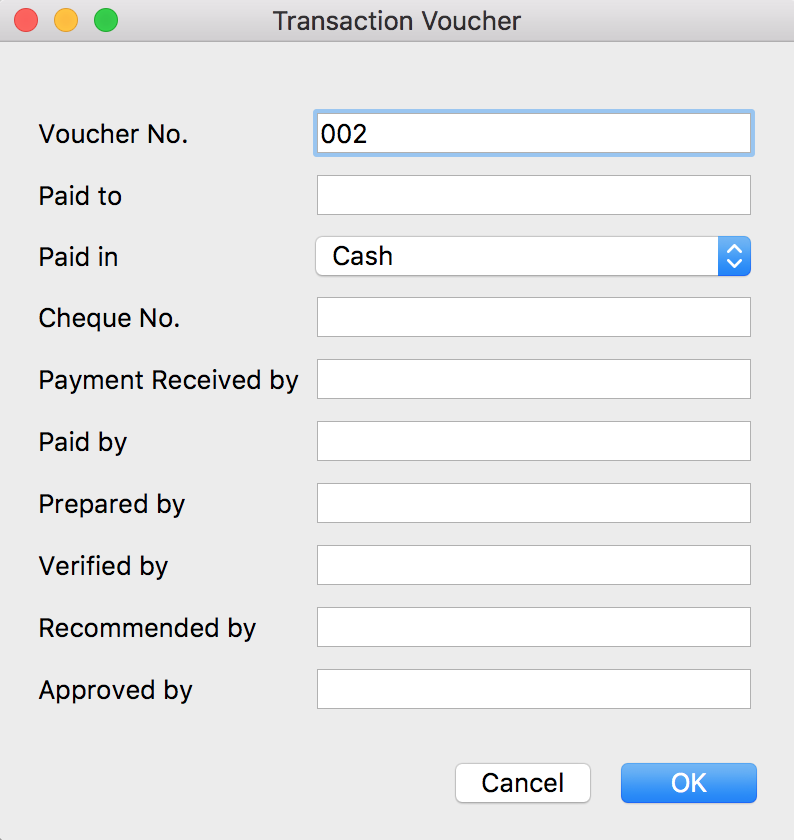
- The extension will print the information enterd in the dialog plus the data of the transactions with the specified Voucher / Doc number.
For example: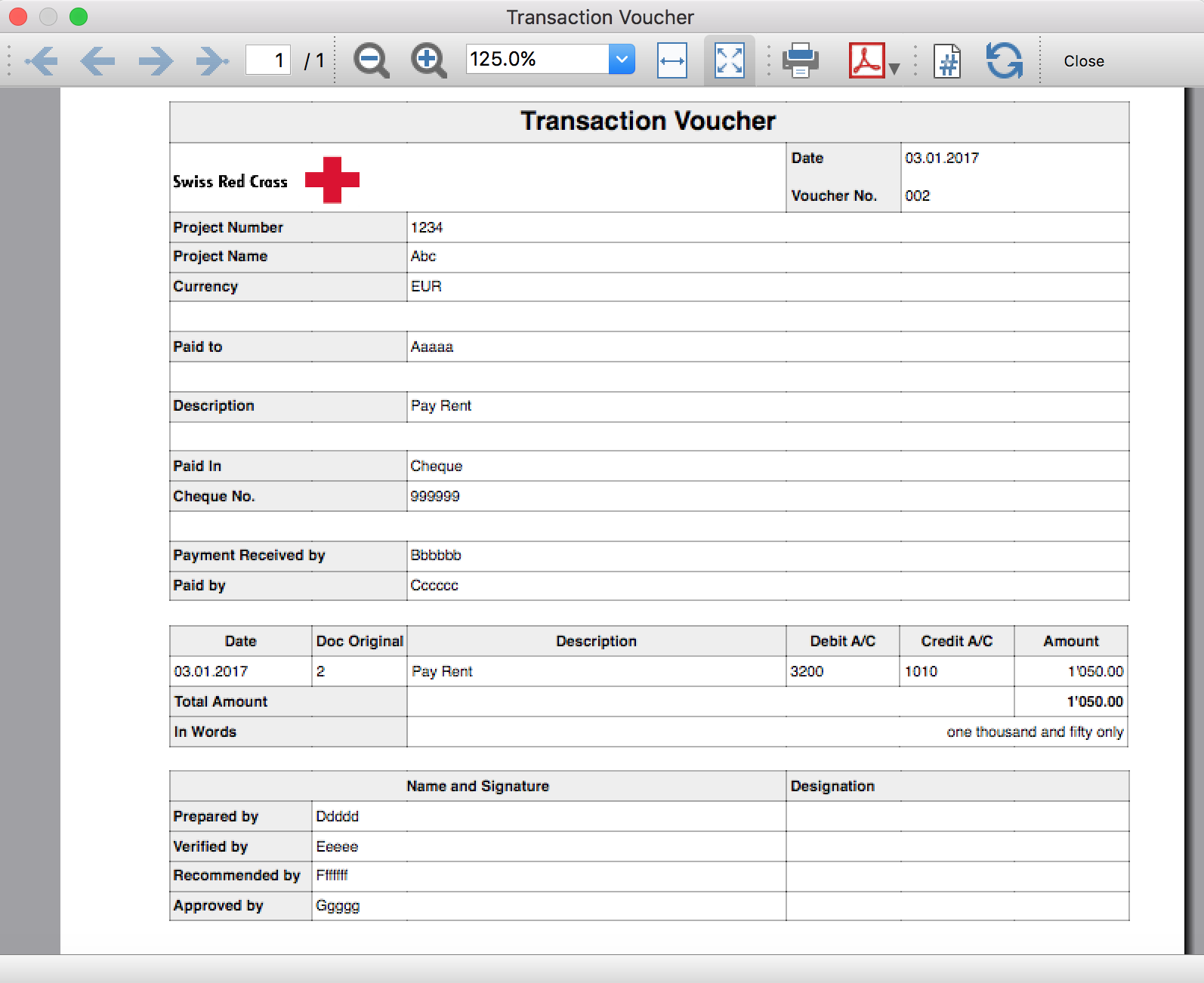
Trial Balance
Trial BalanceInstall the extension
To install the extension:
- Open Banana Accounting Plus.
- Menu Extensions > Manage Extensions.
- In the search field enter Trial Balance.
- From the extensions list select Trial Balance.
- Select the extension and click Install.
- Click Close to close the window.
Create the report
To creare the report:
- Open an accounting file.
- From the Extensions menu select the Trial Balance.
- Select the period.
For the given period, display a Trial Balance report containing:
- Balance sheet
- Profit & Loss
The details displayed are the following:
- Account
- Account description
- Debit amounts
- Credit amounts
Example of Trial Balance report: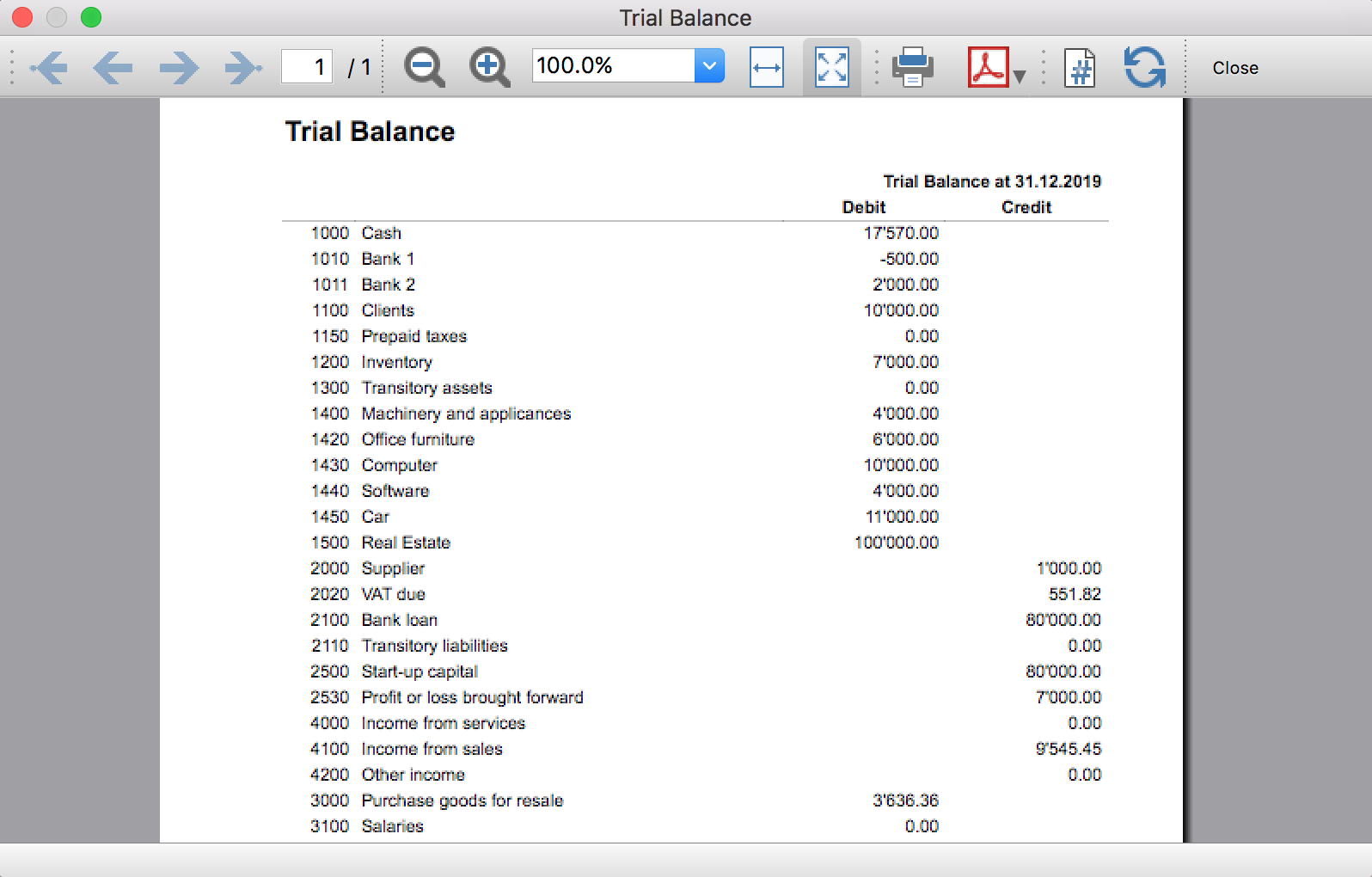
Trial Balance and Blockchain (Quarter periods)
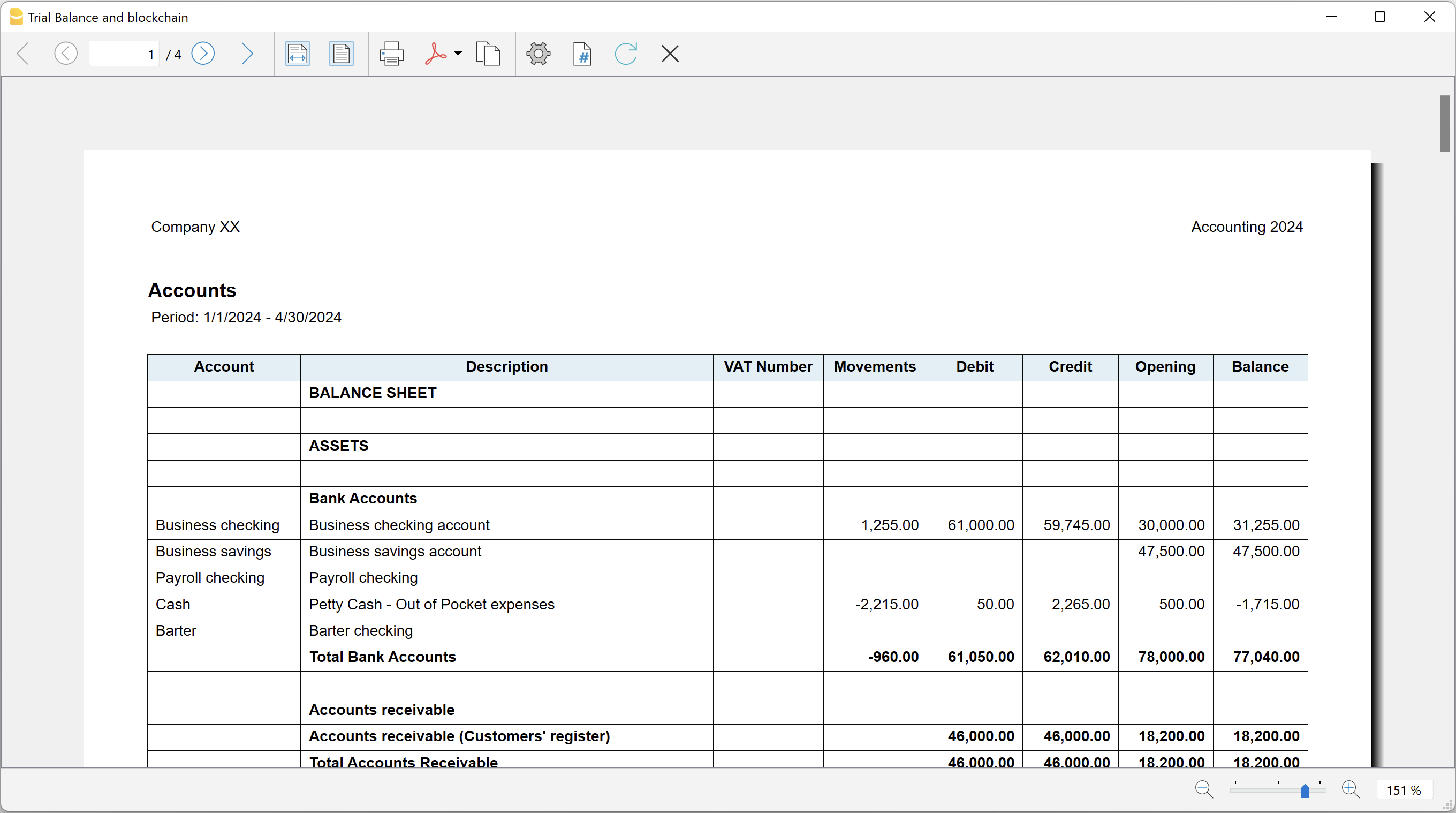
Trial Balance and Blockchain (Quarter periods)This extension creates a report containing the table Accounts and at the end the blockchain for the selected quarter period.
Prerequisites
To use this extension you must download and install Banana Accounting Plus.
Install the extension
To install the extension:
- Open Banana Accounting Plus.
- Menu Extensions > Manage Extensions
- Select Universal as country.
- Select Online > Productivity.
- From the extensions list select Trial Balance and Blockchain (Quarter periods).
- Click Install to install the extension.
- Click Close to close the window.
Create the report
To creare the report:
- Open an accounting file.
- From the menu File > File and accounting properties, in the Header left and Header right fields enter the texts to be printed on the left and right in the page header.
- From the Extensions menu select Trial Balance and Blockchain (Quarter periods).
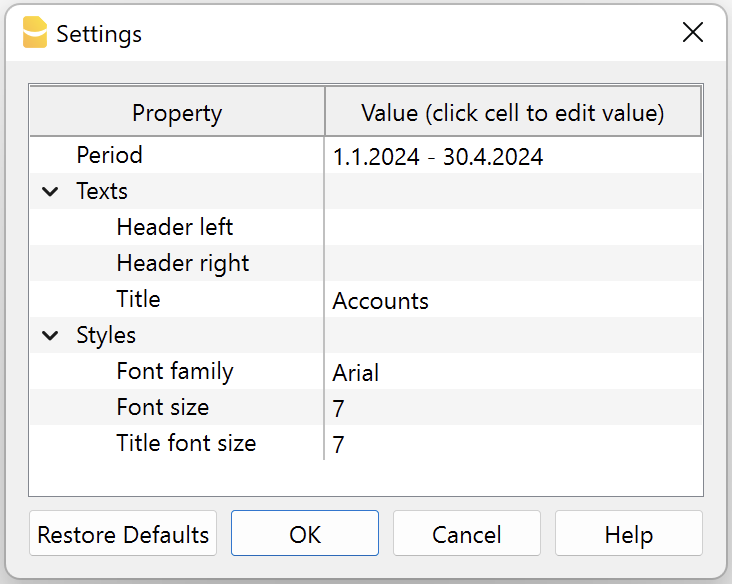
- In Settings dialogue select the period, set the header texts, the title and font, then click OK to create the report.
The texts of the settings dialog and column headers in the printout are fixed and are in the same language as the Banana file (defined from the menu File > File and accounting properties > Other > Current language). The languages that can be used are Italian, French, German and English.
Settings dialogue
Run the extension from the menu Extensions > Trial Balance and Blockchain (Quarter periods).
The extension Settings dialogue will open. From here you can choose some parameters to print the report.
- Period.
Select a period from the list. The periods are divided into three quarters. - Header left text.
Insert another text to be printed on the left side of the page header. - Header right text.
Insert another text to be printed on the right side of the page header. - Title.
Insert text to be printed as title of the page. - Font family.
Insert the font type. - Font size.
Insert the font size for all the page texts. - Title font size.
Insert the font size for the title.
Print example
Trial Balance with transaction's lock blockchain information
Trial Balance with transaction's lock blockchain informationThe extension creates a report containing the table Accounts and the blockchain information regarding the transaction lock of the previous period and of the current period.
This printout has been conceived for a customer that has central SAP accounting and use Banana Accounting locally, to keep accounting for at more than 40 schools. Each school keep their own accounting and every 4 months the data is integrated in the main accounting system.
In order to assure that the information is perfectly synchronized:
- The school lock the transactions so that each movement is marked with a blockchain.
- The school print the report using this extension, with the data and the blockchain info of the current and last period.
- Prior to entering the data in the main system, the responsable verify that the blockchain of the last period already entered is the same as the one printed on the current report.
Personal at the schools can easily manage their finance locally and have more details and better control over the spending. Data is only entered in the main system periodically. The organisation have a better accounting system and save a lot of money in training and SAP licenses.
Install the extension
To install the extension:
- Open Banana Accounting Plus.
- Menu Extensions > Manage Extensions
- Select Universal as country.
- Select Online > Productivity.
- From the extensions list select Trial Balance with transaction's lock blockchain information.
- Click Install to install the extension.
- Click Close to close the window.
Create the report
To creare the report:
- Open an accounting file.
- From the menu File > File and accounting properties, in the Header left and Header right fields enter the texts to be printed on the left and right in the page header.
- From the Extensions menu select Trial Balance with transaction's lock blockchain information.
- In Settings dialogue set header texts, title and font as you want, then click OK.
- In Period dialogue select a period and confirm with OK to create the report.
The texts of the settings dialog and column headers in the printout are fixed and are in the same language as the Banana file (defined from the menu File > File and accounting properties > Other > Current language). The languages that can be used are Italian, French, German and English.
Settings dialogue
Run the extension from the menu Extensions > Trial Balance with transaction's lock blockchain information.
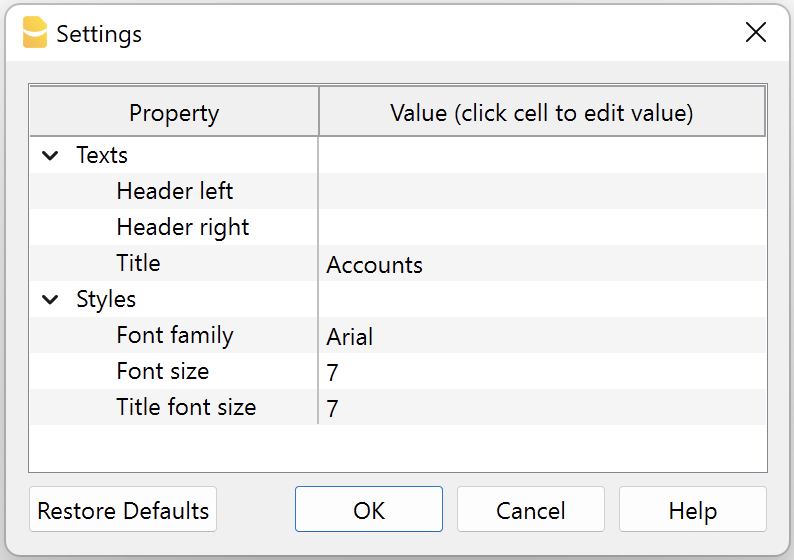
The extension Settings dialogue will open. From here you can choose some parameters to print the report.
- Header left text.
Insert another text to be printed on the left side of the page header. - Header right text.
Insert another text to be printed on the right side of the page header. - Title.
Insert text to be printed as title of the page. - Font family.
Insert the font type. - Font size.
Insert the font size for all the page texts. - Title font size.
Insert the font size for the title.
Print example
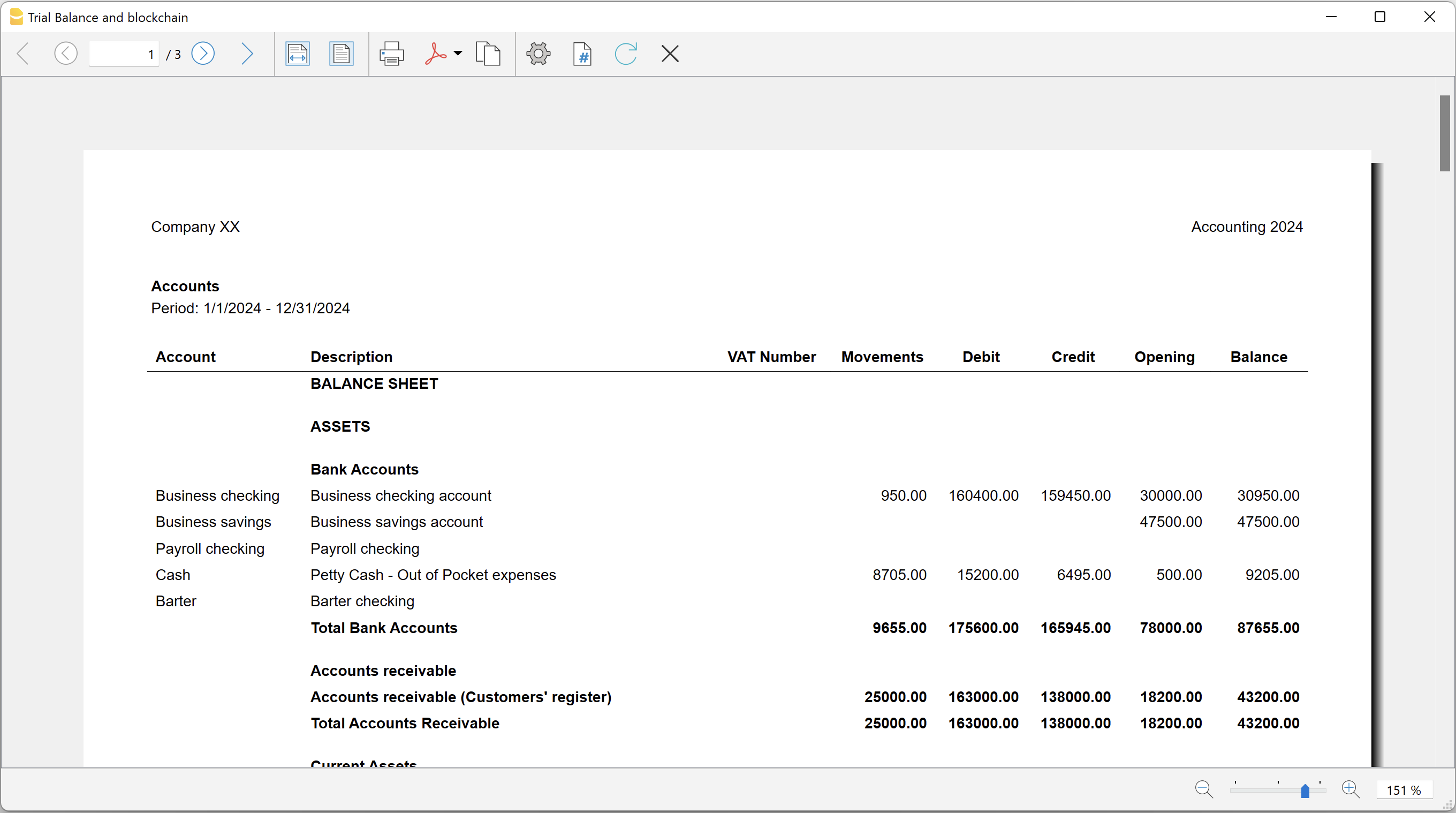
Blockchain row explanation:
- Date until which transactions are locked.
- Date of the last transaction.
- Number of locked transactions.
- Progressive hash of last locked transaction.