实用程序 (全球)
Banana 图书馆 | 文库与收藏
在此文中
Banana 图书馆 | 文库与收藏
Banana 图书馆 | 文库与收藏
.ac2格式的模板文件,用于图书馆管理,可通过互联网自动以ISBN代码加载图书数据。
模板文件
Library Books Report
在此文中
Library Books Report
Library Books Report
This extension creates a list of all the books contained in the file. For a clearer view the list is split and sorted by genre of books.
Install the extension
To install the extension:
- Open Banana Accounting Plus.
- Menu Extensions > Manage Extensions.
- In the search field enter Library Books Report.
- From the extensions list select Library Books Report.
- Select the extension and click Install.
- Click Close to close the window.
Create the report
To creare the report:
- Open an accounting file.
- From the Extensions menu select Library Books Report and then one of the following:
- Library Books Report.
- Library Contacts Report.
- Create vCard from address.
Library Books Report
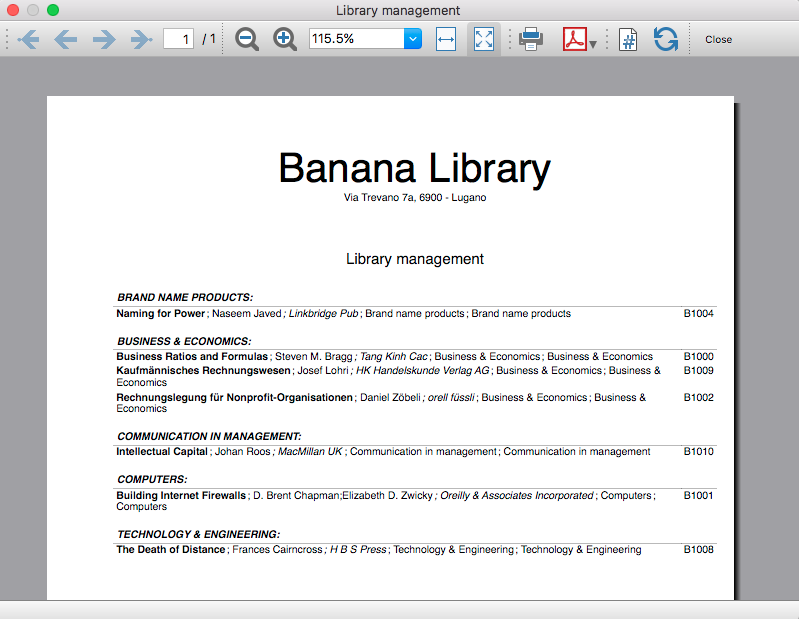
This extension creates a list of all the books that are in the Banana Library file. For a clearer view the list is split and sorted by genre of books.
You can export the catalog in pdf format to easily publish it on your web site.
Example of books report:
Library Contacts Report
Report Expired Outstanding books for each person.
This report creates a page card for each contact, with all information, including the outstanding books.
You can print:
- All contacts
- Selected contacts
- Conacts with outstanding books

Create vCard from address
This extension extract the addresses data in the vCard format.
For more information visit Export Address data in the VCard format.
Time Sheet Extensions
The Timesheet is a free and unlimited application because it is included in the Banana Accounting Plus Free Plan. It works like Excel but is optimized for calculation of hours. It is therefore much more reliable and you can easily manage all kind of working hours. You have a comprehensive view of the hours and can always correct.
Timesheet - Report with project and resource data [BETA]
在此文中
Timesheet - Report with project and resource data [BETA]
Timesheet - Report with project and resource data [BETA]
Timesheet Extension that allows you to filter projects and resources and print out the data
The following features provide tools to export and analyze timesheet data, helping you review recorded hours and gain insights by project and resource.
Time Sheet Export
The Time Sheet Export feature allows you to export recorded time data for further analysis, reporting, or integration with other systems.
It provides a structured way to extract time entries, making it easier to share data, create custom reports, or use the information in external accounting, payroll, or project management tools.
This function helps ensure consistency and accuracy when working with time-tracking data outside the application.
Timesheet – Report with Project and Resource Data [BETA]
The Timesheet – Report with Project and Resource Data [BETA] provides a detailed overview of recorded time, organized by projects and resources.
This report is designed to help users analyze how time is allocated across different activities and team members, offering better visibility into project progress and resource utilization.
As a Beta feature, it is intended for testing and feedback, and may be further refined based on user experience.
This extension works with a timesheet file and provide a report for the selected project and detail of the resource. You can install the extension from the menu Extensions->Manage Extensions.
This extension requires the Advanced plan of Banana Accounting Plus.
For more information see the documentation pages for tracking projects times.
You can install the Extension.
Setup timesheet file
Prior to use the extension you need to setup the timesheet file.
- Create a new Timesheet file or use an existing one.
- Add the Projects table:
- Tools → Add/Remove functionalities → Add Table Project.
- Add the projects codes.
- Add the Resources table
- Go to the Journal Table
- Tools → Add/Remove functionalities → Add simple table
- Enter the name "Resources" (Name XML must be "Resources")
- Go to the Journal Table
- Tools → Add/Remove functionalities → Add columns to join table
- Choose Resources
- Dialog "Insert column after" choose Description.
- Go to Resources table and enter the resource id and description (people name).
Enter Project data
In the Journal, when you enter the daily worked time, you can now specify the Project and Resource.
Print the report
You can print a report for a single project at a time.
时间表 - 完整版2027年
在此文中
时间表 - 完整版2027年
时间表 - 完整版2027年
记录工作时间以及开始和结束时间; 可以备注标记报销,患病天数或其它工作。 该程序会自动计算实际工作总小时数和应工作小时数之间的差额。
模板文件
记录工作时间以及开始和结束时间; 可以备注标记报销,患病天数或其他工作。 该程序会自动计算实际工作总小时数和应工作小时数之间的差额。
重要提示: 模板中包含的节日可根据您所在的地区进行手动更新。
需要使用工作时间表应用程序,请下载可用文件,并按照我们的页面如何开始使用工作时间表的说明进行操作。
预估和发票的模板
在此文中
预估和发票的模板
预估和发票的模板
Management and inventory of door and building keys
在此文中
Management and inventory of door and building keys
Management and inventory of door and building keys
Easily start managing keys for any building and always know where they are and who they are assigned to. Complete inventory with tracking of key assignment and return. Easy-to-use software. Excel-like interface. You can administer keys for an unlimited number of buildings, properties, industrial and sports facilities.
模板文件
Simple and effective key management software for doors, palaces, offices and buildings of any kind
- Accurate list of all keys, with quantity and serial numbers and any other information you want to add.
- List of people/places where keys are located.
- Register delivery and return of keys.
- Insert links to document files and digital receipts, for paperless management.
- Manage an unlimited number of buildings.
Key management is based on the inventory application and you have many possibilities. Let us know through the feedback documentation below if you need customizations that can make management even easier and faster.
库存的模板
在此文中
库存的模板
库存的模板
使用Banana财务会计+ ,可以快速专业地管理库存。您可以在类似Excel 的电子表格中工作,但是所有的程序系统都已经设置好了。所有的计算都是自动的,并保证立即获得结果,从而为您提供准确的项目数量及金额信息。您可以完全掌控入库和出库的货物,如果有多个仓库,则可以在一个文件中跟踪所有货物的迁移。物品的搜索既简单又快速,而且物品的替换也是自动的。
固定资产登记模板
在此文中
固定资产登记模板
固定资产登记模板
操作便捷,轻松管理企业固定资产,代替手工或电子表格计提固定资产折旧金额的理想应用程序。
模板文件
固定资产折旧登记表完美的替代了使用手工或电子表格来计提固定资产折旧,进行固定资产管理。软件自动核算固定资产累计折旧及剩余价值,并生成相应的固定资产折旧报表。详情也可参阅固定资产登记的页面。
创建您的文件
-
从该模板开始,创建一个新文件(模板编号+11005),使用在文中所解释的任何一种方式。
-
文件菜单 → 文件和账户属性命令,设置公司名称,会计期间及本位币。
-
文件菜单 → 另存为命令保存文件。以公司名称和年份作为文件名很有用。
例如“公司-2022.ac2”
项目表
-
总组列
在一行中,当一个组的标识符被输入,该行将成为一个总行。在包含相同标识符的所属组列的行中,其数额将被汇总。在总组中,这里的数字必须是定义在组列中的其中一个。 -
识别号码列
固定资产的编码。 -
摘要列
固定资产的名称。 -
账户列
固定资产增加的会计科目。 -
抵销账户列
固定资产减少的会计科目。 -
起始日期列
固定资产开始计提折旧的日期。 -
开始列
固定资产的原始价值。 -
+/-账面价值列
固定资产累计折旧的金额。 -
账面价值列
固定资产的剩余价值。 -
折旧类型列
固定资产计提折旧的类型。
发生业务表
-
日期列
固定资产计提折旧的日期。 -
类型列
固定资产计提折旧的类型。 -
物品标识列
固定资产的编码。 -
物品摘要列
固定资产的名称。 -
+/-账面价值列
固定资产累计折旧的金额。 -
折旧类型列
固定资产计提折旧的类型。 -
抵销账户列
固定资产减少的会计科目。
创建折旧行
点击实用程序菜单 → 创建折旧行命令,系统可以自动生成所需会计期间的固定资产折旧金额。
显示日记账
点击实用程序菜单 → 显示日记账命令,可以看到每一个固定资产的原值,计提折旧的日期,金额及累计折旧金额,剩余价值等信息。
物品报告
点击实用程序菜单 → 物品报告命令,在弹出的分期日记账信息框选择用户所需的时间段。
Capitolati, Offerte Strutturate
Con Banana Contabilità Plus puoi creare e stampare un capitolato d’offerta in modo semplice e strutturato, organizzando lavori, materiali, quantità e prezzi.
La tabella QuickSum permette di inserire le diverse voci del capitolato e di calcolare automaticamente subtotali e totali. Puoi partire da un modello già predisposto e adattarlo alle esigenze del tuo progetto.
Per ottenere il documento finale è disponibile anche un’estensione per la stampa del capitolato d’offerta, che utilizza i dati della tabella QuickSum per generare un report ordinato e professionale.
Scopri le risorse disponibili per iniziare:
- Modello per capitolato d’offerta con tabella QuickSum
- Estensione QuickSum Stampa Capitolato d’offerta
QuickSum Stampa Capitolato d'offerta [BETA]
在此文中
QuickSum Stampa Capitolato d'offerta [BETA]
QuickSum Stampa Capitolato d'offerta [BETA]
L'estensione presentata qui di seguito permette di creare una stampa del capitolato di offerta fatto con la tabella QuickSum.
Prerequisiti
Per utilizzare questa estensione:
- Scaricare e installare Banana Contabilità+ Dev Channel (versione 10.2.3 o successive).
Versione Beta
La tabella QuickSum è uno strumento ancora in fase di sviluppo e che viene messo a disposizione a un limitato numero di utenti.
Ci sono diverse funzionalità che sono per il momento provvisorie e che subiranno cambiamenti con il tempo.
L'estensione al momento è rilasciata in versione beta. Ciò significa che alcuni dettagli potrebbero cambiare senza preavviso.
Installazione e utilizzo dell'estensione
- Installa l'estensione QuickSum Capitolato d’offerta.
Visita la documentazione Gestione Estensioni per vedere come installare l'estensione. - Una volta installata, l'estensione sarà visibile nel menu Estensioni dove potrà essere eseguita.
Crea la stampa del capitolato d'offerta
- Dal menu Estensioni seleziona l'estensione QuickSum Capitolato d’offerta.
- Completa i campi del dialogo Impostazioni e clicca su OK.
- Viene automaticamente creato il report con la stampa del capitolato.
I testi delle impostazioni dell’estensione e i testi fissi sulla stampa, come le intestazioni delle colonne, il riporto e il titolo della pagina di riepilogo, vengono visualizzati nella lingua del file.
Da File > Proprietà file (Dati base) > sezione Varia > Lingua corrente è possibile cambiare la lingua del file.
Le lingue supportate sono italiano, francese, tedesco e inglese.
Dialogo Impostazioni
Esegui l'estensione dal menu QuickSum Capitolato d’offerta.
Si aprirà il dialogo delle Impostazioni dell'estensione, dove puoi definire alcune informazioni per creare la stampa del capitolato d'offerta.
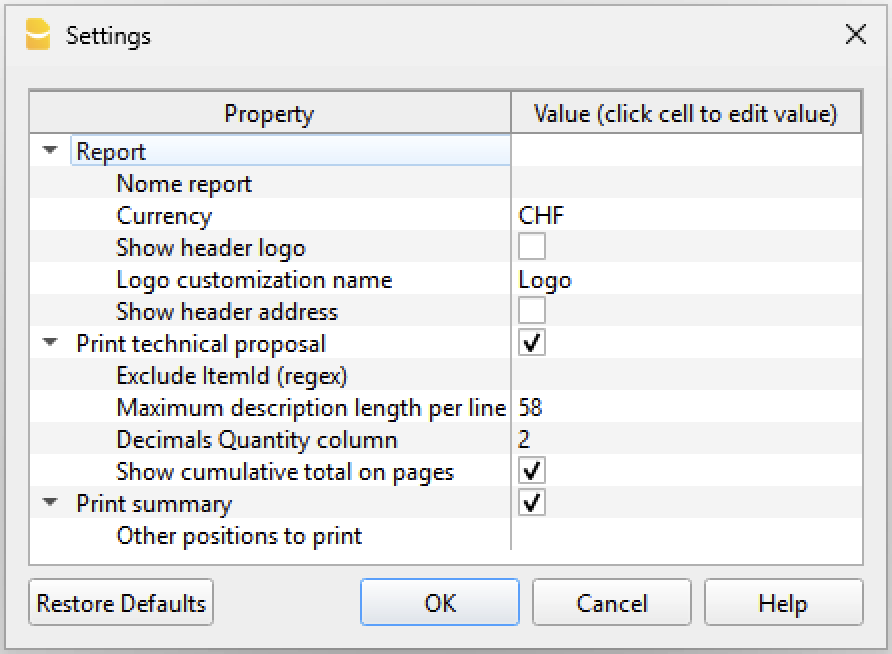
Per l'inserimento dei dati fai un clic nel campo della colonna Valore.
Report
Impostazioni base del report.
- Nome report
- Opzionale.
- Serve per definire il nome del report, utilizzato nella visualizzazione dell'anteprima di stampa e per il nome del salvataggio del file.
- Moneta
- Indica la valuta del capitolato d’offerta (ad es. CHF, EUR).
- Mostra logo intestazione
- Opzionale.
- Serve per includere un logo nell'intestazione. Il logo è definito tramite il comando dal menu File > Imposta logo.
- Nome personalizzazione logo
- Opzionale.
- Serve per inserire il nome della personalizzazione logo da utilizzare.
- Mostra indirizzo intestazione
- Opzionale.
- Serve per includere l'indirizzo della ditta nell'intestazione.
L'indirizzo della ditta si deve prima definire nella scheda Indirizzo del file.
Possono essere utilizzate le seguenti informazioni dell'indirizzo: Società, Nome, Cognome, Indirizzo 1, Indirizzo 2, CAP, Località, Telefono, Email, Web.
Stampa capitolato d'offerta
Serve per includere il capitolato d'offerta nella stampa.
- Escludi ItemId (regex)
- Opzionale.
- Serve per definire una regola (regex) per non stampare alcuni valori nella colonna ItemId.
Ad esempio, per evitare la stampa, nella colonna ItemId, degli ItemId che terminano con una lettera, è possibile inserire l’espressione: /[a-zA-Z]$/
- Lunghezza massima descrizione per riga
- Consigliato 58 caratteri.
- Serve per indicare il numero massimo di caratteri per ogni riga di descrizione.
- Quando il testo della descrizione supera il numero indicato, il programma tronca il testo e lo suddivide su più righe. La suddivisione su più righe è necessaria per calcolare correttamente la posizione dei totali riporto a fine e inizio pagina.
- Decimali colonna Quantità
- Serve per definire il numero di decimali da visualizzare nella colonna Quantità.
- L'impostazione predefinita è 2.
- Mostra totale cumulativo sulle pagine
- Serve per includere il totale complessivo (colonna Cumulated) come riporto a fine pagina e inizio della successiva.
- Il riporto è sempre il totale complessivo cumulato indicato nella tabella.
- Utilizza gli stili delle righe
- Serve per applicare gli stili alle righe (grassetto, italico, colore testo, colore sfondo) così come sono nella tabella QuickSum.
Stampa riepilogo
Serve per includere alla fine della stampa del capitolato un foglio di riepilogo con tutti i totali.
- Altre posizioni da stampare
- Opzionale.
- Serve per indicare altre posizioni da includere nella stampa del riepilogo.
È utile, ad esempio, per stampare la riga dell’IVA. - Inserire l’ItemId (ad es. 9.1.2).
- È possibile inserire più ItemId, separati da un punto e virgola ; (ad es. 9.1.2;9.1.3).
- Le posizioni vengono stampate nell’ordine in cui sono inserite nella tabella QuickSum.
Stampa righe di verifica hash
Serve per aggiungere, al termine della stampa del capitolato, le righe contenenti i codici hash di verifica.
Confrontando gli hash stampati con quelli presenti nella tabella QuickSum, è possibile verificare che il documento non sia stato modificato.
Le righe di verifica vengono stampate solo se nella tabella QuickSum sono presenti i codici hash.
- #hash-base
Hash calcolato solo sugli elementi non modificabili del documento. Le modifiche ai campi modificabili in modalità blocco non cambiano l'hash. - #hash-all
Hash calcolato su tutto il documento. Qualsiasi modifica comporta il ricalcolo dell'hash.
Stampa capitolato
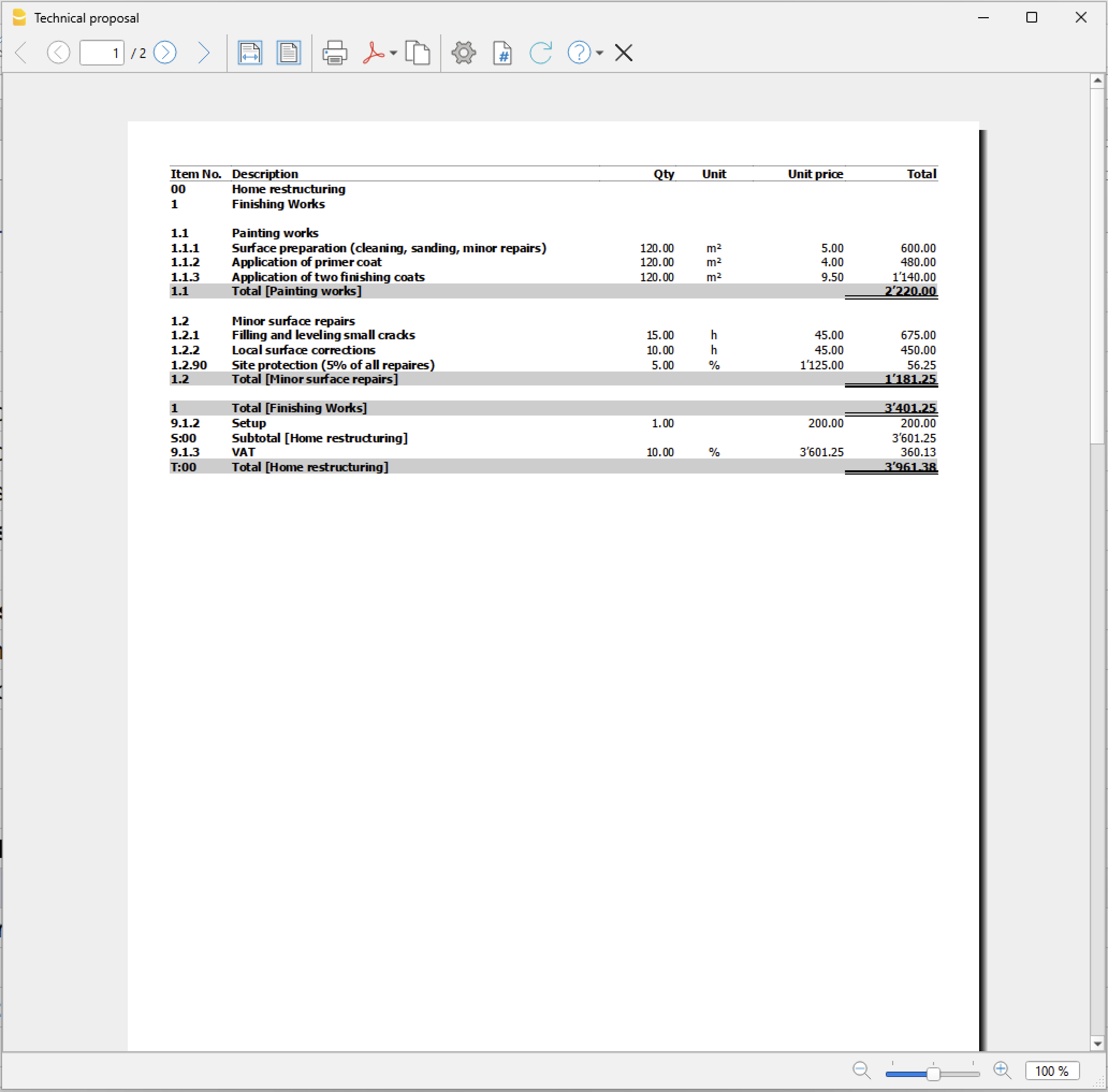
La stampa del capitolato riprende tutte le righe presenti nella tabella QuickSum, nello stesso ordine in cui compaiono, e consente di generare un’offerta completa che include tutti gli articoli (colonna Item) con le relative righe di dettaglio e di prezzo.
Nel report vengono stampate le colonne Articolo, Descrizione, Quantità, Unità, Prezzo unità e Importo totale.
Facoltativamente, alla fine di ogni pagina può essere incluso il riporto del totale complessivo calcolato fino a quel momento; lo stesso totale viene riportato anche all’inizio di ogni nuova pagina.
Il report termina con la stampa del subtotale, dell’IVA calcolata sul subtotale e del totale complessivo dell’offerta.
Esempio stampa capitolato:
Impostazioni della tabella QuickSum che influenzano la stampa
Alcune impostazioni e valori presenti nella tabella QuickSum modificano il comportamento e il contenuto della stampa del capitolato.
In particolare:
- ItemId
- Quando un articolo è commentato (ItemId inserito tra parentesi quadre), l’intera riga non viene stampata nel report.
- Stile
- #pagebreak
È possibile forzare un cambio pagina nel report inserendo il comando #pagebreak.
Inserire una riga vuota nella tabella immediatamente prima del punto in cui si desidera il cambio pagina e, nella colonna Style, inserire #pagebreak.
Se il comando viene inserito più volte in righe consecutive, il cambio pagina viene applicato una sola volta.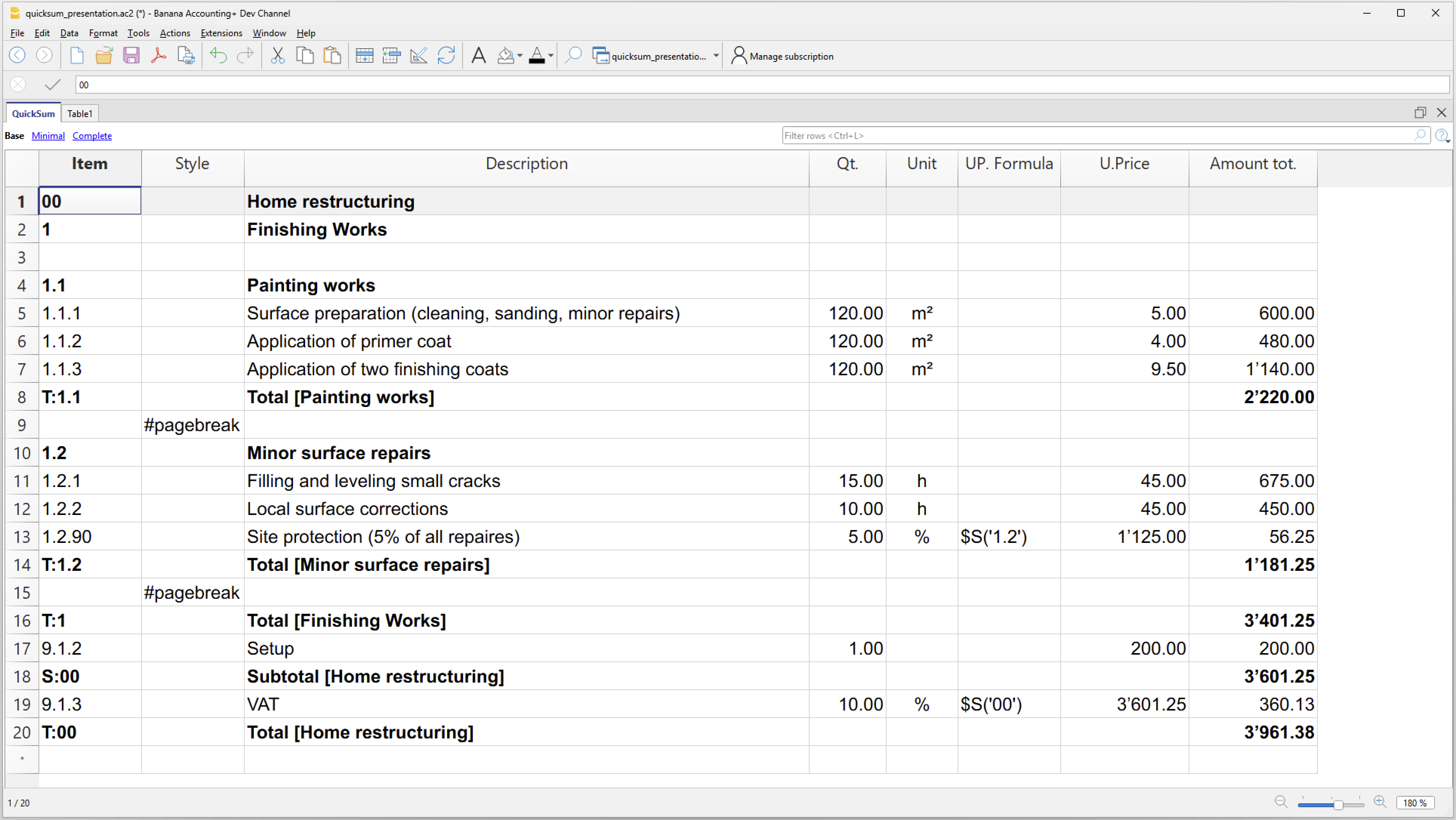
- #pagebreak
- Codice Modifica
- Utilizzare questa colonna per indicare quali valori devono essere completati dall’utente.
- In base alle informazioni inserite, vengono applicati eventuali tratteggi sotto i valori delle colonne Quantità e Prezzo unità.
- Se almeno uno di questi due valori risulta tratteggiato, anche il valore nella colonna Totale viene sottolineato con il tratteggio.
- Per maggiori informazioni sui codici da inserire e il loro funzionamento, consultare la documentazione della tabella QuickSum.
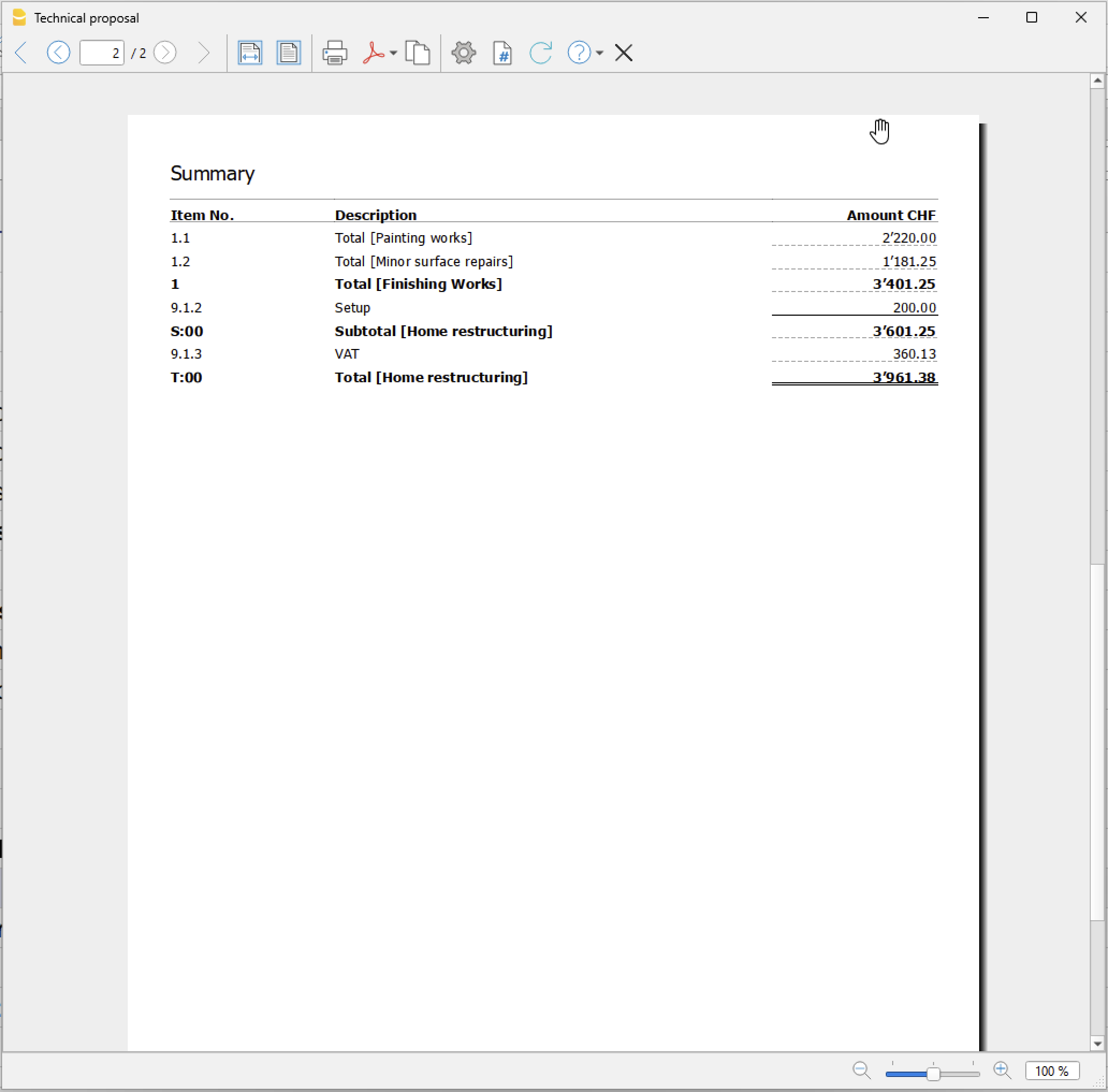
Stampa riepilogo
La stampa del riepilogo riprende tutte le righe di totale presenti nella tabella QuickSum, nello stesso ordine in cui compaiono.
Le righe di totale sono identificate da un valore nella colonna ItemId che inizia con "T:".
Lo scopo del report è fornire un riepilogo dei totali dei diversi articoli presenti nella tabella, con i relativi importi.
Nel report vengono stampate le colonne Articolo, Descrizione e Importo.
Esempio stampa riepilogo:
Capitolato d'offerta (tutorial)
在此文中
Capitolato d'offerta (tutorial)
Capitolato d'offerta (tutorial)
Modello QuickSum per creare preventivi e calcoli strutturati relativi a lavori di ristrutturazione. Permette di inserire quantità, unità di misura e prezzi unitari, organizzando le lavorazioni in sezioni e sottosezioni con calcolo automatico di subtotali, percentuali, IVA e totale finale. È adatto ad artigiani, imprese e professionisti che devono preparare stime dettagliate dei costi.
直接在网页中打开Banana财务会计+
无需任何安装,可以直接在您的浏览器上运行 Banana财务会计+。客制化您的模板,输入发生业务并将文件保存在您的电脑上。
在浏览器中打开模板 Open tutorial in WebApp模板文件
Questo modello utilizza la tabella QuickSum per preparare preventivi e calcoli dettagliati dei costi, con un esempio dedicato a lavori di ristrutturazione di un'abitazione.
Le diverse lavorazioni possono essere organizzate in modo gerarchico, suddividendole in sezioni e sottosezioni. Per ogni voce è possibile indicare una descrizione, la quantità, l'unità di misura e il prezzo unitario; il programma calcola quindi automaticamente l'importo corrispondente e i totali progressivi.
Il modello mostra anche come gestire costi calcolati in percentuale rispetto ad altre voci o gruppi di voci. Nell'esempio, oltre ai lavori di tinteggiatura e alle piccole riparazioni delle superfici, viene calcolato automaticamente un costo percentuale per la protezione del cantiere.
Subtotali e totali permettono di ottenere una lettura chiara dei costi per ogni gruppo di lavori. È inoltre previsto il calcolo dell'IVA sul subtotale e del totale complessivo del preventivo.
Il modello è particolarmente indicato per artigiani, imprese di costruzione e ristrutturazione e professionisti che desiderano predisporre preventivi, offerte o stime dei costi con calcoli automatici, mantenendo una struttura ordinata e facilmente consultabile.
Technical Preview
La tabella QuickSum è uno strumento ancora in fase di sviluppo e che viene messo a disposizione a un limitato numero di utenti.
Ci sono diverse funzionalità che sono per il momento provvisorie e che subiranno cambiamenti con il tempo.
Prerequisiti
Per utilizzare questo modello:
- Scaricare e installare Banana Contabilità+ Dev Channel (versione 10.2.3 o successive).
Risorse utili