Fixed assets register
The Fixed Assets Register (please check the short presentation page) is an easy-to-use application (see How to start a Fixed Assets register), which allows you to:
- Keep the list of your goods that need to be depreciated according to the tax regulations.
- Automatically calculate the amortisations or in special cases, adapt the amounts manually.
- Choose to obtain monthly, quarterly, half-yearly or yearly depreciations.
- Transfer the amortisations rows directly into your Banana Accounting file.
- Manage other changes in value (subsequent purchases, sales, divestments, or other) related to each asset.
- Have a history of all the changes in the value of each asset.
- Manage other information related to each asset, such as warranty expiration, insurance, location.
Excellent substitute for Excel tables for amortisation and depreciation
The Fixed assets register is a very precise, but also malleable tool that you can adapt perfectly to your needs. It allows you to automate the calculation of amortisations, but also gives you the possibility to enter it manually, so that when there are special cases or exceptions, you are not obliged to change formulas and totals.
The mode of use is inspired by Excel, so it is for immediate use and if you make a mistake you can always modify. You save time and thanks to the history of all changes you have a clear situation in case of tax audits.
The application can be used in combination with other accounting programs, you are much more flexible and also save on licensing costs. For each period (month, quarter, semester or year) you can have a printout of the amortisation summary to be recorded in your accounting program. You can also export the data if you wish.
The contents of the Fixed assets register
The fixed asset register file is composed of the following tables:
- Items table - where you list the depreciable assets and the amortisation parameters
- Transactions table - where you enter the amortisation transactions, as well as purchases assessments
- Amortisation Type table - indicates the various amortisation types.
- Transactions Type table - indicates the various transaction types
Easy and precise management thanks to accounting logic
As opposed to a regular Excel spreadsheet, changes in value (depreciation, new purchases, write-downs) are not entered in columns but in a transactions table.
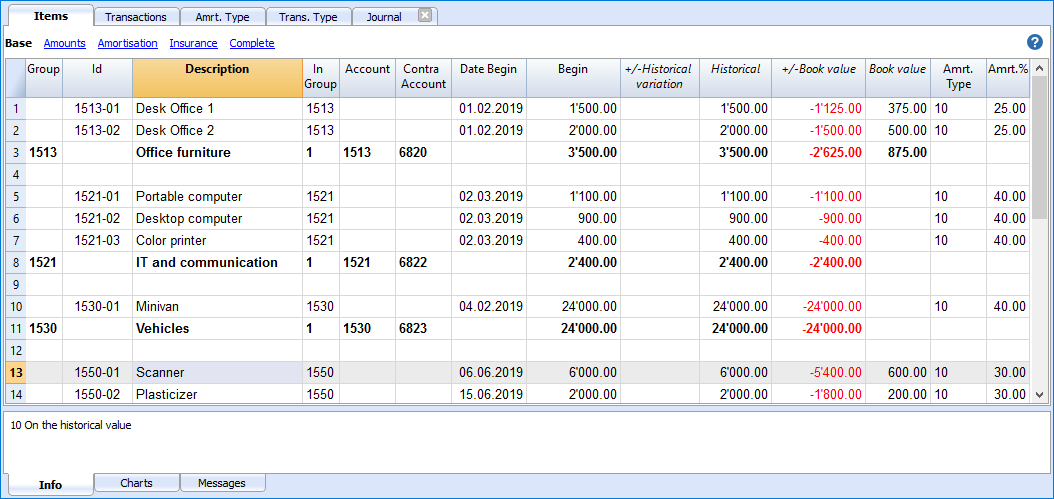
- In the Items table all the individual assets, with the date, purchase value, type and percentage of depreciation and other elements are listed.
- In the Transactions table all depreciation, revaluations or write-downs for each individual asset are indicated
- It is the historic trace of all value changes of the asset, from purchase to disposal.
- The Create amortisation rows command calculates amortisation based on the settings in the Items table and generates amortisation rows.
- The transactions values can be edited (if a different calculation is needed in the first year).
- You can enter transaction for increases in value, special amortisation, adjustments to the tax value or other values.
- The amortisation operations can be imported into your accounting file with the command Import into accounting.
Each item has different values
In contrast to the accounting, where generally only the current book value is kept, different values are kept in the Fixed Assets Register for each item.
- It starts with the initial purchase value, which is entered manually in the Items table.
- All other values are calculated by the program, adding the changes entered in the Transactions table.
- In the Transactions table for each type of variation there is a special column where you can enter the value.
- Any augmentations are entered in positive.
- Any diminutions (as depreciation) are entered in negative.
- In the Items table for each value there is the total and the variation.
| Begin value (manually entered into the Items table) | |
| + | Purchases, own production of modernization |
| - | Sales |
| = | Purchase value of the asset (The total expense). |
| + | Revaluations (e.g. due to inflation) |
| - | Depreciation and write-downs (they change the historical value, other than depreciation and amortization, which only change the book value). |
| = | Historical value (calculation basis for linear depreciation) |
| + | Reverse depreciation (reversal of depreciation) |
| - | Amortisation |
| = | Book value (basis for calculating depreciation on the residual value) |
| + | Increase fiscal value (depreciations not recognized for tax purposes) |
| - | Decrease in fiscal value |
| = | Fiscal value (Fiscal-recognized value) |
In this way the program has all the elements to calculate depreciation automatically.
How to start a Fixed Assets Register
Create a new file
File Menu, New command, choose the Fixed Assets Register type
It is generally easier to start with a preset template, rather than a new empty one.
Set the Items table
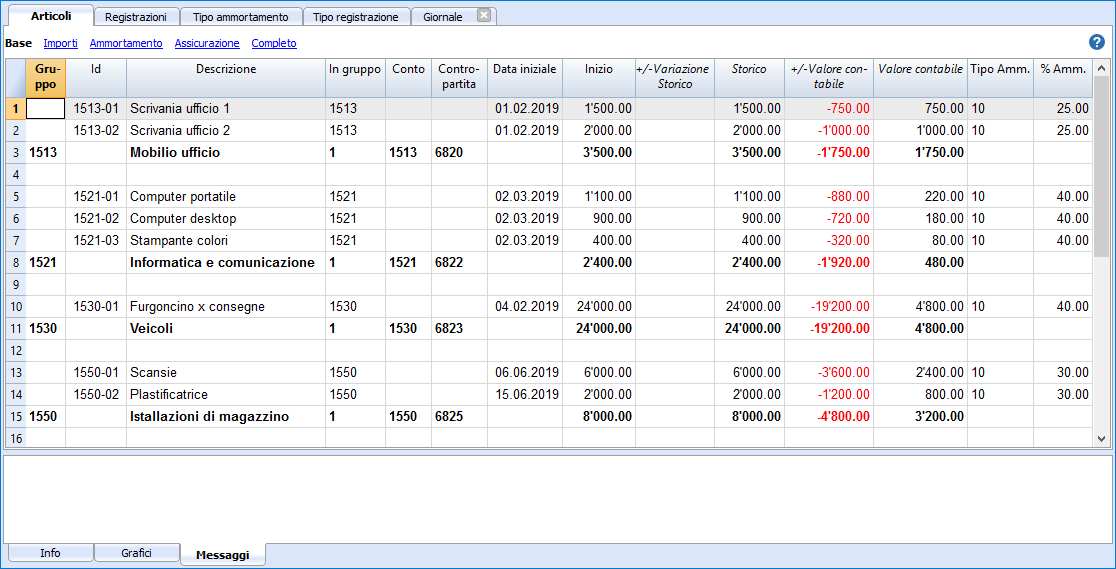
In the Items table, define the list of goods and the groups to which they belong.
Insert rows or automatically create amortization rows
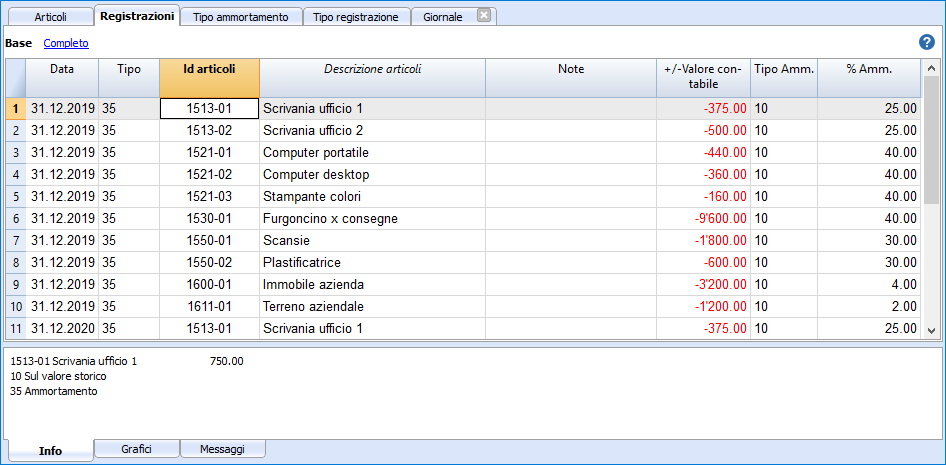
In the Transactions table enter the records relating to the change in the value of the goods.
With the Create amortisation rows command, the program creates the amortisation rows for the individual assets according to the specified parameters.
Record depreciation and amortisation in Accounting
With the Printout of the accounting transactions you can see which values will be important.
The amortisations and depreciation can be transferred into the accounting:
- With the with the Import into accounting -> Transactions command from the Account1 menu.
- By taking them manually from the printout, in case you use another accounting program.
Items table
Allows the insertion of depreciable assets, related groups and parameters for calculating amortisation.
For the calculation of the amortisation, if the parameters Amrt. Type, Percentage, Account or Contra account are not entered for a single item, the software will use the group or subgroup parameters.
Creation of the assets's list
When you buy an asset, you must register the purchase in your accounting file and, at the same time, insert a new row in the Items table with information about the new asset.
- Each item must have an identifier and a description.
- The purchase date, the purchase value, the amortization type code and the amortization percentage are then indicated.
You can also create group row and indicate a code for the group. Groups can correspond to you accounting file's accounts. In this case, the account number can be used as a group. The group is then assigned to the articles via the In Group column.
Multiple group levels can be created.
For amortisation calculation, if the parameters (account, counterpart, type and percentage depreciation, etc.) are not specified for each article, the parameters of the sub-group or group are used.
Columns
This table contains the following columns; The ones marked with an asterisk (*) are protected and calculated by the program.
You can find more information about adding new columns in the Colums setup page.
- Group
If a value is present it means that the row is a group.
Items and groups values are added up in this row. - Id
The Item Id - Description
The item description. - In Group
The group the row belongs to. This must be a value present in the Group column. - Account
The account to which the item is being attributed in the accounting.
This account can also be a group. - Contra Account
The account where the amortisation should be registered
The contra account can also be indicated for the group. - Date Begin
The item purchase date (or at which the item was entered in the accounting file) - Document Date
The date of the item purchase document, if available - Initial value
The purchase value. - Purchase Variation*
The total purchase value, positive or negative, indicated in the transactions. - Purchase Value*
The initial value plus the purchase variation. - Historical Variation*
The positive or negative value of the historical variation (revaluations or write-downs) indicated in the transactions. - Historical Value*
The purchase value plus historical variation. - Book variation*
The positive or negative accounting value (amortisations or inverse amortisation entries) indicated in the transactions. - Book value*
Historical value plus book variations. - Fiscal Variation*
The positive or negative value of the fiscal adjustments indicated in the transactions. - Fiscal Value*
The Book Value plus the fiscal adjustments. - Residual Value
A possible minimal residual value to be indicated.
If the residual value is equal or bigger than the book value, no more amortisation rows are created. - Estimate value
An item's probable estimated value - Amortisation Id Type
The amortisation type applied to this item
The amortisation type can also be indicated for the group. - Amortisation Percentage
The amortisation percentage.
The amortisation percentage can also be indicated for the group. - Amortisation amount
A possible amortisation amount if the amortisation is not specified as a percentage. - Amortisation Percentage 2
The additional amortisation percentage to be applied to this item.
The "Create amortisation rows" command creates an extra amortisation row, the calculation method is the same.
The extra amortisation percentage can also be indicated for a group. - Amortisation Months First Year
The number of months the item needs to be depreciated in the first year. - Serial Number
The item's serial number - Warranty Date
The warranty expiration date. - Insurance Value
The value this item or group is insured for. - Insurance name
The insurance company's name. - Insurance number
The insurance policy number. - Insurance expiration
The insurance policy's expiry date. - Insurance cancellation
The date by which legal notice needs to be given to the insurance company if automatic renewal is not desired. - Archive Date and Archive notes
Columns you might use if you need to archive the item.
Amortisation in the year of purchase of the asset
There are an infinite number of methods for establishing how the amortisation value for the first year is to be calculated.
The program offers these possibilities:
- It normally calculates amortisation for the whole year.
- In the Amortisation month first year (Month 1.Year) column , you can indicate for how many months the amortisation is to be calculated.
- If in the first year you desire to calculate only 50% of the normal amortisation, you should indicate 6 months.
- Amortisation percentage 2 Column
Used for an extra amortisation. An extra amortisation row is being created. - For other situations, let the program create the amortisation row and then adjust the automatically created amortisation transaction.
Transactions table
The Transactions table of the Fixed assed register contains the information that will change the historical value, accounting value or fiscal value or an asset.
You can enter transactons for amortisation, depreciations or revaluations.
With the Create amortisation rows from the Utilities1 menu, the program calculates amortisation values based on the set parameters and creates the transaction rows. The calculated value can be adjusted manually, if necessary.
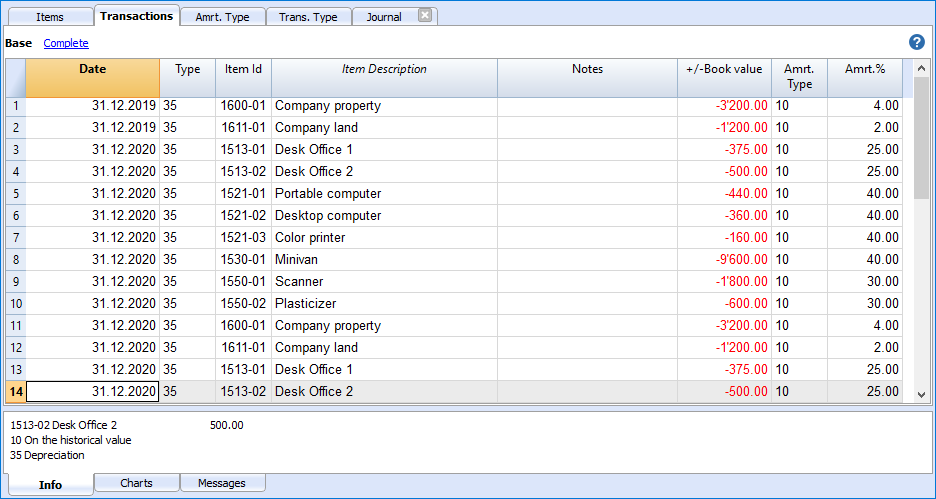
This is the table where you enter the items variations. It has several columns:
- Date
The transaction date - Transaction Type Id
The transactions type, identical to the one in the Transaction table. - Transaction Type Description*
The description from the Items table is displayed. - Item Id
The Item Id. - Items Description*
The items description from the Items table is displayed. - Notes
An additional note concerning the transaction. - Purchase Variation
The item (+/-) variation compared to the purchase or sale. - Historical Variation
The Item (+/-) variation compared to a item revaluation or write-down. - Book Variation
The item (+/-) variation value compared to the book variation.
This is particularly used for negative amortisations - Fiscal Variation
This is the fiscal variation amount. - Amortisation Type Id
The amortisation type code as shown in the Items table. - Amortisation Type Description
The amortisation code descriptions as per the Items table. - Amortisation Percentage
The amortisation percentage applied. - Account
The Assets account where the operation must be registered - Contra Account
Contra account (for example the amortisation account) where the operation must be registered. - Archive Date and Archive notes
Columns you might use if you need to archive the item.
Amortisation Type table
This table shows the depreciation codes.
Therse are predefined codes that should not be changed.
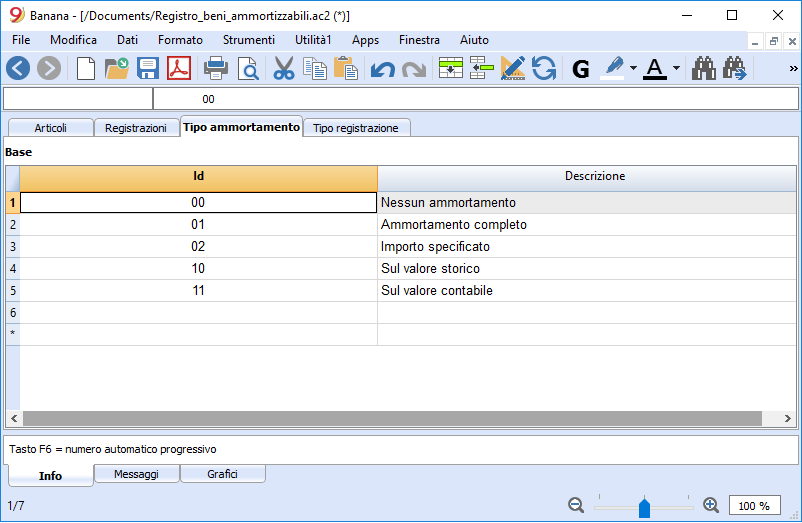
Columns
- Id
The amortisation code.
These codes are fixed and must not be modified.
If you change the Id number the program will not operate correctly anymore.- 00 No amortisation. No amortisation will be created.
- 01 Full amortisation at once of the item. The item is amortisized all at once.
- 02 Specified amount. The amortisation is calculated, based on the entered amount.
- 10 On the historical value. The amortisation is calculated as a percentage of the historical value.
- 11 On the book value. The amortisation is calculated on the book value.
- Description
The code explanation
Transaction Type table
In the Transaction Type table there are values that define the type of operation.
The most used type is the "35 Depreciation".
Transactions types do not need to be changed.
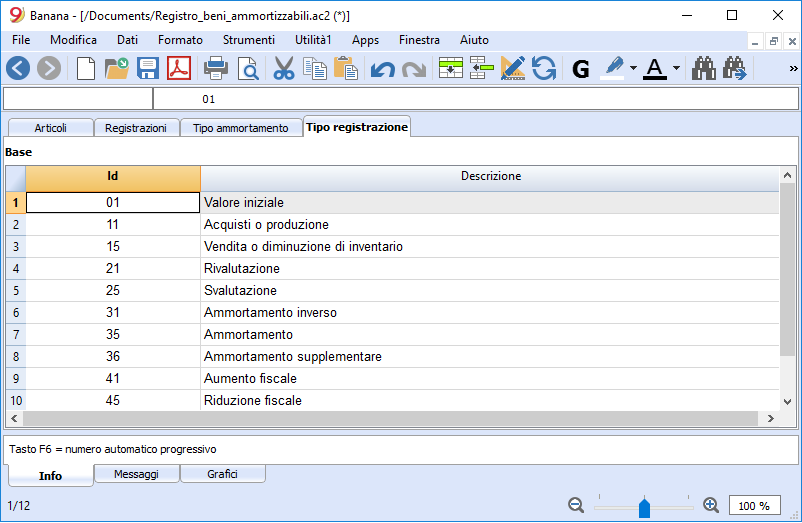
Column
- Id
The transaction type code
These codes are fixed and must not be modified.
If you change the Id number the program will not operate correctly anymore.- 01 Initial value. Used to enter an initial value, instead of entering the initial value in the Items table
- 11 Purchase or production
- 15 Sale or value reduction.
- 21 Revaluation
- 25 Devaluation
- 31 Inverse amortisation
- 35 Amortisation
- 36 Supplementary amortisation
- 41 Fiscal value increase
- 45 Fiscal value reduction
- Description
The code explanation
Create amortisation rows
In order to create the amortisation rows click on the Utility1 menu -> Create amortisation rows command.
Indicate:
- The date for the calculation of the amortisation
- The period of the amortisation calculation, monthly, quarterly, half-yearly or annual.
The program creates the amortisation lines based on the parameters of the items indicated in the Items table.
- If the parameters Amrt. Type, Percentage, Account or Contra account are not entered for a single item, the software will use the group parameters of which the item is a part to create the amortisation transactions.
- Automatically calculated record values can be adjusted manually
- Value adjustment records, such as devaluations or revaluations, must be entered manually.
Saisir des écritures qui modifient d'autres valeurs
La vue principale du tableau Ecritures affiche l'évolution de la valeur comptable. Dans la vue Complète, toutes les autres colonnes disponibles sont affichées, de sorte que vous pouvez également modifier les autres valeurs.

Modification de la valeur d'achat, de la valeur historique ou fiscale
En utilisant les colonnes appropriées, vous pouvez saisir les écritures qui modifient la valeur d'achat, la valeur historique ou la valeur fiscale.
- Ensuite, ajoutez une nouvelle ligne et insérez les valeurs manuellement.
- Le montant doit être inséré manuellement par l'utilisateur.
- Utilisez le code de type d'écritures approprié pour la transaction.
- S'il s'agit d'une amortissement, utilisez le code du type d'amortissement.
- Colonnes variation du montant :
- +/- Achat
- Montant positif pour les nouveaux achats (type d'écriture 11).
- Montant négatif pour les ventes partielles ou totales (type d'écriture 15).
- +/- Historique
- Montant positif pour les réévaluations (type d'écriture 21)
- Montant négatif pour les dévalorisations partielles ou totales (type d'écriture 25).
- +/- Fiscale
- Montant positif pour l'augmentation de la valeur fiscale (type d'écriture 31).
- Montant négatif pour la réduction de la valeur fiscale (type d'écriture 45).
- +/- Achat
Modification de la valeur initiale
La valeur initiale dans le tableau Articles ne doit pas être modifiée. Si des ajustements doivent être effectués, des écritures de modification doivent être insérées pour :
- ou la valeur d'Achat
- ou la valeur Historique (les dévaluations ou les réévaluations).
Ricontrolla tutto
Il programma ricalcola, ricontrolla e visualizza eventuali errori o differenze.
Usa questo comando tutte le volte che si ha il dubbio che ci sia un problema.
Printouts
In order to print the journal and items and transactions report cick on the Utility1 menu and choose the report you wish to print.
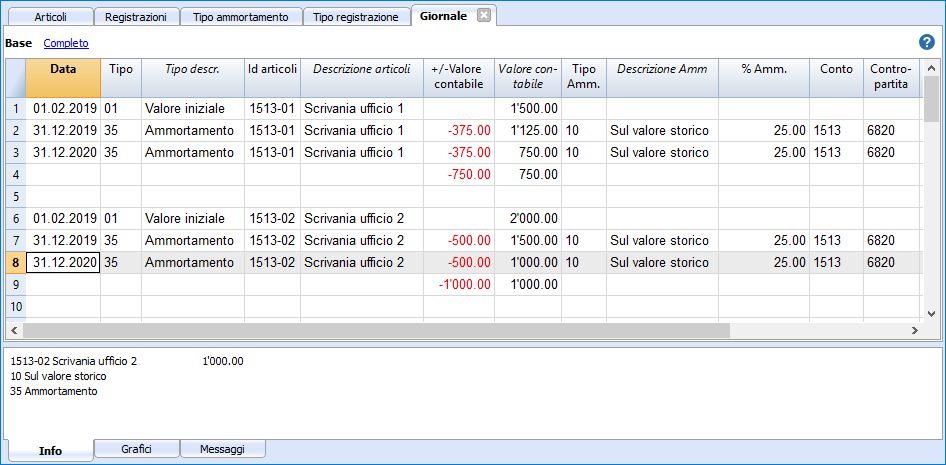
Show Journal
It will display all operations with the variation of values and the cumulative value.
Show items report
It will display the variations for each item and item groups for the selected period.

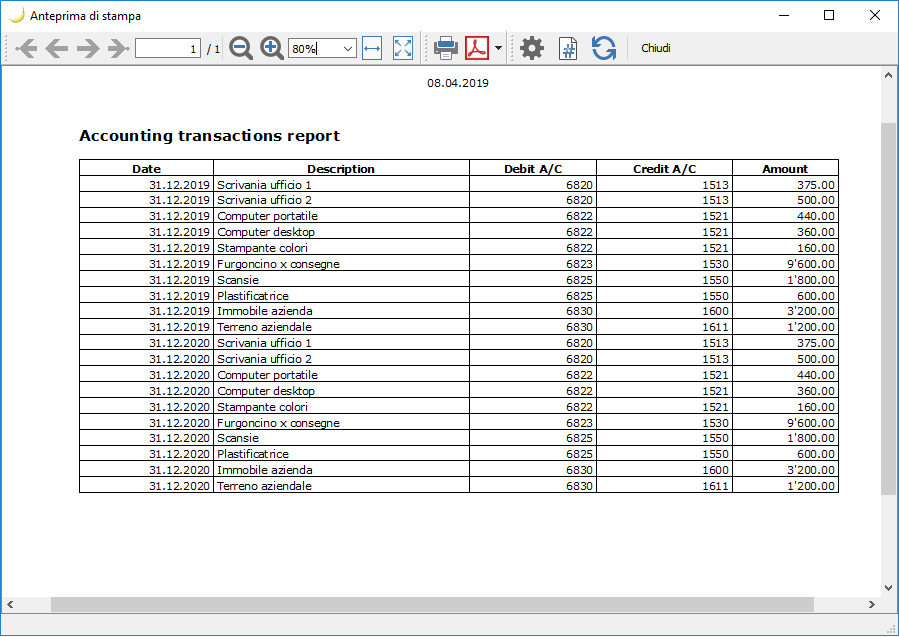
Accounting transactions report
It is the accounting report, with account and counter account, for the transactions.
It is useful to carry into your accounting operations managed with the fixed asset register.
Report registrazioni contabili
È il report contabile, con conto e contropartita, delle registrazioni.
Serve per riportare in contabilità le operazioni gestite con il registro beni ammortizzabili.
Report registrazioni contabili
È il report contabile, con conto e contropartita, delle registrazioni, serve:
- Per controllo delle operazioni che saranno importate in contabilità.
- Per riportare manualmente in contabilità le operazioni gestite con il registro beni ammortizzabili.
Deve specificare:
- Il periodo
- Se vuoi una riga per ogni articolo o il totale per ogni conto utilizzato.
Visualizza giornale (schede articoli)
Questa stampa visualizza, per ogni articolo, tutte le operazioni con la variazione dei valori e il valore cumulato.
Import amortisation rows into the accounting file
From you accounting file, with tthe Import into accounting → Transactions command from the Account1 menu, you have an option to import transactions from a Fixed asset register file.
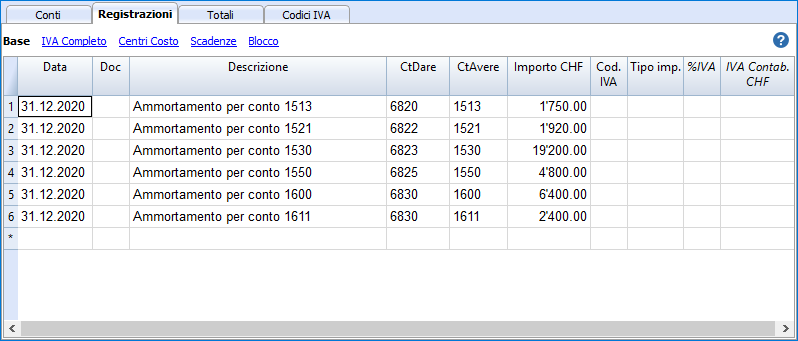
Only transaction rows that fall within the accounting period are taken over.
You can then choose to import only certain dates.
From version 9.04 of Banana Accounting it is possible to group amortization transactions by account.
Note sull'uso
L'aggiunta e storia di un nuovo bene
Qui di seguito sono elencate diverse possibili fasi relative alla gestione di un bene
- Acquisto di un nuovo bene (per esempio un costoso computer che funge da server aziendale)
- L'acquisto viene registrato dapprima in contabilità, sul conto generale macchinario.
- Nel registro acquisti viene aggiunto l'articolo Server, con il valore d'acquisto, i parametri dell'ammortamento e il numero del conto generale macchinario e il conto ammortamento (contropartita).
- È utile creare un gruppo "Macchinario" nei quali saranno totalizzati tutti gli articoli che sono registrati nel conto generale macchinario. In questo modo si vede sei valori collimano.
- Ammortamento a fine anno (o mensile se si desidera)
- Con il comando Crea righe d'ammortamento il programma, crea una riga di ammortamenti per ogni bene.
Se c'é anche l'ammortamento 2 (ammortamenti accelerati) viene creata una seconda riga. - Si stampa l'elenco degli ammortamenti.
- In Banana Contabilità si importano gli ammortamenti dell'anno.
- Si verifica che il valore contabile del gruppo macchinari nella tabella Articoli sia uguale a quello del conto Macchinari della contabilità.
Se non è il caso è perché ci sono stati acquisti o dismissioni non registrati.
- Con il comando Crea righe d'ammortamento il programma, crea una riga di ammortamenti per ogni bene.
- L'anno successivo si acquisto un'espansione importante per il server.
- L'acquisto viene registrato in contabilità sul conto generale macchinario.
- Nella tabella registrazioni del registro beni ammortizzabili viene creata una riga, con la datata d'acquisto, il Tipo registrazione 11, e l'importo dell'acquisto inserito nella colonna variazione acquisto.
- Ammortamento a fine anno successivo
- Con il comando Crea righe d'ammortamento si lascia che il programma, creai una riga di ammortamenti per ogni bene.
- Se l'importo dell'ammortamento calcolato dal programma per il Server non è corretto, si può rettificare la riga di registrazione e inserire il valore giusto.
- Si stampa l'elenco degli ammortamenti.
- In Banana Contabilità si importano gli ammortamenti dell'anno.
- Si verifica che il valore contabile del gruppo macchinari nella tabella Articoli sia uguale a quello del conto Macchinari della contabilità.
Valore interno diverso da quello contabile
Ci possono essere delle situazioni dove il valore del bene (di mercato) è superiore al valore contabile, quindi vi è una riserva occulta interna.
Per tenere nota di queste differenze puoi procedere con due modalità:
- Nella tabella Articoli rendi visibile la colonna valore di mercato e inserisci il valore.
Con questo sistema dovrai però sempre aggiornare il valore tutte le volte che si modifica a seguito di ammortamenti effettivi. - Usa la colonna valore fiscale come valore interno.
Il presupposto è che la colonna valore fiscale non sia già usata e quindi il valore fiscale sia uguale al valore contabile.- Nella tabella Articoli e Registrazioni, sostituisci le intestazioni delle colonne, usa "Valore interno" invece di "Valore fiscale" e "+/- Interno" invece di "+/- Fiscale".
- Nella tabella Tipo registrazione cambia le descrizione dei codici 41 e 45.
- Inserisci delle righe di registrazioni con il tipo registrazione 41 e 45 e nella colonna "+/- Interno" indica la differenza in positivo.