Import into accounting
New import extensions
In the new version Banana Accounting Plus, you will find new extensions for importing data from SmartBusiness and also files in .zip format.
We advise you to switch now to Banana Accounting Plus and take advantage of the many new features.
Supported import formats
With Banana, one can import from whatever format (see the list of current supported formats). In case you should need to import from other file types that are not included in the list, specific Banana Import Apps can be developed.
The Import to accounting command
The Import to accounting command from the Account1 menu makes it possible to import the following data:
- Transactions - to transfer the transactions from another Banana file or from the bank statement
- Accounts - to transfer the accounts from another Banana or a text file
- VAT codes - to transfer the VAT codes from another Banana file or from a text file
- Files - to transfer a complete file in order to convert the Chart of accounts
In order to transfer data just one single time, please consult Transferring data from other accounting software.
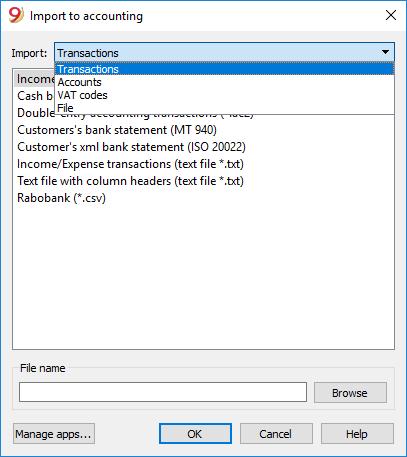
Procedure for importing
- Choose the destination table of the data
- Choose the file type from which to import
- Indicate the file name
- Choose the transactions to be imported
Destination table
For each data type, there are specifique pages
Import formats
According to the type of destination table, different import formats are availbale.
However, the following formats are available for all options:
- Text file with column headers
These are files that are especially created with other programs (for example, a program that creates invoices) so that the data can be transferred into Banana Accounting.
Technical indications on how to prepare these type of files can be found here. - There are also other file types for which a specific import filter exists or has been created.
File name
- The name of the file of which the data need to be imported needs to be indicated here.
Manage apps...
- To add or to update import filters.
Scripts that decode file types can be created.
Ok Button
- Starts the import.
Error messages
In case error messages appear during an import operation, update, first of all, the Import App.
Import transactions
Import procedure
- From the drop down menu, choose Import transactions
- Choose the file type from which to import (Cash book transactions, Double-entry accoutning transactions)
- With the Browse button, choose the file from which to import the transactions
More information about all types of import filters can be found on the Banana Apps page.
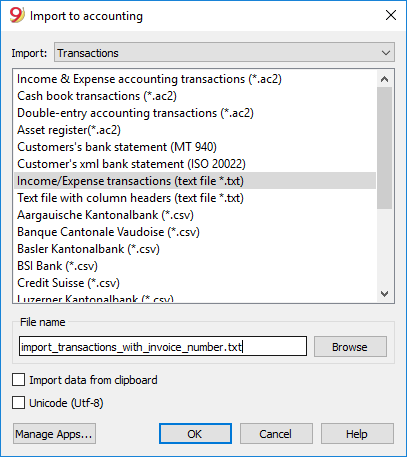
File types that can be imported
- Import transactions from an Income & Expenses accounting file
In order to import transactions from an Income & Expenses accounting file into a double-entry accounting file, it is necessary that the categories of the Income & Expenses file correspond to the accounts of the Double-entry accounting file. - Import Cash book transactions
Apart from importing the transactions, an import summary per month or quarter can also be obtained.
See the specific page Import Cash book transactions. - Import Double-entry accounting transactions
In order to import transactions from a Double-entry accounting file into another Double-entry accounting file, it is necessary that the accounts correspond. - Import transactions from Bank statement ISO 20022 or MT 940
See page Bank Statement ISO 20022 - Import data in Txt / CSV
This format must be used by those who want to export data from another software and import them into Banana Accounting.
See also the technical information on how to create an import file for Banana Accounting.
This file type is being used to import data from other programs, such as:- in order to import monthly transaction from your salaries software
- in order to import the invoices issued with a invoicing software
- in order to import the payments made with your invoicing software
- in order to import your sales transactions from your online shop
- in order to import data from another accounting software
- in order to import data from another cashbook management software (for example a restaurants or a hotel).
- BananaApps for importing
Allows you to transform data exported by another program (proprietary format), in the import format required by Banana Accounting.- Banana allows for import from several other formats.
Please take a look at the updated list of Banana Import Apps. - It is possible to create one's own scripts that uncode the data contained in one's own files, more info here.
- Banana allows for import from several other formats.
Choice of rows to be imported
After having elaborated the rows to be imported, the program displays a dialog, in which the user can indicate further options.
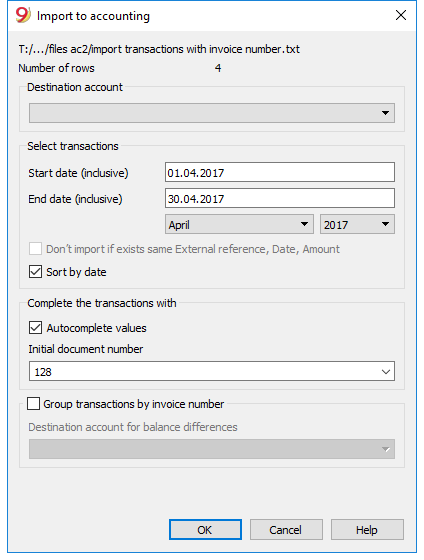
Destination account
This option is present when data of the bank account (or postal account) statement, or an account's income & expense transactions in a text format, are being imported.
Insert the bank account number of the chart of accounts, related to the imported statement.
Select transactions
Start date, End date
Insert the start and end dates of the period related to the transfer of the transactions. The period can also be selected automatically in the boxes under the dates area.
Don't import if exists same ExternalReference, Date, Amount
If activated, this function allows the user to not import already entered transactions, in order to avoid recording transactions twice. This option can only be activated when the column "ExternalRef" is present in the transactions that are going to be imported. If not, this option will be deactivated.
Complete the transactions with
Autocomplete values
The option is only necessary for accounting with VAT/Sales tax and multi-currency. If activated, it allows the automatic completion of values that are missing in the imported data (for example, the exchange rate in the exchange rate table).
Initial document number
This option is present when data of the bank account (or postal account) statement, or an account's income & expense transactions in a text format, are being imported. This is the document number assigned to the first imported transaction.
Group transactions by invoice number
If the import file contains values in the "DocInvoice" column, it is possible to indicate in the dialogue:
- Group transactions by invoice number
In this case, the rows of the same invoice are being grouped in such a way that there is only one transaction for the same account and the same VAT code. Please check the explanation Import invoice data.
- Destination account for balance differences
When VAT codes are being applied, there may be rounding differences of just a few cents.
In this case, Banana creates an additional transaction for every invoice into which this difference can be recorded.
Of course, it is necessary to pay attention that the data to be imported obtain a balance between debit and credit. If not, the transaction row will contain the difference between debit and credit.
Edit the imported transactions
The program creates some transactions and adds them to the Transactons table.
Transactions can be edited or deleted.
In a double-entry accounting file, the program adds some symbols in the Debit/Account and Credit/Accounts columns, where in an income and expenses file, the program adds them in the Account and Category columns.
Symbols should be replaced with the appropriate account or category.
- [A]
This symbol is indicated when no account has been indicated in the dialog.
You need to replace the [A] with the appropriate bank account.
[CA] - When ths symbol appears, you need to replace it with the appropriate contra-account, so that the Credit transactions will be balanced with the Debit transactions.
In rows with only one contra-account, you will find both the [A] and the [CA] symbols in the same row.
In rows with multiple contra-accounts, each row will have its own [CA] symbol. Without the [CA] symbol, it would be impossible to understand if the transactions is a Debit or Credit one.
Frequently Asked Questions
I see don't see the format for the bank statement of my bank
Click on "Manage apps...", followed by "Update apps" and enable the filter for the desired format.
I see don't see the format for the Xml account statement of the Postfinance (file .tgz)
This format is no longer supported. Please contact the Postfinance and ask to receive the statements in ISO 20022 format.
The following message appears 'This ISO 20022 file doesn't contain a bank statement (camt.052/053/054)'
This error message is being displayed when the ISO 20022 file doesn't contain a bank statement. The ISO 20022 format is a generic format that can contain different types of information, like the bank statement and the payment confirmations In Banana Accounting, only the bank statements can be imported (camt.052/053/054).
My bank is not in the list of supported formats
It is possible to create apps for formats that have not yet been implemented. We have also paid support available for the implementation of customized formats.
I can only import collective orders and I cannot see the details (the individual orders)
When executing a payment in the e-banking (for example in the Raiffeisen bank), you need to choose the option 'individual order' instead of the 'collective order' Only by doing so you will be then be able to import the payments as individual orders.
Import ISO 20022 file
ISO 20022 is an international standard for the transmission of financial data.
The CAMT category regroups the formats used for the account statement, reporting of account transactions and account balance confirmation:
- camt052: Account Reporting
- camt053 (including version 4): Account Statement
- camt054: Credit / Debit Notification
Preview the ISO-20022 file
Banana. offers the possibility to preview contents of a camt file.
Data importing into the current accounting
Proceed as indicated with the Import into accounting ( Account1 menu) command.
Compressed files can also be opened with this function. In this case, the program will prompt the user to select the file from which to import the data of the compressed file.
Technical notes on converting ISO 20022 files
Banana, when reading the file, tries to adapt itself to the ways in which the ISO 20022 file has been prearranged.
- Reads as opening balance the similar encodings
- Reads as closing balance the similar encodings
- All contents are read and converted into transactions
- Transaction date (Date)
- Valuta date
- Transaction amount (positive or negative)
- Description (Banana - for now - displays the various descriptions as a single text)
In the future, it will be possible to extract this information on a distinctive basis and indicate the columns where to allocate data. - Distinction of transactions between one single and detailed lines.
For transactions that are to be detailed, there will be a row for the sum and separate rows for the singular transactions that will constitute the total.
National Specificities
Each country and/or bank has the possibility to insert additional information in the ISO 20022 file according to its needs. Banana Accounting offers a generic filter distributed with the application and multiple country- and/or bank-specific filters distributed as BananaApp. To import this additional information into your accounting, you must install and use the filter that is most specific to your country and/or bank.
Import data from a Cash book file
When managing your accounting work, it is possible to manage the cashbook separately and regularly import the transactions in the main accounting file, grouped according to a selected period.
In this case there are two separate files: a file containing all the data of the general accounting, and a second file containing only the data Cash book management. In order to be able to import data from the Cash book file into the main accounting file, those files need to be linked. This can take place in two different ways:
- Attribute to the categories of the cashbook file the same account numbers (for Double-entry accounting), or, the same category numbers (for Income & Expense accounting) as the ones used in the main accounting file.
-
In the cashbook file, in the Category2 column of the Categories table, enter the same account numbers as the main accounting file (if double-entry accounting) or the same categories numbers (if Income & Expense accounting). If the Category2 column isn't visible, you need to enable it by selecting the Columns setup command from the Data menu, and double clicking on Category2.
Example:
In this example, the account numbers referring to the main accounting file have been entered in the Category2 column.
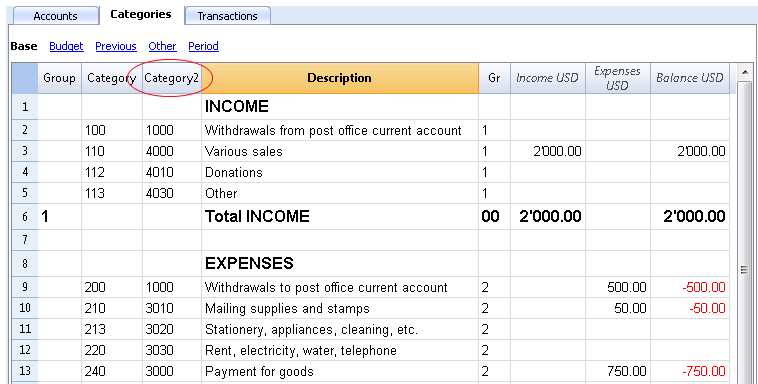
In order to import the data, do as follows:
- open the main accounting file and choose the Import to accounting command from the Account1 menu
- in the dialogue window that appears, select Transactions from the Import drop-down menu; then, click on Cash book transactions (*.ac2) and with the Browse button, select the cash book file.
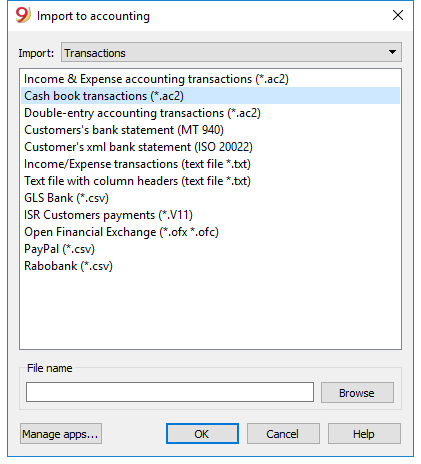
You can find the explanations of this window at the Import to accounting page
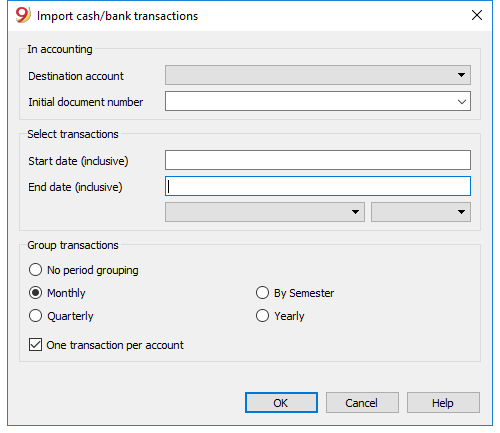
In accounting
Destination account
You have to select the account number (Double-entry or Income & Expense Accounting) to which the data will be carried over.
Initial document number
This is the document number given to the transactions carried over.
Select transactions
Start date / End date
These drop-down menus specify the start and end dates of the period to which the imported data refer.
Group Transactions
In this section the user specifies, by activating the different options, how the transactions of the period must be grouped:
- No period grouping
All the rows are being imported, with the related contents of the columns. The Doc number of the Cash book account is also being imported. If, in the main accounting, you wish to use a different number and at the same time keep the document number of the Cash book, enter the document number in the DocProtocol column of the Cash book. - Monthly - transactions are grouped by month
- Quarterly - transactions are grouped by quarter
- By semester - transactions are grouped by semester
- Yearly - transactions are grouped per year
One transaction per account
If more than one category is grouped on a single account but the user needs separate transactions for each category, this cell must be activated; then the program will create transactions for each category. When VAT codes are used, transactions will be created not only by category, but also for each different VAT code in the same category.
Note:
When the user is working on an accounting file with VAT, the calculations of the VAT may result slightly different. If the transaction amounts have been inserted as net amounts, the balance of the cash account may also be different because of rounding differences.
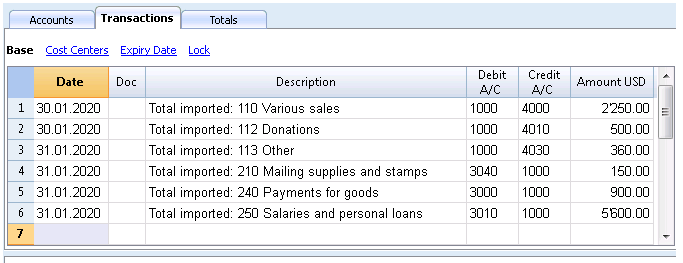
The accounting file is updated with the data of the Cash book.
Import accounts
This command imports the accounts from a Double-entry or Income & Expenses file (*.ac2) or a text file (*.txt), and integrates them automatically in the existing Chart of accounts.
The accounts or the categories can be carried forward to the existing accounting through activating the following options:
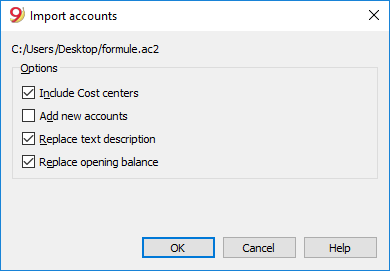
Options
Include Cost Centers
When there are cost centers, these will also be carried forward.
Add new accounts
When this option is activated, all new accounts are added to the accounting plan.
Replace text description
If already existing accounts are imported, but with different descriptions, the existing descriptions are replaced by the imported ones when this option is activated.
Replace opening balance
If already existing accounts are imported with different opening balances, the existing opening balances are replaced by the imported ones when this option is activated.
Import VAT codes
This function is only available in the Accounting with VAT management, and allows the user to import VAT codes from:
- Other accounting files (*.ac2)
- A text file with column headers (text file *.txt)
In order to import VAT Codes, please proceed as follows:
- From the Account1 menu choose the Import into accounting command
- Select VAT Codes
- Select Switzerland: New VAT Rates 2018 - in the lower field the file containing the new VAT Codes 2018 will be automatically shown
- Confirm by clicking on OK
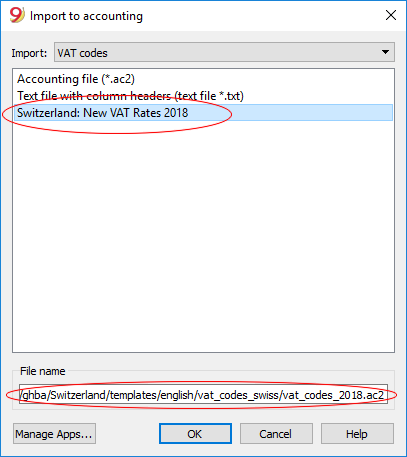
The following dialog window will follow:
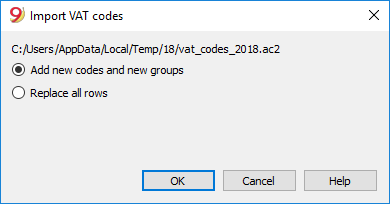
Add new codes and new groupes
If this option is checked, the new codes and new VAT groups will be added, without eliminating the ones that are presently in the VAT codes table.
Replace all rows
If this option is checked the existing VAT codes table will be replaced by the one containted in the source file indicated,
Warning
If, after the import, you receive the error message VAT account not found, you need to select the VAT according to VAT report account in the VAT/Sales tax section of the File and accounting properties (File menu).
Update VAT Codes for Switzerland
See the pages for Switzerland in French, German or Italian.
Import file
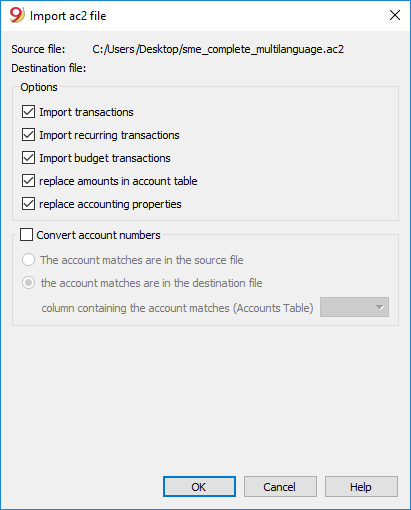
Source file
This is the file from the which the data are being taken.
Destination file
The file that "receives" the data.
Options
Import transactions
All the rows of the Transactions table, present in the source file, will be imported.
Import recurring transactions
All the rows of the Recurring Transactions table, present in the source file, will be imported
Import budget transactions
All the rows of the Budget table, present in the source file, will be imported.
Replace amounts in Account table
The amounts of the Opening, Budget and Previous columns of the Accounts table of the destination file are being deleted and replaced with the amounts that are present in the source file.
The accounts need to correspond, thanks to the same account numbers, or when there is a replacement, in that case the option "Convert account numbers" should be used.
Replace accounting properties (basic data)
The File and accounting properties of the destination file will be replaced by the ones of the source file.
Convert account numbers
Using this function, the imported account numbers will be replaced with those indicated in the alternative column.
If you use this function, you must also specify the column that contains the account numbers to be used in the import instead of the existing ones.
Next to the account number column, there should be a column that indicates the alternative number to be used when importing. If no alternative number is specified, the original account number of the source file will be used.
- The account matches are in the source file
This option is to be used when for example you keep an accounting file in a country, with a specific number system, and then you need to regularly import your transactions in a different accounting file, that uses a chart of accounts with a different numbering system.- You need to add a new text column in the accounting plan (Columns setup command)
- For each account, indicate the destination account number in the tabel.
- The account matches are in the destination file
This option is used when for example you want to switch to a chart of accounts with a new numbering and grouping- You create a new accounting file with the new chart of accounts.
- In the chart of accounts, you create a new column where you indicate the account matches (Columns setup command).
- In this column, indicate the account numbers of the source file.
Separate the accounts with a semi-colon "1000;1001" to indicate that several accounts need to be grouped into this account.
- Column containing the account matches (Accounts table)
Indicate a column of the chart of accounts that has been added by the user and that contains the account matches.
Results and possible errors
The program will have carried forward all the data of the previous accounting, converting the account numbers.
In case the program indicates errors (absence of accounts or other), it might very well be necessary to cancel the import operation, complete the account matches and repeat the import operation.
The program, finding different charts of accounts, cannot automatically execute extended check-ups to make sure that all the data have been imported and grouped correctly.
It is therefore advised to check the result manually, verifying that the totals of the Balance sheet and the Profit and Loss statement are indeed correct.
Advanced import options
For different and more complex and automated conversion needs, we suggest to use the scripts, that allow a total customization of the conversion and the import.
Import exchange rates
This option is only present in Double-entry accounting with multi-currencies.
The characteristics are the same as the ones of the Import transactions function.
It lets the user import the exchange rates from:
- Exchange rate table of another file or Exchange rate history file (*.ac2)
- Text file with the column heading (text file *.txt).
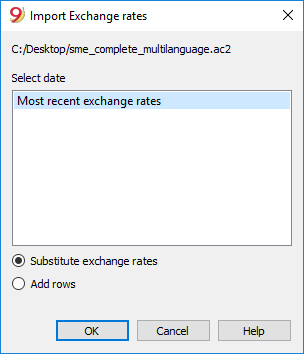
Note: Exchange rate history files only show the Foreign exchange rate table and keep a record of past exchange rates.