Data control and security
The control and verification functions of Banana Accounting help you ensure that your accounting is accurate, complete, and consistent.
With simple yet powerful tools, you can detect errors, prevent unwanted changes, and monitor balances in real time.
These functions are designed to let you work securely while saving time on checks.
Thanks to these functions, you can:
- Filter data to search, verify, and instantly change accounts, amounts, and text.
- Quickly and automatically check the correctness of the accounting;
- Detect and correct errors before closing or printing reports;
- Instantly view accounting differences
- Work with more confidence, accuracy, and peace of mind.
Row filter
The Row filter allows you to display only the transactions you are interested in, based on criteria such as dates, accounts, amounts, or text.
You can use it to specifically check data, identify inconsistencies, and edit directly on the filtered rows.
The filter is available in many tables and reports, allowing you to easily isolate and review the desired data.
Check accounting
The Check accounting function performs an automatic check of the entire file, highlighting errors, imbalances, or missing data.
Banana checks the accuracy of balances, consistency between debit/credit accounts, and any incorrect amounts.
It is an essential tool to quickly identify issues before printing the balance sheet or closing the year.
Lock transactions
The Lock transactions feature prevents accidental or unauthorised changes to already verified transactions.
You can lock all transactions up to a specific date or only a specific period, ensuring data integrity once verified or approved.
Balance Column
The Balance Column checks that, for each transaction row, the debit and credit amounts balance correctly.
When the two sides do not match, Banana highlights the difference, allowing you to immediately detect and fix any entry errors.
It is an instant check that helps you keep your balance sheet always in order.
A função Filtrar linhas temporárias
A função Filtrar linhas temporárias do Banana Contabilidade Plus permite filtrar temporariamente as linhas de uma tabela, sem modificar sua disposição permanente. É uma função muito útil para buscar imediatamente (e modificar) dados, tanto textos quanto valores.
Uma vez removido o Filtro, as linhas da tabela voltam à sua ordem original.
Para alterar a ordem das linhas de uma tabela de forma definitiva é necessário usar o menu Dados > Ordenar Linhas.
A função Filtrar linhas temporárias está disponível apenas no plano Advanced do Banana Contabilidade Plus.
A função Filtrar Linhas permite visualizar somente as linhas da tabela que incluem a palavra-chave inserida como critério de pesquisa. Proporciona uma economia considerável de tempo pelos seguintes motivos:
- Busca imediata: encontra em poucos segundos os registros desejados.
- Modificação direta: você pode intervir imediatamente nas linhas filtradas.
- Disponível em todas as tabelas: Contas, Registros, Câmbios e outras.
- Facilidade de uso: basta inserir uma palavra-chave no campo do filtro.
- Restauração simples: ao remover o filtro, você volta à ordem inicial da tabela.

O texto destacado em verde é apenas para fins explicativos; não aparece no software.
Funções e sintaxe do Filtro
O filtro permite encontrar as linhas simplesmente inserindo um texto como critério de pesquisa. Quando se insere o texto a ser pesquisado, o programa filtra todas as linhas que contêm o texto especificado, separado por espaços.
Aqui alguns exemplos de Filtro:
- fatura mario
Mostra as linhas que contêm as palavras "mario" e "fatura" em qualquer posição. - mar fat
Dependendo do número de linhas presentes, é possível obter o mesmo resultado inserindo apenas um texto abreviado. - "fatura mario"
Pesquisa de texto que inclui espaços: se o texto for inserido entre aspas, o programa o considerará como uma única palavra. - "!~Mario"
Normalmente a pesquisa inclui maiúsculas e minúsculas.
É possível especificar que a pesquisa seja apenas por maiúsculas ou minúsculas inserindo um caractere especial.
O espaço é sempre considerado como separador para o comando E.
- O espaço significa que as condições são aditivas.
- Nunca inclua espaços na pesquisa, a não ser que estejam entre aspas, por exemplo: "fatura mario ".
- Exemplos:
- fatura mario
O programa considera as linhas que contêm ambas as palavras "mario" e "fatura".- "fatura mario"
O programa considera o texto entre aspas como uma única palavra, incluindo o espaço. Portanto, buscará todas as linhas que contenham exatamente "fatura mario" (nessa ordem).
Caracteres especiais
É possível utilizar quase todos os caracteres na pesquisa.
Apenas o ponto de exclamação "!" e a barra vertical "|" no início de uma sequência de texto têm um significado particular.
- "|" para indicar OU
Pelo menos um dos elementos precedidos por "|" deve estar presente na linha.
No exemplo seguinte, a pesquisa exibirá as linhas que incluem "mario" e "fatura" ou "parcela".
mario |invoice |parcela
A barra vertical é o caractere Alt-124. Se não o encontrar no teclado, pesquise no Google- "Layout de teclado windows/mac brasil/suíça/usa" e veja na seção de imagens.
- Especificador de comando "!".
Qualquer texto precedido pelo ponto de exclamação é considerado um comando e tem um significado particular.
Por exemplo, para excluir um texto, utilize a sequência de comandos "!-".
mario !-fatura
Sintaxe avançada para a pesquisa com o Filtro
A sintaxe avançada da pesquisa é apenas experimental: pode estar sujeita a alterações e melhorias.
O caractere "!" no início de um texto indica que se trata de um comando especial de pesquisa.
- !
Quando colocado antes ou depois de um espaço, inicia uma sequência de comandos. - !!
É considerado como um simples "!" e não como uma sequência de comandos. - !-
O sinal de menos "-" é usado para excluir conteúdos e pode ser combinado com qualquer outro operador.
!-mario !-1000 !-=1000 !-^pagamento !-~10 - !~
O til "~" deve ser colocado imediatamente após "!" ou "!-".
Com "~" a pesquisa diferencia maiúsculas e minúsculas.
!~mario
!-~mario
Caracteres de comando
São os caracteres que seguem imediatamente o início do comando "!", "!-", "!~" ou "!-~".
Podem também ser usados com "-" para excluir e com "~" para tornar a pesquisa sensível a maiúsculas/minúsculas.
- !=
Encontra exatamente o texto especificado na célula.
!=1000
Pode ser usado com vários valores separados pelo caractere "|".
!=1000|2000|30000
Célula vazia.
Desde a versão 10.1.16 seleciona células com valores vazios.
!= - !+
Contém o texto especificado. Equivalente à pesquisa normal, mas permite combinações com outros caracteres.
!-+mario exclui linhas que contenham "mario".
!~+mario exclui linhas com "mario" diferenciando maiúsculas/minúsculas. - !<>
Diferente do texto fornecido.
!<>1000 - !.
Caracteres curingas (*,?) para pesquisa com caracteres especiais.
!.100*
!.100*|2?0* - !^
Começa com o texto especificado.
^mar
^mar|hom - !$
Termina com o texto especificado.
!$rio - !_
Pesquisa por palavra inteira.
!_100
!_100|200 - !:
Expressão regular.
!:\bmario\b
Maior, Menor e Intervalos
Caracteres usados para comparar valores numéricos ou datas.
- Data no formato yyyy-mm-dd
2024-12-31 - Valor com o "." como separador decimal e sem separador de milhar.
1999.99
Comandos de comparação:
- !> Maior que.
!>100 - !>= Maior ou igual.
!>=100 - !< Menor que.
!<100 - !<= Menor ou igual.
!<=100 - !<> Diferente de.
- !>< Intervalo exclusivo.
!><99.99|200 - !>=< Intervalo inclusivo.
!>=<100|199.99
Especificação de colunas
Permite especificar a coluna na qual executar a pesquisa.
- !descrição!
Pesquisa na coluna "descrição".
!descrição!mario
!descrição!=
!des*!mario
!des*;doc!mario
!descrição:xml!mario
!debit*!=1000
Mostrar linhas com cor
- !_co! ou !_color! Mostra linhas com uma cor.
- !_co!2 Mostra linhas com cor estilo 2.
- !_co!2|3 Mostra linhas com cor estilo 2 ou 3.
Mostrar linhas com formatação
- !_fo! Mostra linhas com formatação específica.
- !_fo!b Mostra linhas em negrito.
- !_fo!i Mostra linhas em itálico.
Mostrar linhas com erros
- !_er! Mostra linhas com erros ou avisos.
- !_er!e Mostra linhas com erros.
- !_er!w Mostra linhas com avisos.
Combinação de filtros
- 2022 !des*!mario !debit*!=1000
Mostra linhas com "2022", "mario" em colunas "des" e "1000" exato nas colunas "debit". - |!PeriodTotal_?_C:xml!<> |!PeriodEnd_?_C:xml!<>
Mostra as linhas com um valor, em colunas cujo nome XML começa com PeriodTotal_ e termina com _C
ou cujo nome XML começa com PeriodEnd_ e termina com _C
Motivação da sintaxe do Filtro
A sintaxe avançada de pesquisa pode parecer estranha, mas queríamos uma sintaxe que
- Não interferisse com a pesquisa natural, de modo que o usuário pudesse realizar a maioria das pesquisas de forma intuitiva, combinando os textos exatamente como está acostumado em aplicativos de smartphone.
- Não fosse específica de um idioma, utilizando apenas símbolos.
- Suportasse todas as possíveis pesquisas, podendo ser usada para expressar filtros semelhantes ao Excel.
- Abrisse a possibilidade de incluir comandos específicos do Banana, como cor, erros, etc.
Avaliamos várias outras sintaxes de pesquisa, mas todas utilizavam caracteres comuns como o sinal de menos "-" ou o "+", ou outros como "\", "(", "*", "?", que são frequentemente usados em contabilidade.
Assim, decidimos criar uma sintaxe especial em que o ponto de exclamação "!" é usado como indicador de comando. O "!" normalmente é usado no final de uma frase, portanto é pouco provável que interfira na pesquisa.
Todos os comentários e sugestões são bem-vindos!
GPT do Banana Contabilidade Plus gerador de comandos para usar o Filtro
O gerador de comandos GPT para a sintaxe avançada de pesquisa (Filtro) é apenas experimental: pode estar sujeito a alterações e melhorias.
Este GPT do Banana Contabilidade foi criado utilizando o ChatGPT e foi projetado para gerar uma sintaxe avançada de pesquisa para filtrar as linhas na tabela Registros.
Requisitos
Para usar este GPT, é necessário:
- Baixar e instalar a versão mais recente do Banana Contabilidade Plus
- Ter uma conta ChatGPT.
- Para usar este GPT, é necessário ter uma assinatura ChatGPT Plus. Sem ela, é possível testar o serviço gratuitamente até um máximo de dez solicitações. Depois, será necessário atualizar para o ChatGPT Plus ou aguardar algumas horas antes de fazer novas solicitações.
Como funciona
- Abra o GPT do Banana Contabilidade Plus através deste link:
- No campo Mensagem abaixo, insira uma frase que descreva o que você deseja pesquisar dentro da tabela Registros com o Filtro. Em geral, quanto mais específicas forem as solicitações, melhores serão os resultados.
- O GPT processará sua solicitação e retornará o resultado correspondente.
Com base no input fornecido ao GPT, será gerada uma cadeia de texto contendo o comando necessário para filtrar as linhas na tabela Registros. - Copie a cadeia de texto gerada.
- Cole a cadeia copiada no Filtro da tabela Registros no Banana Contabilidade Plus.

Exemplos de mensagens para inserir no GPT
A seguir estão exemplos de mensagens que podem ser inseridas no chat do GPT, juntamente com os resultados gerados:
- "Encontre todos os registros do terceiro trimestre de 2024"
- Resultado: "!date:xml!>=2024-07-01 !date:xml!<=2024-09-30"
- "Busque as linhas com um valor de 450.00"
- Resultado: "!amount:xml!=450.00"
- "Busque as linhas com um valor maior que 200"
- Resultado: "!amount:xml!>200"
- "Busque as linhas com o valor 3001 na coluna Conta Credito"
- Resultado: "!accountcredit:xml!=3001"
- "Me dê as linhas com o valor 1020 na coluna Conta Credito e um valor entre 1500 e 4000"
- Resultado: "!accountcredit:xml!=1020 !amount:xml!>=<1500|4000"
Ordenar linhas temporário
A função Ordenar linhas temporário do Banana Contabilidade Plus permite ordenar temporariamente as linhas de uma tabela, sem modificar sua disposição permanente. É uma função muito útil para buscar imediatamente dados, tanto textos quanto valores.
Uma vez removida a função, as linhas da tabela retornam à sua ordem original.
Para alterar a ordem das linhas de uma tabela de forma definitiva é necessário usar o menu Dados > Ordenar Linhas.
A função Ordenar linhas temporário é uma das novas funcionalidades. Pedimos, por favor, que nos envie seu feedback sobre como melhorá-la. Está disponível apenas no plano Advanced do Banana Contabilidade Plus.
Esta ferramenta permite ordenar rapidamente o conteúdo de acordo com a coluna a partir da qual é aplicada a função Ordenar:
- Clique com o botão direito do mouse no cabeçalho da coluna onde você precisa de uma ordenação.
- Posicione-se sobre a pequena seta e selecione o critério de ordenação ascendente ou descendente.
Vantagens
- Você pode ordenar as linhas exibidas, em ordem ascendente ou descendente, de acordo com a coluna desejada.
- Diferente do Excel, quando você remove a ordenação de exibição, as linhas retornam à ordem original sem precisar usar o comando Desfazer.


No cabeçalho da coluna escolhida para ordenar os dados aparecerá uma seta.
Nota importante
A função Ordenar linhas temporário é diferente do comando Ordenar linhas (do menu Dados):
- Ordenar linhas temporário é uma ordenação das linhas na tela de forma temporária, concebida para agilizar a revisão e a modificação dos dados inseridos anteriormente. É possível remover facilmente os critérios de ordenação para retornar à ordem original das linhas. Esta função está disponível apenas com o plano Advanced.
- O comando Ordenar linhas (do menu Dados) modifica de forma permanente a ordem das linhas da tabela e só pode ser desfeito com o comando Desfazer. Este comando está disponível para todos os planos.
Check and recalculate accounting
Banana Accounting offers several commands to recalculate data and verify the accuracy of your accounting. It is good practice to run these checks regularly, especially if the program reports errors or discrepancies.
- Shortcut keys to start the recalculation and primary check of the accounting:
- Shift + F9 (Windows and Mac)
- Cmd + 9 (Mac)
- Menu Actions > Check accounting to run extended accounting checks.
- The Balance column highlights differences in the Transactions table between the Debit and Credit columns. The Balance column can be made visible from the menu Data > Columns setup.
If errors or discrepancies are reported, it is advisable to correct them before proceeding with other accounting operations.
Recalculate and check accounting (primary)
The Shift + F9 key combination automatically performs the following actions:
- Checks the version of the program in use and notifies if updates are available
(it is always recommended to use the latest version). - Resets and recalculates balances for accounts, cost centers, and segments.
- Rewrites all transactions as if they were newly entered.
- Reports any errors in the following tables:
- Accounts
- Transactions
- VAT codes
- Exchange rates
- Multi-currency double-entry
- Updates opening balances.
- Recalculates balances based on the latest exchange rates entered in the Exchange table.
- Accounting with VAT
- Recalculates all VAT values based on the VAT codes used.
- Cash Manager
- Calculates the running balance in the Transactions table.
- Recalculates totals in the Accounts and Categories tables.
- Cash Manager and Income / Expenses
- Recalculates totals in the Accounts and Categories tables.
- Accounting with Budget
- Updates the Budget difference and Previous year columns in the Accounts table.
Check accounting dialog (extended check)
The Actions > Check accounting command opens a dialog window with advanced check options.
This command is recommended when you want to perform more thorough checks on the structure and consistency of the data.

Recalculate accounting and run extended checks
This is one of the most important commands for verifying accounting because:
- it recalculates the entire accounting,
- performs thorough checks,
- reports any errors in the Messages window.
It also updates the texts of the Account Description and Category columns in the Transactions table, if modified.
Basic data properties
This option is enabled by default and checks the consistency of the data set in File > File properties (basic data), such as:
- opening and closing dates,
- VAT accounts,
- accounts for exchange rate differences.
Transactions
Transaction differences
- Checks for any differences between Debit and Credit (or between Accounts and Categories).
- The affected rows are shown in the Messages window.
- The total amount of the difference is displayed in the information window at the bottom.
- The differences are also highlighted in the Balance column.
Include intermediate differences
- Verifies that there are no intermediate differences in multi-line transactions.
- Differences are often due to incomplete transactions or incorrect amounts.
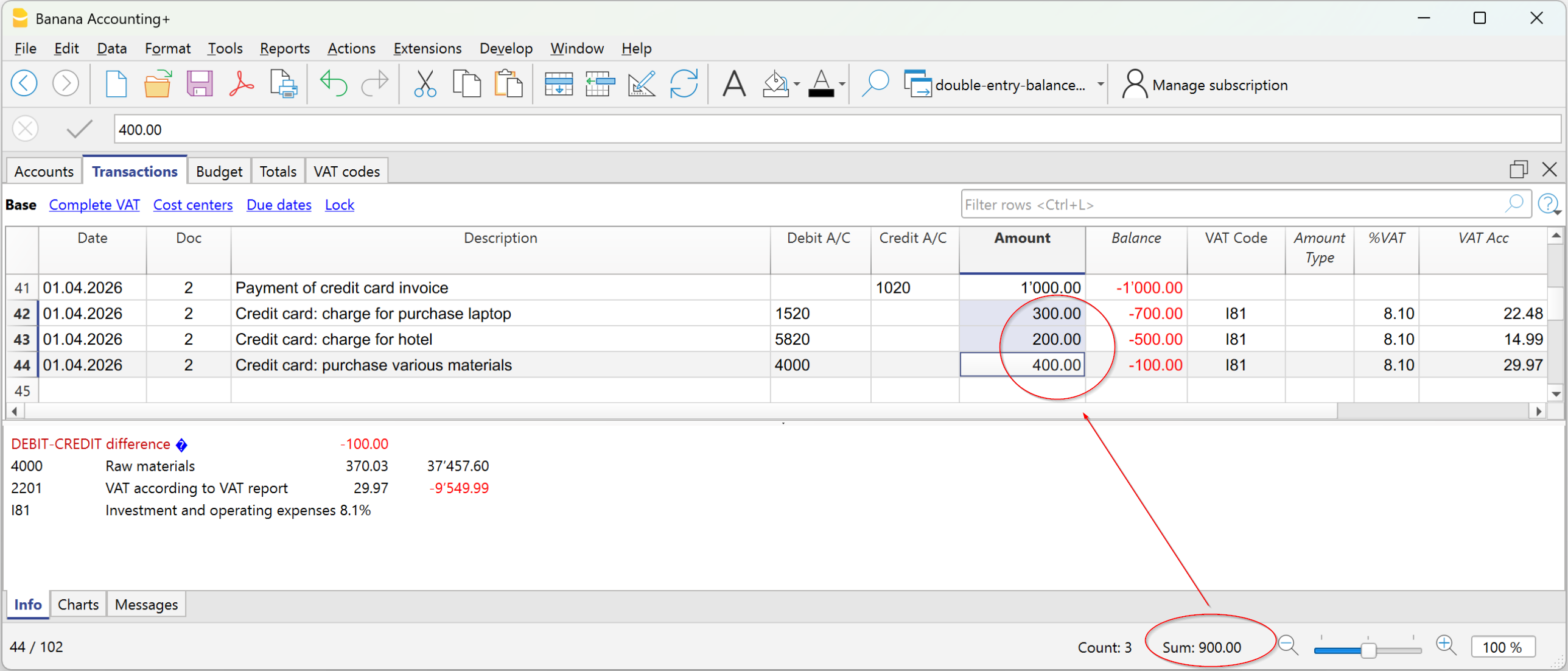
Check balances (#CheckBalance)
- Compares the accounting balance with the real balance (bank or post) entered manually.
- Any differences are reported by indicating the affected accounts.
More information on Check Balance transactions is available at Transactions #CheckBalance.
Same document with different dates
- Alerts if the same document number is associated with different dates.
- This situation can prevent the program from correctly determining the contra account.
Accounts
Chart of accounts structure
- Checks that the structure of accounting groups is correct.
Presence of exchange rate differences
- Reports any unrecorded exchange rate differences.
Opening balances differ from previous year's closing balances
- Checks that the opening balances of the new year match those of the previous year's closing balances.
- The differences between the previous year’s closing balances and the new year’s opening balances are shown as a total amount in the Messages window.
Items
Opening balances of Asset accounts
- Verifies that the opening value of the Items matches the balance of the associated Asset account.
- The check is performed only for items with an assigned Asset account.
Include extended checks with the Shift + F9 key
If the option "Include extended checks with the Shift + F9 key" is enabled, the program automatically performs all the checks selected in the Check accounting dialog also via the shortcut key.
If the option is not enabled, pressing Shift + F9 only performs the accounting recalculation.
Lock transactions with the Blockchain technology
Banana uses an accounting data certification system based on a technique that today is called blockchain. The certification method based on the chaining of data blocks "blockchain" is considered so reliable that it is used to ensure the validity of bitcoins and all modern crypto-currencies.
Banana.ch was the first company in the world to use blockchain technology in accounting. The method was filed as a patent in 2002 (US Patent No. 7,020,640). This method ensures high levels of data integrity and compliance with legal regulations.
For more information, see Blockchain for ensuring the integrity of accounting movements.
The lock transactions command
With the Lock transactions command of the Actions menu, the accounting transactions are locked and marked with control codes that can certify, over the years, that the transactions have not been modified.
- The validity of a possible already existing lock is being verified
- The transactions until the lock date are being numbered progressively and are being locked. For each transaction, the digital code of the row and the progressive one are being calculated.
The calculation of the digital codes is being done according to the sequence of the columns. - In the accounting is being indicated that transactions with an equal or earlier date than the lock date will no longer be accepted.
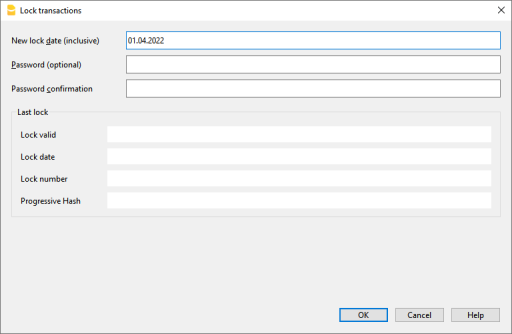
Date of new lock (inclusive)
Specify the date up until when the transactions will be locked.
Password (optional)
It is possible to insert a password to eventually unlock the transactions or to carry out a new lock in the future.
If the program finds no errors in the transactions included in the lock date, it will lock the transactions, calculate and assign individual numbers and codes to each row of transactions which can be viewed in the Lock view on the Transactions table.
Last lock
The data of the following fields are automatically filled out by the program based on the last executed lock.
Lock valid
A "Yes" is shown if the lock is valid.
Date of lock
The date of the last executed lock is shown.
Lock number
This is the value automatically entered by the program in the last row of the LockNum column.
When the lock is repeated, if the value of the last row lock number is unchanged, it means that the lock is valid and that the data have not been altered; if however the value is changed, the program shows the following codes:
- (-1) if the lock is invalid from the first row
- (-2) if there are rows that have the same LockNum.
Progressive Hash
This is the control code present in the last transaction.
Transactions: Lock View
All digital codes are shown along with all the information that the program used to create the digital signature.

- LockNum: the progressive number that identifies the row
- LockAmt: the cumulative transactions total, similar to the total at the end of the page, as required by some national regulations
- LockLine (hidden column): the digital code calculated according to the row values.
- LockProg: the global electronic signature (SHA-256).
The digital code LockProg
This is the main element of the certification; it uses the blockchain methodology.
The digital code is calculated according to the following values:
- The contents of the current entry, including amounts, descriptions and the description of the account at the moment of the lock
- The progressive number (LockNum)
- The cumulative balance (LockAmt)
- The progressive code of the preceding entry (LockProg).
In case the accounting data undergo even the slightest modification (for example, a date or an amount is changed), the digital code will be different. If the control number remains the same, it implies that the data are original and therefore have not been changed.
Check Lock
With the Actions menu → Check lock info command, the program verifies the validity of the lock and displays the data.
- The program recalculates the digital control codes and verifies if they correspond with the ones related to the transactions.
- If the codes correspond, the lock is considered valid, and therefore the data are original
- If they do not correspond, it means that the data have been changed and that they are not the original ones calculated at the time of the lock.

Unlock transactions
The Menu Actions → Unlock transactions command removes the lock and the control codes. If the lock was set with a password it will be necessary to reenter the password in order to remove the lock.
If later on you want to relock the transactions, and they have not been modified, the control numbers will be the same as the ones of the earlier lock; if however some data have been changed, the control numbers will be different.
Partial lock
If the transactions have been locked, it is possible to unlock them even partially, from a specified date. If a lock password has been set, in order proceed unlocking the transactions, you need to enter it in the specific field.

Why unlock the accounting?
In principle, the locked accounting should not be unlocked. It might happen that, after the lock, you find errors in the accounting and see the need to make corrections.
To have the opportunity to make further changes, users kept a copy of the file before the lock. If they found errors, they would restore the previous situation. In the meantime other transactions had perhaps been made, so often it happened that restoring previous versions of the accounting proved wrong. To avoid this unnecessary waste of time it was decided to make the Unlock transactions command available.
The certification must not be confused with data security. The data certification is a methodology that ensures that the accounting data are original. To prevent data from being modified, the methodology is the one related to data security. Data security procedures, however, can only be implemented in an environment that limits data access.
If the file is fully available to the user, such as when it is on a PC, people have complete control of the data. They can thus replace files easily. With a certification one cannot prevent that the data are being altered, but it will allow you to know if the data are the original ones.
The person who keeps the books is responsible for the accounting and decides whether a change is permissible or not.
Organizing the certification and data verification
Once you locked the transactions of the period, you need to:
- Print the lock information or print the last certified transaction row with its specific certification number (LockProgr).
- Sign and store this information along with the accounting documentation or in any other safe place.
In order to check that the accounting data are the original ones, you need to proceed as follows:
- Impart the Show lock info command.
- Go back to the document that shows the digital control number
- Check whether the row identified with the LockNum still has the same digital control number
- If the number matches , the accounting data are the same as those certified
- If the number does not match , it means that the accounting data have been modified.
Banana works on developing applications that make it possible to compare two files and obtain indications regarding data that have been altered.
Data security
Digital certification ensures that the data are still the original ones. It does not prevent the modification of data.
It is the responsability of the accountant to ensure that the data are not altered. Each administration must be organized according to its size and needs.
Those who want to make sure that the data are not being altered by unauthorized persons , must employ other methods and tools, such as :
- Save the data to a secure system (protected network drive), password protected.
- Keep the copies of the data.
- Encrypt archives.
Long-term archiving
The accounting file contains the entered data. In order to open the file and obtain a report or an account card, you need to have the program at your disposition.
Banana Accounting gives the possibility to export all the accounting data, and its printouts as well, to Pdf, Html and Xml.
The generated file can be saved on a CD and accessed on any computer even after many years, even by persons who do not have the Banana Accounting software.
Balance column to detect accounting differences
The Balance column is present in the Transactions table in the double-entry accounting, multi-currency accounting, income/expenses accounting, and cash manager files. It is very useful because it detects accounting discrepancies in the Transactions table.
The Balance column only shows a value when there is an accounting difference.
If the transaction is correct and the balance is zero, the cell remains empty and the column does not highlight any anomaly.
The presence of an amount in the Balance column therefore indicates that the transaction is incomplete or contains an error that needs to be checked and corrected.
▶ Watch the video: The new Balance column
How to activate the Balance column
The Balance column is not visible by default. It can be displayed via the menu:
Data > Columns setup > Balance
The Balance column can be positioned as desired using the Up (moves the column to the left) and Down (moves the column to the right) buttons in the Columns setup dialog.
Reasons for differences in the Balance column
When accounting discrepancies are encountered, it is essential to identify the cause and proceed with the correction.
Errors are likely due to the following reasons:
- The cell where the Debit account, Credit account, or Category is recorded was inadvertently left blank or is incorrect.
- For an entry spanning multiple accounts or categories, the total amounts do not match.
- In an entry with a VAT code, the VAT breakdown or the VAT account is incorrect.
Note: In composed transactions of several rows, the program will display a difference between Debit and Credit until the entry is completed.
The Balance column in Double-Entry Accounting
In double-entry accounting, the Balance column shows the differences between the Debit and Credit columns.
When the accounting is correct, the Balance column should have no value (empty cells):
- The balance is zero if the sum of the amounts in the Debit and Credit columns offset each other (no difference).
- For entries spanning multiple accounts, a balance is displayed until the entry is completed for all the accounts and/or categories involved. With the final entry, the balance should reach zero.

In the example image, a difference of 150 was generated:
- In the entry on line Doc 1, the account 4999, which does not exist in the chart of accounts, was entered; therefore, a difference of 100 was created in the Balance column on the same line.
- In the entry spanning multiple accounts on the lines Doc 2, the total amount paid is 1,000, but the final entry does not zero out the total amount (1,000) between the Debit and Credit columns, because the counter entries total 950; thus, an additional difference of 50 is added, leading to a total difference of 150.
The Balance column in Income/Expense Accounting
In Income/Expenses Accounting and Cash Manager, the Balance column shows the differences between the Account and Category columns.
When the accounting is correct, the Balance column should have no value (empty cells):
- The balance is zero if the sum of the amounts in the Account and Category columns offset each other (no difference).
- For entries spanning multiple accounts, a balance is displayed until the entry is completed for all the accounts and categories involved. With the final entry, the balance should reach zero.
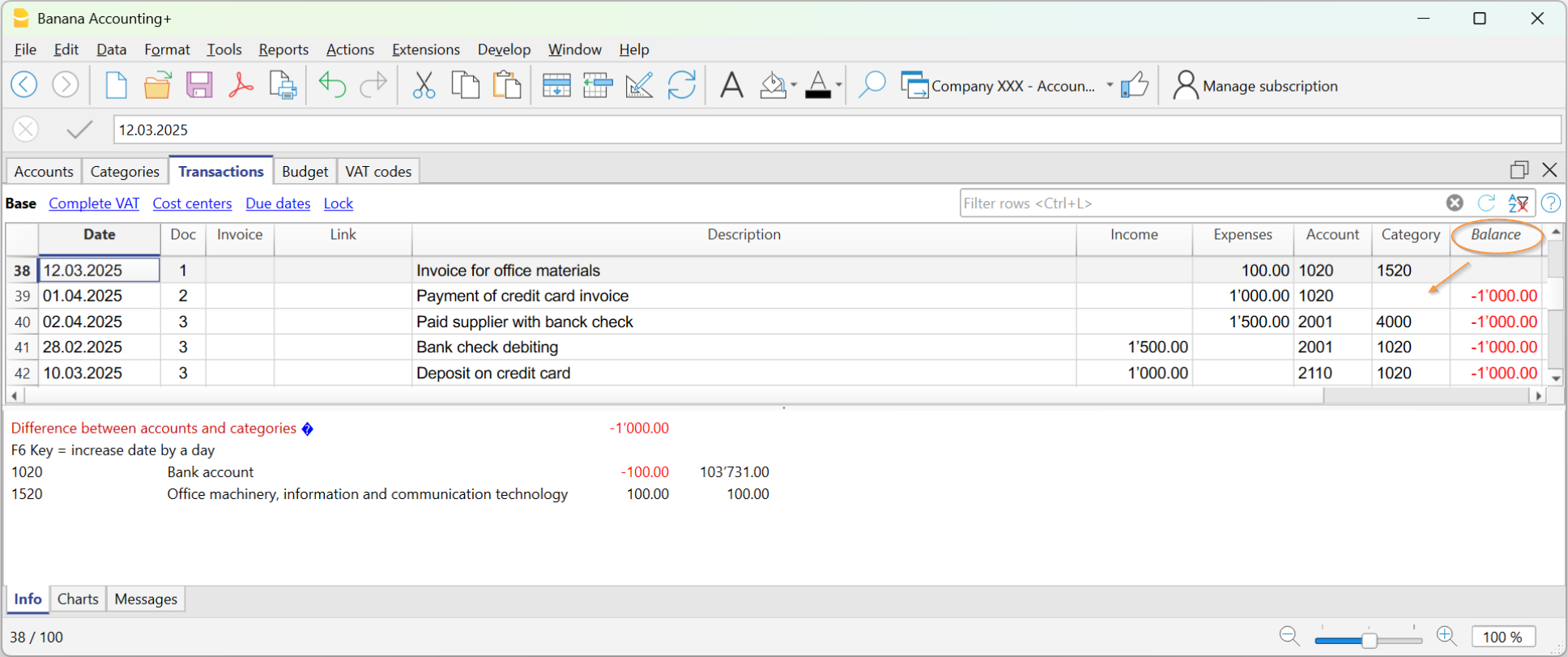
In the example image, a difference of 1000 was generated:
- In the entry on line Doc 2, the category was not entered in the Category column. Therefore, the amount, having been recorded only in the Account, resulted in a difference of 1000.
Checking the Accounting
The Check accounting command also includes a check of the Balance column.
If the Balance column is not zero, it means there are errors. To locate the first row where the accounting discrepancy occurred:
- Scroll through the Balance column to identify the first row where the discrepancy starts.
- Use the Recalculate accounting command, which indicates the row where the discrepancy begins.