Invoice Dialog Add and Edit Invoices
The Invoice and Estimate dialog allows invoice data to be entered and edited.
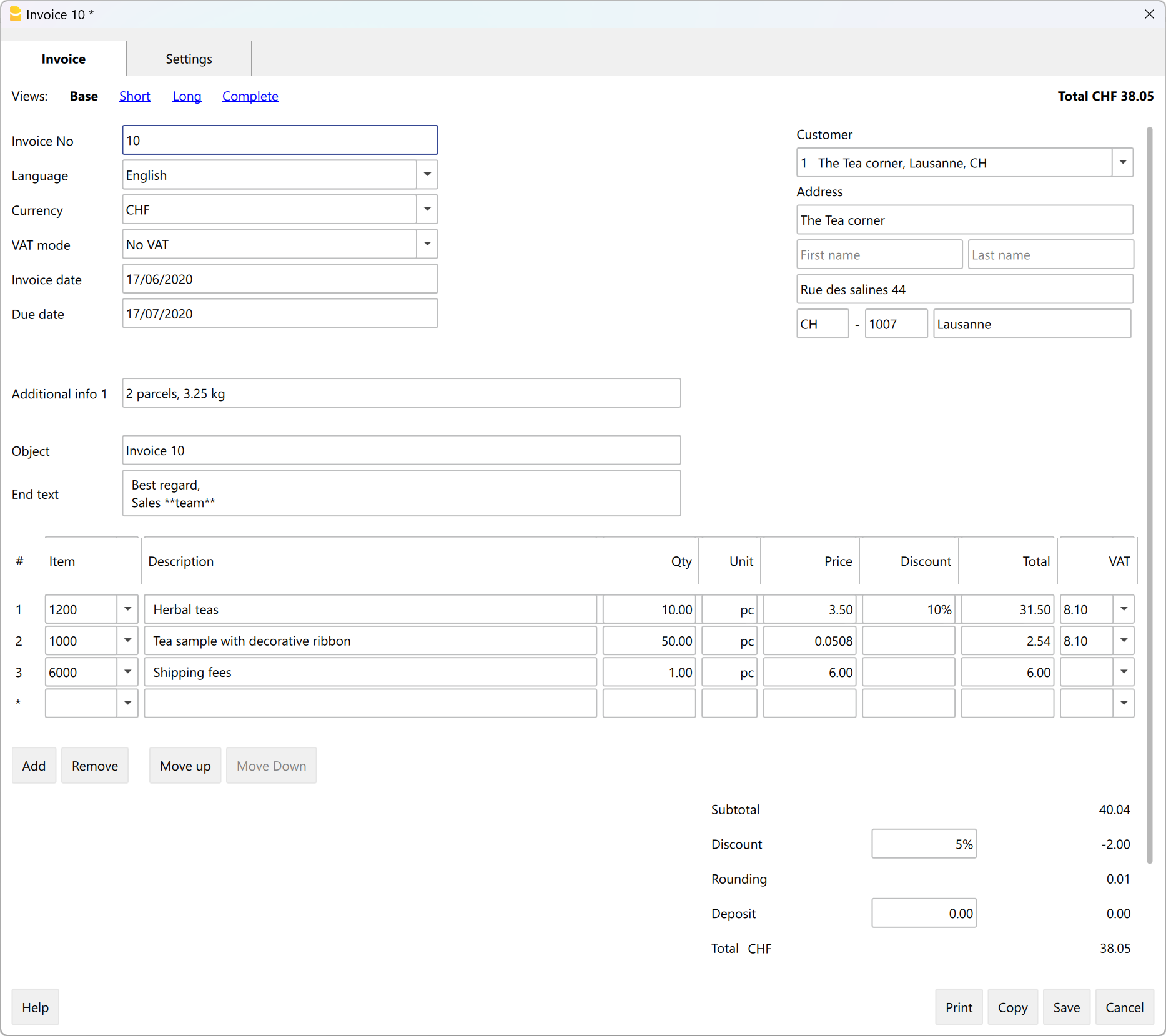
Open the Dialog
The dialog can be opened via:
- For the Invoice
- The Invoice menu > New invoice.
- The Invoice menu > Edit invoice.
- The Invoice table > Double-click on the invoice line of relevance, in the Address column.
- The Invoice table > Double-click on the invoice line of relevance, in the Total Amount column.
- From the ID column, click on the small icon Edit invoice on the right-hand-side of the cell.
- For the Estimate
- The Invoice menu > New estimate.
- The Invoice menu > Edit estimate.
- The Estimate table > Double-click on the estimate line of relevance, in the Address column.
- The Estimate table > Double-click on the estimate line of relevance, in the Total Amount column.
- From the ID column, click on the small icon Edit estimate on the right-hand-side of the cell.
Dialog Sections
The dialogue is divided into two sections:
- Invoice
- In the Invoice section you enter the invoice data.
- Settings
- In the Invoice settings section, parameters for new documents and interface settings of the invoice dialogue are defined.
Dialogue extension
The dialogue for entering invoice data is implemented via the Estimates and Invoice Dialogue Extension.
- The extension is installed automatically when an Estimates and Invoice file is opened.
- The extension is updated automatically when a new version of the extension is released.
- The dialogue can therefore change even if the Banana Accounting programme has not been updated.
发票对话框
发票对话框允许您输入和编辑发票的数据。可以通过点击菜单:
- 发票菜单 → 新发票的命令
- 发票菜单 → 编辑发票的命令
- 发票表格 → 双击地址列中的相关发票行
发票对话框
该对话框分为两部分:
- 发票
- 在发票部分,您需要输入发票数据。
- 设置
- 在设置部分,您可以定义新文件的参数和发票对话框的界面设置。
视图
在编辑发票对话框的顶部显示。
在其中可以定义哪些数据输入字段是可见的,哪些是隐藏的。
通过在不同的视图之间切换,您可以从一个更基本的视图切换到到一个更详细的视图。
有以下几种视图:
- 基本
- 显示最经常使用的字段。
- 可根据您的需要进行调整。
- 简短
- 侧重于项目表。
- 可根据您的需要进行调整。
- 加长
- 包含所有字段的完整视图。
- 可根据您的需要进行调整。
- 完整
- 包含所有字段的完整视图。
- 不能更改。
通过发票设置窗口,对于基本、简短和加长的视图,可以定义哪些字段是可见的,哪些是隐藏的。
结构
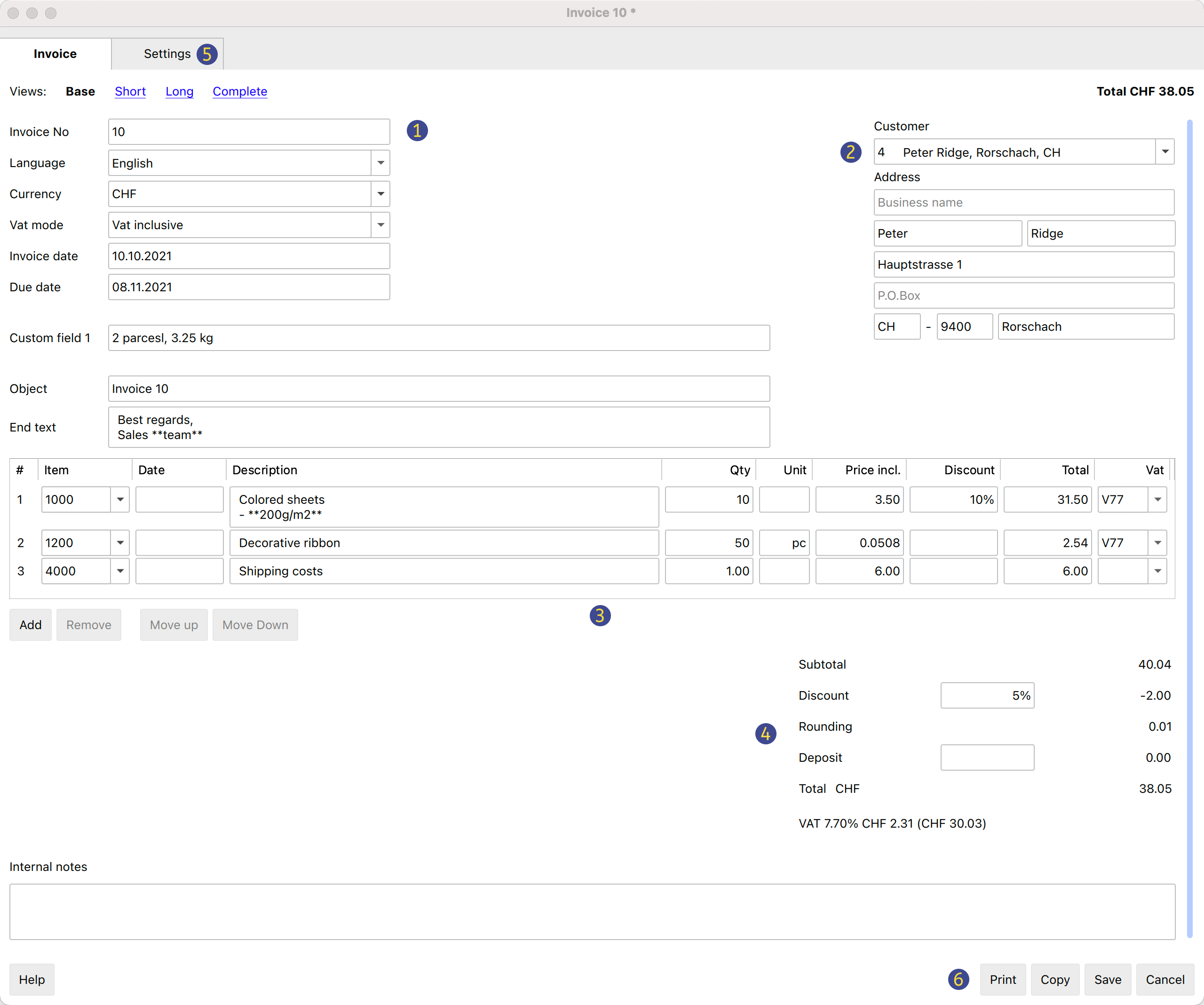
(1) 客制化的信息和文字
本部分允许您输入有关发票的信息,并可定义要包含在打印输出中的自定义文本。
- 发票号码
- 输入发票的号码。
- 该号码将被程序保留并自动插入到发票表格的识别号码(Id)列中。
- 该编号包含在发票的打印输出中。
- 语言
- 输入打印发票的语言。
- 如果已定义,则将恢复并插入联系人表格中设置的客户语言。
- 货币
- 输入要打印发票的货币。
- 可以指出将打印在发票上的货币缩写(CHF, EUR, USD, 等)。
- 该软件不进行其它货币的兑换和转换。
- 增值税模式
- 选择增值税模式。
- 如果改变了增值税的模式,软件会修改已经输入的金额,因此,同一张发票可以同时打印毛额和净额。
如果增值税设置为毛额,并且已经输入了净额,一旦改变设置,也必须修改金额,使其成为净额。- 无增值税
不收取任何增值税。 - 不含增值税
金额被认为是净值。 - 含增值税
数额被认为是毛额。
- 无增值税
- 发票日期
- 输入发票的日期。
- 该日期将被程序保留并自动插入到发票表格的日期列中。
- 该日期包含在发票的打印输出中。
- 付款期限
- 所有发票的付款期限都由软件自动输入。
- 可以为每张发票手动输入。
- 可以包括在发票打印件中。
- 订单号
- 自选项。
- 输入订单号。
- 不包括在发票打印中。
- 订单日期
- 自选项。
- 输入订单的日期。
- 不包括在发票打印中。
- 附加信息
- 主题
- 自选项。
- 输入发票主题的文字。
- 该文字将被程序保留并自动插入到发票表格的摘要列中。
- 该文字作为标题/主题包含在发票打印输出中。它具有比在发票式样设置中输入的任何标题更高的优先级。
- 初始文字
- 自选项。
- 在标题/主题之后立即输入需要包含在发票打印中的初始文字。
- 文字可以多行。
- 您可以将文本加粗,包括双星号**之间的文本部分。 示例:** text1 text2 ** text3 = text1 text2 text3。
- 最终注释
- 这是可选项。
- 在详细信息表的正下方输入要包含在发票打印输出中的最终注释。
- 该文本由程序自动提取并输入到发票表格的备注列中。
- 文字可以多行。
- 您可以把文字加粗,包括双星号之间的部分文字**。
示例:**text1 text2** text3 = text1 text2 text3。
(2) 客户地址
本部分允许您输入账单的地址。您有两种选择:
- 使用联系人表格,
- 然后从列表中选择所需的联系人。
- 您也可以通过输入名字、姓氏、公司、电子邮件或税号直接搜索地址。
- 当您选择一个联系人时,各种地址列会由程序自动完成。
- 手动输入数据。
- 逐一完成地址列的每个元素。
地址文字区包含的信息如下:
- 公司
- 输入公司的名称。
- 尊称
- 输入客户的尊称。
- 名
- 输入名字。
- 姓氏
- 输入姓氏。
- 街道
- 输入地址。
- 额外的
- 如有必要,可输入额外的地址。
- 邮政信箱
- 输入邮政信箱。
- 国家代码
- 输入国家代码。
- 邮政编码
- 输入邮政编码。
- 地点
- 输入具体的位置。
- 电子邮件
- 输入电子邮件的地址。
- 电话
- 输入电话号码。
(3) 发票细节
本部分允许您逐行输入发票的所有详细信息。
该表格包含以下的列:
- 物品标识
- 自选项
- 使用项目表格的时候,可以从列表中选择相关的物品。之后,程序将自动完成以下各列的数据及文字信息 (摘要,数量,单位,单价)。
- 您也可以通过输入部分描述性文字来搜索项目 (物品)。
- 物品日期
- 需要高级计划。
- 是可选项。
- 每个项目都要输入一个日期,例如,用于表示执行发票工作的日期。
- 摘要
- 输入对物品的描述摘要或发票的对象。
- 摘要文字可以多行。
- 可以把文字加粗,包括双星号之间的部分文字**。
示例:**text1 text2** text3 = text1 text2 text3。
- 数量
- 必须要填写的。
- 输入数量。
- 单元
- 自选项。
- 输入单位信息 (例如:件,辆,小时等)。
- 单价
- 必须要填写的。
- 输入单个单位的价格。
- 项目折扣
- 需要高级计划。
- 可选项。
- 每个项目都标明了折扣。折扣是按单个单位的价格计算的 (单价列),并可以注明:
- 作为一个数额。直接输入折扣的金额。
- 作为一个百分比。输入一个百分比 (如10%)。
- 总计
- 总计由程序自动输入并计算。
- 增值税
- 自选项。
- 输入在增值税代码表中被定义的,和被使用的增值税代码。
(4) 折扣和总计
此部分允许您输入任何折扣并显示发票的总额。
该程序将自动计算以下的内容:
- 小计
- 在明细的总计列中显示所有金额的总和。
- 折扣
- 自选项。
- 输入要应用于发票总额的折扣,指示出摘要,百分比或金额。
- 如果输入百分比,程序将根据输入的百分比自动计算并显示出折扣的数值。
- 四舍五入
- 显示四舍五入的方法及标准。
- 预付款
- 这是可选的。
- 您输入要应用于发票总额的预付款,并注明摘要和金额。
- 总计
- 发票的最终总额。
- 总数也会显示在对话框的右上方,以加快验证发票的速度。
- 增值税
- 显示增值税金额的总计。
(5) 设置
(6) 命令
- 打印
- 打印发票的命令。
- 复制
- 复制发票的命令。
- 保存
- 用于保存所做更改的命令。
- 关闭
- 关闭对话框的命令。
- 取消
- 取消更改的命令并关闭对话框而不保存。
- 帮助
- 引用在线文档的命令,您可以在其中找到有关发票对话框的信息。
个性化
发票对话框通过 BananaPlus 扩展进行编程,并独立于应用程序进行更新。 提供的版本是通用的,可以满足大部分需求。
对于发票复杂或创建许多发票的情况,您可以调整对话框以使发票创建更容易、更实用且更快。
Advanced input Type column for Estimates and Invoices
Requires the Advanced Plan of Banana Accounting Plus.
The Type column in the Invoice Edit Dialog allows you to assign a specific role (e.g. header, notes, subtotals) to the invoice row.
To use the column, you first need to make it visible in the desired view, from the Settings tab (section Items columns > enable the Type column).

The available options in the Type column are as follows:
- Header
Allows you to insert a header text to be displayed in the invoice details (in blue in the image). - Note
Allows you to insert annotation text to be displayed in the invoice details (in green in the image). - Totals
Allows you to insert up to three levels of subtotals (in yellow in the image).

Header
Inserts a header row for the content of the following rows, where the items or services are listed.
- In the Type column, select Header from the list.
- In the Description column, enter text that will be displayed in bold as the header for the content of the following rows. The text can span multiple lines.
- The other columns must remain empty.
Example of data entry:
| Type | Item | Description | Quantity | Unit price | Total |
| Header | Consulting services | ||||
| A | Service A | 1 | 150 | 150 | |
| B | Service B | 2 | 100 | 200 | |
| Header | Development services | ||||
| C | Service C | 3 | 120 | 360 | |
| D | Service D | 1 | 90 | 90 |
Note
Inserts a note row to be displayed in the invoice details, before or after the list of items or services.
- In the Type column, select Note.
- In the Description column, enter text that will be displayed on the invoice. The text can span multiple lines.
- The other columns must remain empty.
Example of data entry:
| Type | Item | Description | Quantity | Unit price | Total |
| A | Consulting service | 2 | 100 | 200 | |
| Note | Remote assistance provided | ||||
| B | Technical support | 1 | 150 | 150 | |
| Note | Support provided in April |
Total 2
Inserts a subtotal row that sums up the preceding items.
- In the Type column, select Total 2.
- In the Description column, enter text that will be displayed on the invoice. The text can also span multiple lines.
- The other columns must remain empty.
The Total 2 row:
- Automatically calculates the subtotal of the items entered in the preceding rows.
- You can insert multiple Total 2 rows: each one sums all the items that precede it.
Example of data entry:
| Type | Item | Description | Quantity | Unit price | Total |
| A | Service A | 2 | 50 | 100 | |
| B | Service B | 1 | 30 | 30 | |
| Total 2 | Subtotal 2 | 130 |
Total 1
Inserts a subtotal row that sums up Total 2 rows and the previous items or services not included in a Total 2.
- In the Type column, select Total 1.
- In the Description column, enter text that will be displayed on the invoice. The text can also span multiple lines.
- The other columns must remain empty.
The Total 1 row:
- Automatically calculates the subtotal of the items entered in the preceding rows.
- If the preceding rows contain Total 2 rows, their values are included in the subtotal calculation.
- You can insert multiple Total 1 rows: each one sums all the items and Total 2 subtotals that precede it.
Example of data entry:
| Type | Item | Description | Quantity | Unit price | Total |
| A | Service A | 2 | 50 | 100 | |
| Total 2 | Subtotal 2 | 100 | |||
| B | Service B | 1 | 30 | 30 | |
| C | Service C | 1 | 70 | 70 | |
| Total 2 | Subtotal 2 | 100 | |||
| Total 1 | Subtotal 1 | 200 |
Total
Inserts a subtotal row that sums up Total 1, Total 2 and the previous items or services not included in Total 1 or Total 2.
- In the Type column, select Total.
- In the Description column, enter text that will be displayed on the invoice. The text can also span multiple lines.
- The other columns must remain empty.
The Total row:
- Automatically calculates the subtotal of the items entered in the preceding rows.
- If the preceding rows contain Total 1 or Total 2 rows, their values are included in the subtotal calculation.
- You can insert multiple Total rows: each one sums all the items or services and Total 1 and Total 2 subtotals that precede it.
Example of data entry:
| Type | Item | Description | Quantity | Unit price | Total |
| Header | Consulting services | ||||
| A | Service A | 1 | 150 | 150 | |
| B | Service B | 2 | 100 | 200 | |
| Total 2 | Total consulting services | 350 | |||
| Header | Development services | ||||
| C | Service C | 3 | 120 | 360 | |
| D | Service D | 1 | 90 | 90 | |
| Total 2 | Total development services | 450 | |||
| Total 1 | Total work | 800 | |||
| Header | Extra expenses | ||||
| E | Travel expenses | 1 | 100 | 100 | |
| Total | Subtotal | 900 |
发票设置窗口
通过单击设置部分,您就会进入发票设置的对话框。
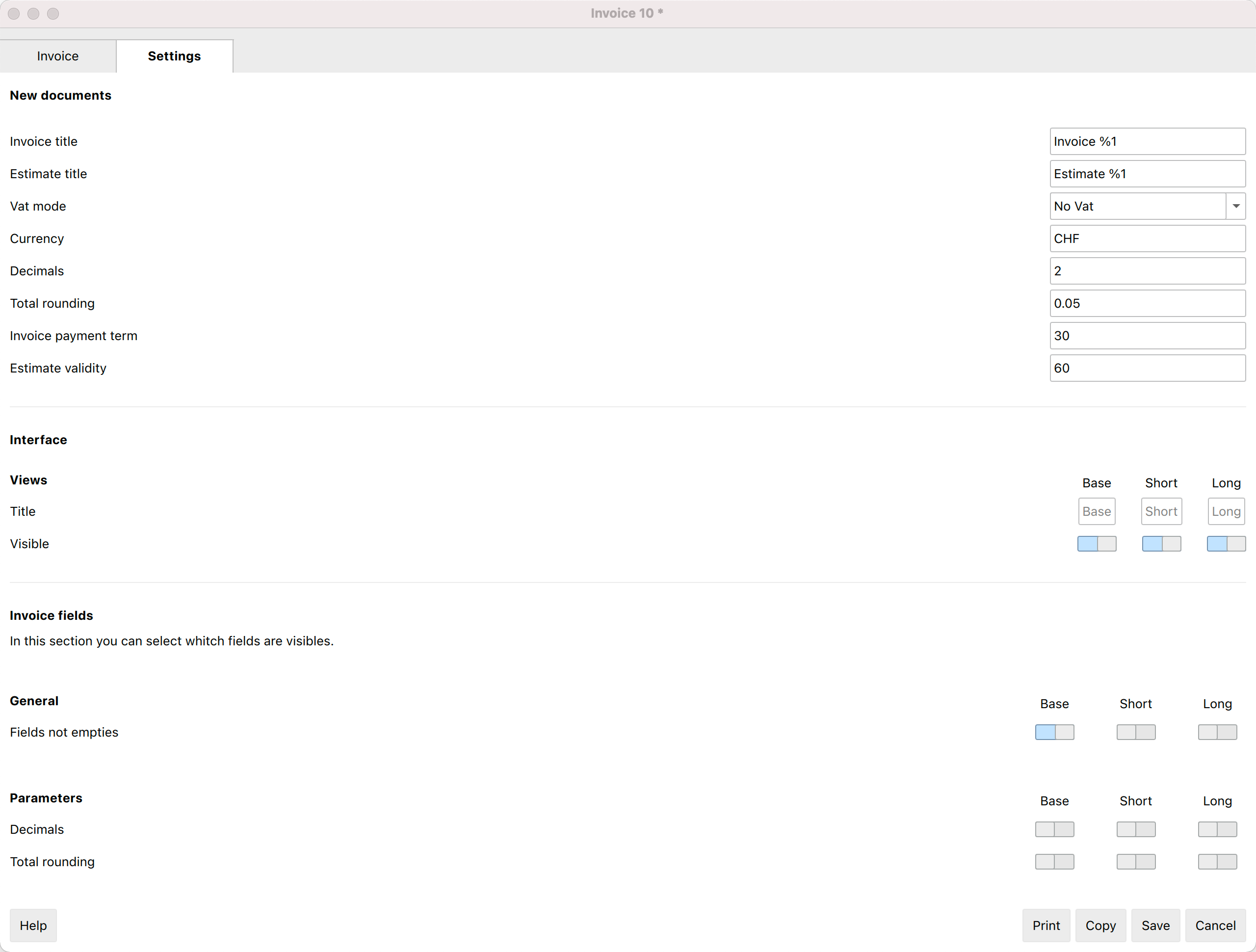
新文件
您可以定义一些参数,这些参数将被应用于所有新的预估和发票文件。
仍然可以手动编辑单个预估和发票。
- 发票标题
- 定义发票的标题/对象。
- 可以为每种语言定义一个翻译。
- 值%1由发票号码代替。
- 预估标题
- 定义预估的标题/对象。
- 可以为每种语言定义一个翻译。
- 值%1被预估的编号所取代。
- 增值税模式
- 选择一个增值税的模式:
- 不含增值税。不适用增值税。
- 包括增值税,这些金额被认为是毛额。
- 不包括增值税。这些金额被认为是净值。
- 选择一个增值税的模式:
- 货币
- 指出将打印在预估和发票上的货币缩写 (CHF, EUR, USD, 等)。
- 该软件不进行其它货币的兑换和转换。
- 小数点金额
- 四舍五入的总数
- 发票付款期限
- 设置发票的到期日,以天为单位。
- 预估有效期
- 设置预估的有效期,以天为单位。
发票的用户自定义区
您可以自定义和添加用户字段到发票上,在那里您可以输入个性化的文字。
在发票/预估单上,这些字段将被输入在信息部分,紧挨着账单地址。
界面
允许您改变基本、简短、加长视图的名称,并决定在发票部分使哪些视图可见,哪些隐藏。
发票字段
对于每个视图,可以在发票部分定义哪些字段是可见的,哪些是隐藏的。
工具
您可以使用工具部分:
- 将所有设置重置为默认值。
- 删除当前设置。
帮助
关于更多信息和问题的解决方案,请点击帮助以访问必备文件的页面。
发票文字的翻译
在设置的对话框中,点击一个文本字段,例如新发票的标题或某个用户字段的摘要,就可以进入翻译的对话框。
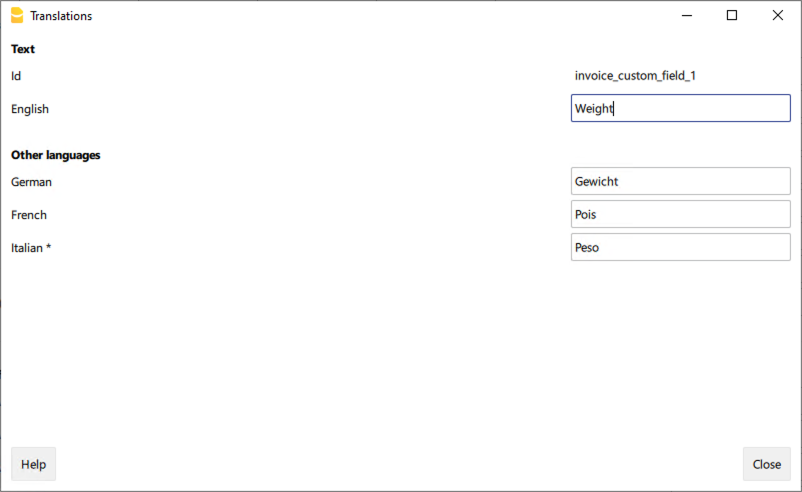
在翻译部分的对话框中:
- 您可以输入要在各种语言中使用的文本。
- 只列出目前使用的语言。
- 如果没有列出某种语言,用所需的语言添加联系人或发票。
- 列出的第一种语言是软件的语言。
- 标有星号*的语言是文件语言,点击文件菜单 → 文件和账户属性 → 其它 → 当前语言进行设定。
预估和发票的测试版发布
报价和发票扩展程序的测试版可让您在正式发布前抢先体验新功能和错误修复。
如何安装
观看视频教程,了解如何试用全新的测试(Beta)版本内预估和发票的扩展程序。
- 下载并安装最新版本的Banana财务会计+ 。
- 点击扩展程序菜单 → 管理扩展程序....的命令。
- 选择预估和发票的扩展程序 (Estimates and Invoices Dialog Extension)。
- 然后选择Beta版本 (Beta release)。
您可以随时从Beta版本改为Stable版本,而不会损失数据。
更改历史
反馈
我们非常感谢您对这个新版本的任何反馈意见。
可以通过联系表格向我们发送您的反馈意见:请同时附上您使用该扩展程序背景的简短描述。