Swiss Annual VAT Reconciliation (Beta)
Swiss Annual VAT Reconciliation (Beta)In Switzerland, VAT Reconciliation (Value Added Tax) is an essential process to ensure that the accounting data relating to turnover and VAT calculations are consistent with the figures declared to the FTA (Swiss Federal Tax Administration).
To simplify and speed up the VAT reconciliation process, an extension has been developed with an automatic procedure that immediately identifies and compares the declared amounts with those recorded in the accounting file, highlighting any differences and the transactions that generated them.
Prerequisites
To use this extension:
- The Advanced plan of Banana Accounting Plus is required. In the future, a special subscription or an additional fee may be required.
- The accounting file must use double-entry bookkeeping.
- Download the Swiss Annual VAT Reconciliation (Beta) extension.
- For the time being, the VAT Reconciliation extension is available only for the Effective VAT method.
Beta version
The extension is currently released as a beta version. This means that some details may change without prior notice.
Installing and using the extension
- Install Banana Accounting Plus.
- Install the Swiss Annual VAT Reconciliation extension. From the Extensions > Manage Extensions menu, find and select Swiss Annual VAT Reconciliation (Beta), then click the Install button. See the Managing Extensions documentation.
- Once installed, the extension will be available from the Extensions menu, where it can be run.
VAT Reconciliation extension
To perform VAT Reconciliation in Banana Accounting:
- Open the accounting file.
- From the Extensions menu, select the Swiss Annual VAT Reconciliation extension.
- 1. Print report
- To generate the VAT Reconciliation report.
- 2. Accounting/VAT Differences
- To view the details of the differences between the declared turnover and the turnover recorded in the accounting file.
Print VAT Reconciliation Report
The extension generates and displays a report with four types of checks:
- Comparison between the turnover declared in the VAT Return and the turnover recorded in the accounting file.
- Turnover declared in the VAT form, grouped by VAT code.
- Taxable VAT declared in the VAT form.
- Transactions for accounts with differences.
To generate the VAT Reconciliation report:
- Open the accounting file.
- From the Extensions menu, select Swiss Annual VAT Reconciliation > 1. Print report.
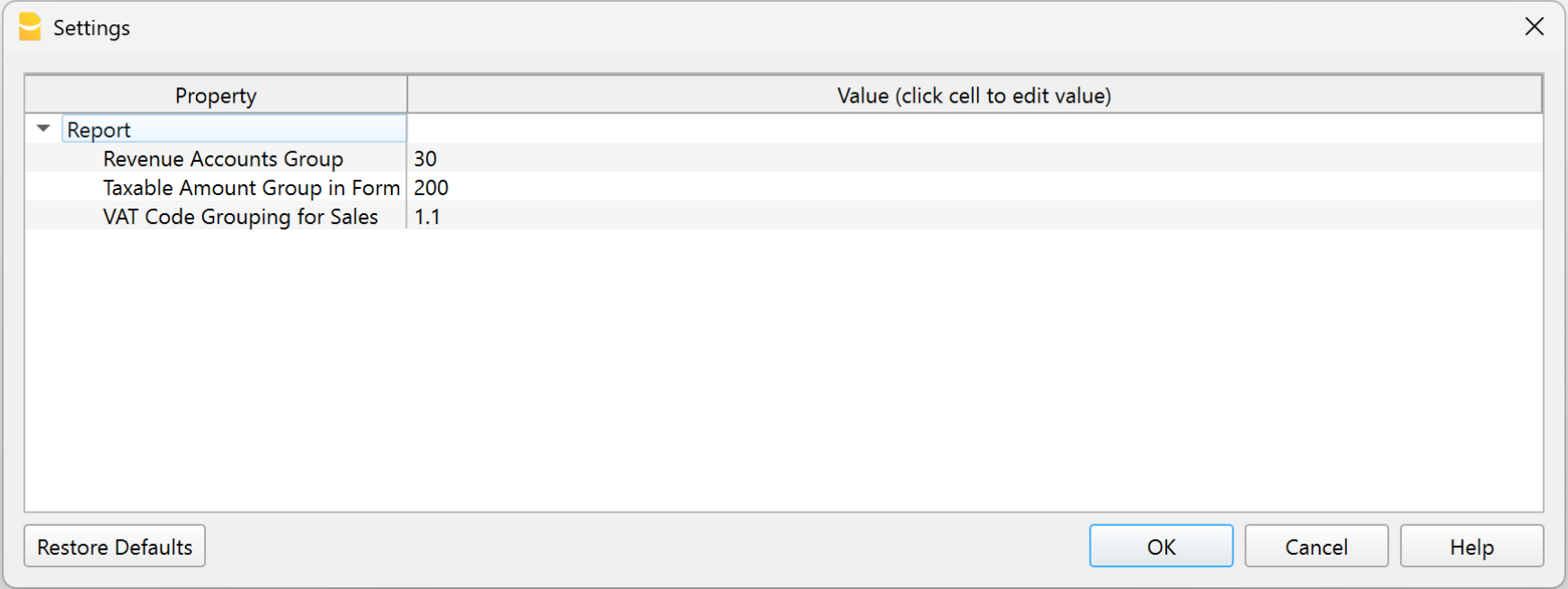
The extension Settings dialog will open. Here you can define the information required to create the VAT Reconciliation report:
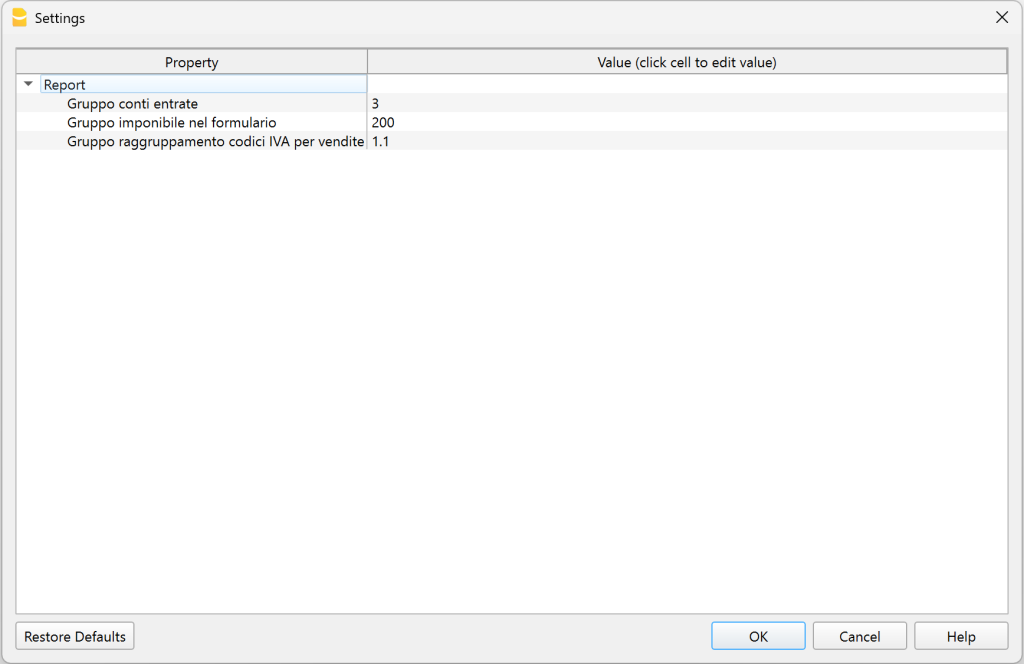
- Income accounts group.
Enter the main income group that includes all income accounts, as defined in the chart of accounts in the Accounts or Categories table (for Income & Expense accounting and Cash Manager). The default value is 3. In our example, the income group is 30.
If the turnover totalization group in your chart of accounts is different, you must change this value. - Taxable group in the VAT form.
Enter the group shown in the Gr1 column of the VAT Codes table that represents the value of box 200 of the VAT Return. The default value is 200. - VAT codes grouping for sales.
Enter the group shown in the Sum in column of the VAT Codes table that totals the sales VAT codes. The default value is 1.1.
- Income accounts group.
- Click OK to run the extension.
1. Comparison between the turnover declared in the VAT Return and the turnover recorded in the accounting file
This check compares the declared turnover with the turnover recorded in the accounting file and identifies any differences.
The following example is based on an accounting file where the displayed turnover is CHF 5'800.28.

The report generated by the extension contains tables divided by period, including an overall annual period.
Each table displays all the accounts that generate turnover, including accounts with transactions that do not have a VAT code.
Each table contains the following columns:
- Account
List of the accounts included in the turnover or with VAT transactions (including any balance sheet accounts). - Turnover with VAT code
Amount of turnover for each account where the transactions have a VAT code. - Turnover without VAT code
Amount of turnover for each account where the transactions do not have a VAT code. - Total turnover
Total turnover for each account, including both transactions with and without a VAT code. - Declared net amount
Net amounts declared in the VAT Return. - Differences
Differences between the turnover recorded in the accounting file and the declared turnover.
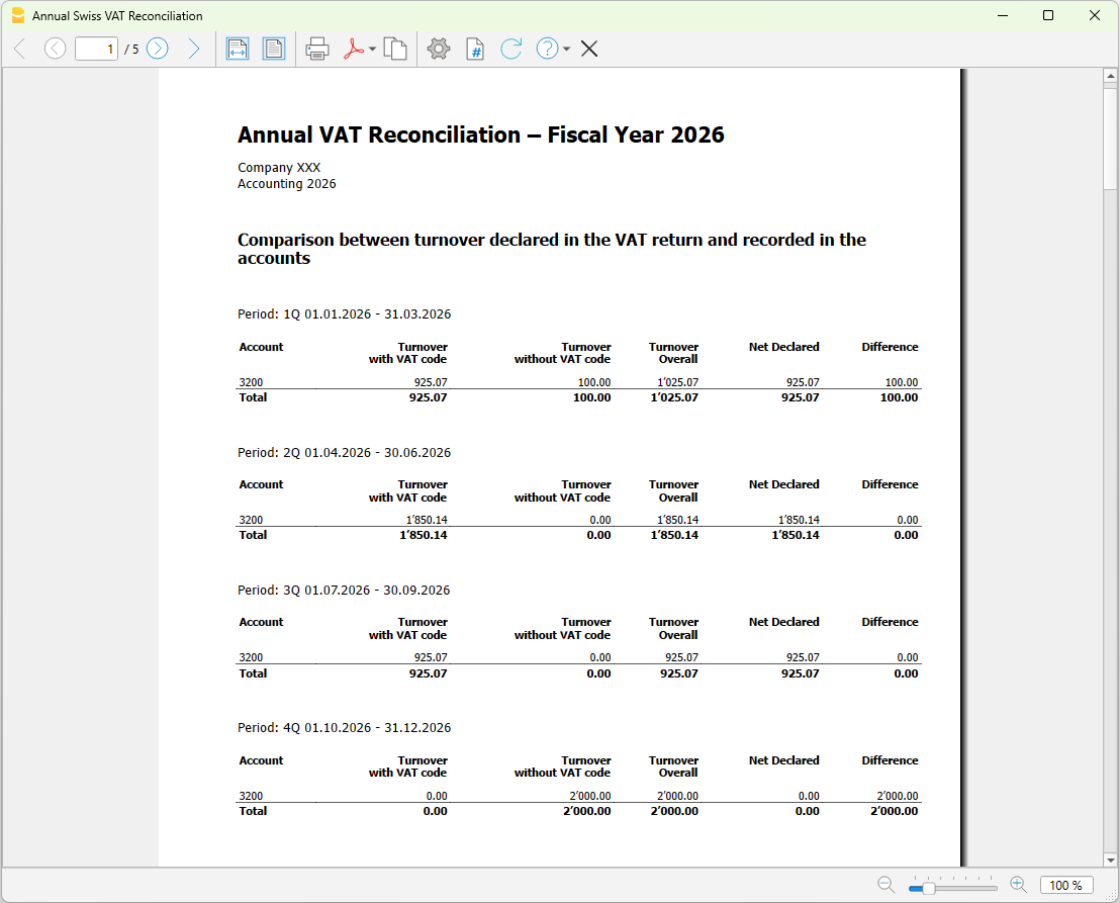
In the example, the report shows the calculation for account 3000 (Sales account), which represents the turnover:
- In the first quarter (1Q), there is a turnover difference of CHF 100.00 (Differences column).
- Turnover recorded in the accounting file = CHF 1'025.07 (Total turnover column).
- Turnover declared in the VAT Return = CHF 925.07 (Declared net amount column).
- In the fourth quarter (4Q), there is a turnover difference of CHF 2'000.00 (Differences column).
- Turnover recorded in the accounting file = CHF 2'000.00 (Total turnover column).
- Turnover declared in the VAT Return = CHF 0.00 (Declared net amount column).
- For the annual period, the differences from each period are added together and displayed:
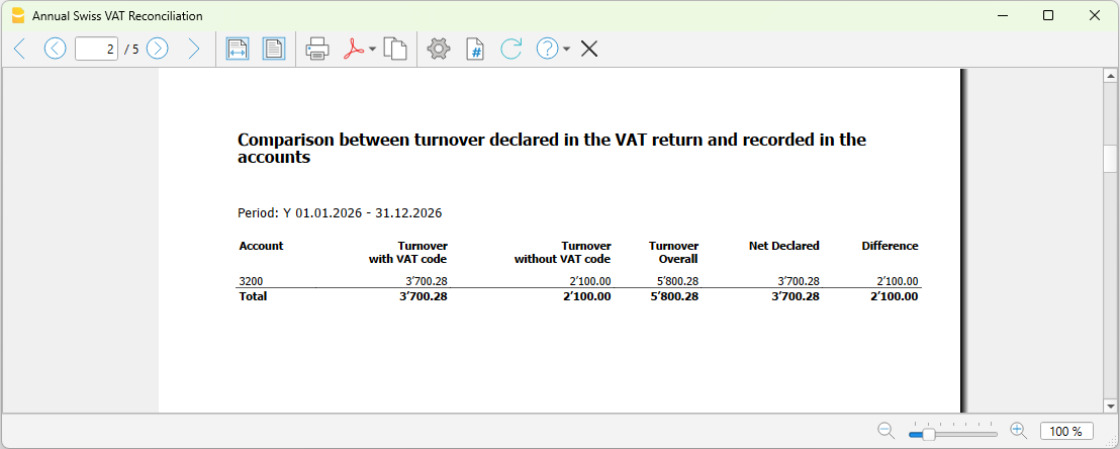
- Turnover recorded in the accounting file = CHF 5'800.28 (Total turnover column).
- Turnover declared in the VAT Return = CHF 3'700.28 (Declared net amount column).
- Total turnover difference = CHF 2'100.00 (Differences column).
2. Turnover declared in the VAT form, grouped by VAT code
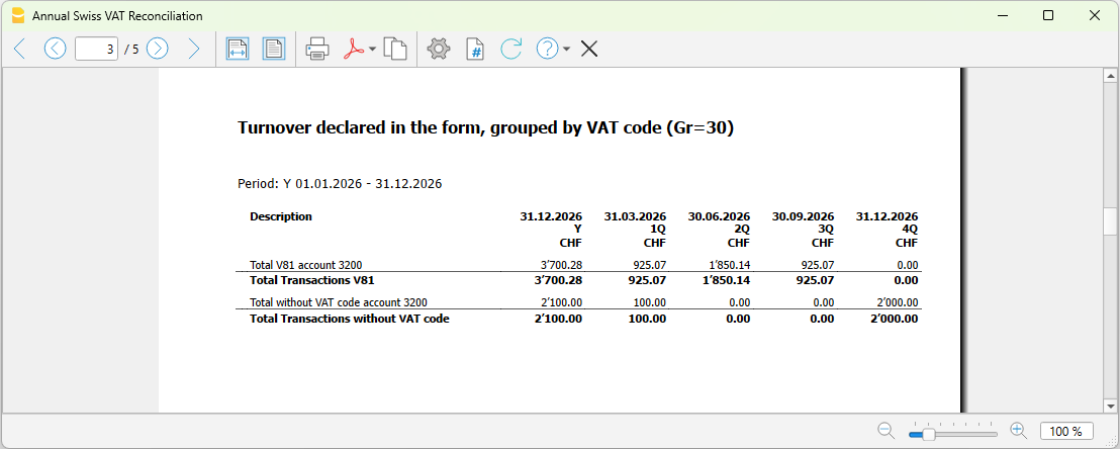
This check compares the turnover for each VAT code relating to income accounts with VAT.
- Description
Description of each VAT code used in the turnover transactions. - Taxable amount Y
Taxable amount for the year. - Taxable amount 1Q
Taxable amount for the first quarter. - Taxable amount 2Q
Taxable amount for the second quarter. - Taxable amount 3Q
Taxable amount for the third quarter. - Taxable amount 4Q
Taxable amount for the fourth quarter.
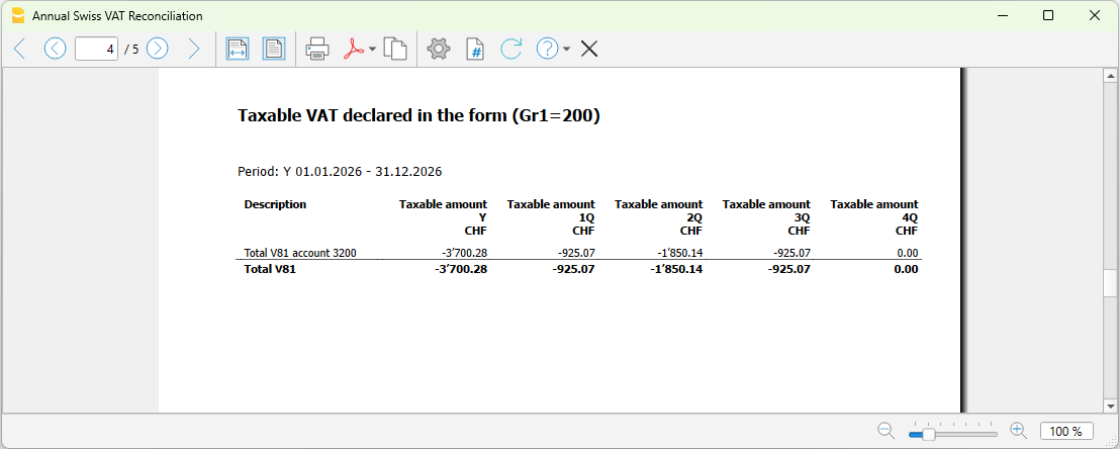
3. Taxable VAT declared in the VAT form
The report provides a summary of the VAT amounts declared to the Swiss Federal Tax Administration (FTA) for each quarter, without checking for any differences.
4. Transactions for accounts with differences
For each account, all transactions that generated differences in the various VAT Returns are grouped together.
The list of all transactions that generated differences allows you to quickly identify possible errors, such as a transaction subject to VAT that is missing the related VAT code, or to identify transactions that are correct but, although they have a VAT code, are not included in the turnover calculation (such as purchase tax or reverse charge transactions).
The following columns are displayed:
- Row
The row number of the transaction in the Transactions table. - Date
The transaction date. - Description
The transaction description. The description text is truncated to 20 characters to keep the table tidy and easy to read. - Account
The account with the transaction difference. - Contra account
The contra account of the transaction. - Debit
The debit amount of the transaction. - Credit
The credit amount of the transaction. - VAT code
The VAT code of the transaction. - VAT amount type
The VAT amount type of the transaction. - Taxable VAT amount
The taxable VAT amount of the transaction. - VAT amount
The VAT amount of the transaction. - Posted VAT amount
The posted VAT amount of the transaction.
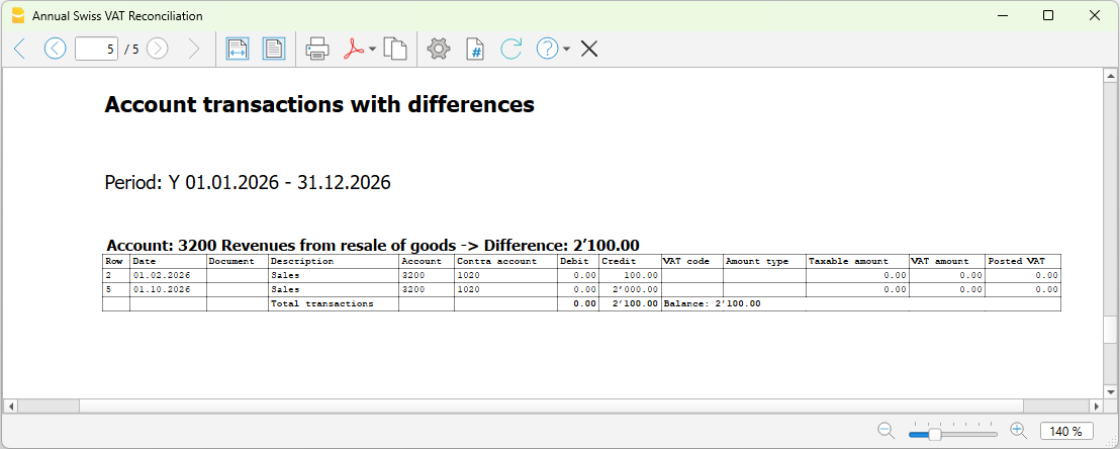
In the example:
- The difference between the turnover recorded in the accounting file (CHF 5'800.28) and the turnover declared (CHF 3'700.28), amounting to CHF 2'100.00, is shown.
- The transactions in the Transactions table that generated this difference are also listed.
Looking at the Transactions table, at the indicated rows (2 and 5), you can see that the transactions do not have a VAT code even though they were posted to sales account 3000 (the VAT code is missing).
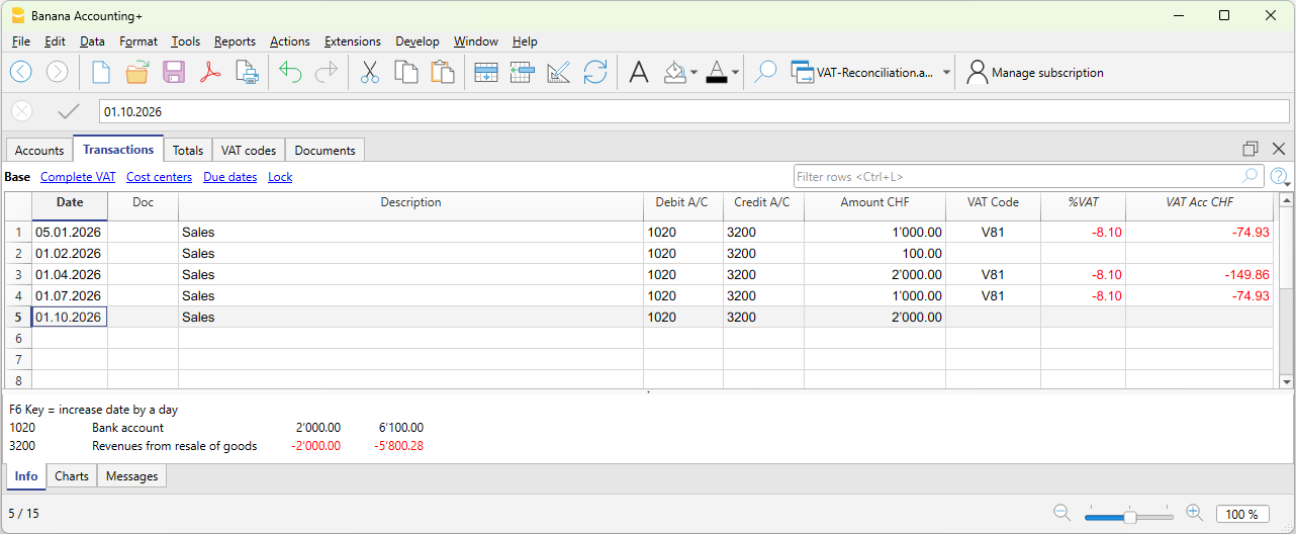
In these cases, once the error has been identified, the VAT Return for the affected quarter must be generated again using the VAT Return extension, and the corrected figures must then be submitted in the correction return on the Swiss Federal Tax Administration (FTA) portal.
Differences between the accounting records and the VAT Return
The details of the differences between the declared turnover and the turnover recorded in the accounting file can be saved.
- From the Extensions menu, select Swiss Annual VAT Reconciliation > 2. Accounting/VAT Differences.
- The extension Settings dialog opens, where you can choose between two methods of saving the data:
- 1) Show in dialog.
All details of the differences, which are also included in the report, are displayed in a dedicated dialog. The data is shown in tabular format and can be copied or saved directly using the available commands. - 2) Save to table.
All details of the differences, which are also included in the report, are automatically inserted into a table in the accounting file. A new table must be added beforehand. - Table name (XML name).
The name of the table (XML name) where the difference details will be inserted.
- 1) Show in dialog.
1. Display in the dialog
In the extension settings, by enabling the Display in the dialog option, a new dialog appears showing the transactions with the differences, which can be exported to a text file.
- The generated text can be copied by clicking the Copy button.
- Afterwards, the text can be pasted into Excel using the Paste Special > Text command (this way the data is saved in separate columns).
- Alternatively, the text can also be pasted directly into a table in the accounting file.
If you want to paste the text into the accounting file, you need to:
- Add a simple table
using the Tools > Add/Remove functionalities > Add simple table command. You can choose any name for the table. - Add the columns to the simple table
Using the Data > Columns setup command, add the following columns in the exact order and with the correct data type, as shown below:- Account (data type: Text)
- Row (data type: Number)
- Date (data type: Date)
- Doc (data type: Text)
- Description (existing column)
- Debit (data type: Amount)
- Credit (data type: Amount)
- VAT Code (data type: Text)
- VAT Amount Type (data type: Text)
- VAT Taxable Amount (data type: Number)
- VAT Amount (data type: Number)
- Posted VAT Amount (data type: Number)
- Notes (existing column).
After configuring the columns, the table is ready for data entry. To copy the data generated by the extension and insert it into the table:
- Run the extension from the Extensions > Swiss Annual VAT Reconciliation > 2. Accounting/VAT Differences menu.
- Select the Display in the dialog option and confirm with OK.
- In the window that appears, select Copy.
- Close the window by clicking Close.
- Open the table created in the accounting file.
- Place the cursor in the first cell of the added table.
- Paste the copied text.
- All data is automatically inserted into the corresponding columns.
2. Save to table
By enabling the Save to table option in the extension settings, the table containing the transactions with differences can be imported directly into the accounting file, into the table specified in the Table name (XML name) field.
In this case, you must:
- Before running the extension, add a new table using Tools > Add/Remove Features > Add Simple Table. You can choose any name for the table.
- After adding the table, run the extension from Extensions > Swiss Annual VAT Reconciliation > 2. Accounting/VAT Differences.
- Select the Save to table option.
- Enter the XML name of the table you created (to view the XML name, use Data > Tables setup, Table settings).
- Click OK.
- The extension displays the changes that will be made to the selected table. Click OK to confirm.
- The extension automatically adds the required columns to the selected table and inserts all the data into the corresponding columns.
The Id (RowId) column is not used and can safely be hidden using the appropriate option in Data > Columns setup.
Error messages
When saving the difference data to the table, the extension checks for possible errors and displays the corresponding messages.
- "Missing XML table name. You must create a new table using Tools > Add/Remove Features > Add Simple Table."
- The extension checks that the name of the table where the data will be saved has been entered in the extension settings.
- Solution: Enter the XML name of the table.
- "The table XXX does not exist. You must create a new table using Tools > Add/Remove Features > Add Simple Table."
- The extension checks that the table specified in the extension settings exists in Banana Accounting.
- Solution: Add the table using Tools > Add/Remove Features > Add Simple Table.
- "The table XXX cannot be used. You must create a new table using Tools > Add/Remove Features > Add Simple Table."
- The extension checks that the table specified in the extension settings is not a predefined Banana table. Differences cannot be saved in predefined tables.
- Solution: Add a new table using Tools > Add/Remove Features > Add Simple Table.
Structure of the Differences table
For both modes, 1. Show in dialog and 2. Save to table, the generated table has the following structure:
- Update date row.
This row displays the date when the data was inserted into the table.
New data is always appended at the end of the table. - Account row.
This row summarizes the total difference for the account.- The Account column contains the account of the transaction with a difference.
- The Description column displays the total difference amount for the account.
- All other columns are left empty.
- Transaction detail rows.
These rows display the transactions from the Transactions table that generated the difference.- The Account column is empty.
- The Row column contains the transaction row number.
- The Date column contains the transaction date.
- The Doc column contains the transaction document.
- The Description column contains the transaction description.
- The Debit column contains the transaction debit amount.
- The Credit column contains the transaction credit amount.
- The VAT Code column contains the transaction VAT code.
- The VAT Amount Type column contains the transaction VAT amount type.
- The Taxable VAT Amount column contains the transaction taxable VAT amount.
- The VAT Amount column contains the transaction VAT amount.
- The Posted VAT Amount column contains the posted VAT amount of the transaction.
- The Notes column contains "[...]" so that you can add your own notes. This is useful for explaining the reason for the difference.