Automatic Corrections for Accounting Exams: extension for exercises preparation and correction [BETA]
Automatic Corrections for Accounting Exams: extension for exercises preparation and correction [BETA][This extension and this documentation is in development and is not in its final form]
How it works
- Students complete the double entry accounting exercises using Banana Accounting.
- Automatic Corrections for Accounting Exams compares the student file with the solution file, highlights errors, shows the correct solution and calculates the score.
This process largely automates the correction work, allowing teachers to focus more on providing personalized feedback to their students.
Prerequisites
The extension requires the Advanced subscription plan of Banana Accounting Plus.
A Free subscription is available for schools.
The workflow for using the extension
The extension assumes that the teacher gives the student an exercise composed of different assignments on how to record transactions with double-entry accounting:
- The teacher prepares:
- The exercise-assignment-file, usually a Word or PDF document, which in some cases may also include documents such as invoices or receipts.
- The exercise, which consists of multiple assignments or documents.
- Each assignment or document should have a unique number or identifier (numeric, alphabetic, or similar).
- Instructions on how students should record accounting entries when they span multiple lines.
- The student-file-empty, a ready-to-use Banana Accounting template that already contains an accounting plan. If necessary, the teacher can import a different plan into the file.
- The teacher-file-solution, which contains the correct transactions in the Transactions table:
- Each transaction must include the exercise number or identifier in the Doc column.
- If the transaction spans multiple lines, the number must be repeated.
- Each transaction must include the exercise number or identifier in the Doc column.
- The exercise-assignment-file, usually a Word or PDF document, which in some cases may also include documents such as invoices or receipts.
- The student will then:
- Receive the student-file-empty.
- Create their own student-file-result by renaming the file with their name.
- Enter the required transactions in the file.
- Return the file to the teacher via e-mail or by saving it to a cloud platform such as Moodle, Google Classroom, or similar.
- Teacher correction process:
- All student-result-files received are saved in a directory named student-original.
- These files are also copied into another directory named student-corrections.
- The sequence of exercises in either the student’s file or the teacher’s file is not important. The extension associates the exercise numbers or identifiers with the corresponding solutions.
- For each student’s file in the student-corrections folder, the teacher will:
- Open the file in Banana Accounting Plus.
- Execute the command Extensions > Automatic Corrections for Accounting Exams > Correct the exercises.
- Select the teacher-file-solution when prompted.
- Let the extension update the student file with corrections, automated score calculations, and other information.
- Save the corrected file.
- Return the file to the student.
Preparing the accounting exercise
As usual, the teacher prepares the double-entry accounting exercise using a word processor.
- Transaction number: each exercise is assigned a unique number.
- Transaction description: each exercise begins with a description of a financial transaction that has occurred within a business. This could involve activities such as purchasing goods, selling services, paying expenses, receiving payments, or acquiring loans.
The teacher also prepares a Banana Accounting template with the accounting plan, but without any transactions entered.
Students use Banana Accounting to enter the transactions in order to solve the exercise. They then submit the completed file to the teacher.
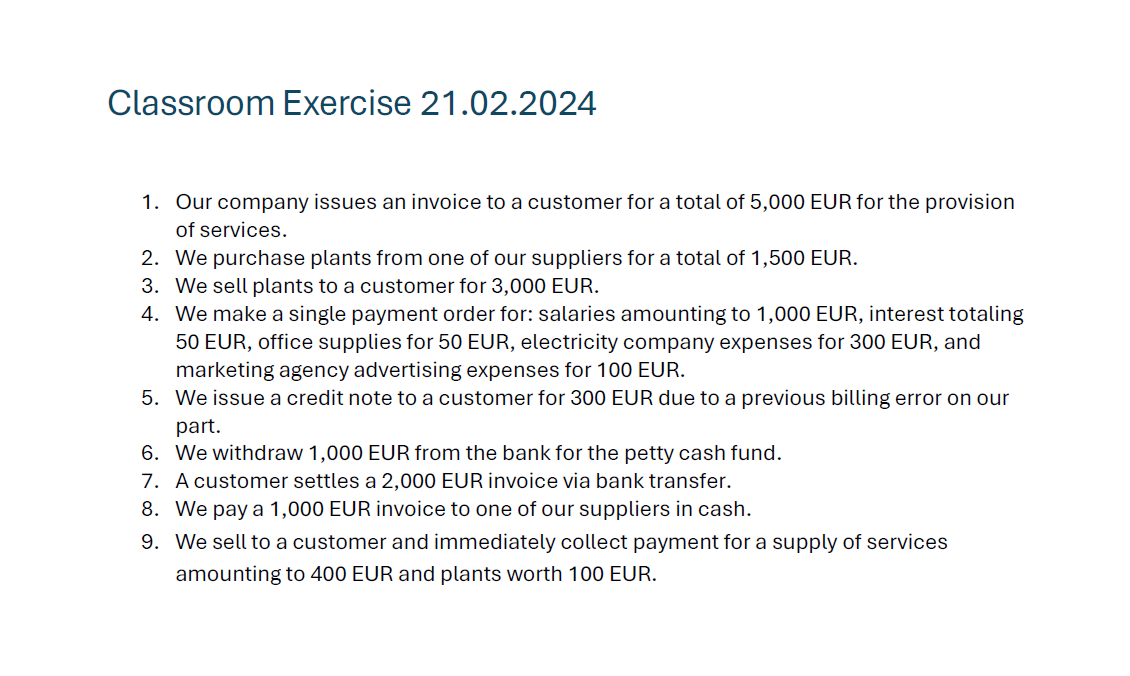
Below is an example of an accounting exercise prepared by the teacher.
Teacher Solution File
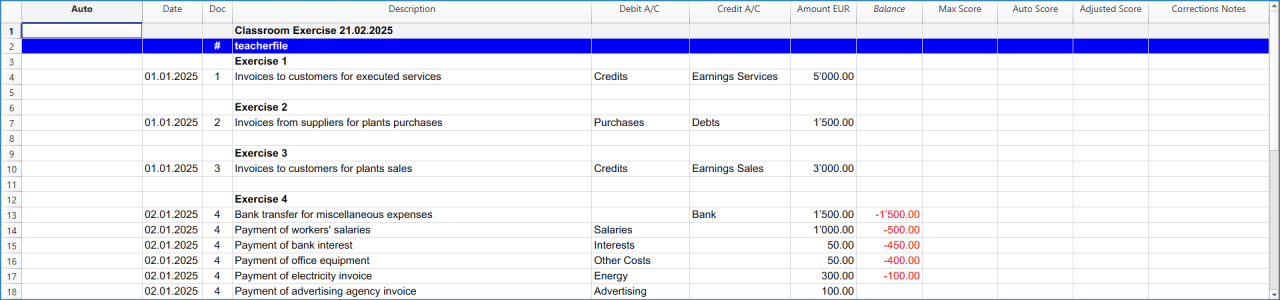
The teacher creates a Banana Accounting file containing the double-entry records for each exercise.
- In the Transaction Table the teacher enters the transactions corresponding to each exercise.
- The solution has multiple lines.
- Each transaction must include the exercise number in the Doc column which can be numeric or alphanumeric.
- The number should match the one in the assignment file or in the related document (such as an invoice, receipt, or other supporting document).
- If a transaction requires multiple lines, the same exercise number must be repeated on each line.
- The order of exercises in either the student’s file or the teacher’s file is not important.
- The sequence of accounting transactions across multiple lines does not affect the functioning of the correction or the calculation of scores.
Below is an image showing an example of the teacher’s solution file.
Auto Score Calculation
In collaboration with accounting teachers we are experimenting with automating the process of score calculation.
- Each row in the exercise is evaluated separately.
- If an exercise has multiple rows, each row receives its own score.
The settings in the teacher’s file are configured to assign partial points for each element of the accounting transaction, even when the transaction spans multiple lines. Specifically, points are awarded for each of the following correct entries:
- debit account
- credit account
- amount
- date
- VAT code
- currency amount
- currency
- exchange rate
Scores can be reduced down to zero if all columns are incorrect. Teachers can also customize the scoring system by adjusting the settings.
At the bottom of the student-result-file, the total score obtained by the student is displayed, along with the maximum possible score.
Correction of the Student's Files
We assume that:
- Each student has completed the exercise using Banana Accounting.
- Each student has created a file and submitted it to the teacher.
The correction process will add information directly to the student’s file. To preserve the original work, it is recommended to first make a copy of the file.
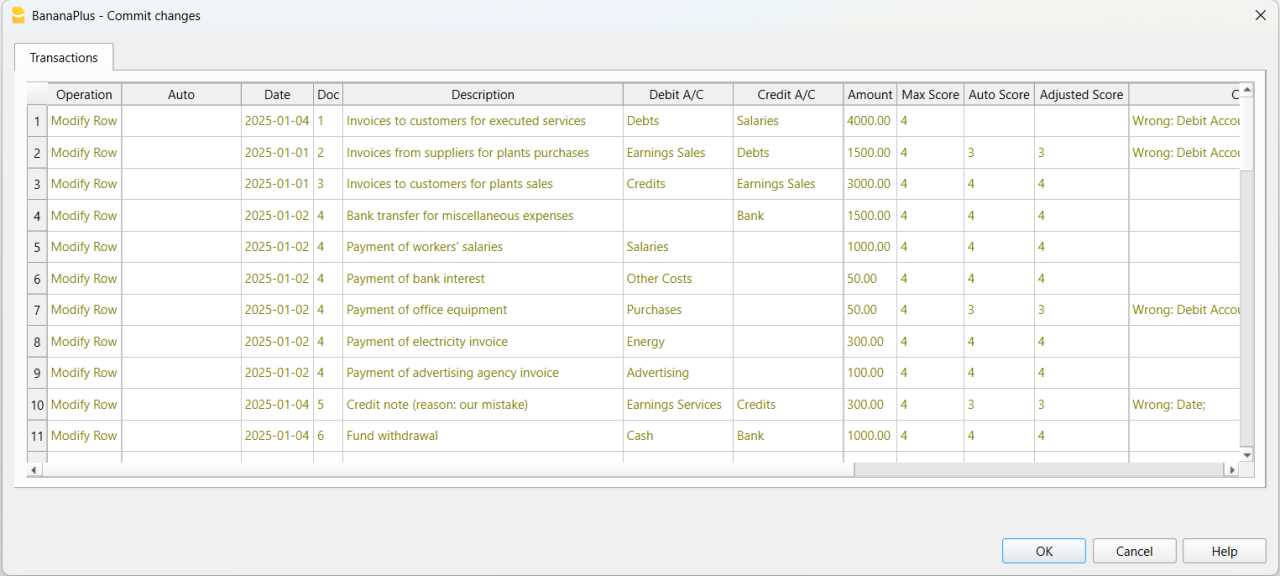
When the teacher runs the Correct command, the extension automatically adds the following information to the student’s file:
- Max Score: the maximum possible score that can be achieved.
- Auto Score (Calculated): the score automatically calculated by the extension.
- Adjusted Score (Teacher adjusted score): the score after the teacher’s review or manual adjustment.
- Corrections Notes: feedback showing which values were incorrect.
Correcting a Single Student File
- Open the student's accounting file.
- Click on the Extensions menu in Banana Accounting Plus.
- Click on Automatic Corrections for Accounting Exams and then, on the right, click on Correct the exercises.
- A window will appear asking you to select the Banana Accounting Plus file containing the exercise solutions. Once the solution file is selected, click Open.
- A preview window, similar to the one shown below, will open with the information that will be automatically added to the file. Click Ok button to confirm and view the results in the Transactions table.
How to read the result
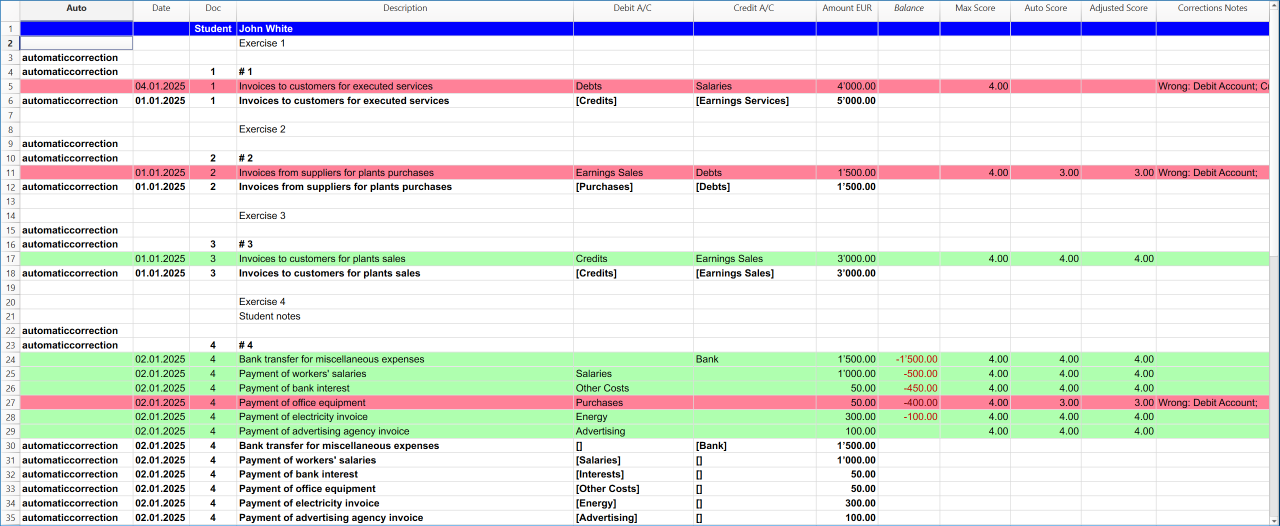
In the image below, the student’s accounting transactions are displayed alongside the teacher’s solutions for easier comparison:
- Teacher’s solutions – shown in bold, so teachers can quickly identify errors.
- Square brackets – placed before and after accounts from the teacher’s solution file, indicating transactions that do not affect the balance sheet or income statement in the Accounts table.
- Highlighted rows – red rows mark errors, while green rows indicate correct entries.
- Max Score column – shows the maximum possible points for each exercise, based on the teacher’s settings (e.g., Date, Debit Account, Credit Account, Amount, etc.).
- Auto Score column – displays the automatically calculated score. Each incorrect entry (such as a wrong debit account, credit account, amount, or date) deducts points from the Max Score.
- Adjusted Score column – initially copied from the Auto Score, but can be modified by the teacher if adjustments are needed.
- Corrections Notes column – provides details about which values were incorrect.
Resources for testing the extension
To try out the student accounting exercise correction extension, you can download the following pre-prepared templates:
- Exercise assignment file.
- Sample template for the student's exercise.
- Sample template for the teacher's solutions.
Resources to start using the extension
To begin using the Automatic Corrections for Accounting Exams extension, download these pre-prepared templates:
How to install the extension
Installing the extension is quick and will help you save time when correcting students’ exercises. Follow these steps:
- Click on the Extensions menu in Banana Accounting Plus.
- Click on Manage Extensions...
- In the window that opens, search by typing the term "automatic corrections" in the empty text field at the top left of the window.
- Click on Automatic Corrections for Accounting Exams in the middle of the window.
- In the right column of the window, click the Install button.
Easily Share Educational Content with Students
Schools and teachers can now share accounting materials created in Banana directly within the Banana Accounting Plus software.
This makes it simple and fast to adopt Banana files for use in both classroom teaching and individual learning in business accounting.
For more information and resources, visit the Banana Accounting Plus Community pages.
Adapt an existing template for automatic exercise corrections
[This extension and this documentation is in development and is not in its final form]
The Automatic Corrections for Accounting Exams extension can adapt existing files or use the chart of accounts templates available directly in Banana Accounting+. This makes them suitable for training purposes as well as for exercises and exams in double-entry accounting.
- Create or open a double-entry accounting file.
- From the Banana menu, click on Extensions.
- Click on Automatic Corrections for Accounting Exams.
- Click on File Preparation.
- The extension asks you to prepare either a teacher file or a student file.
- Choose the file type you want to prepare and click the Ok button.

- Click the OK button in the window that appears. The modifications shown in the image below will then be applied to the file.
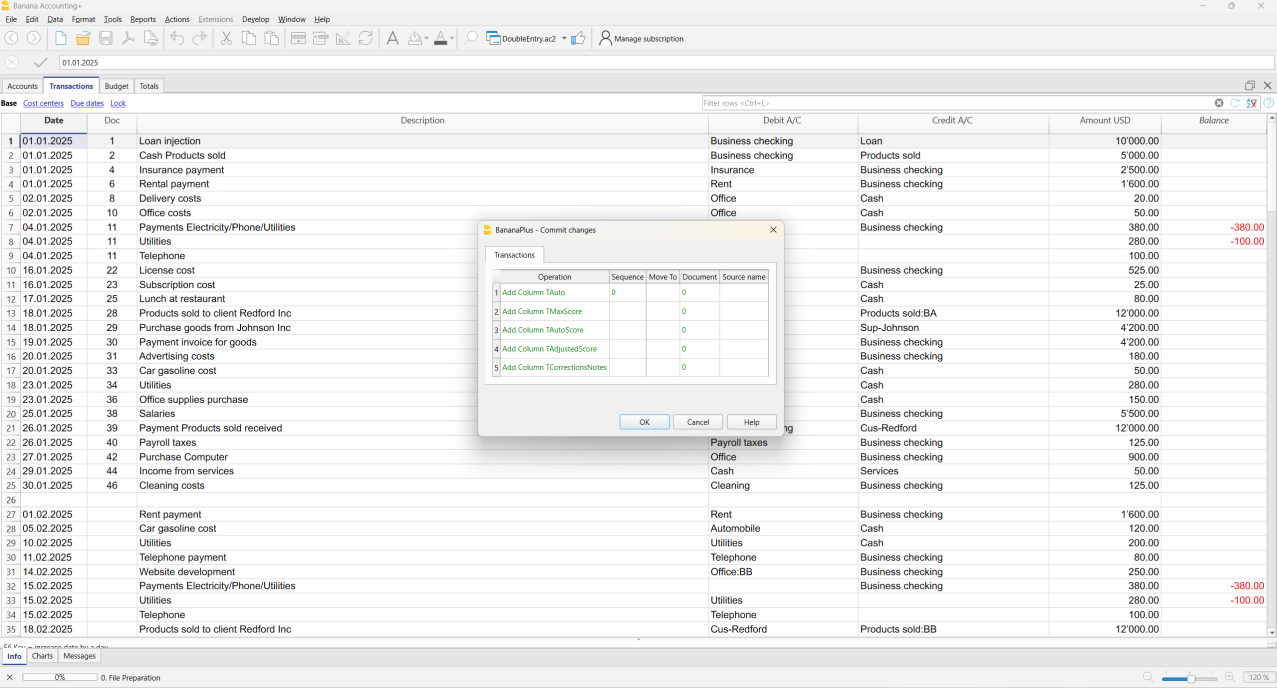
The extension will automatically add the necessary columns to the file, while preserving your existing transactions.
If the required columns are already present, they will not be added again. If the file is already prepared, this function will make no changes.
If your file is already ready to be used this function will not make any modifications.
The following columns are added:
- Auto (the first column on the left).
- Max Score.
- Auto Score.
- Adjusted Score.
- Corrections Notes.
This feature is available only for double-entry accounting templates.
Instructions Added for the Teacher’s File
- A hash symbol (#) is inserted in the Doc column of the Transactions Table.
- The key teacherfile is added in the Description column (without quotation marks and written entirely in lowercase).
Instructions Added for the Student’s File
- The word Student is added in the Doc column (without quotation marks and with the first letter capitalized).
Correct the exercises
[This extension and this documentation is in development and is not in its final form]
The automatic correction can be executed only on the student’s file:
- It is not available when run on the teacher’s file.
- It can only be performed if no previous automatic corrections have been applied to the student’s file.
- If a second correction is needed, the existing automatic corrections must first be removed using the Delete the corrections function.
Check the solution
This is the workflow for running an automatic correction with the extension:
- From the menu, select Actions > Recalculate Accounting. The program will notify you if there are issues within the file.
- Run the command Extensions > Automatic Corrections for Accounting Exams > Correct the Exercises.
- This command performs specific checks, such as verifying that account numbers and other data are correct.
- If a transaction contains an error, a message will appear in the Corrections Notes column.
- The Auto Score column will be updated with the calculated score.
- This command performs specific checks, such as verifying that account numbers and other data are correct.
Recalculate the total
[This extension and this documentation is in development and is not in its final form]
This functionality works only if automatic corrections have already been executed using Correct the exercises.
The Adjusted Score column allows the teacher to manually change the automatically calculated score whenever necessary. After making adjustments, the teacher can recalculate the total score for the entire exercise through the extension menu.
The last row, which displays the total score, will then be updated with the final adjusted score set by the teacher.
Delete the corrections
[This extension and this documentation is in development and is not in its final form]
This function removes the rows that were automatically added by the extension during the correction process.
The student’s original rows remain in the file, but any color highlighting, scores or error messages are removed.
In this way, the student’s file is restored to its original state.
The function can only be executed if an automatic correction has already been performed, and it applies exclusively to the student’s file.
Settings
[This extension and this documentation is in development and is not in its final form]
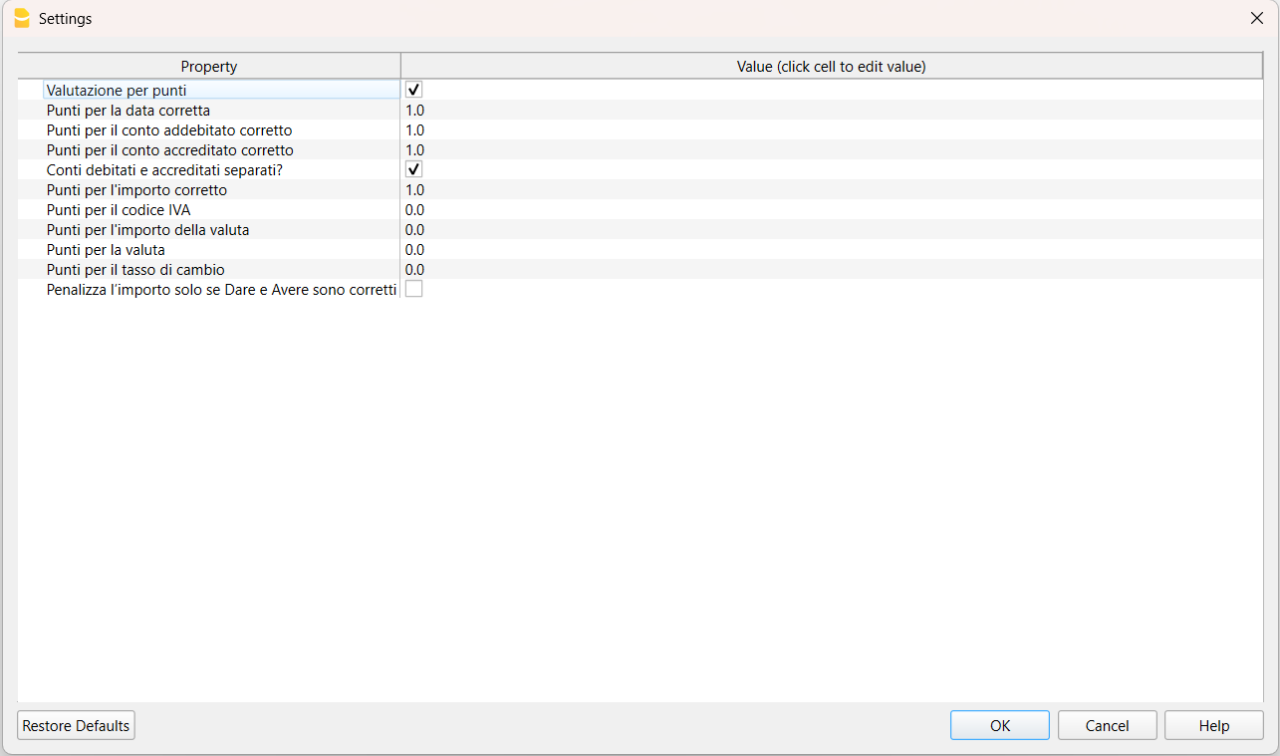
The settings allow you to decide whether to assign an automatic score and to define the points for each condition being verified.
All settings must be configured in the teacher’s file, and they will be applied automatically when grading the students’ files.
Available Settings in the teacher's file
The currently available settings and their descriptions are as follows:
- Point-based assessment: enables or disables the automatic scoring of student records.
- Points for correct date: awards points if the student’s date matches the teacher’s date.
- Set to zero if you do not want to grade this field.
- Points for correct debit account: assigns a score if the entered debit account is correct.
- Set to zero if you do not want to grade this field.
- Points for correct credit account: assigns a score if the entered credit account is correct.
- Set to zero if you do not want to grade this field.
- Separate debit and credit accounts : allows for separate scoring if the debit account and credit account are correct.
- If the checkbox is checked the score is assigned separately even if one of the debit or credit accounts is incorrect.
- If the checkbox is not selected, the score is zero when both the debit and credit accounts are incorrect, or when either one is incorrect.
- If the checkbox is not selected, points are awarded only when both the debit and credit accounts are correct.
- In this case the debit account score and credit account score are added together as the final score assigned to the student.
- Points for correct amount: assigns a score if the entered amount is correct.
- Set to zero if you do not want to grade this field.
- Points for VAT code: assigns a score if the entered VAT code is correct.
- Set to zero if you do not want to grade this field.
- The VAT code points are only considered for templates with VAT functionalities enabled.
- Points for currency amount: assigns a score if the entered currency amount is correct.
- Set to zero if you do not want to grade this field.
- The currency amount points are only considered for multi-currency templates.
- Points for currency: assigns a score if the entered currency is correct.
- Set to zero if you do not want to grade this field.
- The currency points are only considered for multi-currency templates.
- Points for exchange rate: assigns a score if the entered exchange rate is correct.
- Set to zero if you do not want to grade this field.
- The exchange rate points are only considered for multi-currency templates.
- Penalize the amount only if Debit and Credit are correct: assigns a score to the amount if the entered Debit and Credit Accounts are correct.
At the bottom, an image of the settings window in the teacher’s file illustrates how these options are configured.