Transactions
Accounting Charts templates included in Banana Accounting are already set with the VAT accounts, the VAT according to VAT report account (automatic), both in the chart of accounts and in the File and accounting properties of the File menu - VAT tab (in this case you don't need to enter any VAT account into the VAT codes table).
In case you are not using the Charts of accounts already available in Banana, make sure that the necessary VAT accounts are present in your own Chart of accounts. Our advice is to use a "VAT according to VAT report" account and to enter it into the File and Accounting properties, VAT/Sales tax Tab.
In the VAT codes table, there are codes both for the sales and the purchases. When entering the transactions, use the appropriate VAT code.
The software automatically splits the VAT amounts and records them in the "VAT according to VAT report" account or in the VAT account that has been indicated by the user in the File and Accounting properties.
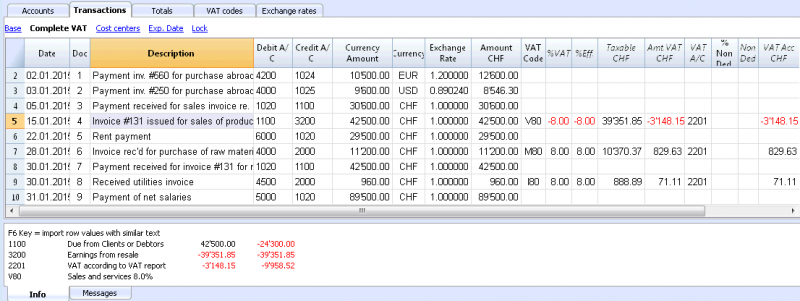
VAT columns in the Transactions table (Complete VAT view)
You can find the full explanation of the main Transactions table columns in the Transactions page.
In the Double-entry accounting files with VAT or in those of the Income & Expense accounting with VAT, you will find the following VAT columns:
- VAT Code: for each transaction with VAT you need to enter one of the VAT codes from the VAT codes table
- VAT %: the program automatically enters the VAT percentage associated with the VAT code you entered
- VATExtraInfo: A code related to extra info about the VAT, to be used only in very exceptional cases.
It is possible to enter a symbol to identify specific VAT cases. The program suggests options, corresponding to the VAT Codes that start with a colon ":". - %Eff.: the program automatically enters the VAT percentage referred to the net amount. This percentage is different from the normal percentage when this one is referred to the gross amount.
- Taxable: once you enter the VAT code, the software automatically indicates the taxable amount (without VAT)
- VAT amount: the program automatically indicates the VAT amount
- VAT A/C: the account where the VAT is registered is automatically indicated (for Switzerland normally is the 2201 VAT report account); this account was previously entered in the File Properties, VAT tab (from the File menu).
- Amount type: this is a code that indicates how the software considers the transaction amount:
- 0 (or empty cell) with VAT/sales tax, the transaction amount is VAT included
- 1 = without VAT/Sales tax, the transaction amount is VAT excluded
- 2 = VAT amount, the transaction amount is considered the VAT amount at 100%
- Amount type not editable: Default mode.
- The column is protected
- The program uses the associated value of the VAT Codes table
- When you edit the value in the VAT Codes table and you recalculate the accounting, the program uses the new value associated with this VAT Code.
- Amount type editable: this option can be activated with the Add new functionalities command. The activation of the option cannot be undone.
- When you edit the VAT Code, the program uses the Amount type associated with this code.
- The value can be edited manually
- When the accounting is being recalculated, the value indicated in the Transactions table is being maintained.
- Non. Ded. %: this indicates the non deductible %.
- When you enter or change the VAT Code, the program uses the Non. Ded. % associated to this VAT Code in the VAT Codes table.
- You can manually edit the value
- VAT Acc.: this is the VAT amount registered in the VAT account.
It is calculated by the program according to the Transaction amount, the Amount type and the non deductable percentage. - VAT number: this is the code or VAT number of your client/supplier.
When you enter a transaction with VAT, it is possible to enter the VAT number of your counterparty. If in the Accounts table, in your clients/suppliers register, you also enter their VAT number, this is automatically loaded in the Transactions table, in the VAT number column.
Transactions with VAT
Before entering transactions with VAT, we advise you to visit the Transactions page.
The most common way of entering a VAT transactions is to enter the gross amount (amount including VAT), then apply to it the appropriate VAT code, choosing it among the ones included in the VAT codes table and according to your transaction type (Purchase, Sale, Discount, ...).
How to correct VAT transactions
If you see the mistake right away, you can just edit the transaction row; this is only possible if you haven't sent your VAT report yet and if there is no transactions lock.
If however your accounting file is locked or if you have already sent your VAT report, you cannot simply delete the wrong transaction, but you need to operate some cancellation-transaction and then re-enter the correct transaction.
In order to rectify VAT operation you need to:
- make a new transaction by inverting the Debit and Credit accounts used in the wrong transaction
- enter the same amount
- enter the same VAT code but preceeded by the minus sign (ex.: -V80)
- enter a new transaction with the correct accounts, amount and VAT code
Depending on the entity of the mistake, you should consider informing your local VAT office; usually they ask you to download a specific form for correcting mistakes in the previous VAT period.
Transactions with different VAT codes
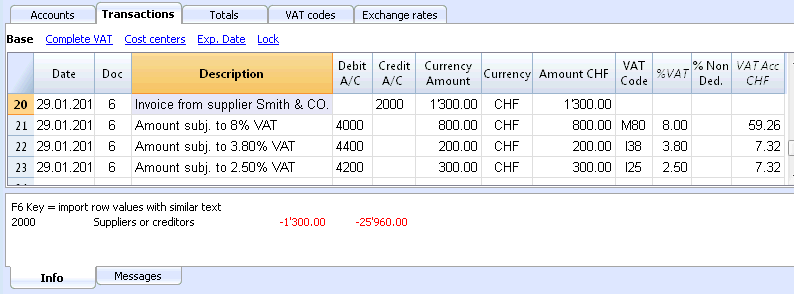
When the total amount of an invoice is composed by several amounts with different VAT percentages, you need to register as follows:
- each amount with a specific VAT percentage needs to be entered on a different row with its own VAT code (enter the gross amount)
- once you finish the multiple registration, check that the sum of the differents amount and the VAT amounts correspond to the invoice total.
Here is an example:
VAT EXEMPTION
If in your invoice you also have some items VAT exempt, you need to operate as above, choosing the VAT exempt code from the VAT Codes table.
Credit note
In case an operation, that has been entered at an earlier date, needs to be cancelled, the same VAT code that has been used for the initial operation needs to be entered with the minus sign (-). In this way the VAT is being rectified.
Instead of using the minus sign prior to the VAT code, it is also possible to use the specific VAT codes for discounts that have been configured in the VAT Codes table.
Example of a credit note on a sale
When a client finds a defect on a sold product, usually a credit note on his behalf is being issued. The credit note implies a decrease of the income and as a result a recovery of the VAT (Sales tax).
For example, we enter a sale amount of 12'000 including a 8% VAT. We then issue on the client's behalf a credit note of CHF 200.- for a product defect.
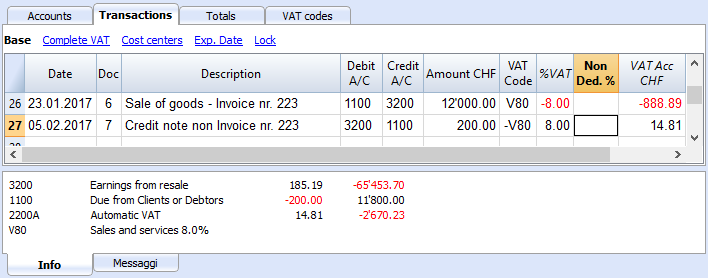
For a recovery of the VAT on the amount of the credit note, the VAT code of the sales has to be entered with a minus (-) sign.
Example of a credit note on a purchase
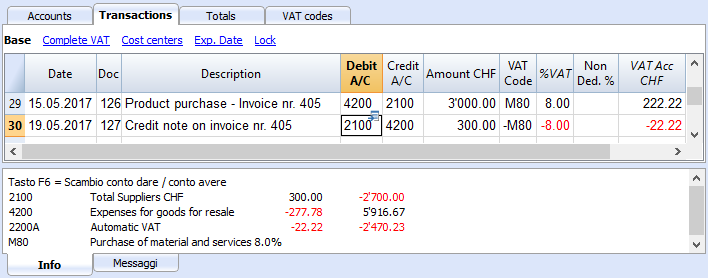
When we receive a credit note from a supplier, the same process as explained above applies: we use the same account codes but reverted, and we use the same VAT code with the minus (-) sign.
For example, we enter a purchase amount of 3'000 (invoice payment) including a 8% VAT. We then receive a credit note of CHF 300.- from our supplier for a product defect.
Period closing and VAT payment
VAT account reset at the end of the quarter report
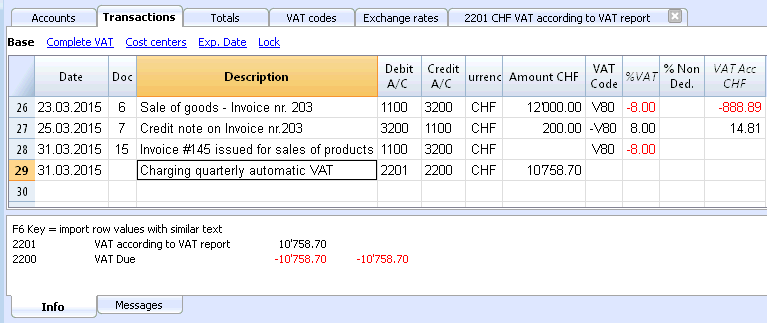
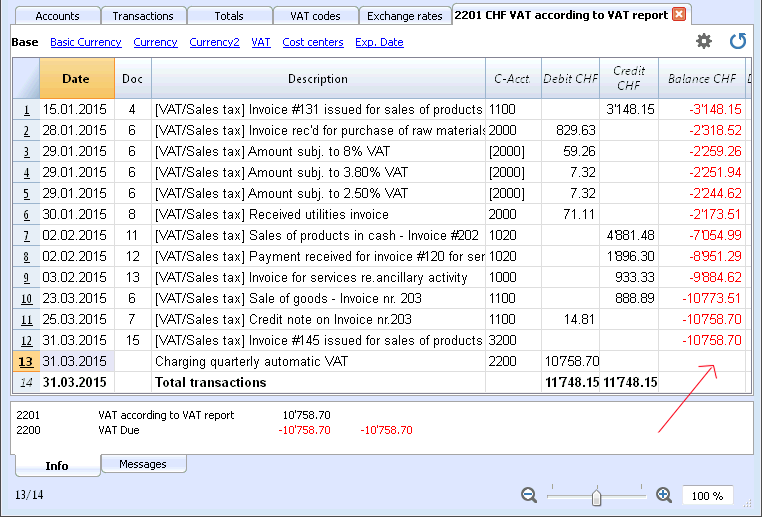
At the end of the period, the VAT account balance will be charged to the Due VAT account (or to the Treasury VAT account).
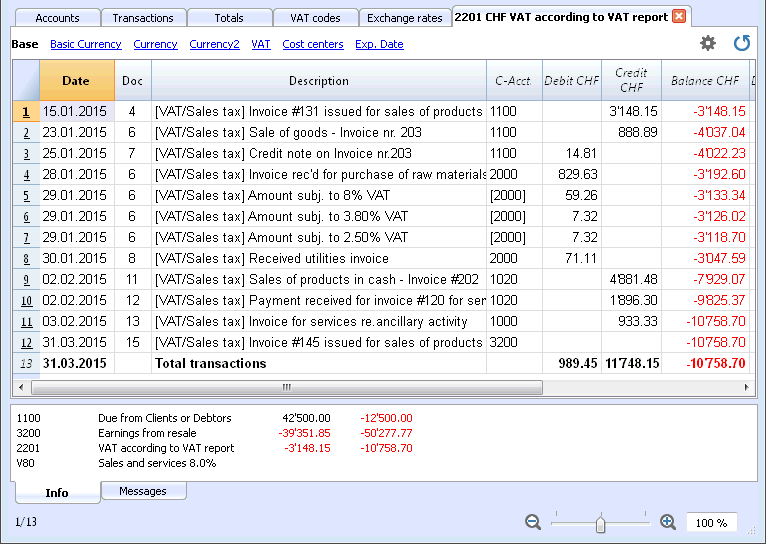
VAT account card before charging the period balance to the Due VAT account
Transaction for charging the quarter balance to the Due VAT account
VAT account card after charging the period balance to the Due VAT account
VAT payment
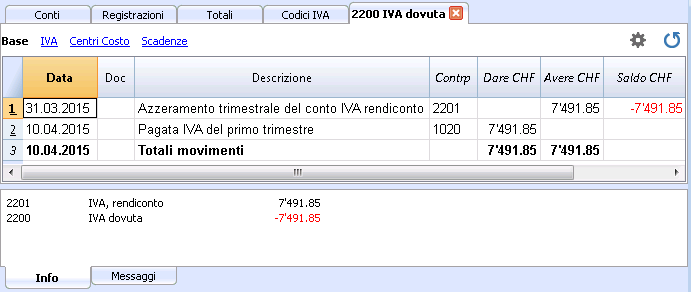
The Due VAT account (or the Treasury VAT account) will have a zero balance when you pay the due VAT.
With this system you can control your balance each quarter and in case of mistakes you can find in which period the balance does not correspond any more.
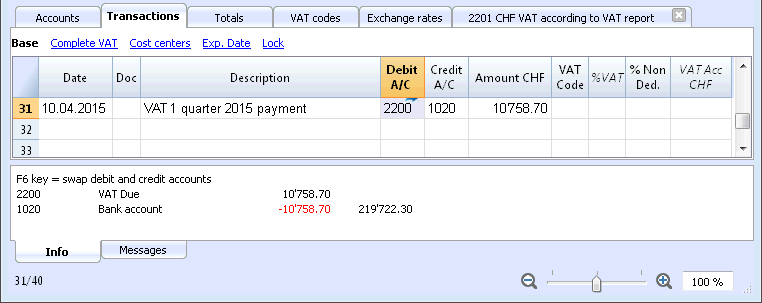
Due VAT account card after quarter payment
Note: the VAT payment process we just explained refers to the Swiss effective VAT payment method and the Swiss flat rate payment method with VAT separation.
If you use the Swiss flat rate payment methos without VAT separation, you can find specific information on the VAT payment and accounting assestment page (available only in Italian, German or French).
How to register a credit note (Switzerland)
If at the end of a period, when calculating the VAT report, the previous VAT is bigger than the due VAT, your VAT report has a Debit balance.
In order to charge the VAT report account you need to enter a transaction as follows:
- put in Debit A/C the Due VAT account
- put in Credit A/C the VAT report account
Usually in Switzerland the VAT credit is reimbursed, without having to move the credit to the following period.
When your VAT is reimbursed you need to enter a transaction as follows:
- put in Debit A/C your equity account
- put in Credit A/C your Due VAT account (where the balance should go to zero)