Entering transactions | Income/Expense accounting
The Transactions table is the core of accounting: here you enter all incoming (income) and outgoing (payments) transactions. After each entry, the amount is automatically updated in the account and category cards, so you always have totals under control.
You can enter transactions in two ways:
Record data automatically
With Banana Accounting Plus you no longer need to waste time with manual entries: thanks to automation features you can record data automatically, quickly and accurately.
Speed up data entry
To speed up transaction entry, use the following automation features:
- Data entry with auto-completion – automatically retrieves previously entered data.
- Recurring transactions – allows you to store recurring entries in a dedicated table.
Import data from bank statement
With Banana Accounting, you can speed up your work by entering transactions directly from your bank statement. Instead of recording each operation manually, simply import the file you downloaded from your bank (usually in CSV or ISO20022 format). For more information, visit the page Importing data from bank or postal statements.
Apply Rules to imported transactions
Transactions with Rules – You can define instructions for the software to automatically complete imported transactions from bank statements, with contra account, cost centers, segments, and VAT code if needed.
Manual entry
Manual entry is quite intuitive. However, we explain the most common operations.
Manual entry of an income
Below is a practical example of an income. Specifically, it's a merchandise sale.
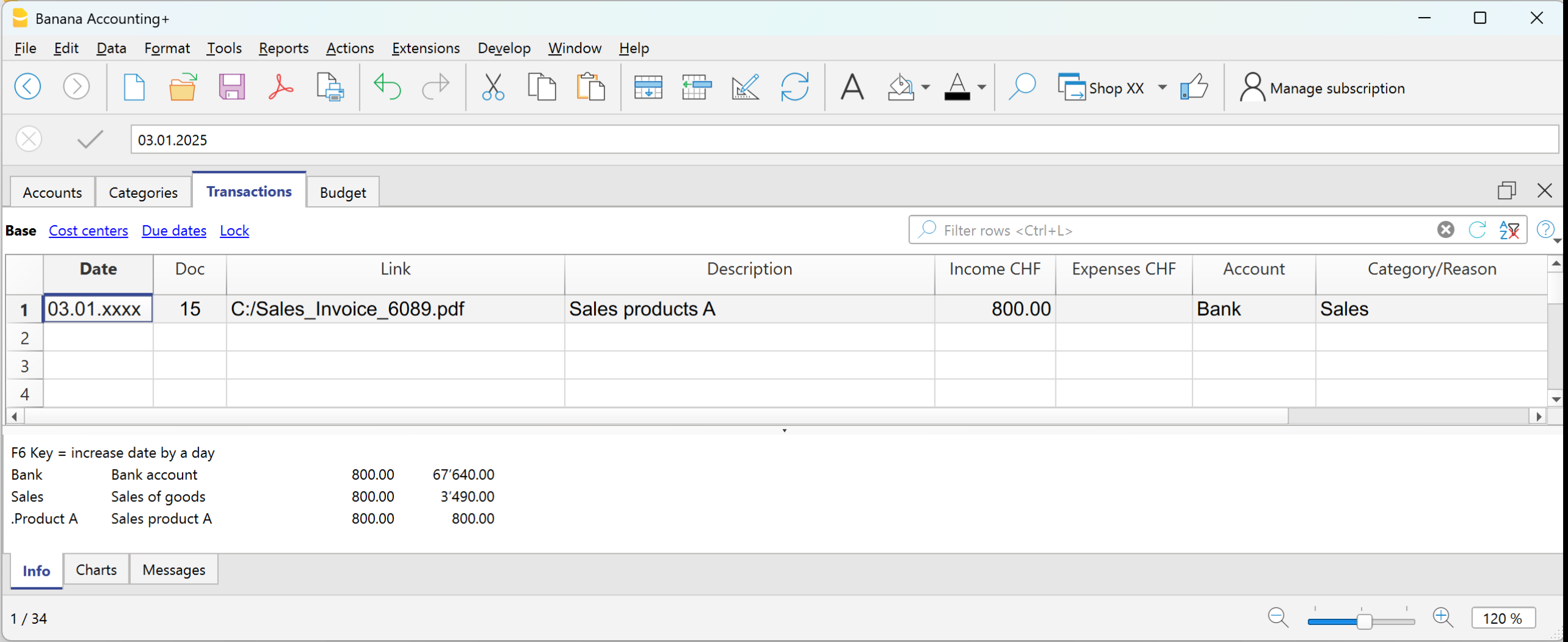
Example: payment received for a sale via bank.
- Date → enter the date of the document (e.g. invoice date).
- Doc → document number (optional).
- DocLink → link to the digital document (if available).
- Description → short description (e.g. Sale of goods to customer Rossi).
- Income → amount received.
- Account → liquidity account used (e.g. Bank).
- Category → reason for the income (e.g. Sales).
The amount will be shown as positive both in the account card and the category card.
Manual entry of an expense
Below is a practical example of an expense. Specifically, it's a merchandise purchase.
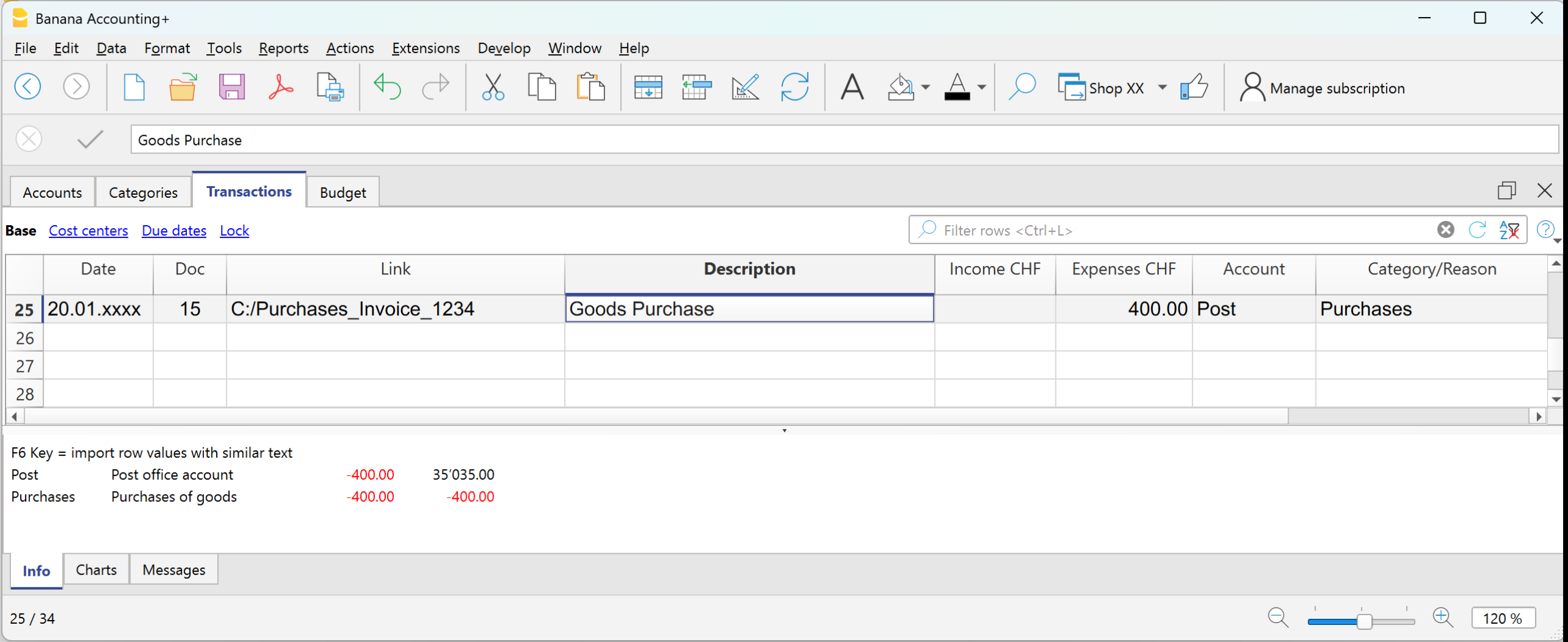
Example: paid invoice for merchandise purchase via bank.
- Date → enter the date of the document.
- Doc → document number (optional).
- DocLink → link to the digital document.
- Description → short description (e.g. Purchase of goods from supplier Bianchi).
- Expenses → amount paid.
- Account → liquidity account used (e.g. Bank).
- Category → reason for the expense (e.g. Purchases).
The amount will be shown as negative both in the account card and in the category card.
Multi-row transaction
When you have a transaction that involves multiple accounts and/or categories, you must enter it using multiple rows.
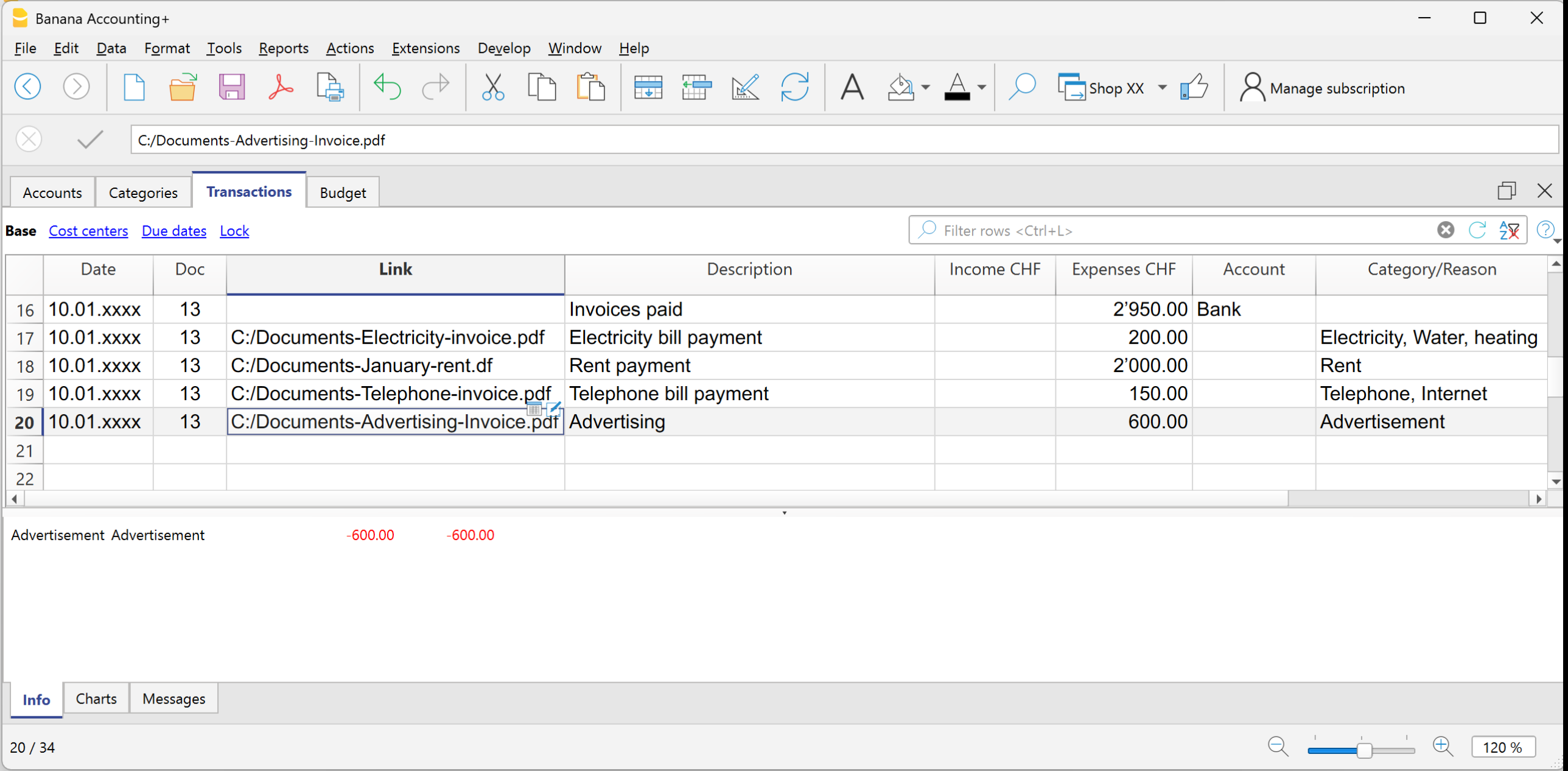
Example: payment of several invoices using cash.
- Use the same date and document number for all rows.
First row:
- Enter the total amount paid in the Expenses column.
- In the Account column, indicate the liquidity account used (e.g. Cash).
- Leave the Category column empty.
Following rows:
- Enter each paid invoice in a separate row, with the amount in the Expenses column.
- The Account column remains empty.
- In the Category column, indicate the corresponding expense item.
If you have enabled the Balance column, you will see that the remaining total decreases row by row, until it reaches zero.
Transactions between two accounts | Income/Expense accounting
In Income / Expense accounting, a transaction is generally recorded with one account entered in the Account column and one category entered in the Category column.
- The accounts are those listed in the Accounts table.
- The categories are those listed in the Categories column.
It is also possible to record a transaction involving multiple accounts or categories, by entering one account or category per row, until the entry is complete.
When you need to record a transaction that involves two accounts, without using a category, you can use the Category column to enter the second account from the Accounts table.
An example could be the recording of a cash withdrawal from the postal account. The transaction should be entered as shown in the example below.
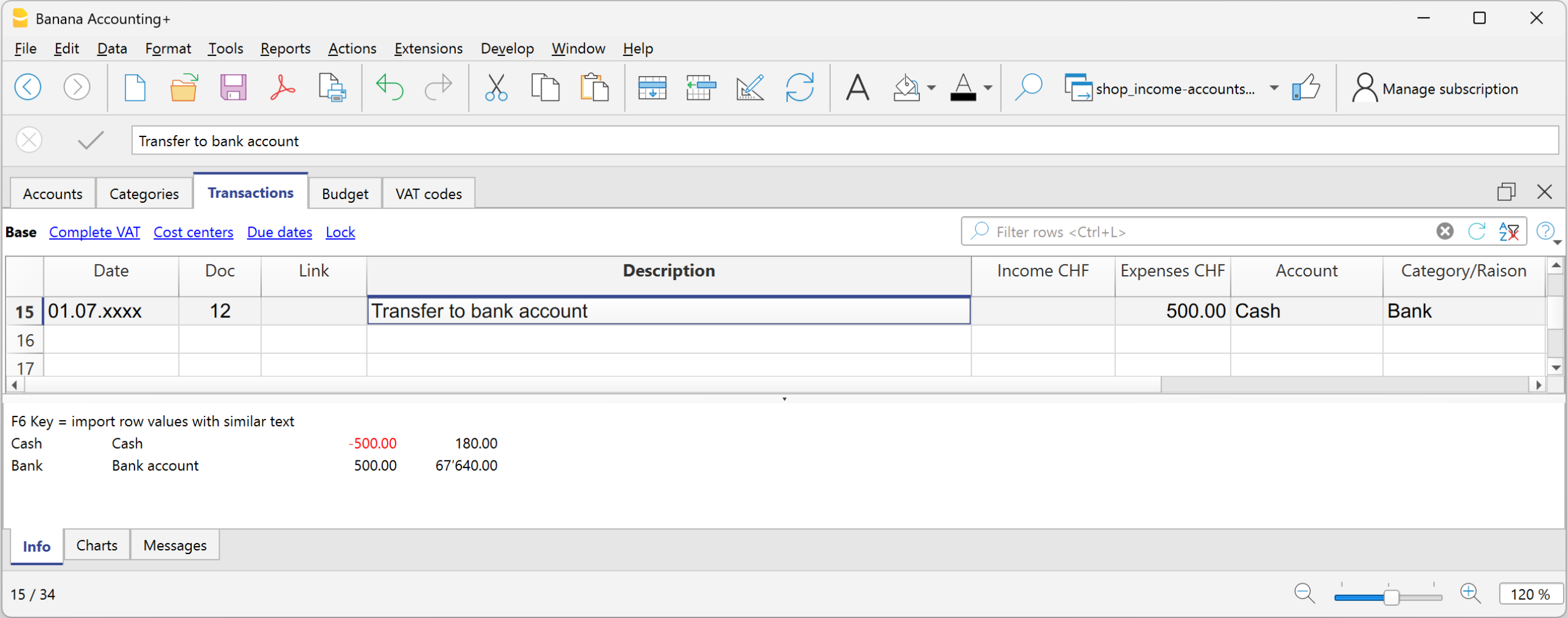
- Enter the Date and Description in the respective columns
- In the Income or Expense column, enter the amount
- In the Account column, enter the first account
- In the Category column, enter the second account
Transactions between two categories | Income/Expense accounting
In Income / Expense accounting, a transaction is generally recorded with one account, entered in the Account column, and one category, entered in the Category column.
It is also possible to record a transaction involving multiple accounts or multiple categories, by entering one row for each account or category, until the transaction is complete.
- The accounts to be used in the trasnsactions are those listed in the Accounts table.
- The categories to be used in the transactions are those listed in the Categories table.
When it is necessary to record a transaction between two categories, it is not possible to do so on a single row. A category cannot be entered in the Account column.
Therefore, the transaction between two categories must be recorded over two rows:

- On the first row:
- Enter the Date and Description in the respective columns
- Enter the amount in the Income or Expense column
- Leave the Account column empty
- Enter the first category in the Category column
- On the second row:
- Enter the Date and Description in the respective columns
You can also copy the data from the previous row - Enter the amount in the Income or Expense column.
If necessary, you can reverse the income or expense amount compared to the previous entry. - Leave the Account column empty
- Enter the second category in the Category column
- Enter the Date and Description in the respective columns
Transactions with VAT | Income/Expense accounting
To record transactions with VAT in Banana Accounting, you need to use an Income / Expense template with the VAT management option.
These templates already include all the settings needed to manage VAT:
- The Accounts table includes VAT report and VAT payable accounts.
- In File properties > Basic data > VAT, the VAT report account is set.
- The VAT Codes table already contains VAT codes updated according to regulations.
How to record transactions with VAT
The Transactions table includes specific columns for VAT. If you activate the Complete view, you can see all the dedicated columns.

For each transaction, enter:
- Date → the date of the document (invoice, receipt, etc.).
- Doc → the document number (if available).
- Invoice No. → enter the invoice number from the customer or supplier.
- Doc Link → enter the path to the PDF document to attach.
- Description → short text describing the operation (e.g. Sale of goods or Rent payment).
- Income/Expense → the amount received or paid.
- Account → an account related to the transaction from the Accounts table (e.g. Cash, Bank).
- Category → the reason for the transaction represented by a category from the Categories table (e.g. Sales, Rent).
- VAT Code → indicate the applicable rate:
- V81 → sales.
- M81 → purchases related to main business activity.
- I81 → purchases related to investments or general costs.
Automate the VAT code
To speed up entries, you can make the VAT code fill in automatically.
- Go to the Accounts and Categories table.
- From the menu Data > Columns setup, activate the VAT Code column.
- Enter the VAT code in the corresponding rows. The VAT code must exist in the VAT Codes table. For Switzerland, for example:
- On fixed asset purchase accounts → I81.
- On sales categories → V81.
- On purchase categories → M81 or I81.
This way, when you enter a transaction linked to that account or category, the program will automatically fill in the VAT Code and immediately calculate the related data.
Learn more
- VAT Summary
- Swiss VAT Management
- Various VAT transaction cases (double-entry accounting)
- Swiss VAT reports → Only with Advanced plan.
记录信用卡的交易动向
使用信用卡消费变得越来越普遍,不仅在企业,在家庭也是如此。为了更好地控制信用卡的支出,您需要记录账户中的交易。要做到这一点,请确保您在账户表中有一个信用卡账户,或者将其添加到您的账户中。
记录预付款中的信用卡交易动向
信用卡账户是一个借方账户,需要输入在账户列中。

在收益费用核算中,每当您用信用卡支付首付款时,必须记录如下:
- 输入日期、摘要。
- 在支出列中,将金额记录为输出。
- 在账号列内,输入现金账户 (银行、邮局)。
- 在科目列中,输入信用卡的账号。
当信用卡账单到账后,费用由首期付款支付,必须记录信用卡的动向以检测产生的费用并冲销信用额。
在这种情况下,其被记录在多行中:
- 每个动向都必须输入相同的日期和相同的文件编号。
- 输入表明费用类型的说明。
- 在支出一列中,输入从信用卡支付的总金额。
- 在账号一列中输入信用卡的账户。
- 在以下各行中,要记录通过信用卡支付的每笔费用,在支出列中记录费用的金额,在科目列中记录费用的类别。
在记录所有的交易后,检查信用卡余额 (打开信用卡的账户明细)。
Transactions on private account | Income/Expense accounting
The private account is a financial account used in accounting to record transactions that do not directly concern the business, but rather relate to the owner's private sphere. This account tracks withdrawals and contributions made by the owner for personal purposes; it serves to keep business and personal finances separate, avoiding confusion in the company's bookkeeping.
Withdrawals from the company by the owner
If the owner uses business funds for personal expenses, the amount is debited to the private account. The amounts withdrawn by the owner appear in the Accounts table, in the Income column of the private account, because they represent a receivable of the company from the owner. In the Balance column of the private account, the amount is positive.
Deposits into the company by the owner
If the owner deposits private funds into business accounts, the amount is credited to the private account. The amounts deposited by the owner appear in the Accounts table, in the Expenses column of the private account, because they represent a liability of the company to the owner. In the Balance column of the private account, the amount is negative.
Balance of the private/partner account
- Positive balance: indicates that the owner owes money to the company.
- Negative balance: indicates that the company owes money to the owner.
Credit card December invoice paid the following year | Income/Expense Accounting
The December credit card invoice is usually received in January of the following year, and consequently, the payment is also made in January.
All expenses listed in the December credit card invoice belong to the previous year; therefore, they must be recorded in the accounting of the previous year.
Recording the December credit card invoice
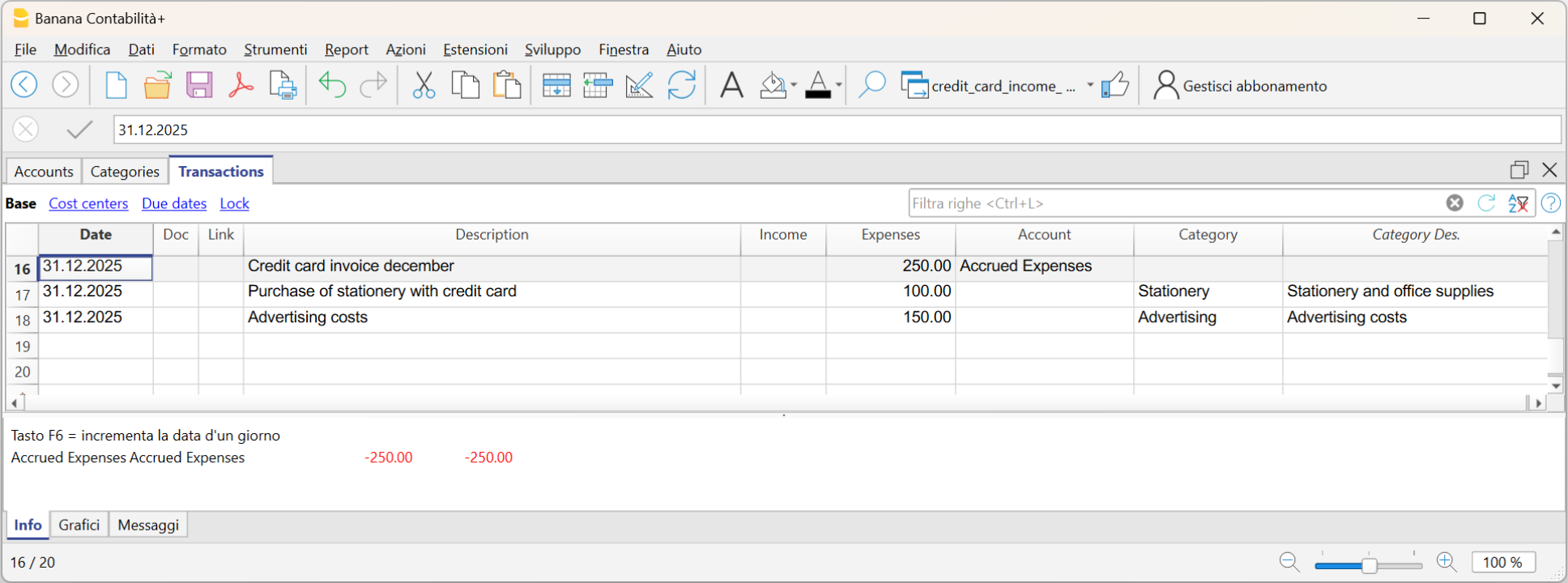
To record it correctly, it is necessary to have the liability account Costs to be Paid in the Accounts table, which is a transitional account. If it is not present, it must be added.
In the Transactions table, enter:
- Date and any document number in the respective Date and Doc. columns.
- Description
- Total credit card amount in the Expenses column
- Costs to be Paid account in the Account column
- Expense category in the Category column. If the invoice includes multiple expenses, record each expense on a separate row.
Recording the payment of the December credit card invoice in the following year
In the following year, when the new year is created, the balance of the Costs to be Paid account is displayed as an opening balance in the Accounts table.
When the credit card invoice is paid, the Costs to be Paid account is cleared.
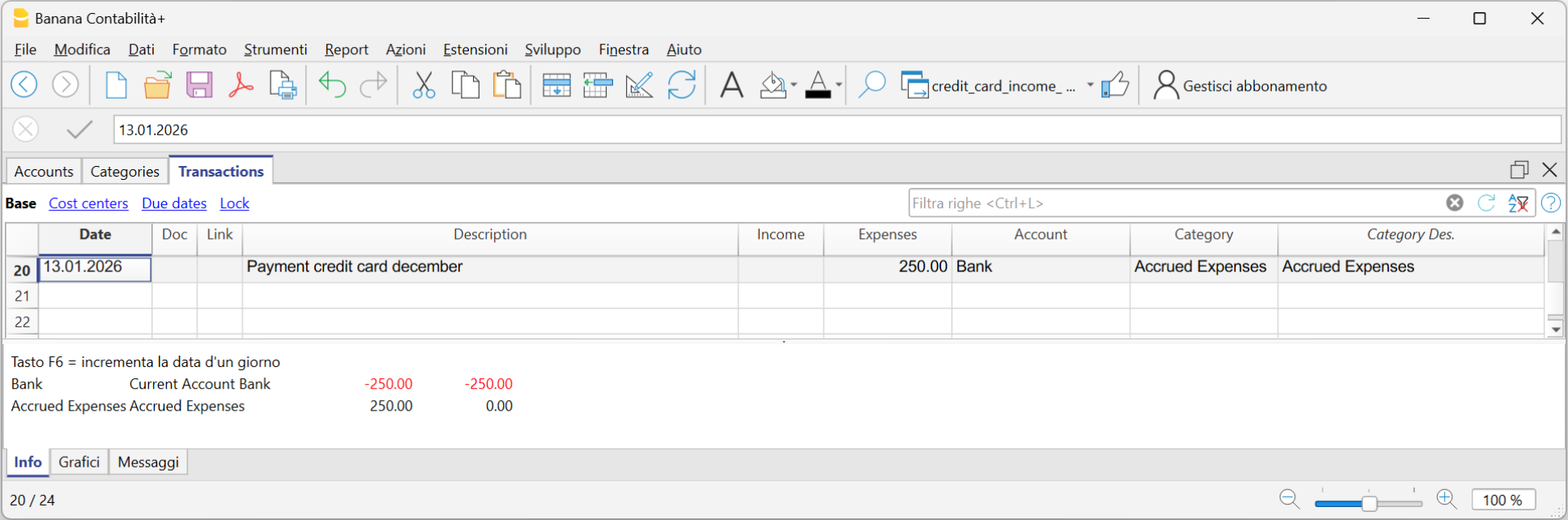
To record the payment of the credit card invoice, enter:
- Date, any document number
- Description
- Total amount of the credit card invoice in the Expenses column
- Liquidity account from which the invoice is paid in the Account column
- The Costs to be Paid category in the Category column.