Abonnement op Banana Boekhouding+ voor meer gebruikers
Het abonnement op Banana Boekhouding Plus is alleen voor persoonlijk gebruik. Iedere gebruiker moet zich registreren met zijn e-mailadres en kan het programma dan op maximaal 5 persoonlijke apparaten gebruiken. Als dit uw geval is, bezoek dan de Abonnement pagina.
Bedrijven met meerdere mensen die Banana Boekhouding+ gebruiken, moeten voor elke gebruiker een abonnement aanschaffen.
Internationale multi-user aankoop
Ga naar de Internationale aankooppagina en kies het type en het aantal van de gewenste abonnementen.
Na de aankoop ontvangt u een aankoopbevestiging e-mail met een factuur in bijlage die een Product Key aangeeft voor ieder gekocht abonnement.
Als een bedrijf bijvoorbeeld 5 abonnementen voor zijn werknemers heeft aangeschaft, worden 5 Product Sleutels op de factuur vermeld.
Elke werknemer/medewerker zal dan hebben om:
- Banana Boekhouding Plus downloaden
- Banana Boekhouding Plus installeren
- Het abonnement activeren met een Product Key
Waarschuwing! U moet een verschillend e-mail adres gebruiken voor iedere Product Key. Als bijvoorbeeld hetzelfde e-mailadres wordt gebruikt voor twee Product Keys telt het programma de twee abonnementen op (het zou dan slechts 1 abonnement worden voor 2 jaar, dat maar door één gebruiker gebruikt kan worden).
Neem direct contact op met ons support team als u hulp nodig hebt.
FAQ
Wat moet ik doen als ik al hetzelfde e-mailadres heb gebruikt voor twee Product Keys?
Neem direct contact op met ons support team en beschrijf het probleem en geef zo mogelijk het bestelnummer op waarmee u uw Product Keys besteld heeft.
In welke gevallen heb ik een aankoop voor meerdere gebruikers nodig?
Als u een bedrijf heeft waar meerdere gebruikers moeten werken met Banana Boekhouding Plus heeft u een abonnement voor iedere gebruiker nodig. Iedere gebruiker moet een persoonlijk e-mailadres voor Banana Boekhouding Plus hebben. Iedere gebruiker kan dan Banana Boekhouding Plus installeren op maximaal 5 door hem gebruikte apparaten (desktop, laptop, mobiele telefoon, etc).
Wat houdt de installatie van Banana Boekhouding Plus op 5 apparaten in?
Iedere gebruiker kan Banana Boekhouding Plus installeren op maximaal 5 apparaten die hij persoonlijk gebruikt, waarbij hij het programma altijd activeert met zijn geregistreerde e-mailadres. U kunt het dan bijvoorbeeld installeren op uw desktop computer (thuis of op het werk), op uw laptop of mobiele telefoon, etc. Dit betekent ook dat als de boekhoudbestanden (.ac2 formaat) opgeslagen worden in de cloud, zoals iCloud of Dropbox, de gebruiker deze kan benaderen en ermee werken van al zijn apparaten. De gebruikersvoorwaarden blijven altijd geldig.
Kan ik Banana Boekhouding+ installeren op een server met Terminal Service of in een Windows domein?
Banana Boekhouding+ kan worden geïnstalleerd op computers die zijn geregistreerd in een Windows-domein met Active Directory en Roaming User Profiles en op computers die een Terminal Service aanbieden. Elke gebruiker moet doorgaan met de activering zoals hierboven beschreven, de gegevens betreffende de activering worden opgeslagen in het profiel van de gebruiker.
Kijk hier voor meer veelgestelde vragen
Offline Multi-User subscription
For large companies, public bodies, institutions or schools, it is also possible to obtain an Offline Multi-User subscription.
How the Offline Multi-user Subscription Works
This type of multi-user subscription involves the preparation, by our development team, of a programming string (which includes all the subscription data) that your IT administrator can use to install Banana on the server, giving access to the various computers.
This type of subscription refers solely to the installation method of the software and should not be confused with the saving of Banana accounting files (in .ac2 format). These files can be saved wherever you prefer: in a local folder, on a company network drive, or in the cloud. More information can be found on the following pages:
- Save your Banana Accounting Plus files also on the Cloud
- Organize your accounting files efficiently locally, online, or in the Cloud
Features of the Multi-User Offline subscription:
- Individual users do not have to do anything; they already have access to Banana from their computers
- Renewals are managed at the administrative level
- The administration does not have to manage the emails of individual users
- Banana.ch SA provides a dedicated contact person
How to apply for an offline Multi-user subscription
- For schools or training institutions that use Banana for educational purposes - fill out the online form
- If you are a company or institution, send us a request
We will evaluate your request and contact you.
Technical installation info for the Offline Multi-user subscription
In order to be able to use an Offline Multi-user subscription, you need to run the Banana-setup with the parameters specified below.
Subscription dialog
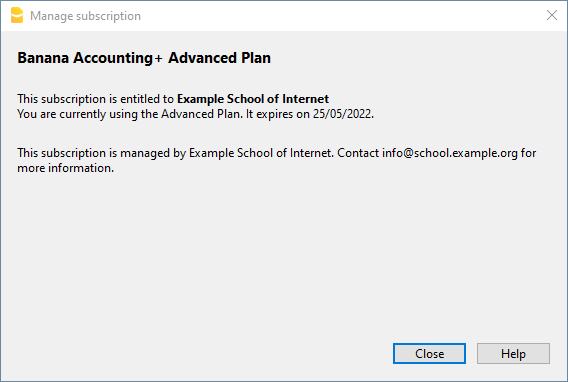
When you use the offline activation method the Manage Subscription (from the Help menu) will show the subscription information. Users will not be able to modify their subscription information.
Activation during installation
For Windows only, open a Command Prompt in Administrator mode and launch the installer using the following parameters.
Bananaplus-setup.exe /VERYSILENT /<user option> /MAIL=<your@mail.address> /KEY=<the activation code without line break>
- user option:
- /ALLUSERS: tells Setup to install in administrative mode. (Installation under C:\Program files).
- /CURRENTUSER: tells Setup to install in normal user mode. (Installation under %localappdata%\Programs)
Here you will find more information about the command line parameters.
Example:
Bananaplus-setup.exe /VERYSILENT /ALLUSERS /MAIL=info@school.example.org /KEY=U0QxM8o77zlMg16K7HohVa8Ex1njLn+o8SMv5nahijMheIwJg8zW1dq9JWrkAc2y0wispI+yvOhdgIq3ucqV2HGxiI6YK75xD57gROP9d5n6MBZ8I5e
Activation after installation
The process is very similar but instead of running the Bananaplus-setup.exe you need to run the BananaPlus.exe.
The parameters are different.
- -cmd=activate_sub: tells BananaPlus that this is a subscription activation
- -cmd_p1=<your@mail.address>
- -cmd_p2=<the activation code without line break>
You can use this proceeding to update the license information.
In this case, it's better to put the parameters in quotes
Example:
BananaPlus.exe "-cmd=activate_sub" "-cmd_p1=info@school.example.org" "-cmd_p2=U0QxM8o77zlMg16K7HohVa8Ex1njLn+o8SMv5nahijMheIwJg8zW1dq9JWrkAc2y0wispI+yvOhdgIq3ucqV2HGxiI6YK75xD57gROP9d5n6MBZ8I5e"
Update to a new version of the software
If you run again the installer the license information will be retained. But it may be advisable to redo the installation from beginning and have a clean installation.