Budget |Income /Expenses Accounting
The annual budget is a tool that allows you to plan income and expenses in advance for the year, providing a clear view of the future and helping you make the best decisions. During the year, you can compare the budget with the actual values (actuals) to assess how reality aligns with your planning.
Thanks to the budget, you can:
- Make informed decisions: understand whether conditions allow you to invest in a project or if it's better to cut some expenses.
- Monitor financial performance: by comparing budget and actuals, you can easily see if you're spending more or less than planned.
- Manage responsibly: for associations, organizations, and small businesses, it is also a tool of transparency and good management.
How to set up the budget in Banana Accounting
There are two available methods:
- Annual budget in the Accounts or Categories table
A very simple and traditional method:
- Enter the budget values directly in the Budget column of the Categories table.
More information is available on the Budget in column page.
- In the Accounts table, you can also add additional columns to manage different types of budgets.
A useful case is adding a column dedicated to the next year's budget, so you can plan the future while staying in the current year's accounting file.
More details are available on the page Budget for the next year in the current accounting.
- Enter the budget values directly in the Budget column of the Categories table.
- Full financial planning using the Budget table
This is a more advanced and detailed approach:
- You activate the Budget table and enter forecasted transactions not only for costs and revenues but also for liquidity.
- The Budget column in the Accounts table is updated automatically based on the transactions recorded in the Budget table.
This method gives you a dynamic view of financial developments, month by month or quarter by quarter, including liquidity.
The following sub-pages explain how to manage the budget in an Income and Expenses file.
If you are using a double-entry accounting file instead, refer to the section on budgeting by clicking the following link: https://www.banana.ch/doc/en/node/10211.
Comparison between Budget in column and Budget in the Table Budget
Here below is a comparison table between the budget in column in the Accounts table and the budget in the Budget table.
| Feature | Budget Column | Budget Table |
|---|---|---|
| Where it is located | In the Accounts table, Budget column | Dedicated table: Budget |
| Activation | Always available (default) | Must be activated: Tools > Add /Remove functionalities > Add Budget Table |
| Level of detail | Annual budget per account/category | Detailed entries with dates and repetition |
| Data entry | Total amount for the year | Individual entries with date, account, and category |
| Additional fields | Only amounts | Quantity, Price, Calculation formulas |
| Recurring transactions | Not available | Available (Repeat column) |
| Future liquidity by period | Not calculated | Automatically calculated (forecasted cash/bank) |
| Results | Totals per account/category | Periodic details (day/month/year) + totals |
| Typical use | Simple forecasts, annual budget | Detailed forecasts, precise financial planning |
Annual budget in column | Income/Expense accounting
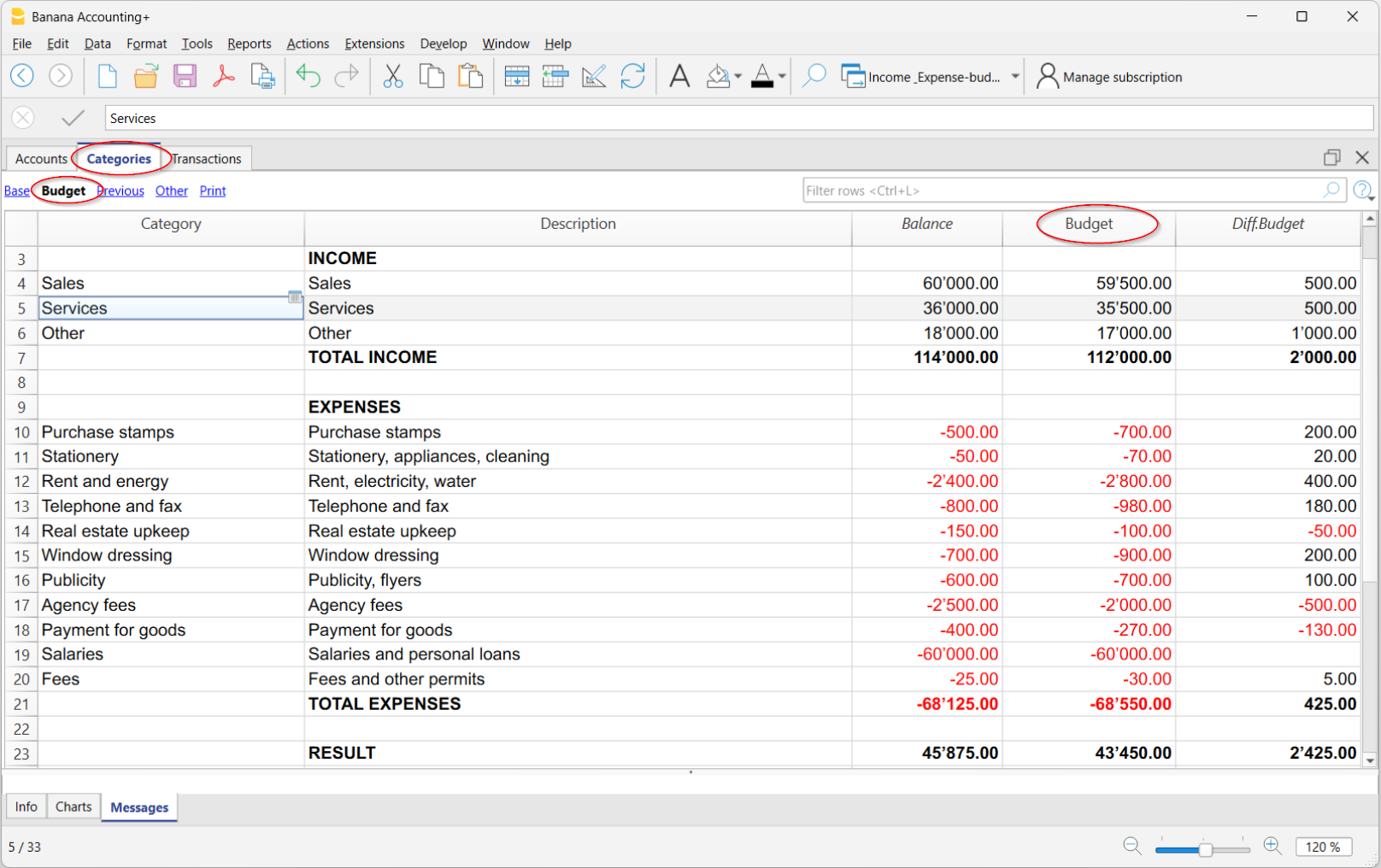
This is an annual budget, set in the Budget column of the Categories table.
The Budget column is active only if the Budget table has not been activated. If the Budget table is already active, you need to deactivate it.
In addition to the Budget column, there is the Budget Diff. column, visible in the Budget view. It shows the difference between the expected and actual values. It updates automatically as accounting transactions are recorded.
Deactivate the Budget table
If you want to use the Budget column in the Categories table to set the annual budget, the Budget Table must not be active.
If it is active, to deactivate it, go to the menu:
- Tools > Add/Remove Functionalities
- Select Remove Budget Table.
Once the table is removed, you can directly enter the budget amounts in the Budget column of the Accounts table.
Budget Printing
You can print the Budget using one of the following methods:
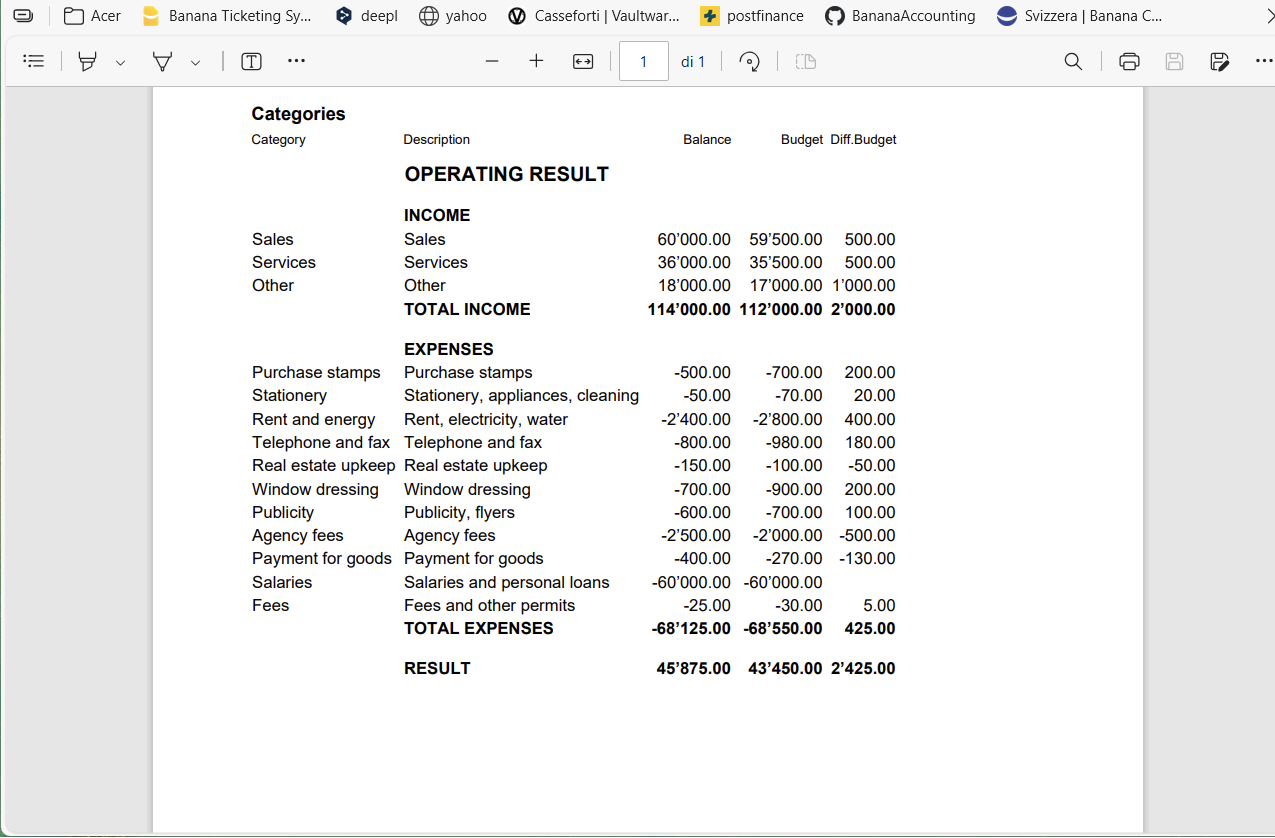
- Directly from the Categories table:
To print, go to the Categories table and select the Budget or Print view. From the menu File > Create Pdf, the program displays the PDF ready to print.- Budget View
The printout shows the columns as they appear in the Categories table. - Print View
The printout appears like the Categories table but without the Sum In column and other grouping columns. In this case, you need to show the Budget columns using the menu Data > Columns setup.
- Budget View
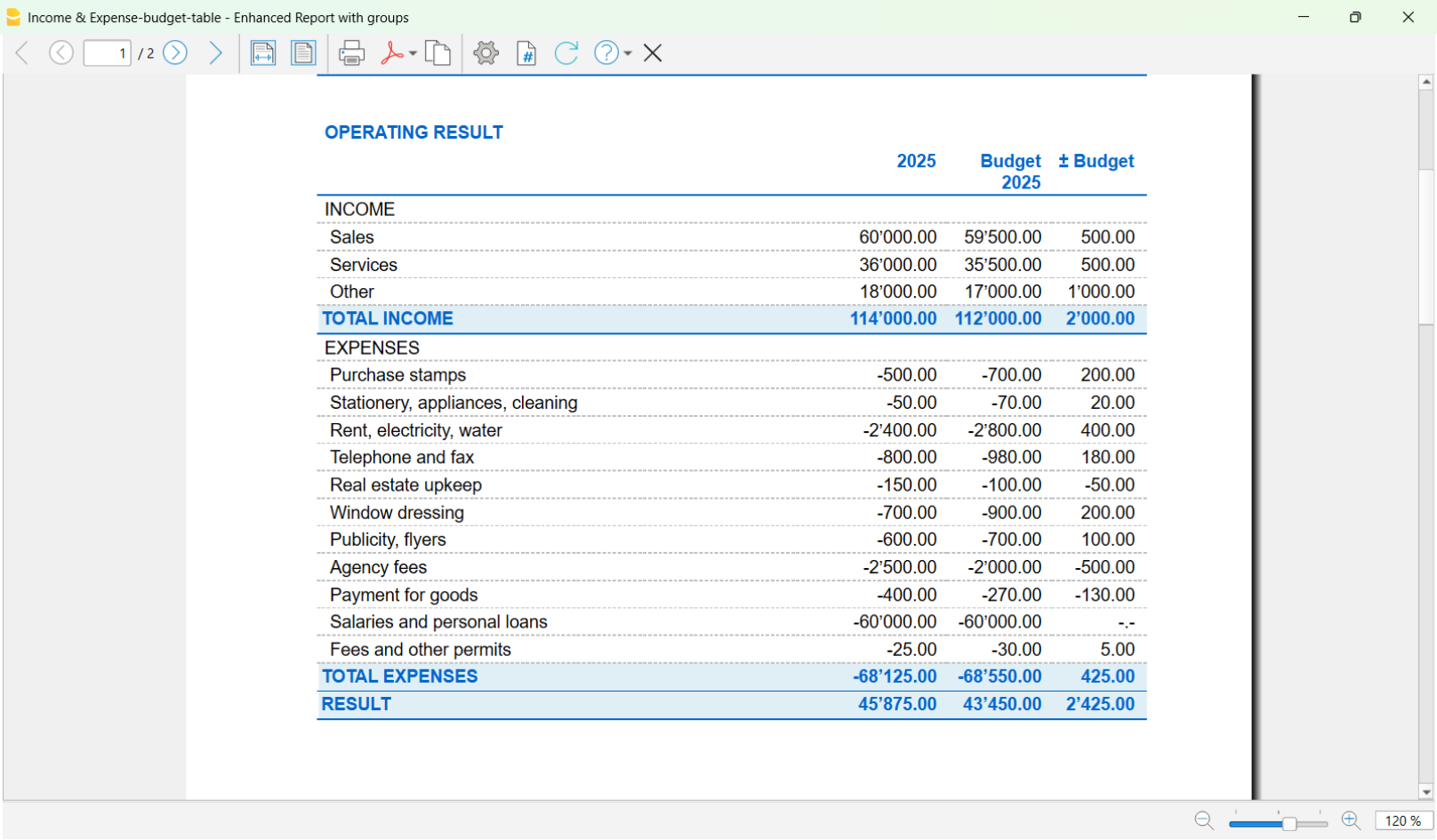
- From the menu Report > Enhanced Balance sheet with Groups.
In the Columns section, the Budget option must be enabled for the Categories and optionally for the Accounts.
Budget for the following year in the current accounting | Income / Expense accounting
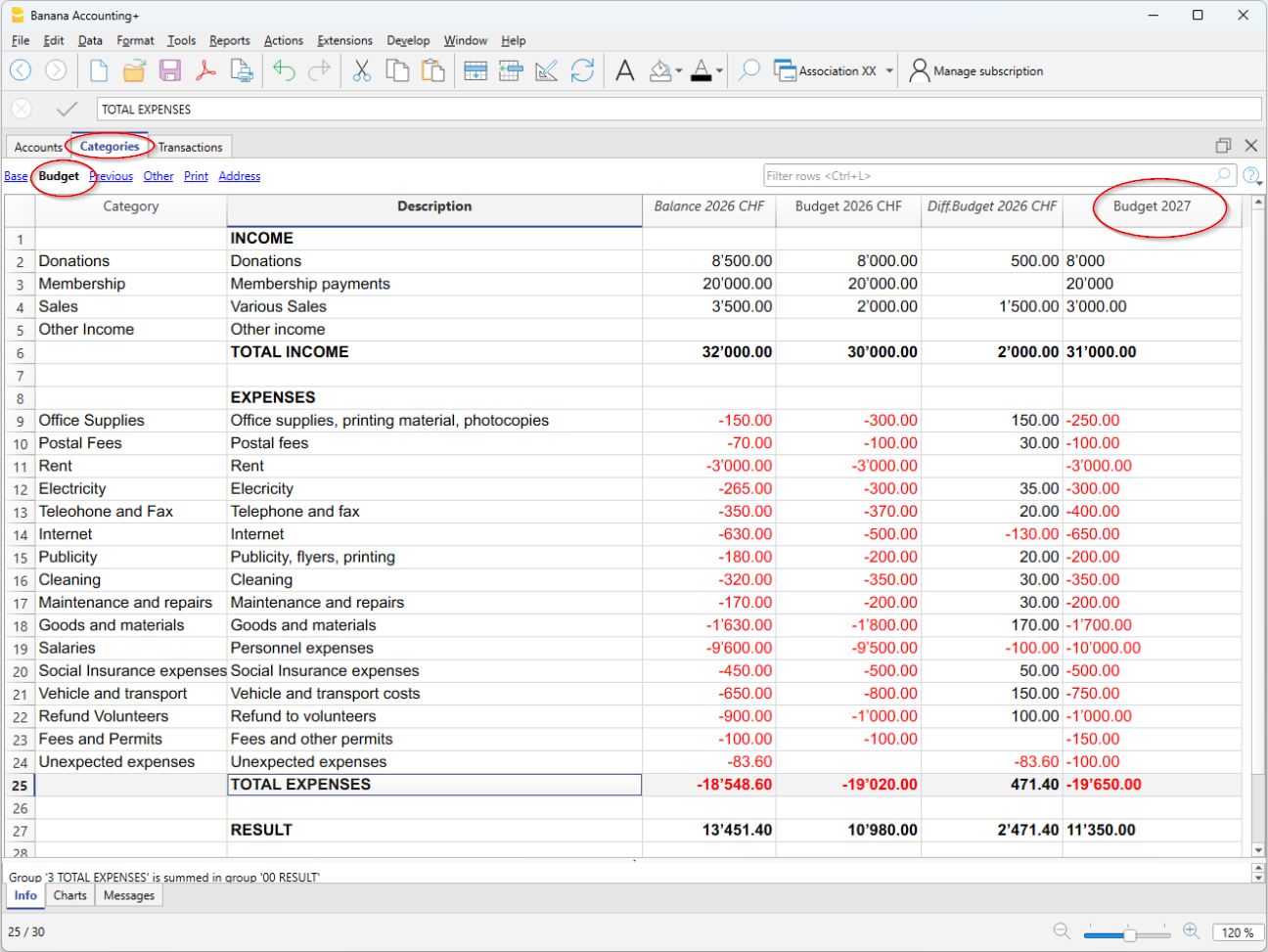
In Banana Accounting, in the Categories (or Accounts) table, you can add, in addition to the column for the current year's budget, an extra column to create a Budget for the following year. This is a very practical solution, for example for associations, where members must approve not only the final accounts of the year, but also the budget for the following year.
How to add the Budget column for the following year
You need to add the Budget for the following year column in the Categories table.
- Go to the Categories table of your accounting file.
- From the Data menu > Columns setup > Add.
- Enter as the title of the new column: Budget following year (e.g. Budget year xxxx).
- Set the Data type = Amount, so that Banana automatically calculates the group totals.
- Confirm with OK.
The new column for the following year’s budget will be visible in the Categories table.
Entering the values
In the column you added, enter the estimated amount for the following year for each income and expense category.
- Income column → positive amounts
- Expense column → negative amounts.
Printing the Budget
Currently, it is not possible to print the Statement with the additional Budget column for the following year. It will be available soon.
At the moment, the Statement must be printed directly from:
- The Categories table, in the Budget view
- or from the Print view, displaying the Budget columns via the menu Data > Columns setup
In this view, the Section, Group, Sum In and Opening columns are not displayed. - Create the PDF from the File > Create PDF menu
Before creating the PDF, you can also select the rows of the Categories table.
Budget, Financial Forecasts and Liquidity Plans
The advanced budget allows you to create a very detailed budget. Based on the transactions and dates entered, the program automatically calculates the expected results for each period.
▶ Video: Income and Expense Accounting Budget
Activate the Budget Table
To activate the Budget table, go to the menu:
Once activated, the table will be available in the accounting file.
Entering the forecasts
In the Budget table, enter the future transactions by indicating:
- Liquidity account (e.g. bank, cash).
- Category (reason for expense or income).
You can also specify:
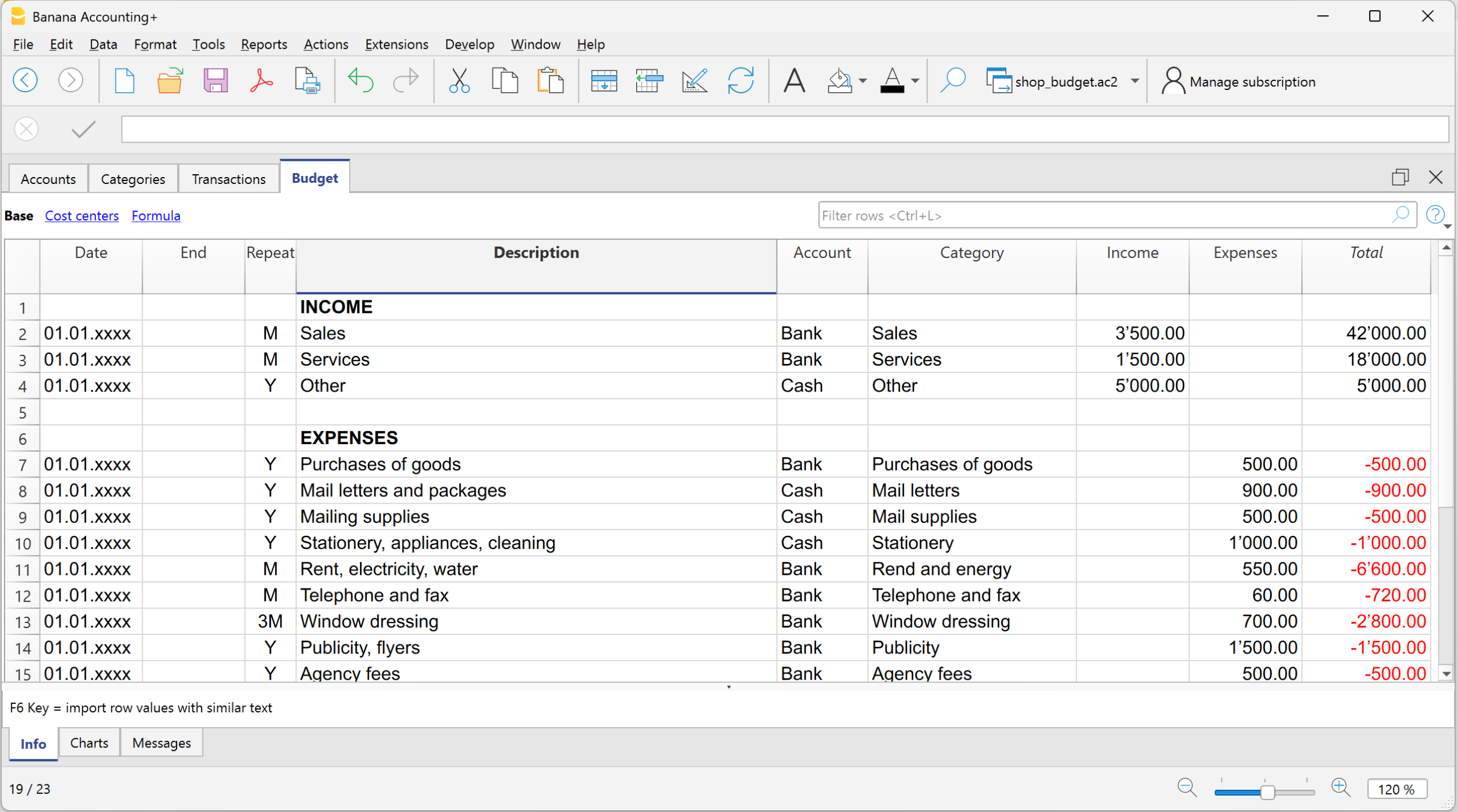
Columns of the Budget table
In the Income and Expense Accounting, the columns of the Budget table are the same as in the double-entry accounting, with a few differences:
- Budget amounts → entered in the Income or Expenses columns.
- Instead of the Debit/Credit columns → there are the Account (items of what you have and what you owe) and Category (reason for income or expense) columns.
- Optional columns: Quantity, Price, Formula → if filled in, the program automatically calculates the amount. When the program automatically calculates the amount based on the Quantity, Price or Formula columns, the result is entered in the Income column if positive, and in the Expenses column if negative.
Both positive and negative values can be entered in the Quantity and Price columns.
More information:
Results
Thanks to the data entered for the expected future transactions and the recurrence, the program automatically calculates:
- Expected income and expenses.
- Future liquidity movements, showing at any time how much money will be available.
- Specific results per period, useful for detailed analysis and forecasts.
Printing the Budget
You can print the Budget using one of the following methods:
- Directly from the Accounts table, Budget view.
This method is used when selecting the budget in the Accounts or Categories table (on a yearly basis).
The printout appears with the same column layout as shown in the image.
- From the menu Report > Enhanced balance sheet with groups.
This method is used when using the detailed budget from the Budget table.
In the Columns section, you need to activate the option:- Budget for the Categories and optionally for the Accounts.