Finanzmanagementbericht für Bauprojekte [BETA]
Finanzmanagementbericht für Bauprojekte [BETA]Laden Sie zunächst die Vorlage Finanzmanagement von Bauprojekten herunter, richten Sie Ihre Buchhaltung ein und nutzen Sie die Erweiterung, um die Projektkosten zu kontrollieren und zu vergleichen. Erstellen Sie Berichte, indem Sie im Dialogfenster gezielt die anzuzeigenden Spalten auswählen – so sehen Sie nur die Daten, die für Sie wirklich relevant sind.
▶ Video: Verwaltung von Bauprojekten
Wie es funktioniert
Verwalten Sie alle finanziellen Aspekte Ihres Bauprojekts auf einfache Weise. Alles ist bereits vorbereitet – Sie müssen die Vorlage nur an Ihr spezifisches Projekt anpassen und die relevanten Daten eingeben.
- Für jedes Bauprojekt erstellen Sie eine eigene Buchungsdatei.
- Sie beginnen mit einer vordefinierten Vorlage, in der die wichtigsten Konten und Kategorien bereits eingerichtet sind.
- Sie können auch die Tutorial-Vorlage mit Beispieldaten öffnen, um den Einstieg zu erleichtern.
- Sie können beliebig viele Projekte gleichzeitig verwalten.
- Kostenvoranschlag – die Planungsphase
In der Planungsphase ist es entscheidend, einen Überblick über die voraussichtlichen Kosten zu haben.- In der Tabelle 'Kategorien' erfassen Sie das grobe Budget – gegliedert nach Ausgabentypen. Sie können Kostenpositionen bearbeiten, hinzufügen oder gruppieren, ganz nach Ihren Bedürfnissen.
- Sie erhalten einen klaren Überblick über die Gesamtkosten des Projekts.
- Optional lassen sich zusätzliche Spalten einfügen, um Varianten oder Alternativen zu berücksichtigen.
- Zuweisungen – die Vergabephase
Nach Abschluss der Projektplanung folgt die Ausschreibung und die Vergabe der Aufträge an die ausführenden Unternehmen.- In der Tabelle 'Konten' erfassen Sie für jedes beteiligte Unternehmen eine Zeile mit dessen Kostenstelle.
- In der Tabelle 'Budget' weisen Sie den jeweiligen Ausgabenkategorien die vereinbarten Beträge und das verantwortliche Unternehmen zu.
- Ein Bericht zeigt Ihnen auf einen Blick: Budgetierte Werte, Zuweisungen an Unternehmen und Abweichungen vom ursprünglichen Budget.
So erkennen Sie frühzeitig mögliche Budgetüberschreitungen.
- Tatsächliche Ausgaben – die Zahlungsphase
Erhalten Sie von Unternehmen Anzahlungen oder Rechnungen:- erfassen Sie die entsprechenden Zahlungen in der Tabelle 'Buchungen'.
- Anschliessend erhalten Sie einen detaillierten Bericht über die tatsächlich gezahlten Beträge, übersichtlich aufgeschlüsselt nach Ausgabenkategorie und Unternehmen.
Abweichungen von den zugewiesenen oder budgetierten Werten sind sofort sichtbar – so erkennen Sie frühzeitig Kostenüberschreitungen bei bestimmten Leistungen oder Anbietern und können gezielt gegensteuern.
Die wichtigsten Vorteile
- Excel-ähnliche Bedienung: Vertraute Tabellenstruktur für einen schnellen Einstieg.
- Einfache Nutzung: Basierend auf der klassischen Einnahmen- und Ausgabenrechnung, die jeder kennt.
- Jederzeit aktuelle Finanzübersicht: Sie behalten stets den Überblick über die finanzielle Lage Ihres Bauprojekts.
- Alle Phasen des Projekts werden vollständig unterstützt – von der Budgetierung über die Vergabe bis zu den Zahlungen.
- Verwaltung von Ausgaben und Einnahmen: Inklusive Kapitalzuführungen, Beiträgen und anderen Einnahmequellen.
- Frühzeitige Erkennung von Abweichungen: Sie sehen in jeder Phase auf einen Blick, ob geplante Budgets überschritten werden.
- Detaillierte und aussagekräftige Berichte – gruppiert nach:
- Ausgaben- oder Einnahmenkategorie
- Unternehmen
- Grobes Budget
- Zugewiesene Beträge
- Tatsächlich gezahlte Beträge (Vorauszahlungen und Rechnungen).
- Abweichungen werden farblich gekennzeichnet, wenn Mehrkosten oder Einsparungen vorliegen.
- Dokumentensammlung.
Wenn Sie eine Zuweisung oder Zahlung erfassen, können Sie den Buchungseintrag direkt mit dem zugehörigen digitalen Dokument (z.B. Rechnung, Vertrag) verknüpfen. Schnell und einfach überprüfbar – Anhänge lassen sich per Mausklick öffnen. - Bankkontobewegungen im Blick. Übersicht über alle Zahlungsvorgänge Ihrer Projektkonten – inklusive Kontoauszug.
- Bereits erfasste Informationen können ohne zusätzlichen Aufwand für spätere Auswertungen genutzt werden.
Voraussetzungen für die Nutzung der Erweiterung
Um die Erweiterung nutzen zu können, benötigen Sie Banana Buchhaltung Plus mit dem Advanced Plan. Laden Sie die Software herunter, installieren Sie sie auf Ihrem Gerät und stellen Sie sicher, dass der erforderliche Plan aktiviert ist.
File setup of project accounting
Create new file
To create a new File, go to the File menu and click the New command.
This command opens the window for creating a new file. From this window you can search for the template you are interested in, in this case choose the Construction Project Accounting template.
Basic properties
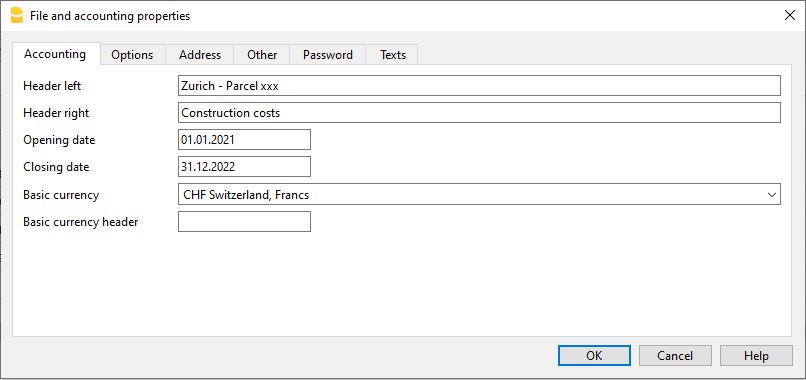
The main parameters of the accounting file are defined in the file and accounting properties, such as the header, the opening and closing date of the project. You can change the properties from the File menu → File and accounting properties.
This data is included in the report and can be printed.
Create a project folder
You can manage your documents and receipts in digital format by linking them to transactions so you have everything well organized and can view them with one click.
It is therefore useful that you create a folder to save the accounting file you have created.
Then create subfolders for documents of deliberations, receipts, and others. See how to organize digital documents.
Categories and Estimate Budget
Categories Table
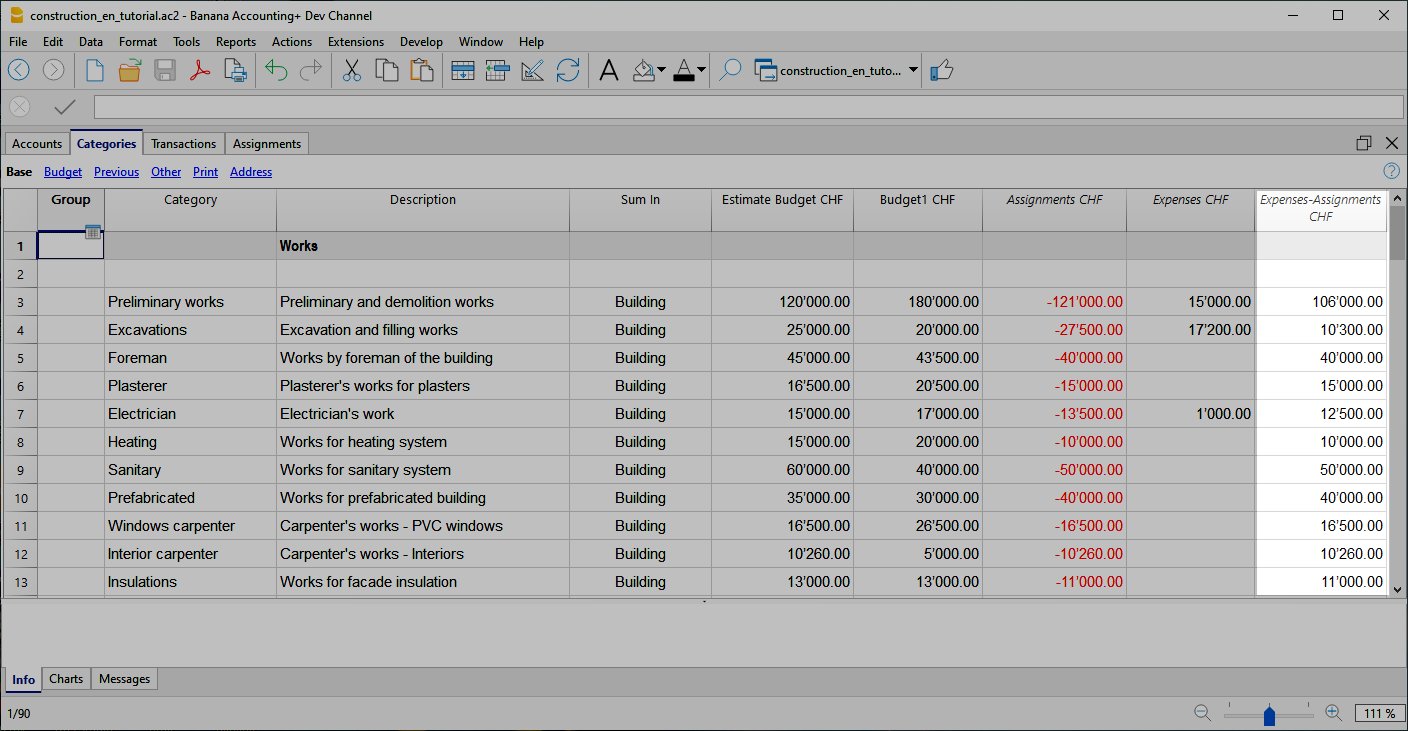
The Categories table is where you set the elements of the work to be performed. Cost categories can be changed or personalized in any moment, if you have particular requirements you can decide to change the structure of grouping of the elements, or use the one proposed by the template.
Estimate Budget Column
In this column you define the amount of the estimate for each Cost category. You can change the amount whenever you want.
Variants of Budget
You can add additional columns to enter the amounts relating to any variants of the estimate. Use the Data menu → Columns setup command, and add a column of Amount type to make sure that the values are totalized.
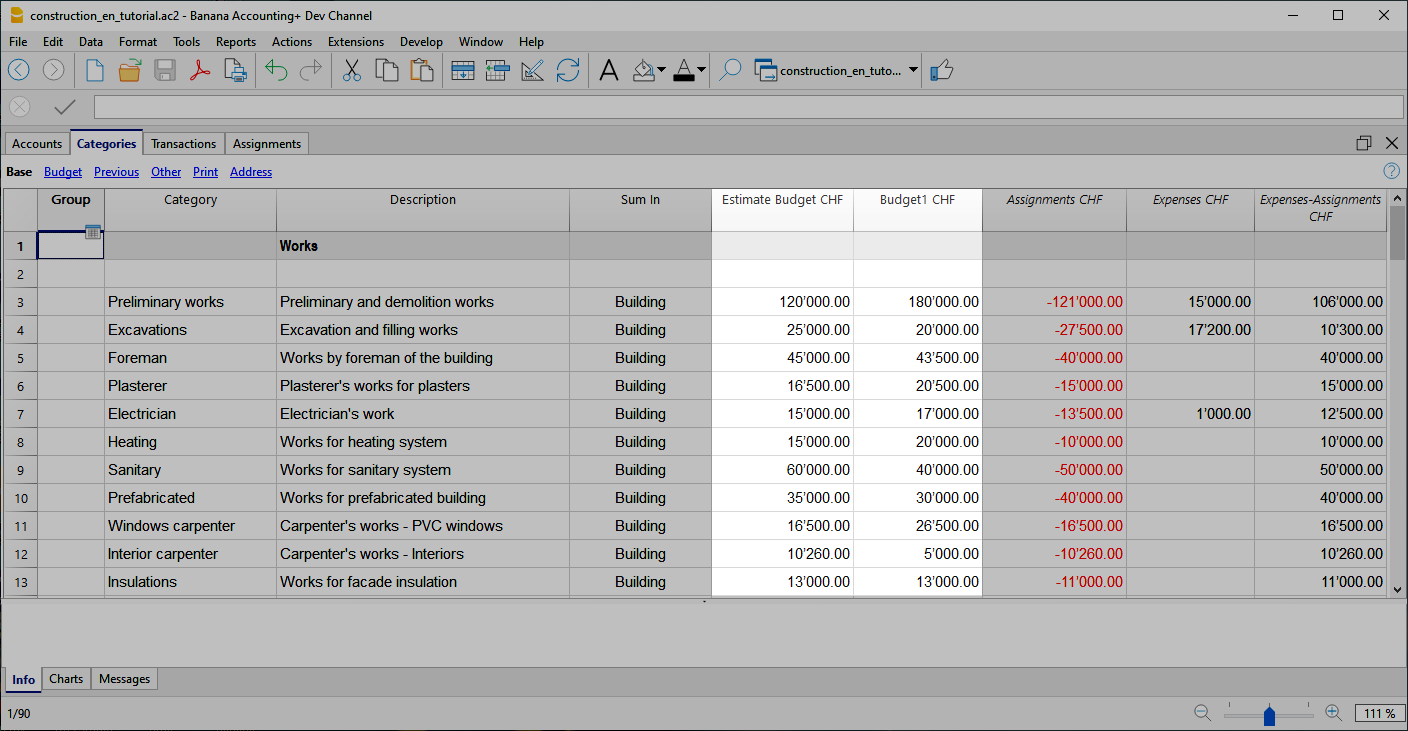
Additional columns
In Banana Accounting terminology, the Budget column is the one that contains the values calculated on the basis of the movements contained in the Budget table.
In project management, the Budget table has been renamed to "Assignments " and is used to insert assignments . This can create a moment of confusion.
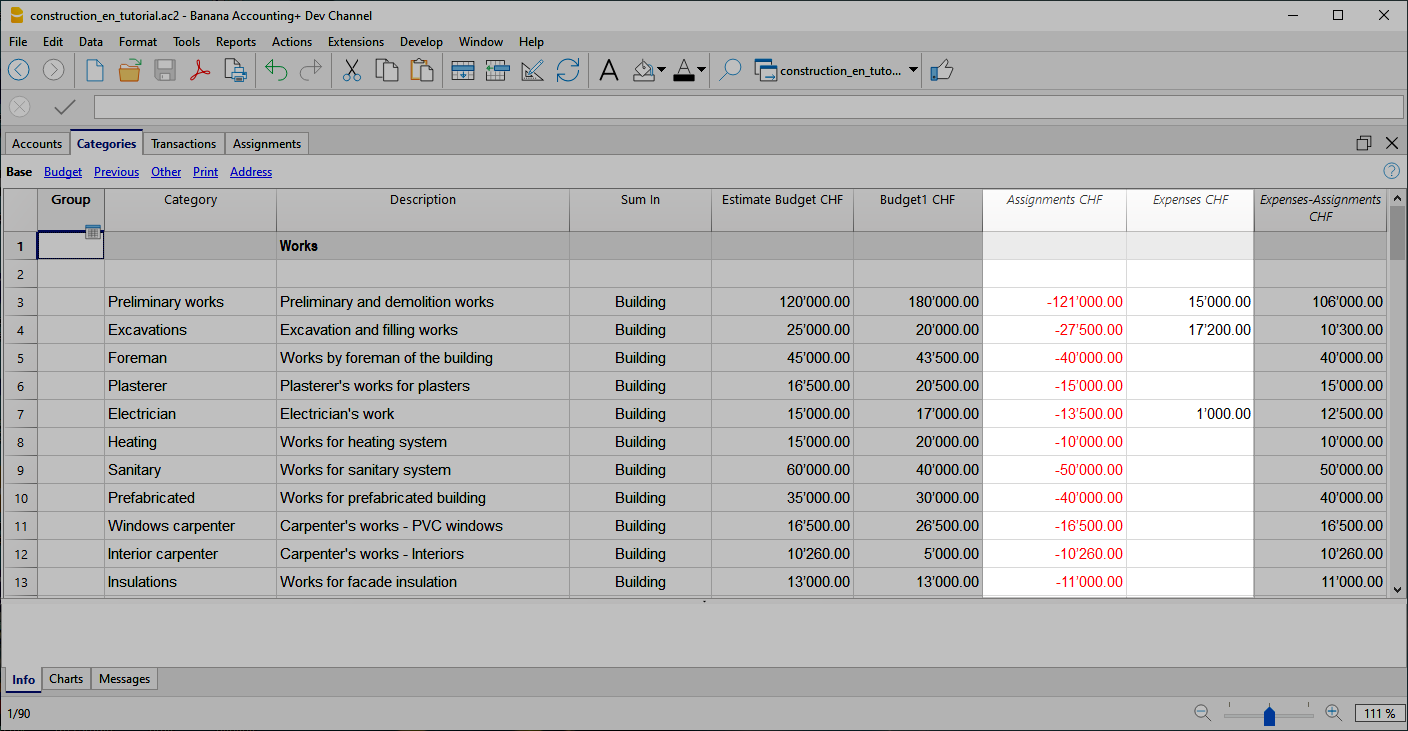
Assignments column
Contains the values shown in the Assignments table.
Expenses column
It contains the values calculated on the basis of the movements in the Transactions table.
Expenses-Assignments column
Calculates the difference between the values obtained with the movements in the Transactions table and the amounts in the Assignments .
Use your own structure
You can freely create a structure of Categories as you wish, also taking up standard structures.
- Create categories.
You can use numbers or descriptors. - Create the groupings.
You can use as many levels as you like.
Additional groupings
For tax authorities or other needs you may find it useful to group the Categories entries by other criteria. You can use the Gr1 column for this purpose or add additional columns as needed.
Assignments
Movements relating to the assignment of work are entered in the Assignments table.
When entering a assignment, the Company account and the category to which it refers must also be entered.
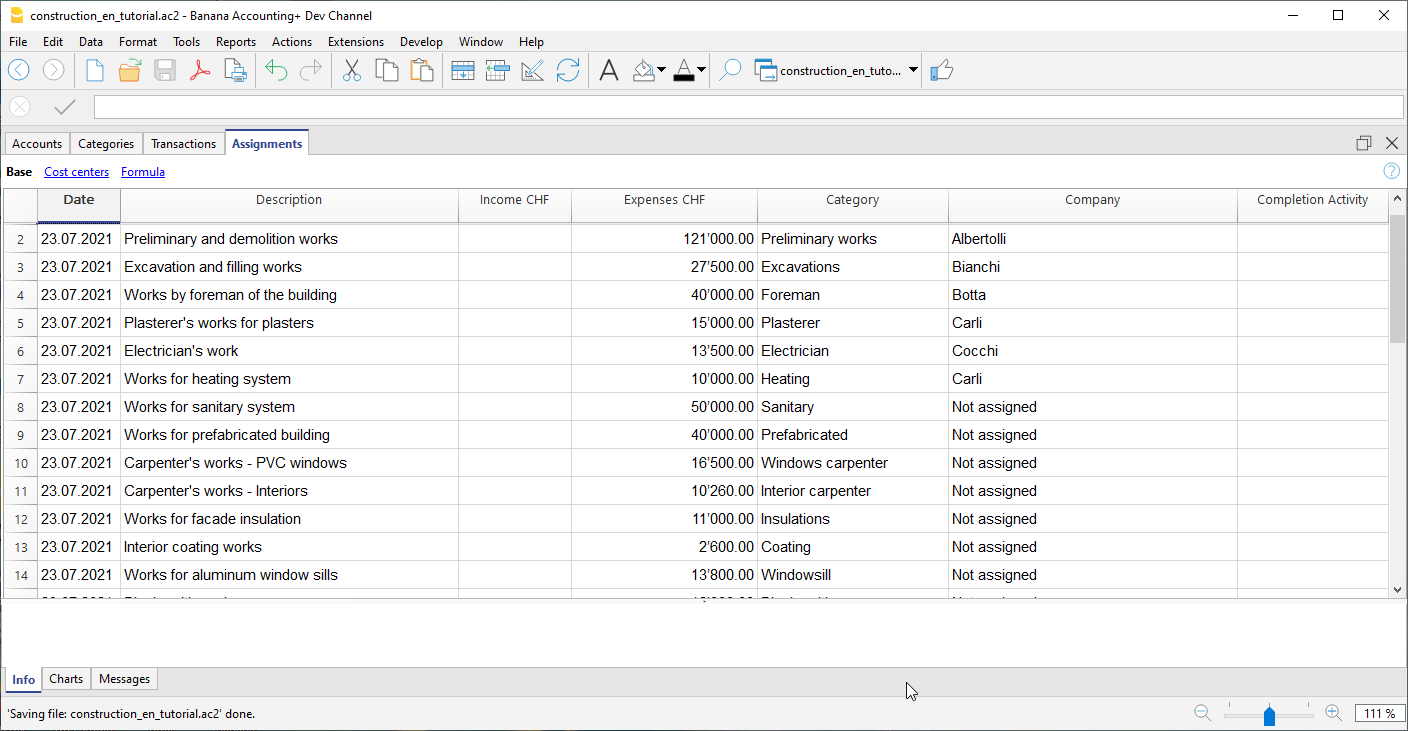
Once you have entered the data, you can use the report to see the overall situation and deviations from the estimate budget. You can also see the assignment amounts in the Categories table, they are listed in the 'Assignments ' column so that you can have a quick comparison with the other values.
Create assignments movements
You can create Assignments transactions in an easy and fast way. From the Extensions menu choose Construction Project Statement→Create transactions for assignments . The extension takes the data from the Categories table and for each cost category you have defined creates a transaction with the following fields:
- Date: Current Date.
- Description: Description present in the column of the same name in the Categories table.
- Expenses: Amount of the estimate budget. At the time you define the exact amount of the assignment, you can change the amount.
- Category: Name of the category.
- Company: Initially, each assignment is assigned a default "Unassigned" company, as soon as the assignment is assigned to a company, enter the correct name, referring to the companies you have defined in your chart of accounts.
When you start the extension, a dialog is shown with a summary of the changes that will be made, by pressing OK, the changes will be confirmed and executed. On the contrary, if you press Cancel the operation will be cancelled. You can execute this command every time when you add new categories to which you assign an estimate budget, starting the extension again will create the movements of the assignment only for the new elements.
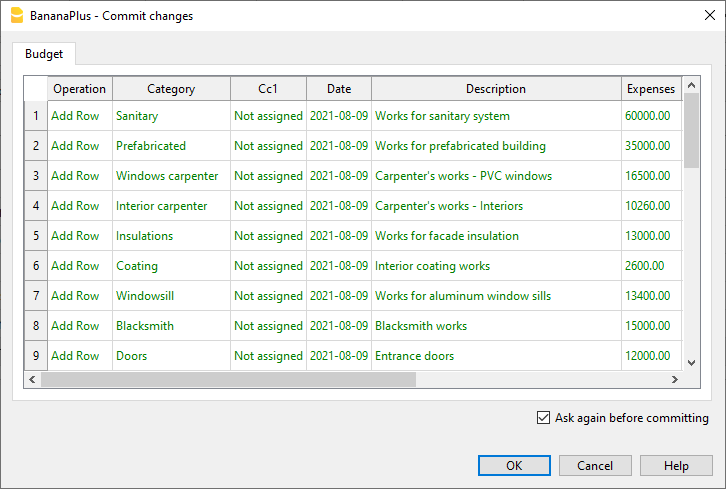
Alternatively, you can always choose to record the assignment manually.
Companies and Accounts
Accounts Table
The program allows you to manage the origin of the funds that are used to make payments. It indicates the accounts with which you are going to pay the artisans and other accounts of origin of the funds (own contributions).
Typically in a construction project there will be the construction bank account.
There are also preset accounts for:
- Disputed Invoices.
- Record the part of the invoice amount, which is not considered due.
- Invoices awaiting payment. Invoices received that have not yet been paid.
- Work in Progress. To record work that has been done, but for which you have not yet received the invoice.
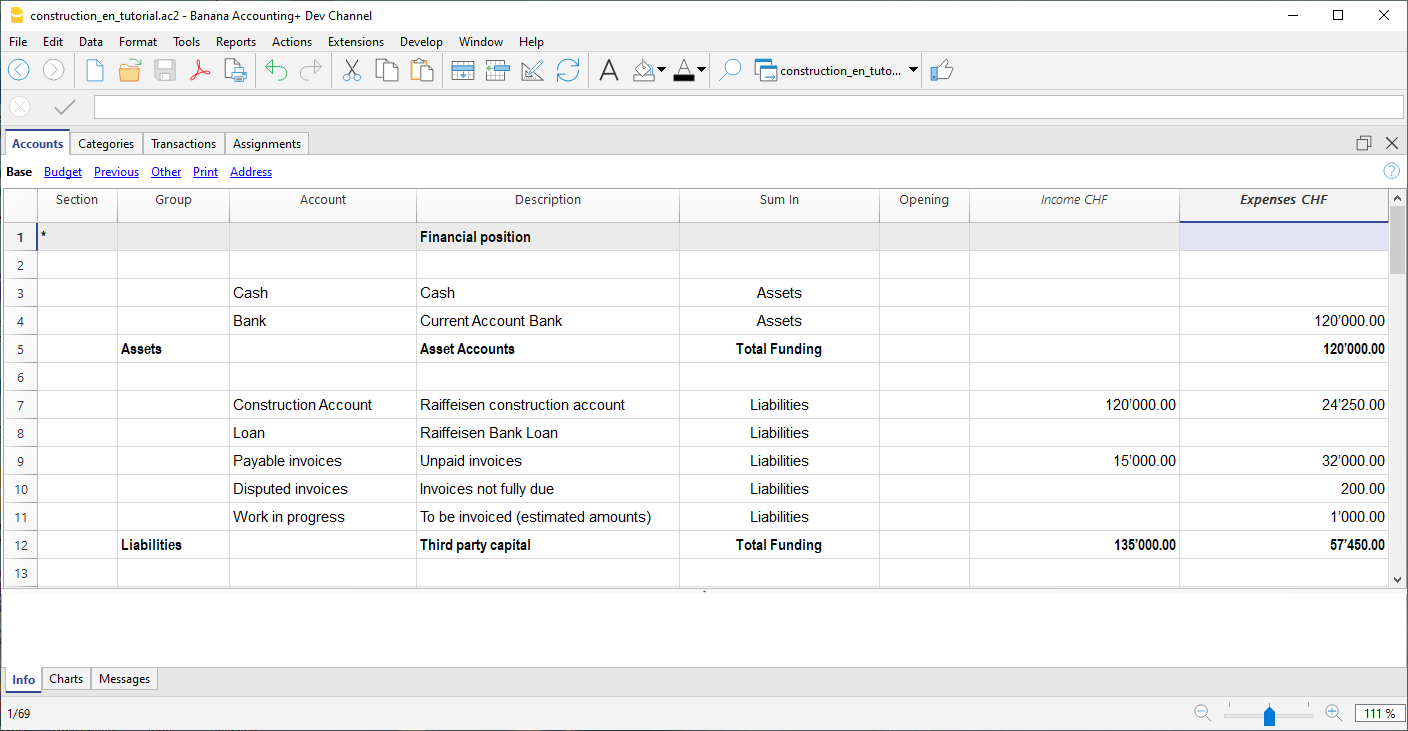
However, you can also create other accounts used to make payments or those of mortgages, used for the consolidation of the project.
Company accounts
For each company to which a job is assigned, you must first create an account of type cost center 1 (preceded by ".").
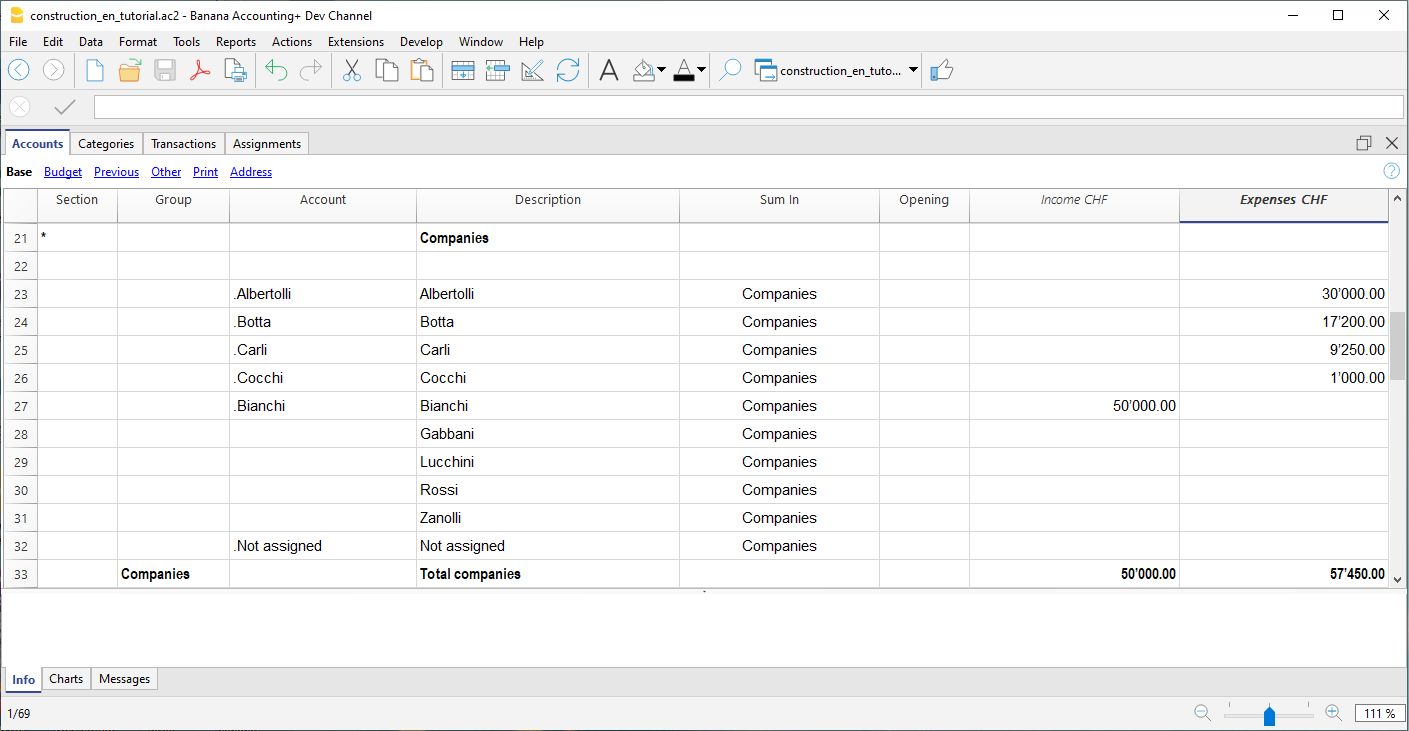
With the address view you can also enter the personal data, contacts and other information relating to the company.
Segments
Payments and Transactions table
Transactions table
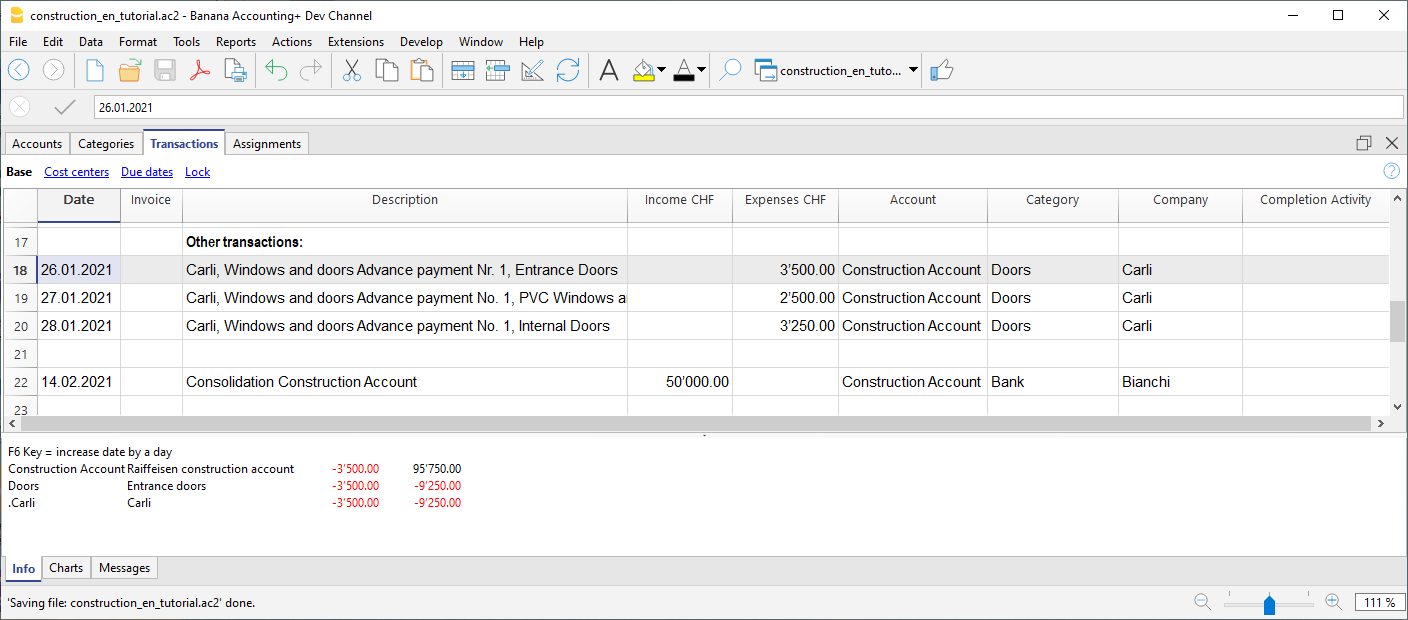
In the transactions table, record the payments that are made for the project. For each transaction, in addition to the account, it also indicates the company and the category to which it refers. In the Expenses column indicates the amount of the payment, this value is also included in the Categories table.
Advance payment and invoices
The advance payment or invoice payment is recorded, indicating the date, the amount, the account used for the payment, expense category and the company's account.
You can also link the transaction row to the digital slip, so that you can view it with one click.
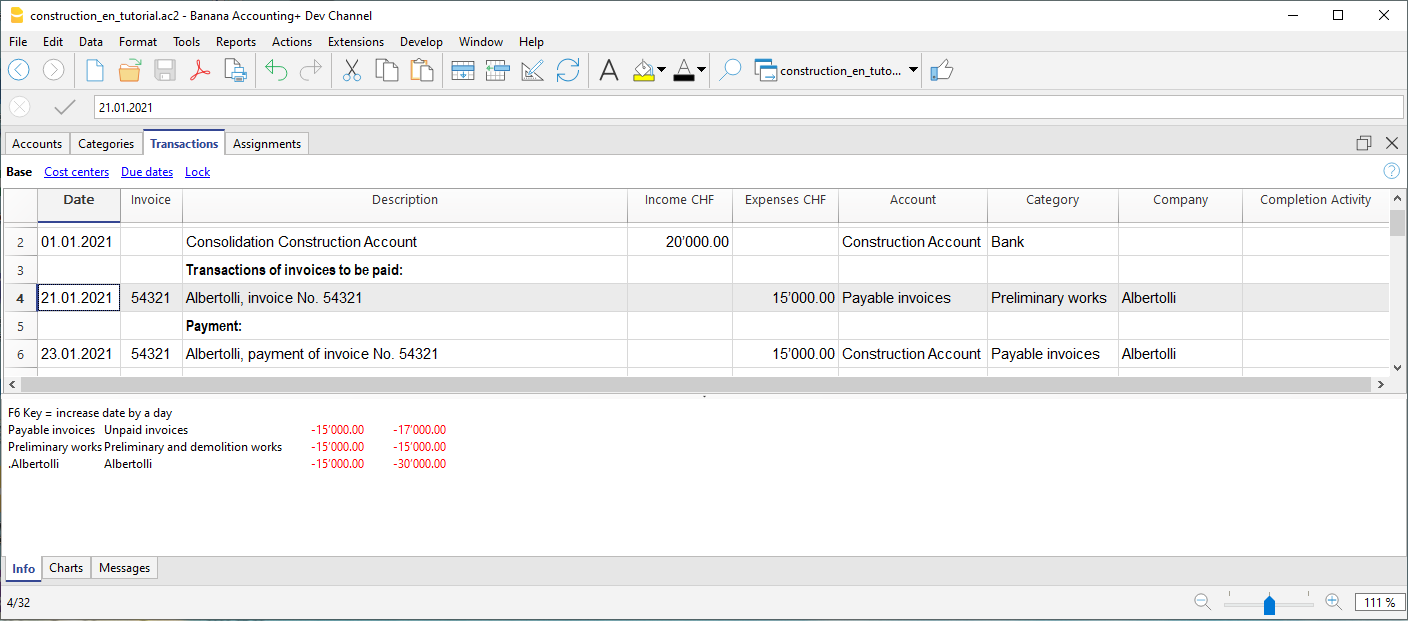
Receipt of invoice
The accounting management is carried out on the amounts actually been paid. To have an updated situation, it is possible to insert also the receipt of the invoice. In the account column you will have to insert the invoice account to be paid.
When you subsequently make the payment, the invoice receipt transaction must be overwritten with the payment information. If the payment is partial, you will need to create another transaction and split the amounts manually.
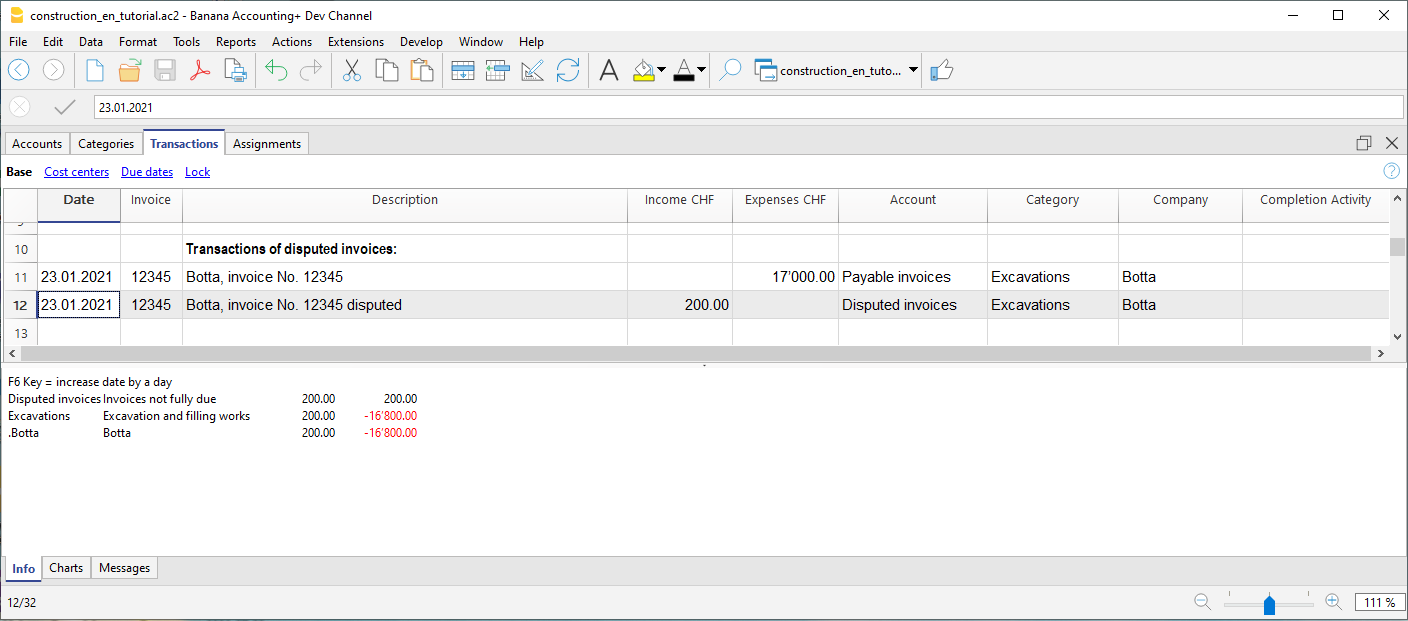
Disputed works
Records as if it were a payment, but using the account, disputed invoices.
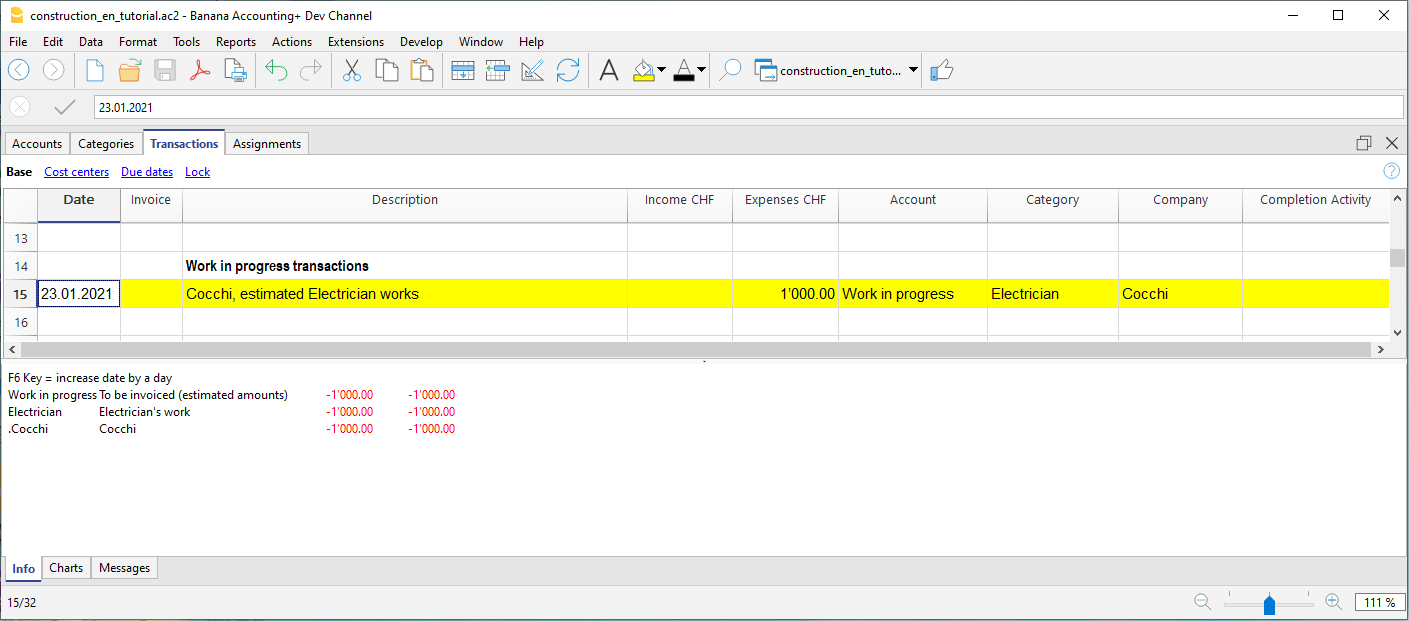
Work in progress
You can enter registrations, similar to payments, but indicating the work in progress account. The amount will be estimated by the construction management. In this way, you can have a progression of the works. You can also color these rows with a particular color, so that you can easily distinguish them from the others.
When the invoices arrive, you will need to replace the invoice.
Income and financial transactions
In the transactions table you can also enter income such as subsidies or other financial transactions, capital payment or construction account consolidation.
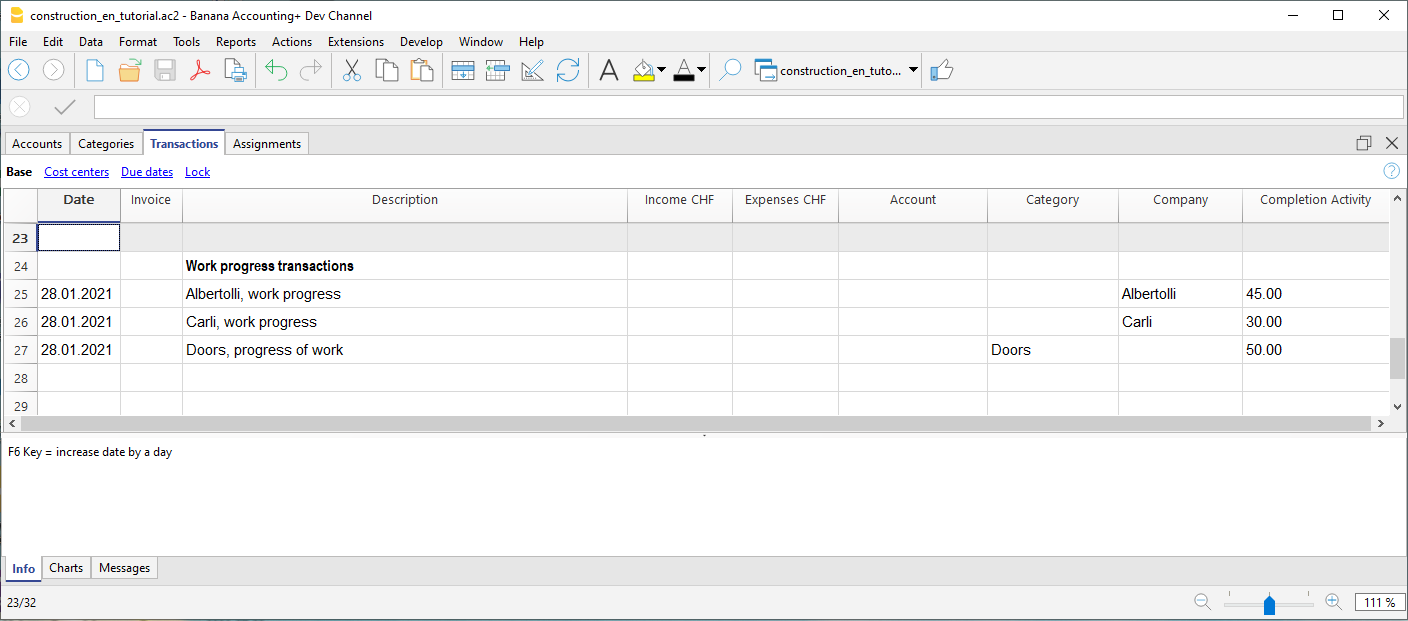
Percentage of work progress
Use the transactions table also to record manually the percentage of work progress. Define if the transaction is related to a company or a category, and the percentage. In the report you can evaluate the progress with the costs incurred.
Reports by Categories and Companies
Heading
The extension takes the following information that you have defined in the file properties:
- Header left: Indicates for example the area, or the city with the mapping where the work will be performed.
- Header right: Indicates the project title.
- Opening/Closing Date: Indicates when the project started or when it will be concluded.
Dialog
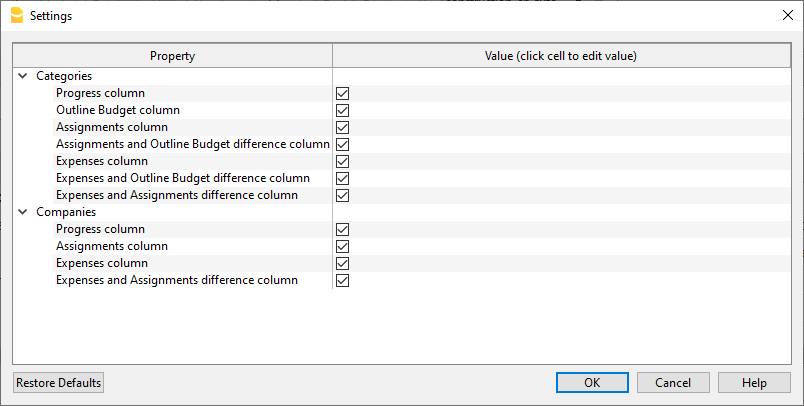
When the extension is launched, a dialog window appears in which you can define the columns you want to display. For example, you can initially decide to show in the report only the columns of the estimate budget and the assignments , and then add the columns of the expenses later.
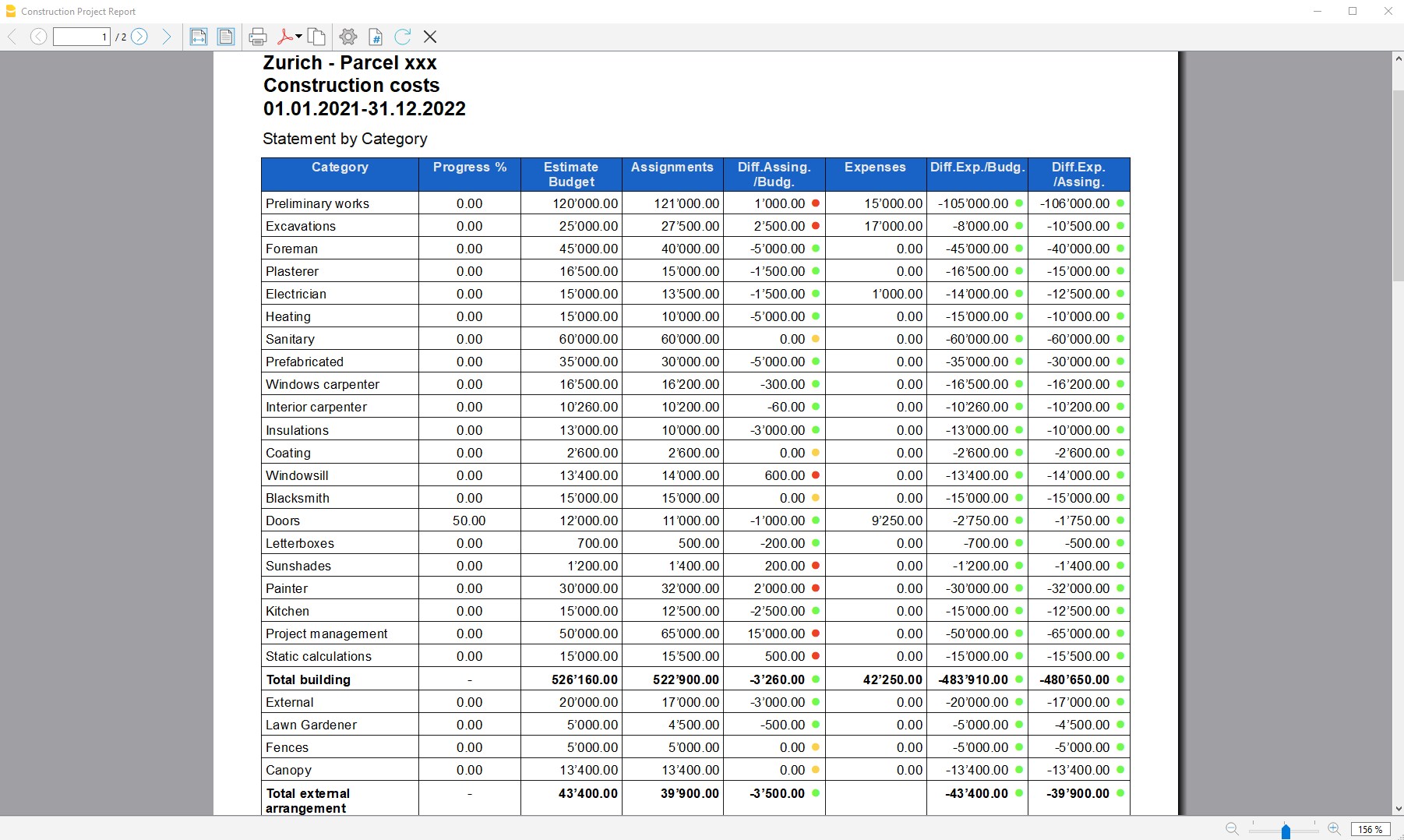
Report by Category
Inside the first table, the report shows the expenses divided by cost category, all the categories you have defined in the Categories table are included.
The columns you can view are as follows:
- Category: Name of the category, taken directly from the Categories table.
- Progress %: Resumes the last recorded work completion percentage, attributed to a specific category.
- Estimate Budget: This is the amount defined in the Estimate Budget column in the categories table.
- Assignments : Assignments are defined in the "Budget" table.
- Diff. Assign./Budg.: It is the difference between the assigned amounts and the budget, if the assigned amounts are less than the budget, it means that the costs will be lower than initially estimated budget, in this case a green icon is shown, if the assign is greater than the budget instead, then the icon appears red, if the amount is equal it remains yellow.
- Expenses: They are the actual expenses recorded in the transactions table.
- Diff. Exp./Budg.: This is the difference between the actual expenses and the estimate budget; if the estimate budget is greater than the expenses, then a green icon is shown because the actual expenses were less than the budgeted amount for that work. If the amounts are equal, then the icon remains yellow.
- Diff. Exp./Assign.: This is the difference between the actual expenses and the assigned amounts, if the assignments are greater than the expenses, then a green icon is shown as the actual expenses were less than the assigned amount for that work. If the amounts are equal, then the icon remains yellow.
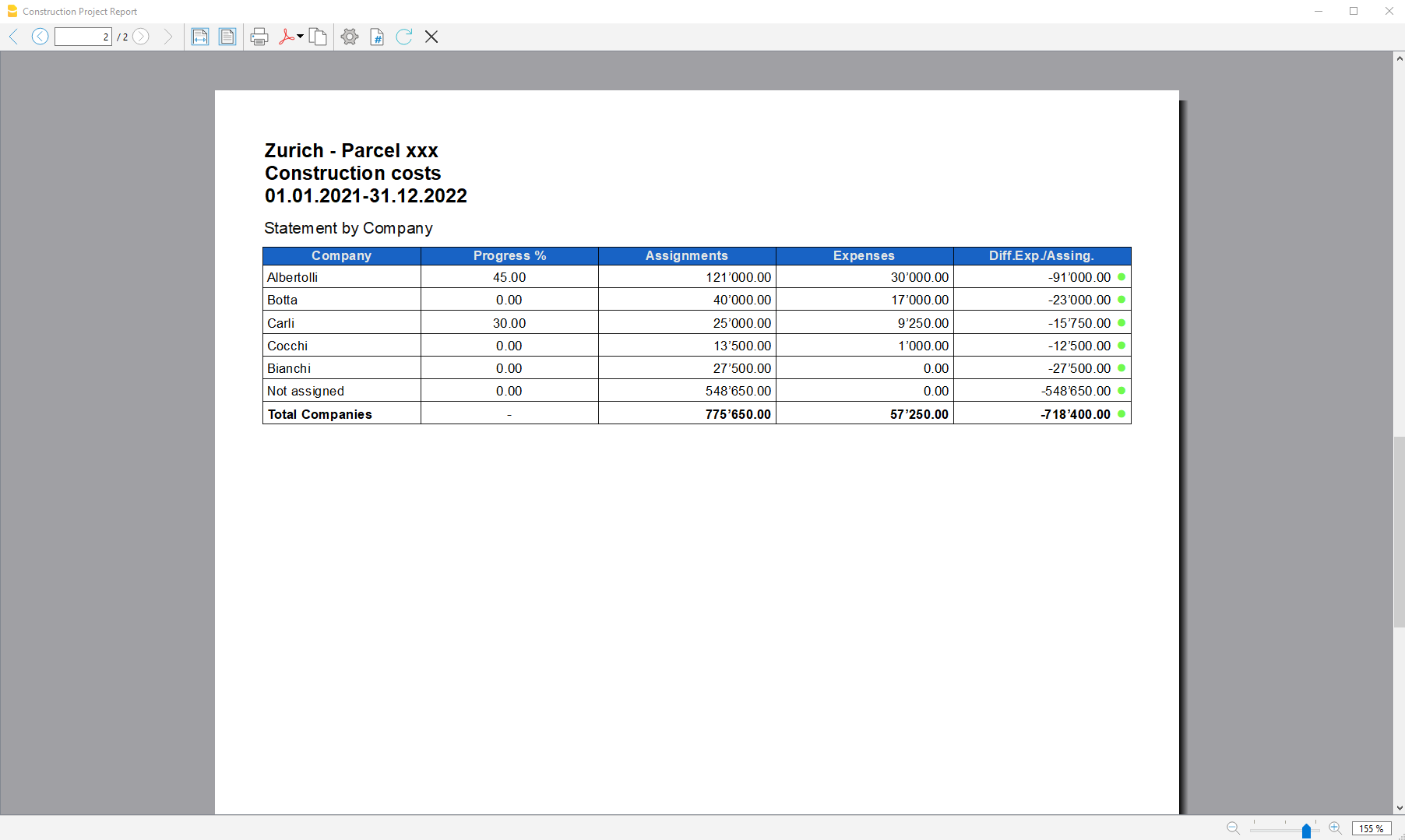
Report by Company
The second table shows the expenses divided by company, the companies are defined in the Accounts table.
The columns you can view are as follows:
- Company: Company name, taken from the account table.
- Progress %: Resumes the last recorded work completion percentage, attributed to a specific company.
- Assignments : The assignments are defined in the "Budget" table, make sure you have assigned a company to the assignments , otherwise no amount will be displayed (see template).
- Expenses: These are the actual expenses recorded in the transactions table.
- Diff. Exp./Del.: This is the difference between the actual expenses and the assigned amounts for each company, if the assignments are greater than the expenses, then a green icon is shown as the actual expenses were less than the assigned amount for that work. If the amounts are equal, then the icon remains yellow.