Manage Extensions
This dialog window allows you to install, modify settings and uninstall Banana Extensions.
Install an Extension in order to be able to use it.
Installing a new Extension
To install an Extention, proceed as follows:
- Choose the 'language' and 'country'
- From the left menu, select Online
- Select the Extension type (e.g. productivity)
- Look for the desired Extension among those listed; or in the Search box, type the name of the Extension you want
- Click on the Install button
- Click on the Close button
Below are the available Extensions :
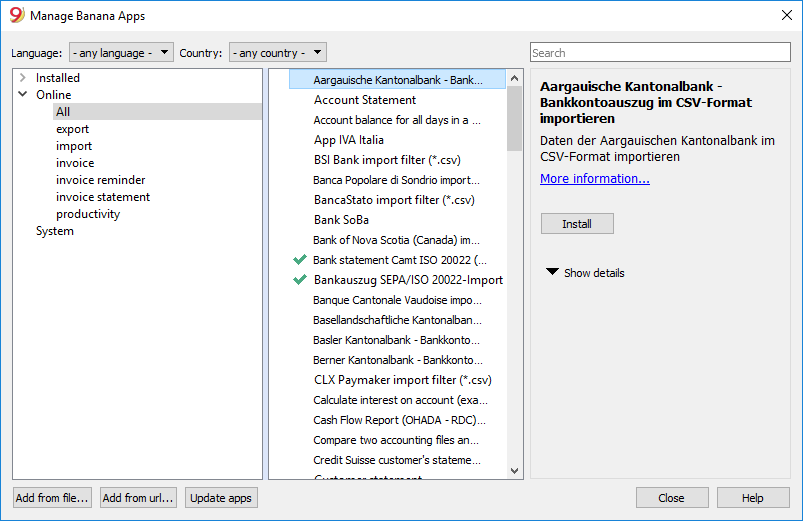
The installed Apps will be visible in the Extensions menu.
List of Extensions
This list shows the installed Banana Extensions and those available for installation.
- The check sign will indicate that the App is installed.
- The App denomination
- Information on the Banana Extension.
- Description
- Link for main information, will open the relative internet page
- Last update
Banana Extension date and hour
Local Banana Extension date and hour (as per imported file) - Category
Typology of the Banana Extension - Nation
Nation where Extension can be used. International will indicate that Extension can be used in several nations - Install button
Download Banana Extension for local use
- Information on installed Extensions
- The ">" symbol preceding a packet will designate a Banana Extensions packet, that contains several commands.
- Enable
If the enabled box is not checked, the Extension will not figure in the menu. For a packet, single commands may me deactivated. - Automatic update.
When a new version is made available, it will download automatically. - Required properties.
For an Extension to function properly, the Extension properties must be set up in the File and accounting properties (from the File menu - Other tab). - "Apply properties" button
Will apply new properties for your file - "Execute" button
Will execute the specific command.
This button will only highlight if the App is applicable in the context of your current file.
For example, a multi-currency function will only be applicable if the file has been created as a multi-currency accounting file. - "Settings" button
Certain Extensions allow you to set the settings for execution of your task. They will be related to your currently open file. If you use the same App with another file you must redefine the settings.
In the invoice reports, for instance, we indicate the elements necessary for printing. - "Uninstall"button
Will uninstall the App or the packet.
Search Extensions
Extensions are listed according to the following selection criteria:
- Language
- Nation
- Text
- Installed
Displays locally installed Apps. - Online
List of online available Apps. - System.
List of preinstalled Apps. You may enable or disable via the check box.
Help (bottom button)
It links to this page.
Add from file
Let's you add a Banana Apps from a local file. Indicated especially for development of new Apps..
- The file needs to always remain in the same directory.
- If the App is modified, the program will always use the last version.
Add fro URL
Allows you to install Apps present in the list of Apps available on the www.banana.ch website.
Update Extensions
Downloads the filter's most recent version from Banana Accounting's server.
The downloaded Extension should not be modified because they will be overwritten when updated.
If there are new Extensions , they will be added to the list. The imported filters will not be modified.
The Extensions will be installed in the user folder. Thus only the user who imported the new Extensions or updated the available ones will see them. To install Extensions for all users or at a system level, a manual procedure for installing the Extensions would need to be followed.
Erweiterungseinstellungen
Bei einigen Erweiterungen können Sie Einstellungen festlegen, die von der Erweiterung verwendet werden.
- Die Einstellungen können mit dem Dialog eingerichtet und geändert werden.
- Beim Start werden die Einstellungen mit den Standardwerten eingegeben.
- Die Parameter beziehen sich auf die Buchhaltungsdatei.
- Ein Erweiterungspaket kann mehrere Erweiterungen enthalten, weshalb es mehr Parameter pro Paket geben kann.
Einstellungendialog 'Erweiterungen'
Der Inhalt des Dialogs ist für jede Erweiterung unterschiedlich.
In der folgenden Abbildung wird das UNI10-Rechnungslayouts dargestellt.
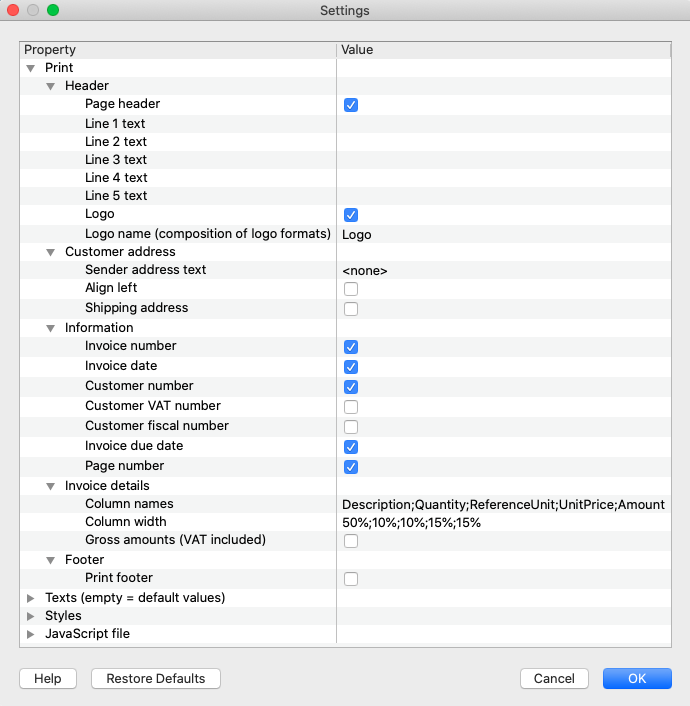
Wert-Eingabebereich
Der Einstellungsdialog ist als Elemente strukturiert, die jeweils Unterelemente enthalten:
- Spalte Eigenschaften.
- Hier sind die Optionen aufgeführt, mit denen Sie die verschiedenen Einstellungen in der Spalte Wert ändern können.
- Spalte Wert.
- Für jede Option gibt es einen zugehörigen Wert in der Spalte Wert. Durch Anklicken können Sie einen Wert eingeben, einen vordefinierten ändern oder einen bestehenden löschen.
Schaltflächen
Am Ende des Dialogs befinden sich die folgenden Schaltflächen:
- Hilfe.
- Die Hilfe-Schaltfläche verweist auf die Dokumentationsseite der von Ihnen verwendeten Erweiterung.
- Voreinstellungen.
- Durch Klicken auf diese Schaltfläche werden alle Standardwerte der Spalte 'Wert' wiederhergestellt.
- Abbrechen.
- Bricht den Dialog ab und schliesst ihn, ohne Änderungen vorzunehmen.
- OK.
- Bestätigt und speichert die eingegebenen Einstellungen.
Wurden diese versehentlich gespeichert, kann man durch Anklicken des Befehls Abbrechen zur vorherigen Situation zurückkehren.
- Bestätigt und speichert die eingegebenen Einstellungen.
Begeben Sie sich in den Einstellungendialog
Sie können auf folgende Weise auf die Dialog-Einstellungen zugreifen:
- Aus Menü Erweiterungen → Erweiterungen verwalten rechts auf die Schaltfläche Einstellungen klicken.
- Über die Schaltfläche Einstellungen in der Druckvorschau des von der Erweiterung generierten Berichts.
- Für Rechnungen über das Menü Buch2 → Kunden → Rechnungen ausdrucken, Bereich Layout, Schaltfläche Einstellungen.