Add and remove accounting functionalities
Adds functionalities to your file. Also see Add new functionalites.
Add upper and lower case in account numbers and codes
The program normally converts account numbers to Uppercase.
When Uppercase/Lowercase is enabled, account numbers are not converted to Uppercase. Accounts in Uppercase/Lowercase are useful when the account number also serves as a description.
When entering account numbers in the Transactions table, the program will revert toUpper or Lowercase, as specified in the Chart of Accounts.
Using this option will require you to pay attention to case sensitivity, as the the "Cash" account, with first letter in Uppercase, will be different to "cash" account in Lowercase.
Add Items table
Revert to information available on Items table page.
Add Items columns in the Transactions table
Revert to information available on Items columns in Transactions table page.
Add Address columns in the Accounts table
For accounting files.
This function adds the columns that allow the insertion of client addresses, suppliers, members or others.
To add this function, proceed as follows:
- Click on Tools in the menu.
- Select the Add new functionalities ... command.
- Select Add Items Columns in Accounts table (If the options does not display in the list, it means it has already been activated).
The following will be added in the Accounts table:
- Address view where added columns will be displayed.
- The columns that allow you to enter address data and other information.
- In order to display one or several columns, also in other views, use the Columns setup ... command in the Data menu.
- In order to create different views, with specific columns, use the Tables setup command in the Data menu.
Add and remove the Budget table
This function enables the use of the Budget function, by adding the Budget tab to the Transactions table, where transactions relating to financial planning can be registered.
For more information see Budget table.
Modify the VAT amount type in the Transactions table
For accounting files with VAT.
This function enables the modification of the Amount type column (VAT Amount type) in the Transactions table.
The column allows you to enter one of the following VAT amount types, where applicable:
0 (empty cell), inclusive of VAT
1 = VAT excluded, exclusive of VAT
2 = VAT amount, the registration amount is considered to be 100%.
For each registration, the program automatically enters the default data in the VAT Code table in the Amount Type column (relative to each code). If, occasionally, the Amount type changes for a VAT code, you may enter 1 or 2 manually.
Note
There are incompatibilities of VAT data with previous versions when using this feature, as that did not have this functionality.
Items table
To speed up the creation of invoices, you can use the Items table, where you can insert recurring products or services.
When creating the invoice, simply press the F2 key in the Items column and select the product from the list; the registration will be completed with the data taken from the Items table.
To use the Items table you will need to:
- Add the Items table.
- Add the Items columns in the Transactions table.
- Display the Items column in the Transactions table (Data menu> Columns setup ...)
Add Items table
Use the Tools -> Add new functionalities -> Add Items table.
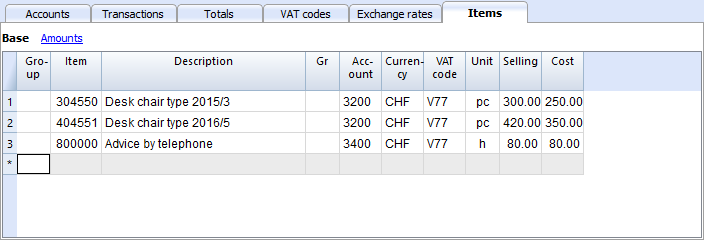
In the Items table you may enter items, products and others. It may also be used as an inventory control, to some extent.
- Group: Generates the totals.
- Item: Item code.
- Description: Item description.
- Gr: Group for allocation of total.
- Account: account used in Transactions table.
- Currency: Currency to be used (for multi-currency accounting only).
- CVATCode: VAT code to be used (for VAT accounting only).
- Unit: abbreviation allocated to the type used.
- Selling: Unit sale price.
- Cost: Unit cost.
- Begin Qt.: initial quantity amount.
- Price Begin: initial price of unit.
- Value Begin: initial quantity times Price Begin.
- Current Qt.: current quantity, calculated by program, taking into account Begin Qt. and registrations of Item in Transactions table. The Quantity column of the Transactions table is being used.
- Price current: current Price of Item.
- Current value: current quantity multiplied by current price.
Items columns in the Transactions table
The Items columns in the Transactions table are used to enter quantity and price.
The amount of the transactions is calculated on the base of quantity and the applicable price.
Add the Items columns in the Transactions table
Use the Tools menu-> Add new functionalities ... command -> Add Items Columns in Transaction table, to insert columns to be added to the table (refer to Transactions page for further information).
- Item
Item listed in Items table.
The program's preset will not display the Items column in the Transactions table. You will have to activate it via the Data > Columns setup ... , checking the ItemsID box in order to use this function. - Quantity
May be a positive or negative value. - Unit
- Unit/PriceMay be a positive or negative value.
Add Transactions
- When a quantity and a unit price are entered, the amount will be calculated automatically.
- A negative amount may be entered to account for items leaving the warehouse.

Link to the Items table
If there is an Items table when you enter a registration with the Item and the quantity, the current quantity of the respective row in the Items table is updated.
Refer to the Items table page.