Program options
In the Program options window, several technical options are possible for the accounting file.
In the following pages you will find more detailed information.
Interface
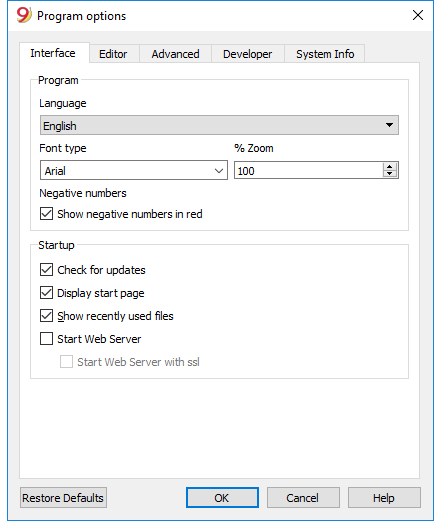
Program
Language
The Program Language is the language used by the program. Use this drop-down menu to select a language if the user wants to use a language different from the default or if the default is not available.
Font type
This drop-down menu allows the user to select the desired font.
%Zoom
If the user wants the data on the table to be shown in another size, adjust the percentage of Zoom here.
Show negative numbers in red
The negative numbers and amounts will be shown in red in the tables.
Startup
Check for updates
This option establishes a connection to the Banana.ch SA website and checks if there is an update compared to the version that is used.
Display start page
The news start page is shown.
Show recently used files
In the File menu, all the most recently used files are listed.
Start Web server
Makes it possible to access Banana Accounting data through external programs.
Editor
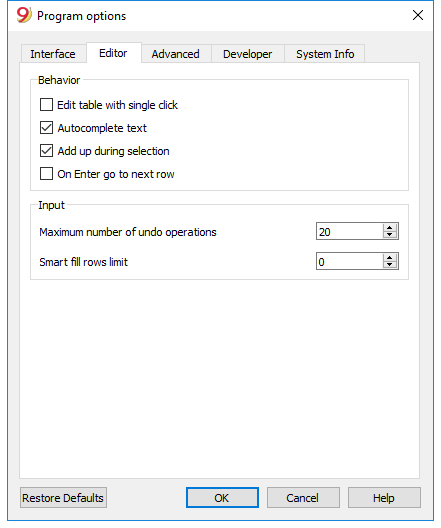
Behavior
Edit table with single click
By activating this option, a single click on the selected cell is sufficient to enter in the modification mode. If the function is not activated, you have to double-click on the cell in order to enter in the modification mode.
Autocomplete text (Smart fill)
By activating this option, the program automatically selects the first draft text in the drop down list and automatically fills it in the row where you are.
Add up during selection
By activating this option, the program will add up the selected amounts. Deactivate this function if this instantaneous addition slows certain operations down. One can select non-adjacent amounts by holding down the Ctrl key while selecting individual cells with the left mouse button.
On Enter go to the next row
By activating this option, the cursor will place itself on the next row when pressing the Enter key.
Input
Maximum number of undo operations
Insert the maximum number of undo operations (one at a time) when using the Undo command from the Edit menu.
Smart fill rows limit
When inserting data, the program reads the data that has already been entered and tries to suggest how to complete an entry. In cases where there are many rows, this function could slow down the process.
The user can define a limit for the number of rows, above which the smart fill will not be used. If there is no value entered or zero, smart fill will always be used.
Advanced
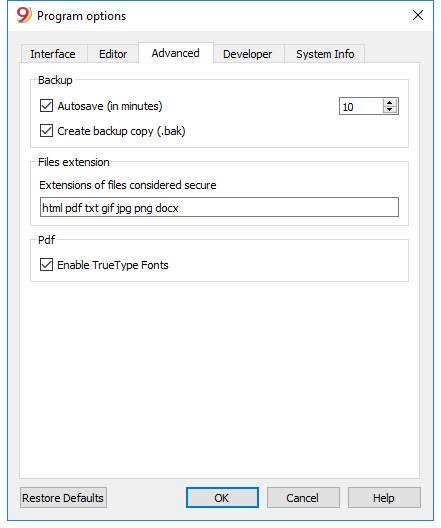
Backup
Autosave (in minutes)
This option allows saving the file automatically according to the desired frequency (in minutes). The program saves the data in a file called auto backup + file name. If the program or the computer crashes, the data can be recuperated by opening this file and saving it with a name (Save as...) from the File menu.
Create backup copy (.bak)
When the user saves to disk using the same name, the version of the file that already existed is renamed with a .BAK extension.
Files extension
Extensions of files considered secure
This option defines the file types (ex.: "pfd", "jpg", ...) or the url schemes (es.: "http:", "x-devonthink-item:", ...) that the software consents to open with a double click on the DocLink column of the Transactions table. This prevents from opening non-secure files by the program. Extensions should be inserted without the initial point '.', while the schemes must be inserted with a final double dot ':'.
Enable TrueType fonts
If this option is enabled, the font selected in the Interface tab is used when printing PDF files, otherwise a native PDF file type (Helvetica or Times New Roman) is used. This option must be disabled if in the generated PDF files the texts are unreadable.
Restore Defaults
If some settings have been altered, by using this button, the default settings will be restored.
Developer
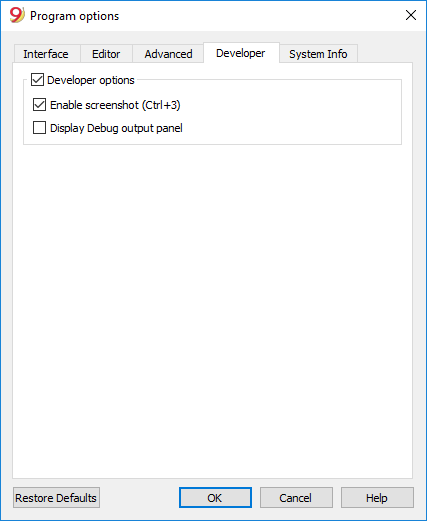
Developer options
This tab includes useful options fors cripts, apps and http pages developers for Banana Accounting.
Enable Screenshots (Ctrl+3)
If this option is activated, with the key combination Ctrl + 3 it will be possible to save screenshots of the program tables and dialog windows.
For more information please also check the Taking screenshots page.
Display Debug output panel
If this option is activated a 'Debug output' panel is shown on the bottom of the main window. In this panel all debug messages are shown to the user. Debug messages allow to check that the program is working properly during scripts or add-ons execution or during web server calls. This option is meant for scripts, add-ons or http sheets developers. For further documentation see the page Debugging.
Taking screenshots
This feature is available by using the key Ctrl+3. Facilitates the capture and saving of a program image.
In order to use this feature you need to activate it via the Tools menu -> Program options -> Develper tab -> Enable schrrenshot (Ctrl + 3)
It is useful for preparing documentation, as it only captures the part of the program windows that you are interested in.
Capturing the image
When capturing an image we advise you to use a 90% zoom, so more data will fit in the image but you still get readable texts.
- Capture all
It creates an image of the full Banana window. - Capture table and info window
It only captures the table and the info window below the table (without menus, toolbar and status bar). - Capture table
It only capture the table - Capture columns
It only captures the table, and only up to the maximum columns width (it doesn't include the white spaces).
Resize window (pixel)
It resizes the program window to a pre-defined size, so if you take multiple shots you always have the same size.
Hide / Show window's compontents
It allows you to see more table rows, by hiding the toolbar, the info window and the status bar.
Windows - How to remove the dialog windows shadow
Windows 8 e 10 "enhance" their dialog windows by adding a shadow to them. When capturing the window image you therefore also see the background.
In order to avoid this you can proceed as follows:
- From the Windows search box type Sysdm.cpl
- Go to the Advanced section
- Visual effects Settings
- Uncheck the option Show shadow
System Info
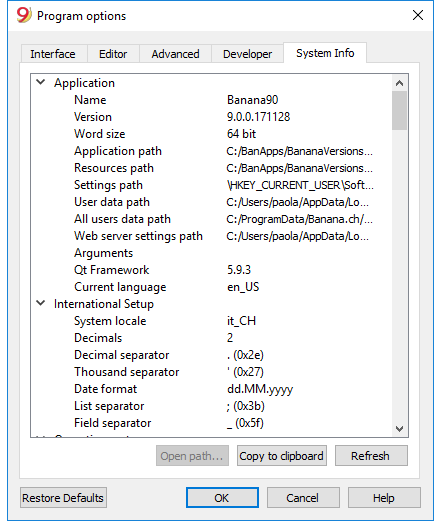
The System Info card displays information on the Operating System and the work environment. Our technical support might ask for this information. In this case, click on the "Copy to Clipboard" button and paste the data in the e-mail or the contact form.