File properties
When a new file is created, the basic data need to be entered in the File menu, using the File and accounting properties command.
The file properties can vary depending on the chosen accounting type.
For the explanations of the different tabs please visit the pages hereunder.
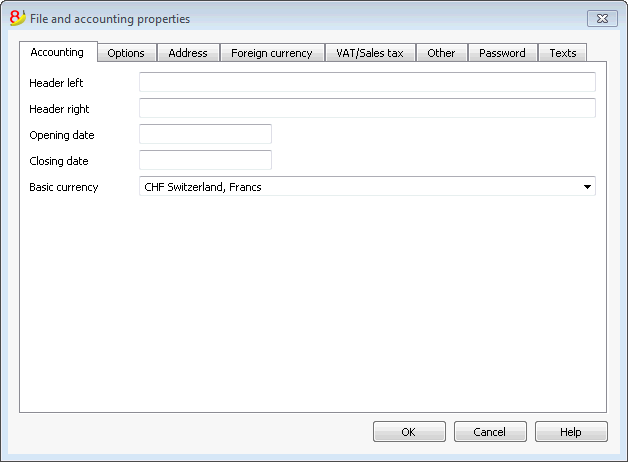
Accounting Tab
Left and right headers
These are the two empty cells at the top where any desired text can be inserted which will be used as a header for print-outs (left and right).
Opening date
The opening date is the date when the accounting begins. It can also be left blank. If a date prior to the opening date is inserted when entries are made, the program will give an error message.
Closing date
This is the closing date of the accounting. It can also be left blank. If a date greater than the closing date is inserted when entries are made, the program will give an error message.
Basic currency
The code of the currency in which the accounting is being handled. You can enter any currency code, even the one that are not in the list. When the code of the basic currency is being changed, the program changes the column headers for the amounts in basic currency using the new code.
In the multicurrency accounting files it is mandatory to select the basic currency, which will work as the funcional currency, the one used for the calculation of the Balance sheet and Profit & Loss statement.
Changing the basic currency symbol
If you change the basic currency symbol the program will not change the existing amounts. We advise you to change your basic currency symbol only if you don't have yet entered any opening balances and any transactions.
Accounting file WITHOUT foreign currencies
You can replace the basic currency symbol with the new symbol.
Accounting file WITH foreign currencies
- Replace the currency symbol in the File properties dialog (from the File menu)
- in the Accounts table
- Select the whole Currency column (click on the column's header)
- Use the Find and replace command from the Data menu and enter the old and the new currency symbol - make sure to check the Selected area only option. Replace all the symbols found.
- in the Exchange rates table
Enter the new exchange rates for all the currencies. - Give the Check accounting command from the Account1 menu.
- If there are opening balances or transactions, the amounts and the exchange rates will have to be manually updated.
Options Tab
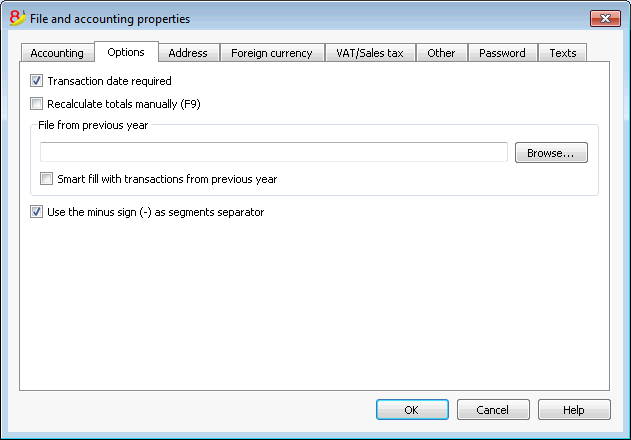
Transaction date required
If this option is activated and then a transaction is entered without a date, there will be an error message.
Recalculate totals manually (F9)
If this option is activated, the program will not automatically recalculate the principal groups of the accounting file, but the user needs to use the F9 key.
File from previous year
By using the Browse button, the user can select a file from the previous year.
Smart fill with transactions from previous year
If this cell is checked, the program keeps the transactions from the previous year in memory, and offers them as Smart Fill while the user inputs new entries.
Use the minus sign (-) as segments separator
When this option is activated, the segments have to be entered in the Transactions table with the minus (-) sign preceding the segment code. When this option is deactivated, the segments need to be entered with the colon sign (:), as in the chart of accounts. The colon needs to always preced the segment code.
Records (+/-) cost centers according to the category
This function is active only for Simple accounting and Cash book. By activating this box, the amount is entered in the cost center (positive or negative) according to the category.
If, instead, this option is not active, in order to enter a negative value, it is necessary to enter a minus sign before the cost center (-CC).
Related document: Text imput, edit and Smart fill
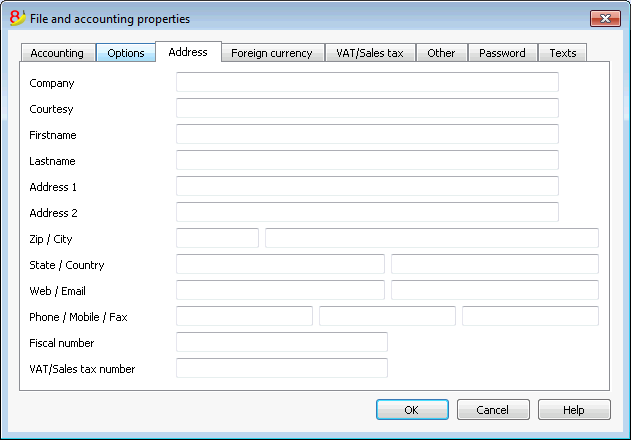
Address Tab
In this tab data about the company or the individual whose accounting is being handled can be entered.
Foreign currency
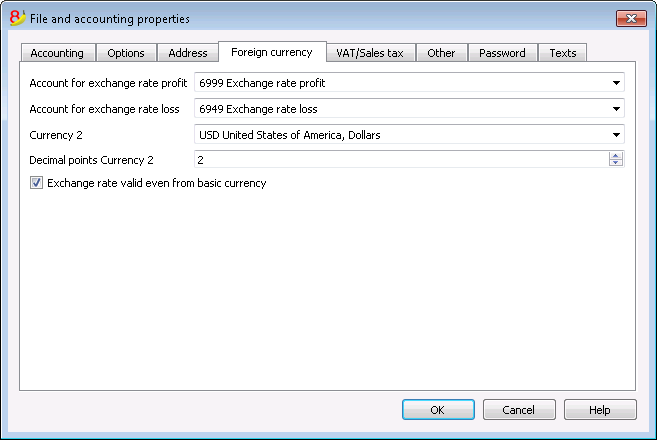
For the explanations of the different tabs please visit the corresponding page Starting a multi-currency accounting.
VAT/Sales tax
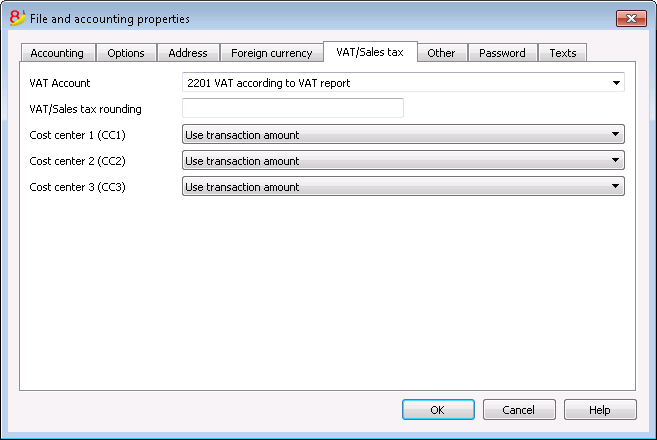
For the explanations of the different tabs please visit the corresponding page File properties (VAT/Sales tax tab).
Other Tab
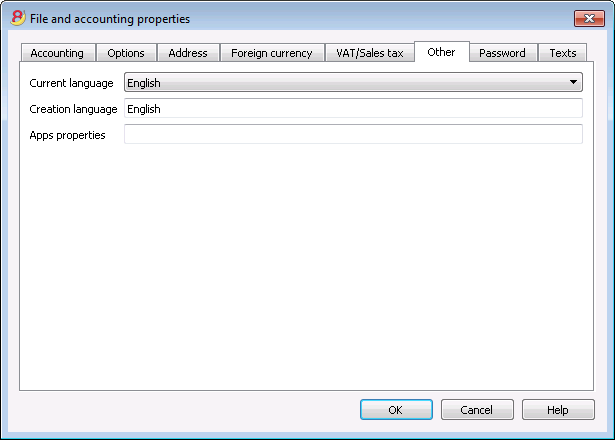
Current language
There are some file texts that the program generates automatically, (e.g. the lines of the Totals table, the transactions on the account card, and the printout of the Enhanced balance sheet); in this tab, the user can indicate the language for these texts (usually the same as the creation language).
Creation language
This is the language chosen and selected when the user creates an accounting file; this language is used for the column headers. If the user wants to change the creation language, then it is necessary to convert the file to a new one using the Convert to new file command in the Tools menu.
Apps properties
List of the activated properties in the Manage Apps dialog. In order to remove an App, delete the corresponding property.
Password Tab
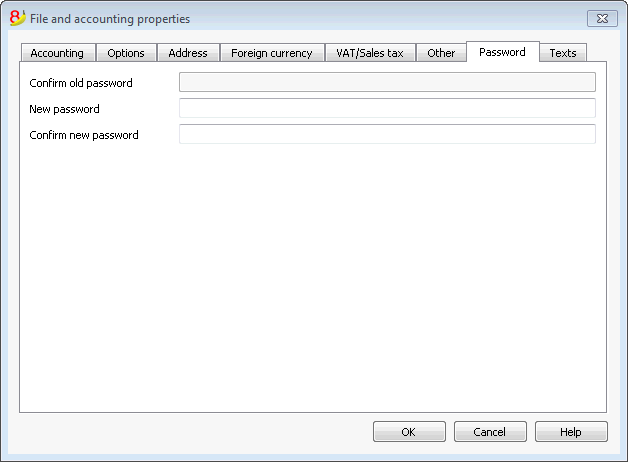
The files can be protected by using a password.
Entering a password in a file that doesn't have a password
- The box Confirm old password is shown in gray.
- Indicate your new password twice (New password and Confirm new password).
- Confirm with OK.
Changing an existing password
- Enter the existing password.
- Indicate your new password twice.
- Confirm with OK.
How to cancel a password
- Enter the existing password.
- Leave the boxes for the new password empty.
- Confirm with OK.
Note
Using a password does not give a high level of protection. In order to render the data truly inaccessible to third parties, it is necessary to have the appropriate cryptographic software.
Text Tab
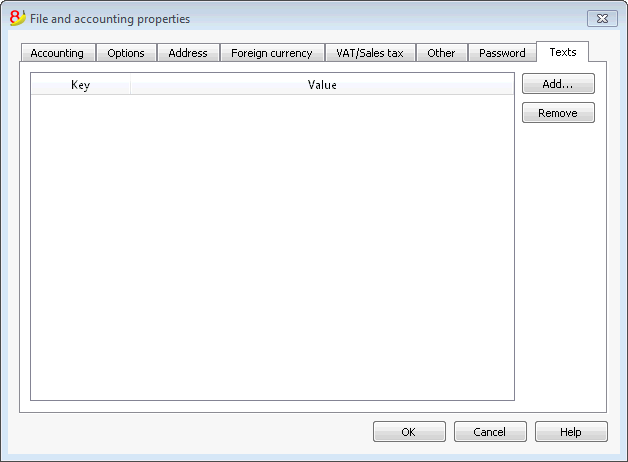
In this tab it is possible to enter different keys in order to save extra information, such as the accountant name, for example.
Key
In this field, input the reference text (e.g.: Address).
Value
In this field, it is necessary to input the value related to the key (e.g.: Ocean Avenue, ...).
Add
This button saves the new entered data.
Remove
This button removes the selected Key.