收益 & 费用核算
介绍
收益 & 费用核算允许用户保留专业会计,在账户上显示收入和费用。在这种类型的会计中,可以使用与复式记账相同的工具; 即使没有使用复式记账的方式,您也可以获得完整及专业的报表。
收益 & 费用核算是为小公司,协会,个体户或者项目而量身定做的记账方式。 其可包含增值税,也可不包含增值税,但是没有多汇率的功能。
其包括:
- 收益 & 费用核算账户 - 允许用户管理几个账户的收入和支出。
- 现金日记账 - 用于跟踪单一账户的收入和支出 (现金,银行账户,客户,供应商,等等。)
主要表格
账户
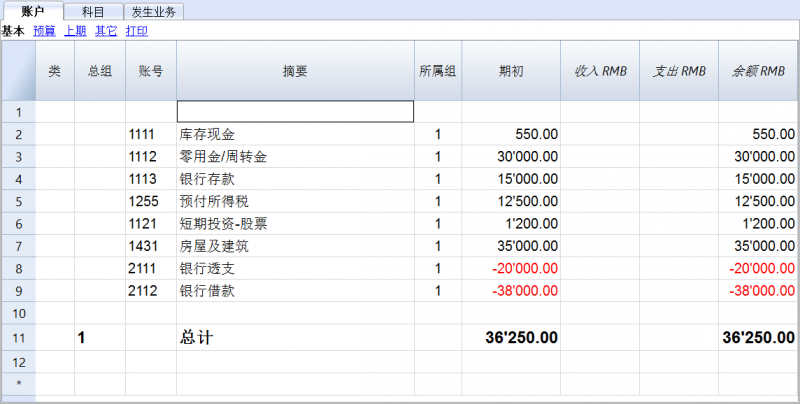
固定资产账户被输入在账户表格中。只有一个单一账户被输入在现金日记账中 (现金,银行账户,邮政账户 ...)。相反,在收益 & 费用核算会计文件中,几个账户会被输入在账户表格中 (现金,客户,供应商...)。在收益 & 费用核算会计文件中,负债账户的初期余额前面要输入负号 (负)。
科目
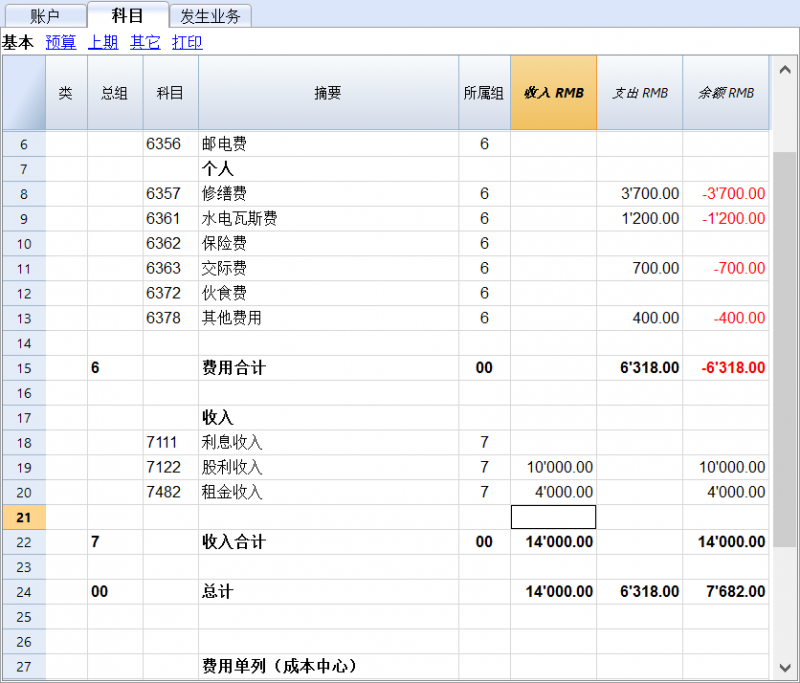
收益和费用科目被输入在科目表格中的两大组中。有的时候它们可能会有分组。科目共同决定了记账年份的收益或损失。
与复式记账相似的主题
命令
打印
开始
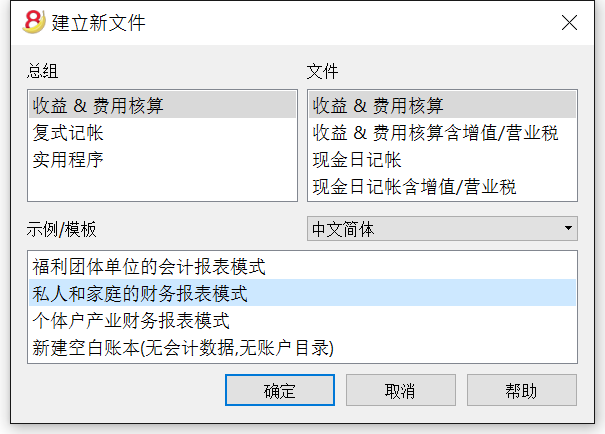
从文件菜单中选择新建的命令,然后再选择收益 & 费用核算会计记账。
在收益 & 费用核算会计记账中您可以选择包含或不包含增值/营业税的文件。
我们建议您选择一个已经存在的示例,然后进行个性化编辑。
现金日记账和收益 & 费用核算记账有着下列相同的表格: 账户,科目,发生业务以及可能的增值/营业税表格。两者的不同特点如下:
- 在现金日记账的账户表格中,您可以插入一个单一的账户
- 在收益 & 费用核算记账的账户表格中,插入所有的地产账户是可能的 (资产和负债)
- 在现金日记账的发生业务表格中,有余额列来一行一行的显示账户余额
- 在收益 & 费用核算记账的发生业务表格中没有余额列,由于发生业务涉及几个账户。余额被显示在账户和科目表内。
下列图片指示出收益 & 费用核算记账。
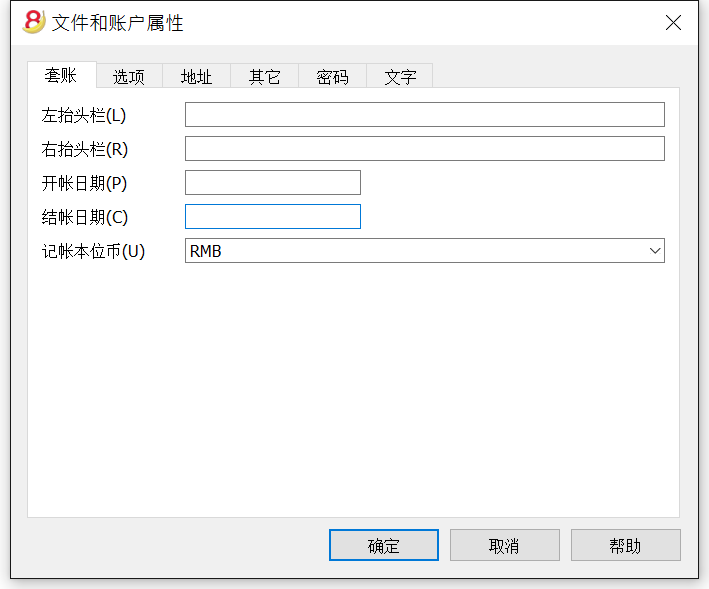
从文件菜单中的文件和账户属性的窗口中输入基本的数据。
在账户表格中的初期列中输入余额。请您注意,对于负债账户 (例如债务),在初期余额的金额前面应该有负号 (-),您可以使用F6键进行正负额的转换。此项操作只需在第一次使用 Banana财务会计软件的时候被执行;在第一次使用之后,在每年末,当创建新一年的时候 (任务(2) 菜单, 建立新账的命令) 初期余额将会自动的被转移。
在科目表中,安排收入 (盈利/收入) 和支出 (费用/成本) 的科目,为每项指定一个代码,一个摘要以及一个所属的组。
在年初科目没有任何的初期余额。
在发生业务表内输入日常的收入与支出,并且指示出相关账户和科目的代码。
Accounts
Estate accounts are entered in the Accounts table. Only one account is entered in the cash register (cash, bank, postal account ...); In Income/Expense accounting more accounts are entered (cash, customers, suppliers ...) and the accounts that refer to existing debt must have the opening amount with preceded by the minus sign (-).
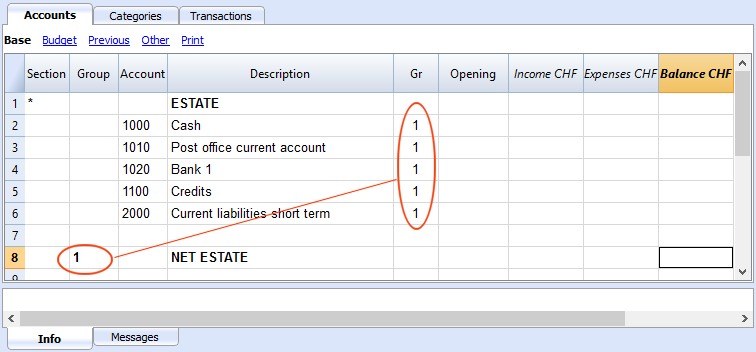
The columns of the Accounts table:
Section
Enter an asterisk to signal a section change. For example, to distinguish Total Assets from Cost Centers.
Values must be entered in the Sections table for presenting the enhanced Statement with groups.
Refer to the Sections page for further details and information.
Group
Values are added up for the categories that have the same GR. They are fundamental for totalization.
Account
Enter the number or initials of the account to be managed (cash, bank, post).
Description
Enter a description for the relative account.
Gr
Enter a value that identifies the category belonging to a specific group.
Opening
Entering an account balance is only necessary if a new file is opened or Banana Accounting 8 software is used for the first time. When creating a new accounting year, balances will be generated automatically.
Income
This locked column displays the balance of incoming entries. The balance will be updated automatically after each registration.
Expenses
This locked column displays the balance of expenses. The balance will be updated automatically after each registration.
Balance
This locked column displays the balance resulting after income and expenses. The balance will be updated automatically after each registration.
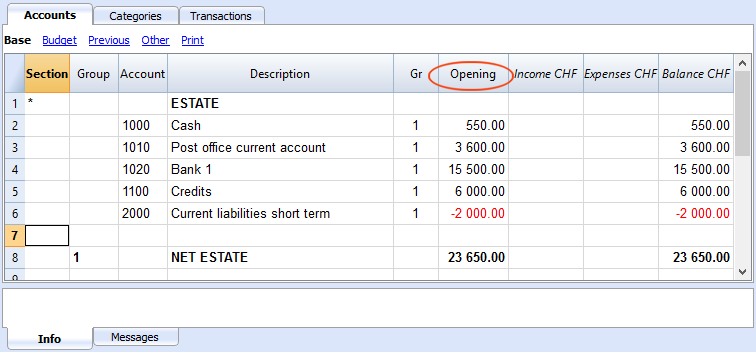
Opening balance
The first time Banana Accounting 8 software is used and new file is created, opening an account balances must be entered manually in the Accounts table Opening column.
Balances for Liabilites accounts must be entered preceeded by a minus (-) sign.
When creating a new accounting year, balances for the new year will be generated automatically.
Categories
The headings for Income and Expenses are entered in the Categories table via two principal groupings, which may - in their turn - contain subgroups. The set of categories will determine the profit or loss for the accounting period.
Groupings:
In the example below, there are three principal groupings:
- Group 3 - Total for Categories that have 3 in their Gr column (total Income)
- Group 4 - Total for Categories that have 4 in their Gr column (total Expenses)
- Group 00 - Total for groups 3 and 4 (Total Income and Expenses), which will determine the result for the accounting period.
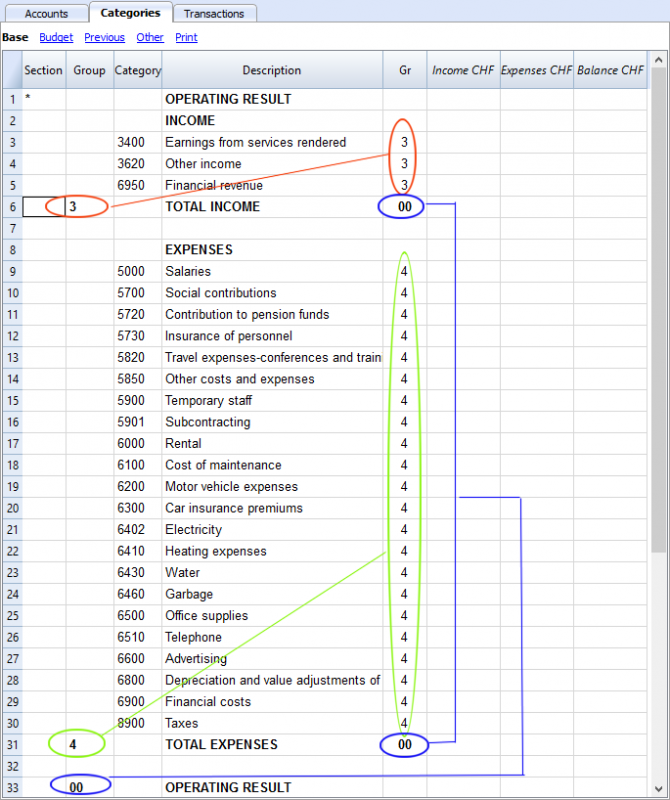
The columns of the Categories table:
Section
Enter an asterisk in the row that contains the title, to signal a section change, that will be displayed in the enhanced Statement with groups.
(the asterisk is inserted in the "Operating Result" title row in our example).
If different sections than Income and Expense are planned, such as Cost and Profit centers, another asterisk may be entered on the respective title row. Refer to the Sections page for further details and information.
Group
Enter an identifier (numerical or sign) identical to the one entered for each category in the GR column. The totals for each category belonging to the same GR will then be added up (in our example, Group 3 totals the Income Category and group 4 the Expenses category)
Description
Enter a description for the relative Income or Expense Category.
GR
Each Category has an identifier that allows the establishment of the totals for the relevant Group (in our example all categories of Income are GR3, because they will be total in Group 3, Total Income.
Income
This locked column displays the balance of incoming entries. The balance will be updated automatically after each registration.
Expenses
This locked column displays the balance of expenses. The balance will be updated automatically after each registration.
Balance
This locked column displays the balance resulting after income and expenses. The balance will be updated automatically after each registration.
发生业务
在发生业务表中输入发生业务。
对于每项发生业务,请您输入日期,文件编码, 摘要,收入和支出的金额,以及科目。
收入/支出: 进入或支出的金额。
账户: 输入其中之一的账户 (现金,银行,邮局,客户,供应商...)。
科目: 输入一个收入或支出的科目。
为了能够快速的输入发生业务,请您参考文本输入、编辑和智能填充 和 经常性业务的页面。
请注意: 如果您想要停用去年的智能填充,您必须到文件菜单中选择文件和账户属性命令,然后在选项中取消对智能填充上年发生业务一栏的选择。
示例: 不含增值税的发生业务表
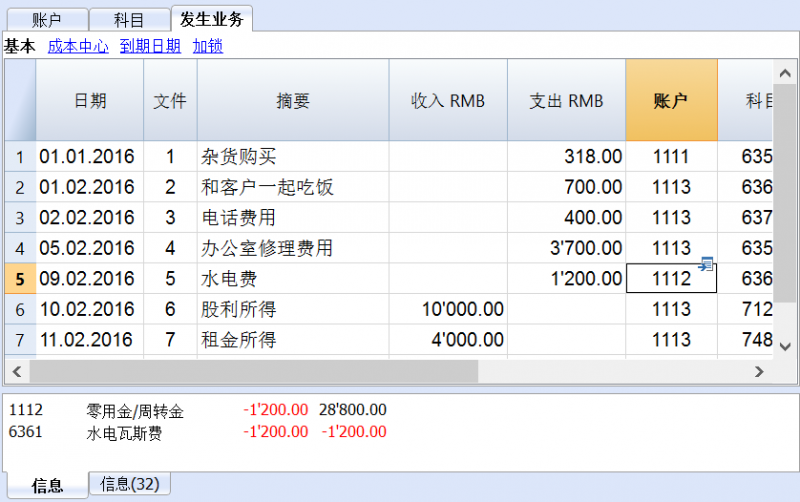
示例: 含增值税的发生业务表
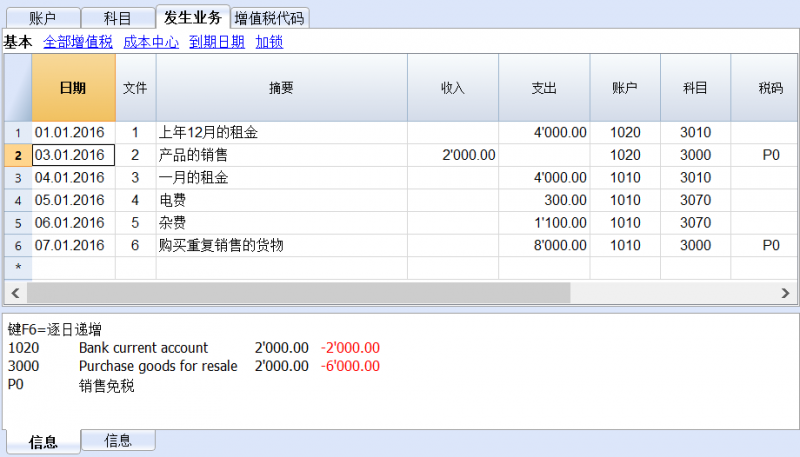
提示: 在发生业务表格中,除了账号之外,您也可以找到您想要找到的文本信息。
请您位于想要输入文本的单元格,通过双击该单元格,您可以看到一个下拉菜单,在此下拉菜单中将显示以前输入的所有文本; 在您输入文字的同时,系统会自动的建议您一些和您正在输入的文本相似的,之前输入过的文本; 选择适合的文本,然后使用回车键就可以自动输入所选的文本。
在您输入发生业务后,为了能够显示一个账户或科目的活动情况,如下图所示,您可以点击在账户或科目单元格右上角的小蓝色箭头。
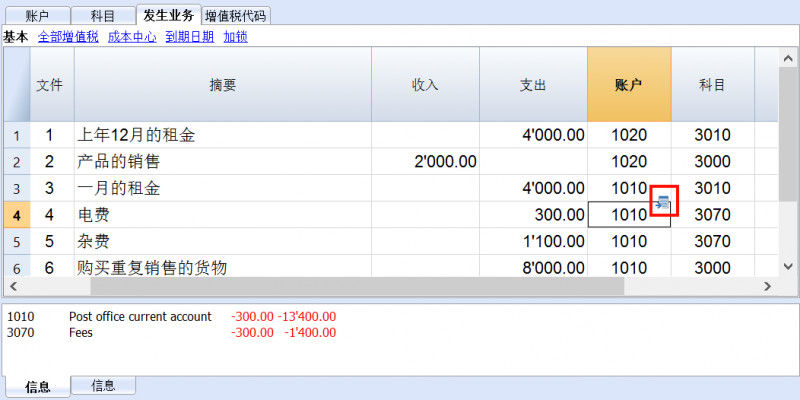
账户和科目明细
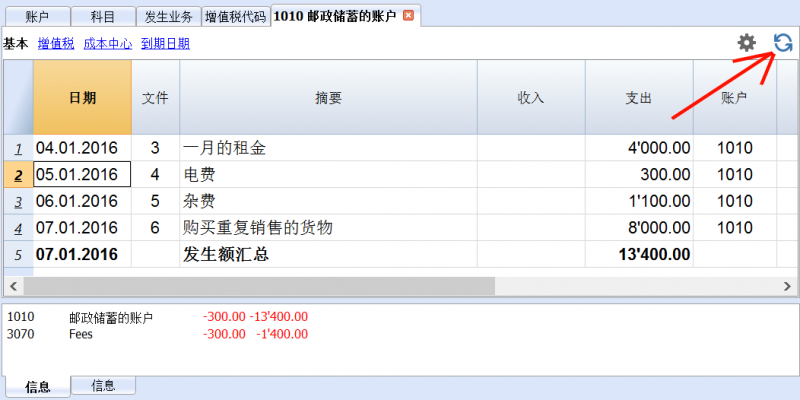
在账户和科目明细中,发生业务的呈现方式与其在发生业务表中的是非常相似的。如果您输入了更多的发生业务,或者做了一些改变的话,如下图所示,您可以通过点击账户和科目明细表中右上角的刷新图标来进行更新。
打印
按组生成报表
这一特征仅在 Banana财务会计软件的7.0.4版本或更高的版本中可用。其可以允许用户们获得按组生成的报表,并且拥有在复式记账中所有可用的选项。
生成报表使以下成为可能:
- 在打印中,包括所有出现在账户和科目表中的组;
- 排除组或单个账户;
- 通过时期选择一个细分;
(例如,在上半年,用户可以选择每月或每季度的细分); - 通过分部选择细分。
类
通过使用报表(1)菜单中的按组生成报表命令, 以及在账户和/或科目表格中的类使定义要被打印的一系列账户和科目成为可能。
- 在账户及科目表格中的类一列中所指示出的类;
- *(星号)指的是一类的开始;
- * *(两个星号)表明一个分段的开始;;
- 一个#表示备注部分的开始;
- 一旦下一个类开始,此类就结束;
- 与复式记账相反,对于类不可能使用数字标识;
- 在没有指示出任何类的情况下,当第一次使用命令的时候,程序会将其自动输入
- 账户表中的 "资产"
- 科目表中的"运营结果"
- 如果存在成本中心,分部或者客户/供应商登记,创建单独分开的类是非常有用的;
使用此种方法,用户可以只打印出其所需的信息。
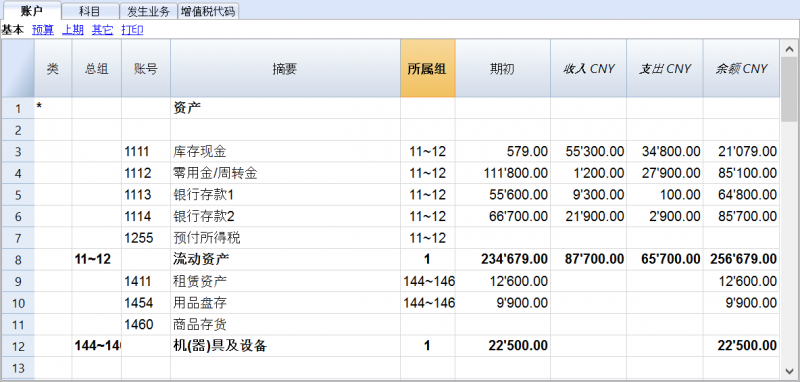
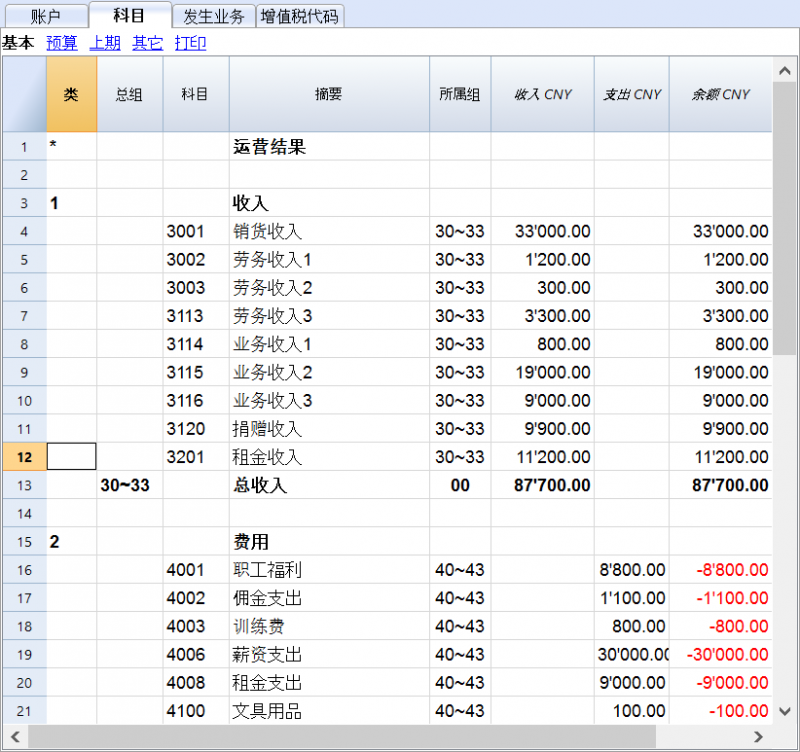
账户及科目的配置
点击报表(1)菜单中的按组生成报表命令,就会在程序中出现下面的对话框,您可以自定义想要打印出来的账户及科目。
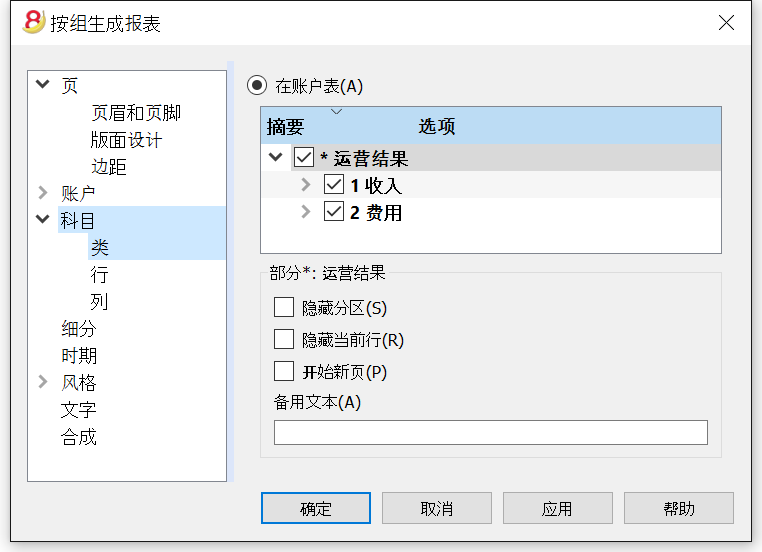
- 在账户表中所出现的账户,总会在所指示的期间末与余额一起被打印出来;
- 所指示期间的科目活动情况会被打印出来。
按组生成报表的例子
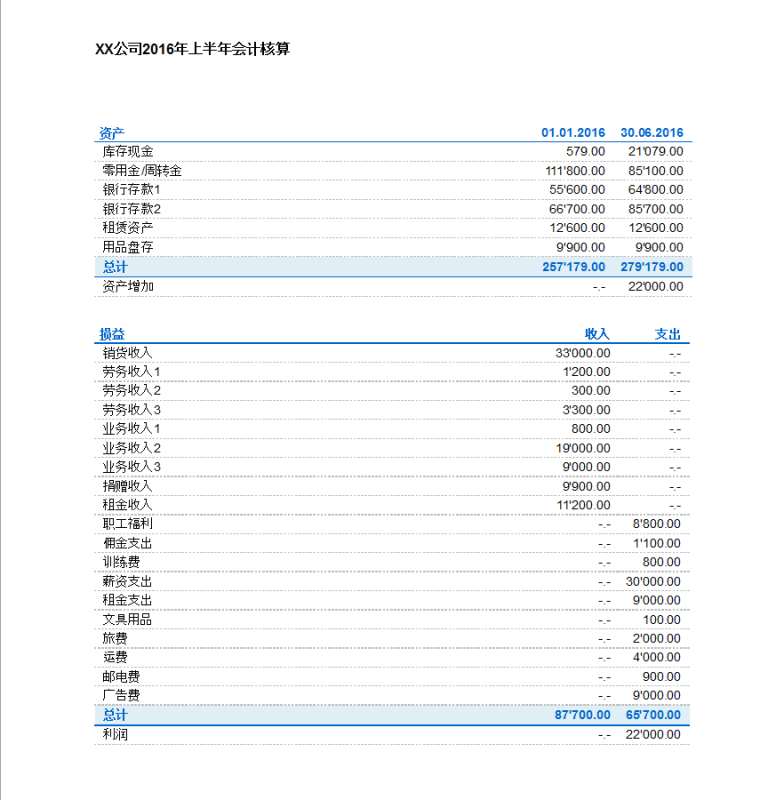
在下面显示的图例中,您可以看到在账户,收入和费用部分单独的类被创建。
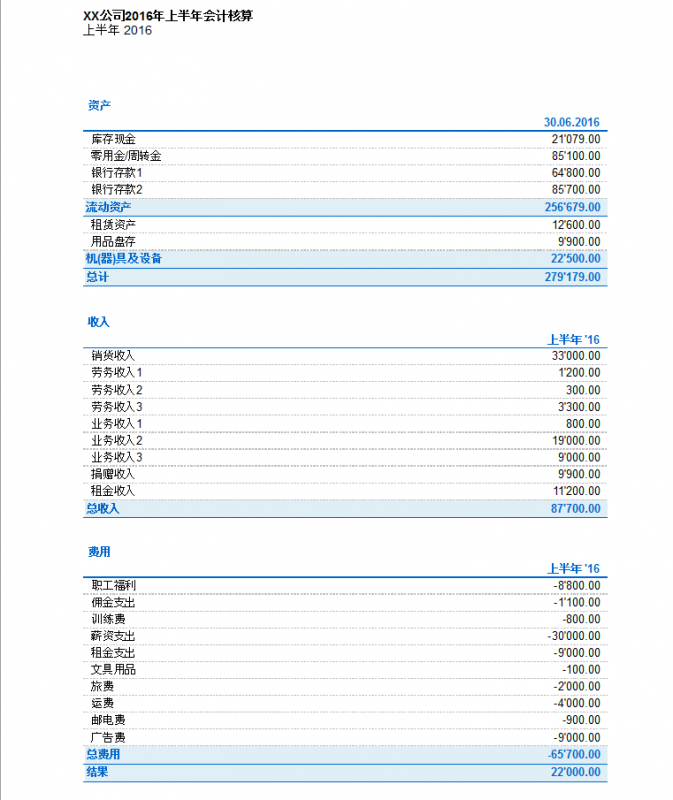
生成报表
- 生成报表为资产的发展情况及指定年度的运营结果给出了一个概况。此功能存在于收益 & 费用会计核算中;
- 点击报表(1)菜单中的生成报表命令,来对要打印的生成报表进行设置;
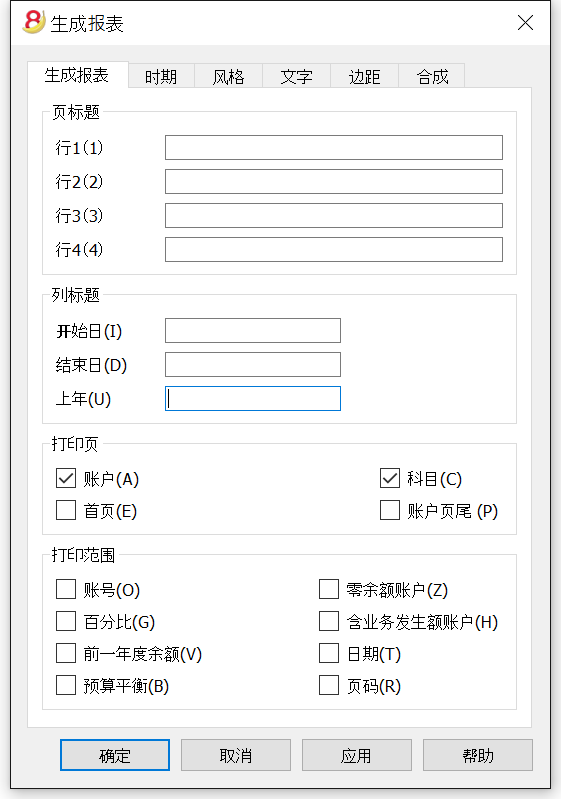
- 在跳出的生成报表窗口中 (如下图所示),您可以输入页标题,该标题会出现在被打印出的生成报表的首页; 用户们还可以选择其它更多的选项,对打印出的报表进行细节的编辑;
- 不含日期的业务将被视为初期业务,其不会被显示在打印出的损益表中。
页标题
行 1-4
在这些行中,用户可以自由的定义报表的标题。
列标题
开始日
输入会计核算的开始日期。
结束日
输入会计核算的结束日期。
上年
输入上一会计年度的最后日期。
打印页
选择您想要其出现在打印出的生成报表上的选项,一旦被选择:
账户
账户将被打印。
首页
拥有文件标题的首页将被打印。
科目
科目将被打印。
账户页尾
账户和科目将被打印在两张不同的页面上。
打印范围
被选中的选择必将会出现在打印出来的生成报表中。
其它标签
对于其它标签,您可以在下面的页面中找到相对应的解释:
会计报表
- 点击报表(1)菜单中的会计报表命令;
- 此命令通过使用特定的组,特定的时期及细分来显示账户的金额;
- 不含日期的业务将被视为初期业务,其不会被显示在打印出的损益表中。
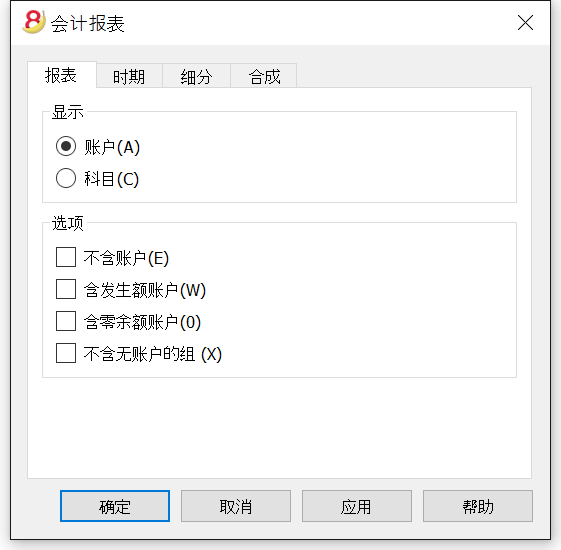
显示
您可以选择所需的分组方案:
- 账户 - 报表会显示出一个拥有以下列的所有账户列表: 初期余额,收入,费用及账户余额;
- 科目 - 报表会显示出一个拥有以下列的所有科目列表: 初期余额,收入,费用及账户余额。
Options
您可以选择被包含或被排除的账户:
- 不含账户 - 只有科目会被打印;
- 含发生额账户 - 不含发生业务的账户也会被打印;
- 含零余额账户 - 拥有零余额的账户也会被打印;
- 不含无账户的组 - 零余额的账户组将不会被打印。
其它标签
对于其它标签,您可以在下面的页面中找到相对应的解释:
新的一年
使用以下的几种方式,您可以自动转到新的一年:
- 打开刚刚结束的这一年的文件,然后点击任务(2)菜单中建立新账的命令;
- 确认账户属性中的数据基础;
- 保存文件及文件名。
该程序会自动接管:
- 账户 (如果是现金账簿) 或多个账户 (如果是收益 & 费用核算),接管初期余额;
- 科目 - 这些将在不含初期余额的情况下被实施,因为为了确定新一年的经营业绩,将从头开始。