Tabel Documenten
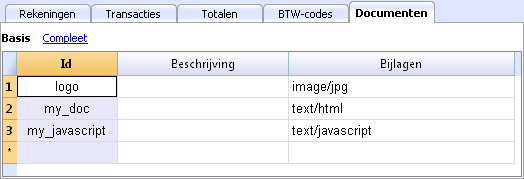
Met de nieuwe tabel Documenten kunt u teksten, afbeeldingen of programmeerscripts opnemen in uw boekhoudbestand.
Deze tabel wordt doorgaans automatisch aangemaakt bij het toevoegen van documenten aan de Balans door het commando Rapporten - Uitgebreide Balans of Rapporten - Uitgebreide Balans op groepen -> sectie Bijlagen.
De tabel Documenten heeft de volgende kolommen:
- Id kolom
Dit is de naam van het document.
Documenten waarvan de naam begint met een "_" hebben een speciale betekenis.- "_budget.js"
Hierin kunt u specifieke functies voor de Budget tabel invoeren.
- "_budget.js"
- Beschrijving
Een korte beschrijving van het bestand (optioneel) - Bijlagen
Bevat het bestand.
Als u op een lege cel dubbelklikt verschijnt een venster om de bestandsinhoud toe te voegen.
Als u op de cel klikt verschijnt een icoontje om de bestandsinhoud weer te geven of te veranderen.
Een logo toevoegen bij het afdrukken van facturen
Om de afbeelding toe te voegen:
- Voeg een nieuwe rij toe
- Voer in de Id kolom "logo" in
- In de Bijlagen kolom, dubbelklik op de cel of selecteer het Edit symbool, kies het type van het afbeeldingsdocument en selecteer de afbeelding die u wilt invoegen in de afdruk.
Het logo moet een afbeelding zijn met een breedte van 120px en een hoogte van 100px.
U kunt ook ander afbeeldingen toevoegen die gebruikt kunnen worden in aanpasbare voorbeeldbestanden.
HTML Editor
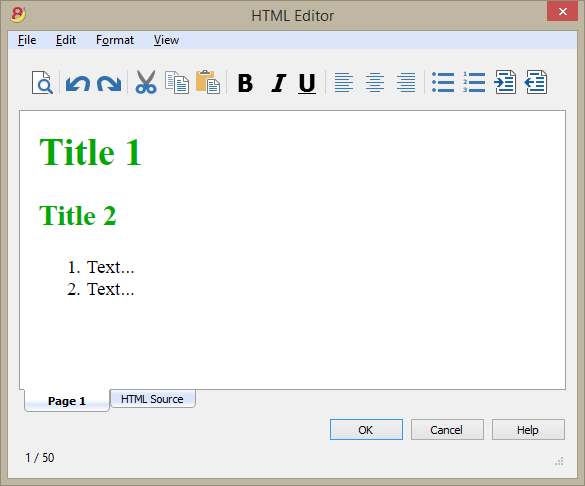
Adding the ${...} field
The ${...} field allows the user to add dynamic text to the document, for instance an account's balance or a Banana table. The Banana API interface is available at the following web address https://www.banana.ch/doc8/en/node/4714
The command can be added manually or through the command Edit - Add script
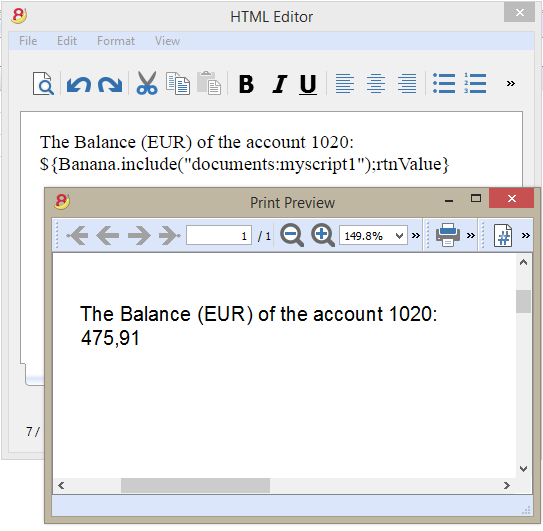
Printing the current balance of account 1020
${Banana.Converter.toLocaleNumberFormat(Banana.document.currentBalance('1020','','').balance);}
Output of the Accounts table, columns: Account, Group, Description, Balance (command not yet available)
${HTML Banana.document.table("Accounts").toHtml(['Account','Group','Description','Balance'],true);}
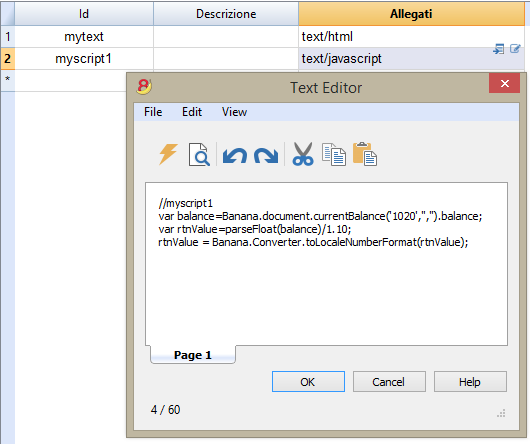
It is possible to write the javascript code in a separate document and include the script through the command Banana.include.
The scripts can be saved in the Documents table or in a local file.
${Banana.include("documents:myscript1");rtnValue}
${Banana.include("c://temp//myscript16.js");rtnValue}
Adding a page break
The command can be added manually or through the comand Edit - Add page break
Text in the first page
${PAGEBREAK}
Text in the second page
The command ${PAGEBREAK} is not yet available, the current command to add a page break is:
<!--pagebreak-->