Add tables
With Banana Accounting Plus, you can create simple tables to enter additional information directly into the accounting file, without using external documents and without complicating the main structure.
These are empty and fully customizable tables, ideal for organizing and collecting data according to your needs. They do not have built-in accounting functions but serve as a practical tool for organizing and collecting data related to business management.
You can add one or more simple tables to your file and, if necessary, link them either to one of the predefined tables in Banana Accounting Plus or to each other.
Possible uses of a simple table
Simple tables can be used to create lists and manage data that supports accounting, such as:
- Employment records
- Information, notes, appointments with customers and suppliers
- Services provided to clients
- Insurance policy deadlines
- Property key management
- Internal management notes and comments
- References to contracts, projects, or ongoing cases
- Task lists related to accounting
Advantages
- Flexibility: you can freely decide the content and structure
- Everything in a single file: your information remains always linked to the accounting
- Simplicity: just add rows and columns, with no accounting knowledge required
- Immediacy: once confirmed with OK, the table is immediately available in the file
How to add a simple table to the file
- Open your accounting file
- From the menu Tools > Add/Remove Functionalities > Add Simple Table
The program adds a new table to the existing file with the name you chose, including the following predefined columns:
- RowId → used to uniquely identify each item.
- Description → description of the item.
- Notes → additional notes or information.

For more information on tables you can add to your file, see the page:
- Simple Table
This page explains how to customize the table, show other predefined columns or add your own.
Examples of simple tables
To give you an idea of the possibilities, here are some examples:
- Internal Notes Table
In accounting, it’s often necessary to add notes about deadlines or messages for colleagues and managers. These notes are sometimes stored in Excel or Word files, risking they get lost or forgotten. By creating a simple table in the same accounting file, notes remain always available and easy to consult.
- Volunteers/Events Table
Useful for recording names, availability, and roles for events or association activities.
- Sales Agents Table
Allows you to collect information about agents, monitor areas of responsibility, and track client relationships.
In this way, simple tables become a real support tool for accounting, adaptable to the specific needs of your business.
How to create an Internal Notes table
In Banana Accounting Plus, you can create a simple table dedicated to Internal Notes, to collect reminders, annotations, and useful references directly within the same accounting file.
This way, you have all the information at your fingertips, without needing to use external documents.
How to create the Internal Notes table
- Open the accounting file
- Create the simple table and name it Internal notes
- Set up the columns:
- RowId = in our example, the Id column was hidden, as we don't need to link it to other tables
Hide this column from the menu Data > Columns setup > Id (uncheck "Visible"). - Description = in our example, we entered the subject of the note
- Notes = the content of the note
- Link = the link to the document related to the note.
Add this column from the menu Data > Columns setup > Links (check “Visible”).
- RowId = in our example, the Id column was hidden, as we don't need to link it to other tables

With this setup, you can create and manage a table of internal notes and documents directly visible in the accounting file, without needing additional files, and consult them at any time.
Using the Internal Notes table
- You can record reminders, checks to perform, document references, and any other useful information.
- The notes are always accessible and linked to the accounting file, without overloading the main structure.
- When notes become numerous, you can simplify searching using the Filter rows feature: just type a keyword, and the program will display all rows containing it.
How to create a Sales Agents table linked to the Transactions table
In Banana Accounting Plus, you can create a simple table dedicated to Sales Representatives (or Agents) and link it directly to the Transactions table.
This way, you can associate each sale with the name of the agent who handled it, keeping all information within the same accounting file, without needing external documents.
Structure of the Sales Representatives table
The Sales Representatives simple table can include the following columns:
- RowId → unique identifier code for the agent (also used for linking).
- Description → additional information about the agent.
- Commission Percentage → commission rate for each agent.
- Notes → specific annotations.
- Links → link to the commission contract or other related documents.

Linking with the Transactions table
To link the Sales Representatives table to the Transactions table:
- Open your accounting file.
- Go to the Transactions table.
- From the menu Tools > Add/Remove Functionalities > Add columns to link tables.
- Select the Sales Representatives table.
- Indicate after which column the link should be added.
- Confirm with OK.
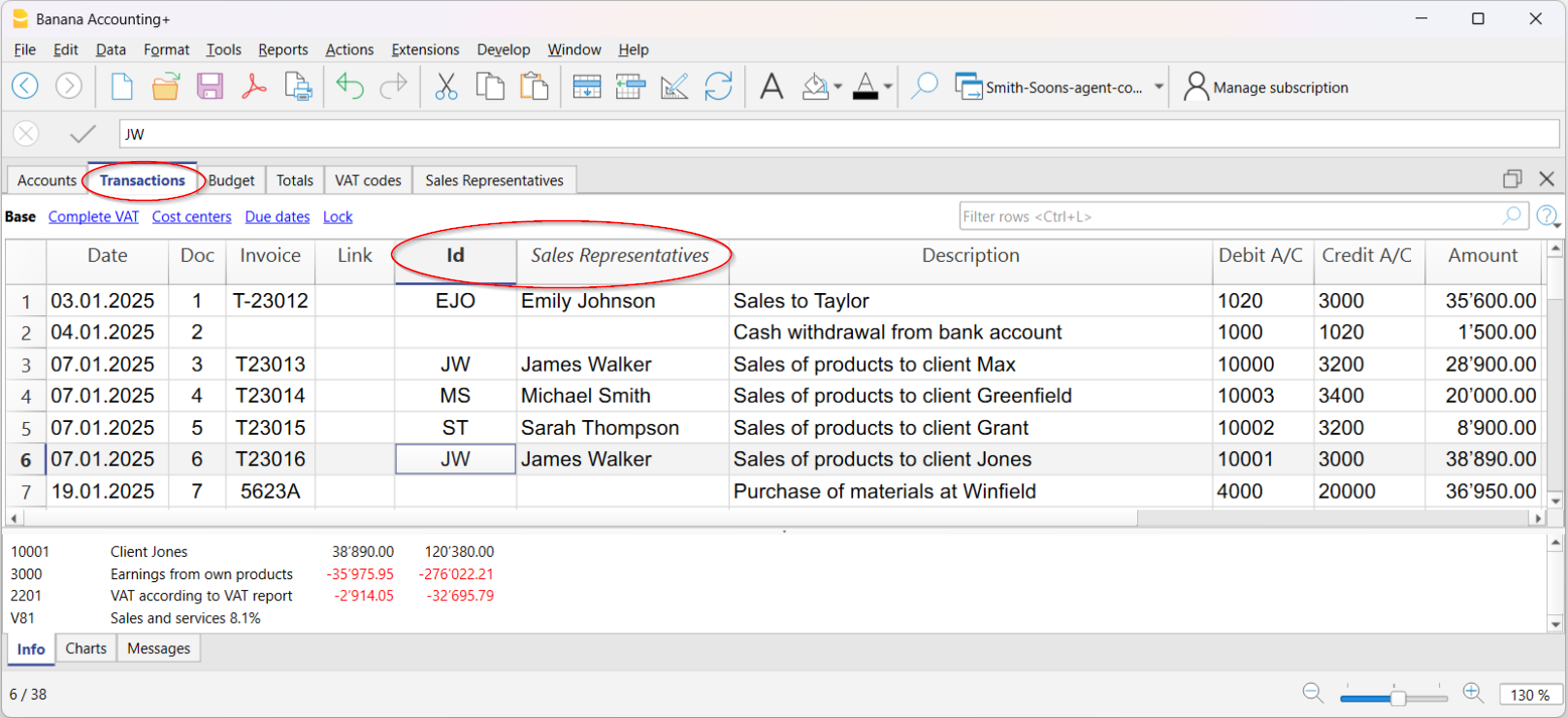
The Transactions table will now include the linked columns:
- RowId → where to enter the identifier code of the Sales Representative
- Sales Representative → the description linked to the Id. When you enter the code, the agent’s name appears automatically.
For each sales transaction, you can select the agent’s name directly from the Sales Representatives table.
Advantages of linking
- Centralization → all agent information remains in the same accounting file.
- Traceability → each sale can be immediately associated with the agent who completed it.
- Quick analysis → with the Filter rows function, you can display only transactions related to a specific agent.
Calculating commissions
- Filter transactions by agent.
- At the bottom of the info window, you immediately see the total sales amount.
- To calculate the commission, you can:
- In the Amount column, copy the total shown at the bottom of the window (after selecting the cells) and multiply it by the commission rate.
- Export the filtered rows to Excel and apply the commission percentage formula.
With this setup, you can easily manage sales by agent, calculate commissions, and always have an up-to-date history within the same Banana file.