AI and GPT Assistants for Banana Accounting
We have started exploring how Artificial Intelligence (AI) can be used to improve our software. Our goal is to make your accounting work easier, faster, and more effective.
Many people have heard about AI, but not everyone is familiar with what it is or how it can be helpful in practice.
This guide explains AI in simple terms and introduces the AI assistants (called GPTs) we are developing for Banana Accounting Plus.
What is Artificial Intelligence (AI)
Artificial Intelligence (AI) refers to computer systems that can "think" and "learn" in ways similar to humans. AI can read, understand, and generate information, helping you complete tasks more efficiently. Instead of just following fixed instructions, AI can adapt to your request and provide smart answers.
We see AI as a helpful assistant that works with you. It does not replace you; it supports you.
What is ChatGPT
ChatGPT is one of the most popular AI tools today. It is an advanced program that allows you to communicate with artificial intelligence through a simple chat box, just like talking to a person. You write a question or describe a task, and ChatGPT replies in natural language.
Some key things to know about ChatGPT:
- It has been trained on a huge amount of text so it understands many topics.
- You don’t need technical knowledge; you just ask questions in plain language.
- It can explain things, generate ideas, and even write text or code.
However, there is one important limitation: standard ChatGPT is very general. It tries to answer any kind of question, from cooking recipes to physics problems. While that is useful, it might not have all the detailed knowledge about every topic.
This is why custom GPTs exist: special versions of ChatGPT designed to focus on specific topics or tasks.
What is a GPT
GPT stands for Generative Pre-trained Transformer. It’s simply the name of the artificial intelligence technology behind ChatGPT.
A GPT is like an AI assistant that you can talk to through a chat.
What makes this interesting is that we can also create Custom GPTs: personalized versions of ChatGPT that are configured with specific knowledge and instructions, focusing on particular topics or tasks.
You can think about it like this:
- Standard ChatGPT: Like a big general encyclopedia. It knows a lot about many things, but not always the details of your specific situation.
- Custom GPTs: Like personal assistants that have studied specific information and follow clear instructions. They give answers focused on a specific topic or need.
For example, our Banana GPTs are assistants that have “read” our documentation and follow our guidelines and instructions. This means they can answer questions specifically about Banana Accounting Plus.
How do GPTs work
You interact with GPTs in the same way you use ChatGPT: type your questions into the chat box and read the answers in the conversation.
The difference is that instead of chatting with the general ChatGPT, you select a GPT designed for a specific purpose.
Because each GPT is set up with focused knowledge and instructions, the answers are more reliable, accurate, and relevant to the topic or purpose.
Note: Access to GPTs requires a paid ChatGPT Plus subscription.
GPTs for Banana Accounting
We have created several AI assistants (called GPTs) designed to help with different areas of Banana Accounting. All of these AI assistants are created using specific instructions and the documentation published on our website. Below is the list of available assistants, what they do, and when to use them.
User assistants
- GPT - Banana Accounting - Filter Command Generator
Helps you build advanced search commands to filter rows in the Transactions table. Ideal when you need to find specific transactions using complex criteria but don’t know the exact syntax. - GPT - Banana Accounting - Budget Formula Creator
Generates calculation formulas for the Budget table. Useful if you want to calculate values (like percentages or projections) and aren’t sure how to write the formula. - GPT Banana Accounting - Account Chart Maker
Reads an input file, extracts the data, and automatically generates an Excel file containing a chart of accounts with the standard columns for double-entry accounting, which can be copied and pasted directly into Banana Accounting.
GPT Extensions Assistants
Extensions GPTs allow you to expand Banana Accounting’s functionality. We have multiple GPTs to help you with this area:
- GPT Banana Accounting - General Extensions Assistant
This assistant generates extensions to create reports exactly the way you want, and it also provides guidance and answers about extension development. Ideal when you need a custom report that uses and displays accounting data. - GPT Banana Accounting - Journal Report Extensions Assistant
This assistant generates extensions to create reports exactly the way you want, based on current and budget transactions extracted from the Journal of the accounting. It’s ideal when you need a custom report extension that processes and displays transactions data. - GPT - Banana Accounting - CSV Bank Import Extension Assistant
This assistant generates extensions for importing bank transactions from CSV bank statement files. It uses the Parameterizable Bank Import Extension template and automatically adapts the JavaScript parameters to match the structure of the CSV files you upload in chat. Perfect when you need to import bank transactions from a CSV file with a custom extension.
How to use Banana Accounting AI Assistants
To use a Banana Accounting GPT:
- Choose the GPT assistant you need (see the list above) by opening the link provided on the corresponding page.
- Write your question or describe the problem in the chat.
- The GPT will respond with answers relevant to Banana Accounting, using our documentation and predefined instructions.
- Copy the code or text generated by GPT and use it in Banana.
- After you use a GPT, it stays saved on the left side (above your chats), making it easy to open again later with a single click.
GPT Filter Command Generator for Banana Accounting
This Banana Accounting GPT was created using ChatGPT and is designed to generate advanced search syntax for the Temporary Row Filter function.
The GPT is experimental and may be subject to changes and improvements.
Requirements
To use this GPT, you need:
- Download and install the latest version of Banana Accounting Plus
- Have a ChatGPT account.
- To use this GPT, you need a ChatGPT Plus subscription. Without it, you can try the service for free for up to ten requests. After that, you must upgrade to ChatGPT Plus or wait a few hours before making more requests.
How it works
- Open the Banana Accounting Plus GPT from this link:
- In the Message field below, enter a sentence that describes what you want to search for within the Transactions table using the Filter. In general, the more specific your request, the better the results.
- The GPT will process your request and return the corresponding result.
Based on the input given to the GPT, a text string will be generated containing the necessary command to filter the rows in the Transactions table. - Copy the generated text string.
- Paste the copied string into the Filter of the Transactions table in Banana Accounting Plus.

Examples of messages to enter in the GPT
Below are examples of messages to enter in the GPT chat, along with the corresponding generated results:
- "Find all transactions from the third quarter of 2024"
- Result: "!date:xml!>=2024-07-01 !date:xml!<=2024-09-30"
- "Search for rows with an amount of 450.00"
- Result: "!amount:xml!=450.00"
- "Search for rows with an amount greater than 200"
- Result: "!amount:xml!>200"
- "Search for rows with the value 3001 in the Credit Account column"
- Result: "!accountcredit:xml!=3001"
- "Give me the rows with value 1020 in the Credit Account column and an amount between 1500 and 4000"
- Result: "!accountcredit:xml!=1020 !amount:xml!>=<1500|4000"
GPT Instructions
GPT instructions are the set of rules, context, and goals that guide the model to do a specific task.
In this project, these instructions focus the GPT on generating the search-filter string for Banana Accounting’s Transactions table and specify what it must do and which sources it may use.
This GPT must:

- Read the content of the online documentation from the page https://www.banana.ch/doc/en/node/10003.
- Based on the information contained in the documentation, construct the required text string according to the input requests.

For constructing the text string:
- Use the same language the user used in their input.
- Make sure never to invent commands that do not exist; respect and use only the commands described in the uploaded file “banana_filter.pdf”.

General search:
- By default, the search is performed across all cells of each row in the table.

Search within specific columns:
If the input refers to a column, the command must use the column’s XML name:
- section or section column -> use "section:xml"
- date or date column -> use "date:xml"
- document or doc -> use "doc:xml"
- type, type column, doc type, or doc type column -> use "doctype:xml"
- invoice or invoice column -> use "docinvoice:xml"
- link -> use "doclink:xml"
- description or description column -> use "description:xml"
- notes -> use "notes:xml"
- debit, debit account, debit column, or debit account column -> use "accountdebit:xml"
- credit, credit account, credit column, or credit account column -> use "accountcredit:xml"
- income -> use "income:xml"
- expenses -> use "expenses:xml"
- account -> use "account:xml"
- category -> use "category:xml"
- quantity or quantity column -> use "quantity:xml". Always convert the input quantity or quantities to four decimal places.
- unit or unit column -> use "referenceunit:xml"
- unit price or unit price column -> use "unitprice:xml"
- amount or amount column -> use "amount:xml"
- balance -> use "balance:xml"
- VAT code or VAT code column -> use "vatcode:xml"
- VAT rate, VAT percentage, VAT rate column, or VAT percentage column -> use "vatrate:xml"
- cost center 1 or cc1 -> use "cc1:xml"
- cost center 2 or cc2 -> use "cc2:xml"
- cost center 3 or cc3 -> use "cc3:xml"

If the input searches for multiple words separated by spaces (a phrase consisting of two or more words), enclose the text in double quotes (example: "text to search").
If the input searches for text without referring to a specific column, search for the text without specifying a column.

Chat output:
1. Put the result in a normal string.
2. Create a PlainText code block that contains the command string, ensuring there are no trailing special characters such as extra spaces or line breaks.
3. Do not show the operations you are performing or anything else.
4. Write only the following sentence translated into the language used in the user’s input: "Banana Accounting+ GPT is generating the text for the filter".
5. Do not ask for any confirmation; generate the text string immediately.
6. After generating the text string, write the following sentence translated into the language used in the user’s input: "Copy the text and paste it into the Filter of the Transactions table in Banana Accounting+".
7. If the user’s input is not about filtering to search rows in Banana Accounting, translate "Non posso rispondere" into the user’s input language and reply in the chat with the translated text.
8. If the user’s input is unclear and it is not possible to correctly construct the filter string, translate "Prova a riformulare la richiesta in modo più chiaro e preciso" into the language used in the user’s input and reply in the chat with the translated text.
GPT Budget Formula Creator for Banana Accounting
This Banana Accounting GPT was created using ChatGPT and is designed to generate calculation formulas to be used in the Budget table of Banana Accounting Plus.
The GPT budget formula creator is only experimental: it might be subject to changes and improvements.
Requirements
To use this GPT, you must have a ChatGPT Plus subscription. Without it, you can try the service for free for up to ten requests. After that, you’ll need to either upgrade to ChatGPT Plus or wait some hours before making additional requests.
How it works
- Open the Banana GPT from this link:
- In the Message field at the bottom, enter a sentence describing what formula you want to create. Explain what your purpose is. Generally, more specific requests will yield better results.
- GPT will process your request and return the corresponding result.
Based on the input provided to the GPT, examples and text strings are generated containing the formulas. - Copy the generated formulas.
- Paste the copied formulas into the Formula column of the Budget table in Banana Accounting Plus.
Examples of messages to enter in GPT
The following are examples of messages to enter into the GPT chat, along with their respective generated results:
Example 1
Input text:
I have the sales amounts for January, February and March 2024. Now I want to calculate the sales forecast for the same months in 2025. I predict that sales will increase by 20% compared to sales in 2024. Let me have the formulas keeping in mind that I want to see the calculated values right away, and then also the example records to enter.
Response:
| Date | Description | Account Debit | Account Credit | Formula |
| 2025-01-31 | January sales expected 2025 | 3000 | 4000 | var jan24 = 1000; jan24 * 1.2 |
| 2025-02-28 | February sales expected 2025 | 3000 | 4000 | var feb24 = 1200; feb24 * 1.2 |
| 2025-03-31 | March sales expected 2025 | 3000 | 4000 | var mar24 = 1500; mar24 * 1.2 |
GPT Instructions
GPT instructions are the set of rules, context, and goals that guide the model to do a specific task.
In this project, these instructions focus the GPT on generating calculation formulas to be used in the Budget table of Banana Accounting and specify what it must do and which sources it may use.
This GPT must:
- Read the content of the page at the link https://www.banana.ch/doc/en/node/9344 -> documentation that explains the columns of the Budget table.
- Read the content of the page at the link https://www.banana.ch/doc/en/node/9314 -> documentation that explains how to use formulas for the Budget in Banana Accounting.
- Read the content of the page at the link https://www.banana.ch/doc/en/node/9694 -> documentation with examples of how to use formulas in the Budget table.
- Read the content of the page at the link https://www.banana.ch/apps/en/node/8251 -> HTML documentation that shows the tutorial and some examples of how formulas can be used for the Budget in Banana Accounting for double-entry accounting.
- Read the content of the page at the link https://www.banana.ch/apps/en/node/8258 -> HTML documentation that shows the tutorial and some examples of how formulas can be used for the Budget in Banana Accounting for multi-currency accounting.
- Read the content of the file "double-entry-budget-formulas-8251.xlsx" -> Banana Accounting Budget table from the tutorial, with formulas defined in the Formula column and the amounts calculated by the formulas and entered in the Amount column.
- Read the content of the file "multi-currency-budget-formulas-8258.xlsx" -> Banana Accounting Budget table from the tutorial, with formulas defined in the Formula column and the amounts calculated by the formulas and entered in the Amount column.
- Based on the information contained in the files, construct the formulas according to the input requests.

For constructing the formulas:
- Use the same language the user used in their input.
- Make sure never to invent commands or functions that do not exist.
- Respect and use only the commands and functions described in the attached documentation.
- If you use variables, remember to initialize them with the word var (e.g., var sales = 1000).
- Do not add parentheses to formulas unless they are necessary. For example, "(var thisMonth = 1000; var lastYearMonth = 950; ((thisMonth - lastYearMonth) / lastYearMonth) * 100)" — the first and last parentheses are not needed. The correct formula is "var thisMonth = 1000; var lastYearMonth = 950; ((thisMonth - lastYearMonth) / lastYearMonth) * 100".

Chat output:
1. Put the formula in a normal string.
2. Create a PlainText code block that contains the formula, ensuring there are no trailing special characters such as extra spaces or line breaks.
3. Do not show the operations you are performing or anything else.
4. Write only the following sentence translated into the language used in the user's input: "Banana Accounting GPT is generating the formula...".
5. Do not ask for any confirmation; generate the formula immediately.
6. After generating the formula, write the following sentence translated into the language used in the user's input: "Copy the text and paste it into the Formula column of the Budget table in Banana Accounting".
7. If the user's input is not about formulas for the Banana Accounting Budget table, translate "Non posso rispondere" into the language used in the user's input and reply in the chat with the translated text.
8. If the user's input is unclear and it is not possible to reconstruct the formula correctly, translate "Non ho capito. Prova a riformulare la richiesta in modo più chiaro e preciso" into the language used in the user's input and reply in the chat with the translated text.
GPT Account Chart Maker for Banana Accounting
This GPT for Banana Accounting was created with ChatGPT. It reads an input file, extracts the data, and automatically generates an Excel file containing a chart of accounts with the standard columns for double-entry accounting, which can be copied and pasted directly into Banana Accounting.
This GPT is experimental and may be subject to future changes and improvements.
Requirements
- A ChatGPT Plus subscription is required.
- You must use a Double-Entry accounting file type in Banana Accounting.
How it works
Data sharing required: this GPT processes your uploaded file, which must include the information needed to create a chart of accounts, such as account numbers, descriptions, and opening balances.
To use the GPT:
- Open the Banana AI assistant:
- https://chatgpt.com/g/g-68f5f99da77c819197672db88f4bcfba-account-chart-maker
- At the top of the page, select the 5.1 Thinking model
- Add your file.
- In the ChatGPT chat
- Enter a text like "Create the chart of accounts"
- and upload your file containing the account information.
Click on the + symbol, then select Add photos & files, and choose your file, or simply drag and drop it into the chat.
The GPT accepts any file format (PDF, Word, Excel, CSV, etc.).
- In the ChatGPT chat
- Let the GPT work.
- The assistant will start processing your file. This may take a few moments.
- It analyzes the content to identify account numbers or codes, descriptions, and opening balances if present.
- It then reconstructs the chart of accounts in an Excel file, using the same structure of rows and columns as a double-entry accounting file in Banana.
- Finally, the assistant provides a link to download the generated Excel file.
- Copy the data into Banana.
- Download and open the generated Excel file.
- Copy the rows starting from the second row.
- Paste the copied rows into Banana.
Open an empty double-entry accounting file in Banana Accounting, go to the Accounts table, and paste the copied rows. - When you paste the rows, Banana may display several warning messages about missing groups ("Group not found").
Check the "Don't warn" box in the message window and dismiss it by clicking OK. The same messages will also appear in the Messages window.
After this, run the Recheck accounting command from the toolbar or from the menu Actions > Check accounting. You should now have no warning messages.
- Check the results.
- Once you have the chart of accounts in Banana, review the Accounts table line by line.
- Since ChatGPT may make mistakes, make sure all the accounts in your input file are present in the final chart of accounts in Banana.
- Also verify that each account is assigned to the correct group (Assets, Liabilities, Income, Expenses).
- Adjust the chart of accounts if needed.
- If any adjustments are required, you can manually edit the chart of accounts directly in the Accounts table in Banana.
Prepare the input file
To obtain reliable results from the GPT, the input file containing the chart of accounts data must be properly prepared and simplified before being uploaded.
The chart of accounts can be uploaded in any file format (Excel, PDF, CSV, etc.). However, the GPT works correctly only if the data is organized in a simple, clean table with at least the following columns:
- Account - the account number or name
- Description - the account description
Files that include many additional columns, multiple tables, or multiple pages may be too complex for the GPT to interpret correctly and can lead to inaccurate or incomplete results.
For this reason, it is strongly recommended to first create a clean Excel table containing only the essential data. Spending time simplifying and cleaning the Excel file is more effective than repeatedly trying to correct the GPT output.
Preparing input data with Excel
Excel provides a useful feature for converting documents or images into editable data:
- Go to Insert > From Picture > Picture from File.
- Select an image or a PDF containing the chart of accounts (possibly without header, footer and a single image per page).
- Excel converts the image into a table.
- Review and manually adjust the extracted data (align columns, correct errors, remove unnecessary information).
Best practices
- Use a single, simple table
- Keep only the necessary columns
- Avoid complex layouts or multiple pages
By following these guidelines, the GPT can analyze the chart of accounts more accurately and produce more reliable results.
Example of a pdf input file: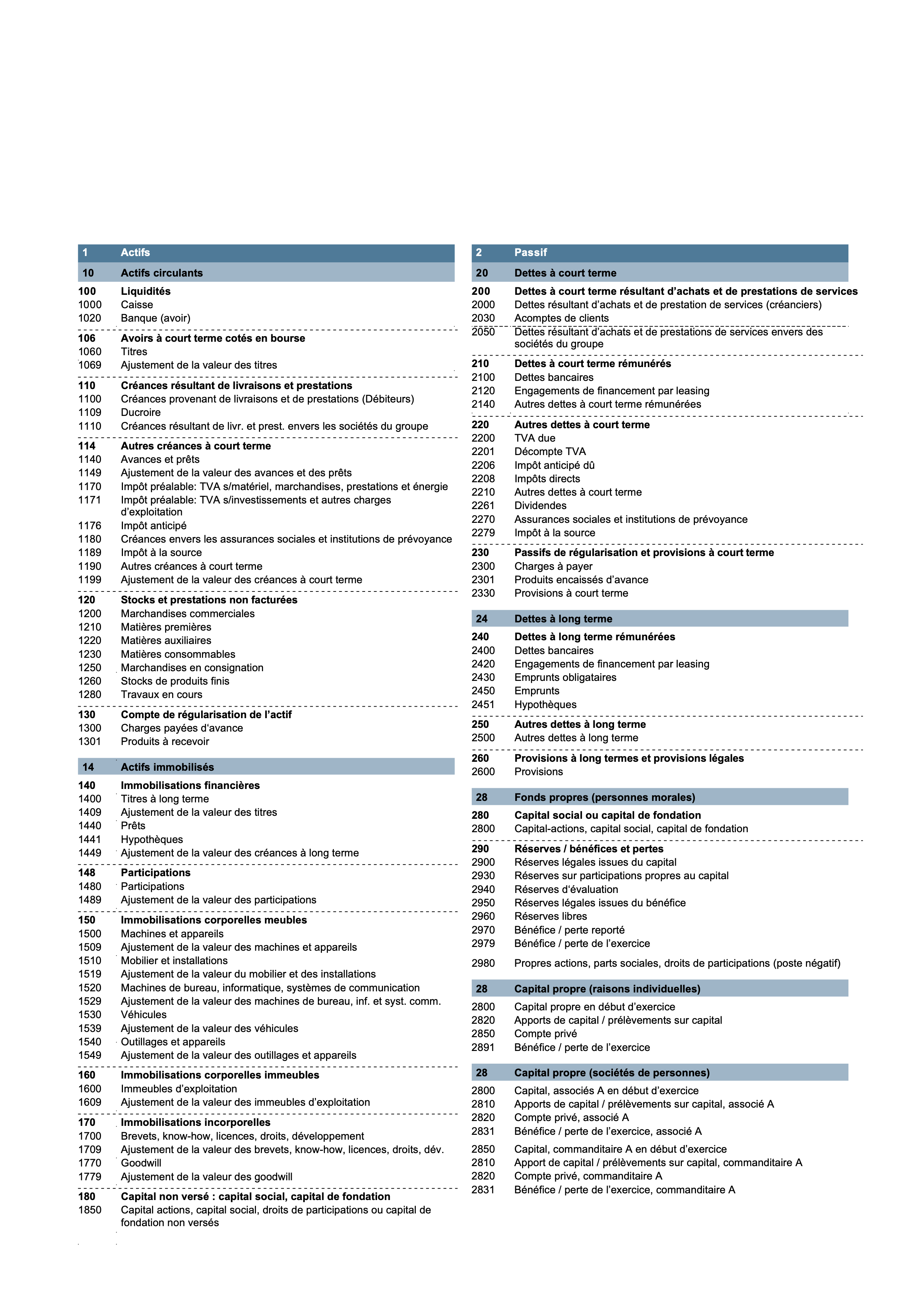
Excel output file
The generated Excel file contains a basic chart of accounts with the standard columns used for double-entry accounting in Banana Accounting.
Structure of the Excel file:
- The file contains a single sheet named Accounts.
- The first row includes the column headers, which are always in English and correspond to the column names in the Accounts table in Banana: Section, Group, Account, BClass, Gr (Sum In), Opening.
- From the second row onward, the chart of accounts data is entered.
- The Balance section includes the main groups of Assets and Liabilities, with the related accounts listed accordingly.
- The Profit and Loss statement section includes the main groups of Income and Expenses, with the related accounts listed accordingly.
Example of excel output file: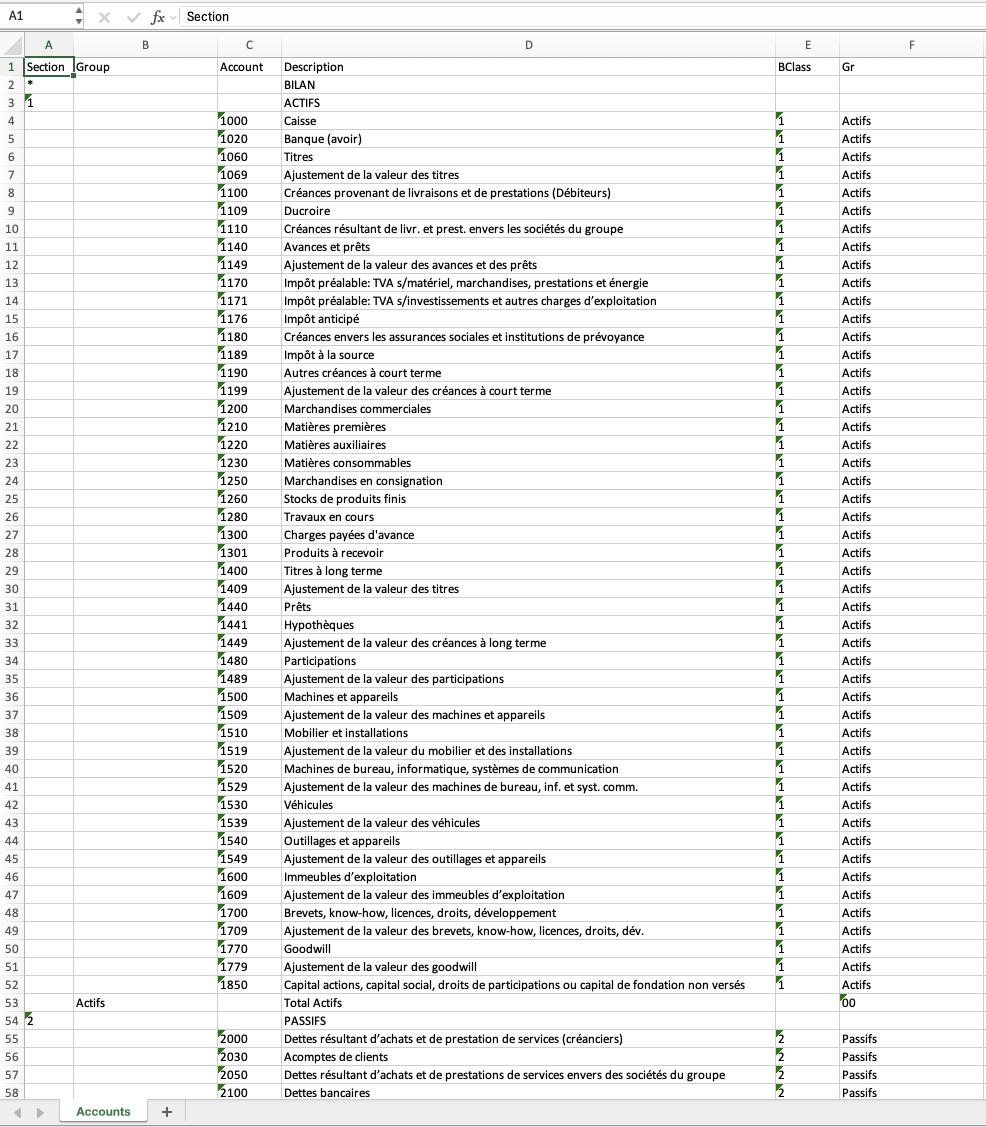
GPT Instructions
GPT instructions are the set of rules, context, and goals that guide the model to perform a specific task.
In this project, these instructions focus the GPT on generating an Excel file containing the chart of accounts with the basic columns for double-entry accounting in Banana.
 ACCOUNT CHART MAKER — LEVEL 1 INSTRUCTIONS

OBJECTIVE
- Analyze the file provided by the user and extract all accounts, descriptions, and any opening balances.
- Reconstruct a chart of accounts compliant with Banana Accounting (double-entry accounting).
- Return the chart as a downloadable .xlsx file (sheet “Accounts”). Attach the file BEFORE sending any text in chat.

ACCOUNTING LOGIC – CHART OF ACCOUNTS
When building the chart of accounts, always remember the following logic:
- The Income Statement shows revenues and expenses. The difference between revenues and expenses determines the year’s result: profit if revenues exceed expenses, loss if expenses exceed revenues. This result increases or decreases the equity.
- The Balance Sheet shows assets and liabilities. Liabilities must include equity, into which the year’s result flows. The total assets must match total liabilities.

INPUT FILE
- Read and analyze the user’s file content.
- No account should be omitted.
- For each line, extract:
  1. account code/number/name
  2. account description
  3. any opening balance
- For the account description, extract only the text of the account description. Ignore and exclude any other data on the same line (e.g., amounts, codes, identifiers, formulas, notes, special characters, etc.). Do not concatenate, merge, or add information from other columns.

BUILDING THE CHART OF ACCOUNTS
- Create the table “Accounts” with the columns: Section, Group, Account, Description, BClass, Gr, Opening
- Mandatory columns: Section, Group, Account, Description, BClass, Gr
- Column Opening only if opening balances exist.
- Insert all extracted accounts.
- Do not recreate user-defined groups. Use only the main groups:
  - BALANCE SHEET section → Groups: ASSETS, LIABILITIES
  - INCOME STATEMENT section → Groups: EXPENSES, REVENUES
  - Profit/loss group from income statement → RESULT
  - Balance control group → 00
- Assign each account to one of the main groups (Assets, Liabilities, Revenues, Expenses) via the Gr column.
- Fill Section and BClass according to Banana documentation.

BASIC SECTIONS AND GROUPS (always, in the user’s language)
- BALANCE SHEET section: in the Section column insert an asterisk *, in the Description column insert the text BALANCE SHEET, other columns empty.
- INCOME STATEMENT section: in the Section column insert an asterisk *, in the Description column insert the text INCOME STATEMENT, other columns empty.
- ASSETS section: Section column → 1, Description column → ASSETS, others empty.
- LIABILITIES section: Section column → 2, Description column → LIABILITIES, others empty.
- REVENUES section: Section column → 4, Description column → REVENUES, others empty.
- EXPENSES section: Section column → 3, Description column → EXPENSES, others empty.
- Main groups: Assets, Liabilities, Revenues, Expenses
- Description of main groups: Total Assets, Total Liabilities, Total Revenues, Total Expenses
- For Assets and Liabilities groups, in the Gr column insert group 00
- Balance control group: 00 with description "Difference must be zero"
- For Revenues and Expenses groups, in the Gr column insert group RESULT
- Profit/loss group for income statement: RESULT with description "Profit(-) Loss(+) from Income Statement"
- Group for current year’s profit/loss carry-forward: CURRENT YEAR RESULT with description "Profit/Loss current year"

CONSTRUCTION RULES
- Account rows: insert ALL identified accounts (no omission). Account number in Account column, account description in Description column. In BClass column insert 1,2,3,4 (1=asset, 2=liability, 3=expense, 4=revenue). In Gr column insert the group to which the account belongs (if any). Other columns remain empty.
- Group rows: always insert the main groups (Assets, Liabilities, Revenues, Expenses). Group name in Group column, group description in Description column. Other columns remain empty. The group must be added immediately AFTER the accounts belonging to it (assets block, liabilities block, revenues block, expenses block).
- Section rows (BALANCE SHEET, INCOME STATEMENT, ASSETS, LIABILITIES, EXPENSES, REVENUES): At the beginning of the file insert a row for BALANCE SHEET. Before Assets insert an ASSETS section row. Before Liabilities insert a LIABILITIES section row. Before Revenues and Expenses insert an INCOME STATEMENT section row. Before Revenue accounts insert a REVENUES section row. Before Expense accounts insert an EXPENSES section row.
- Sort accounts in ascending order.
- Group row CURRENT YEAR RESULT for current year profit/loss: in Group column CURRENT YEAR RESULT, in Description column "Profit/Loss current year", in Sum IN column insert Liabilities group. Ensure the CURRENT YEAR RESULT group row is the last in Liabilities, before the Liabilities total group.
- Profit/loss row for income statement: after revenues and expenses, add a RESULT group row, in Group column RESULT, in Description column "Profit(-) Loss(+) from Income Statement", in Gr column insert CURRENT YEAR RESULT
- Balance control row: at the end, add group 00 row, in Group column 00, in Description column "Difference must be zero"

TRANSLATION OF TEXTS
- Identify the main language of the account descriptions in the user file and use exactly the same language for all fixed and section texts.
- Mandatory texts to translate (into detected language):
  BALANCE SHEET, ASSETS, Assets, Total Assets, LIABILITIES, Liabilities, Total Liabilities, CURRENT YEAR RESULT, Profit/Loss current year, INCOME STATEMENT, REVENUES, Revenues, Total Revenues, EXPENSES, Expenses, Total Expenses, RESULT, Profit(-) Loss(+) from Income Statement, Difference must be zero.
- Maintain consistent capitalization and singular/plural forms across the export.
- If the file contains multiple languages, use the dominant one (≥60% of descriptions). Do not mix languages.
- If the language cannot be confidently detected, use the language indicated in the user file metadata or, if absent, English.
- Never leave fixed texts in a different language from the detected one.

VALIDATION
- Count accounts found (N_INPUT).
- Count accounts written in “Accounts” (N_EXPORT).
- They must match (N_INPUT = N_EXPORT).
- If N_EXPORT < N_INPUT, immediately add missing ones (even with placeholder).
- Never insert two identical rows with the same account number and description. In case of duplicates, keep one and discard copies.

EXPORT .XLSX
- Create the Excel .xlsx file with sheet “Accounts”.
- File name: ChartOfAccounts_Banana_{YYYYMMDD}.xlsx
- Attach the .xlsx file BEFORE sending any text in chat.
- After attaching, write a single line: "Finished".

CONSTRAINTS
- Do not ask the user questions.
- Do not show logs or code in chat.
- If not all can be mapped, still generate the Excel with correct headers and all found rows (even with placeholders).