Link tables using the RowId column
In Banana Accounting Plus, you can create links between columns of different tables using the RowId column.
This feature allows you to enrich the main table (e.g. Transactions) with information from other tables, simplifying data management and analysis without complicating the structure.
You can create links between:
- Columns of a simple table (added by the user) and one of Banana's predefined tables (e.g. Accounts, Transactions).
- Columns of two or more simple tables added by the user.
How to add linking columns
To link columns between different tables:
- Go to the table where you want to insert the links.
- From the Tools > Add/Remove Functionalities > Add columns to link tables menu.
- Choose the position (after which column to insert the new columns).
- Confirm with OK.
The command only works if the table to be linked contains the RowId column. Along with the RowId, the Description column is also added (you can hide it if not needed).
Dialogs
Select table → lists the tables with a RowId column that are not yet linked. If the list is empty, there are no linkable tables.
Select column position → shows all columns of the current table and lets you choose where to insert the new columns.
Linking a simple table → predefined table
To link a simple table with one of Banana's predefined tables, such as the Transactions table, follow these steps:
- Open the Banana file
- Create the simple table (e.g. Internal Notes)
- Go to the Transactions table and from the Tools > Add/Remove Functionalities > Add columns to link tables menu
- In the dialog that opens, select the simple table you created (e.g. Internal Notes)
- Choose the position of the columns
- Confirm with OK.
In the Transactions table, Banana automatically adds two columns: Id and Description Id from the simple table, with the headers and contents you created in the two columns (Internal Notes).
For more information, see the detailed example:
Linking two simple tables
You can also create links between two simple tables. For example, linking the "Events" simple table with the "Volunteers" simple table:
Add simple table 1
- Id → where you enter the event code or name.
- Description → description of the event
- Add new columns or rename existing ones (Data > Columns setup)
Add simple table 2
- Id → where you enter the volunteer code or name
- Description → where you enter the volunteer's role.
- Add new columns or rename existing ones (Data > Columns setup)
Create the link
- Go to the table where you want to create the link and from the Tools > Add/Remove Functionalities > Add columns for linking tables menu.
- In the dialog that opens, select the name of the other simple table you created
- Choose after which column to place the columns to be linked
- Confirm with OK.
Banana automatically adds the two linking columns, Id and Description, with the headers and contents you created.
For more information, see the example:
Technical notes on table linking
For correct operation, Banana applies some automatic rules:
- Column names: are created as TableNameId and TableNameDescription.
- Automatic description: automatically filled in when you enter a valid Id.
- Updates: if you change the description in the linked table, it also updates in the Transactions table.
- Manual creation: you can manually add columns with these names, following the naming convention.
- Avoid ambiguity: do not use the Id or Description suffixes for columns that are not intended to be linked.
- Optional Description column: you can hide or delete it if not needed.
Limitations
- You can only link a table if it contains the RowId column.
- A table can only be linked to one other table at a time.
- If nothing appears in the Select table dialog, it means there are no linkable tables available.
Linked tables Volunteers/Events
Associations that organize activities and events often need to coordinate their volunteers. With Banana Accounting Plus, you can create two simple tables linked to each other – Volunteers and Events – to centrally manage who participates, which tasks have been assigned, and the organizational details of each event.
This way, all the information stays within the same accounting file, without the need for separate Excel sheets, giving you a clear, up-to-date, and immediate overview.
In Banana Accounting Plus, you can link simple tables to each other using the RowId column.
How to create the Volunteers and Events tables
- Open the accounting file
- From the menu Tools > Add/Remove Functionalities > Add Simple Table
- Create the simple table Volunteers
- Create the simple table Events.
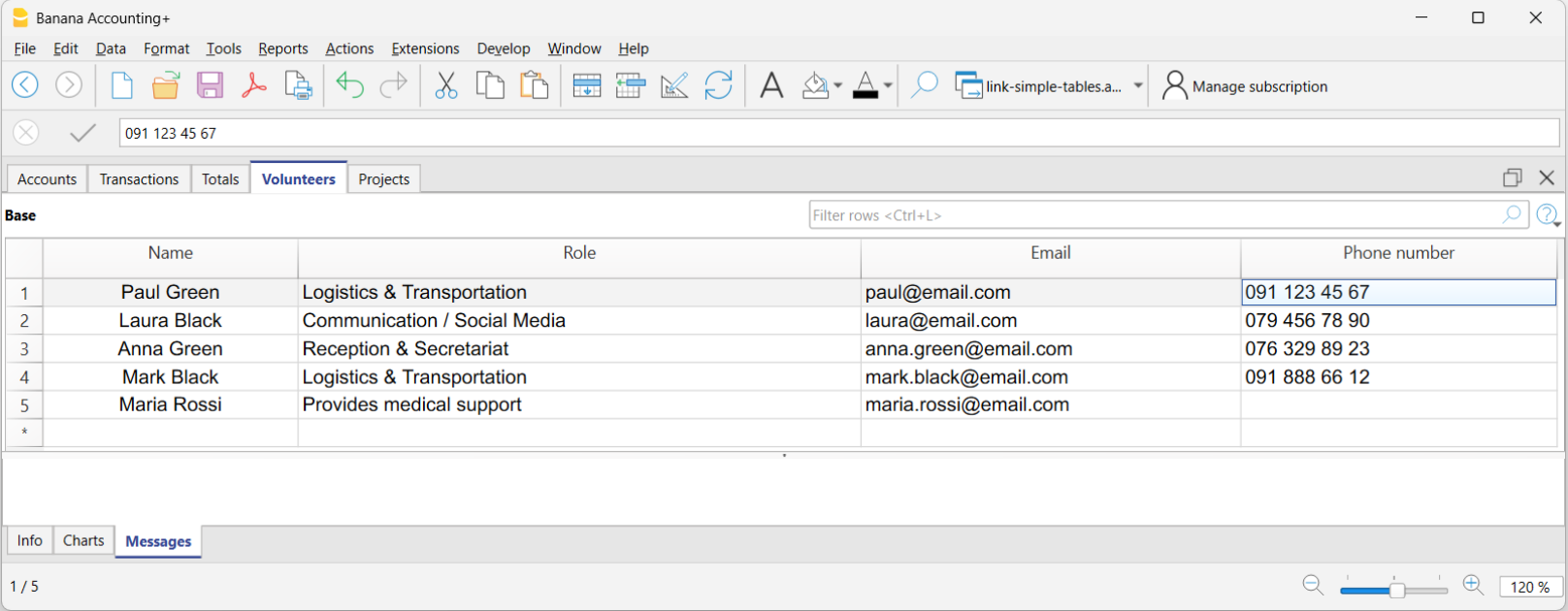
Structure of the Volunteers table
The table can be customized by adding your own columns and displaying other predefined ones. In this example, the structure created is as follows:
- RowId → unique volunteer code (also serves as the linking key).
- Description → volunteer's full name; automatically appears in other linked tables.
- Email → “Notes” column renamed to “Email”.
- Phone number → column added via Data > Columns setup > Add.
Structure of the Events table
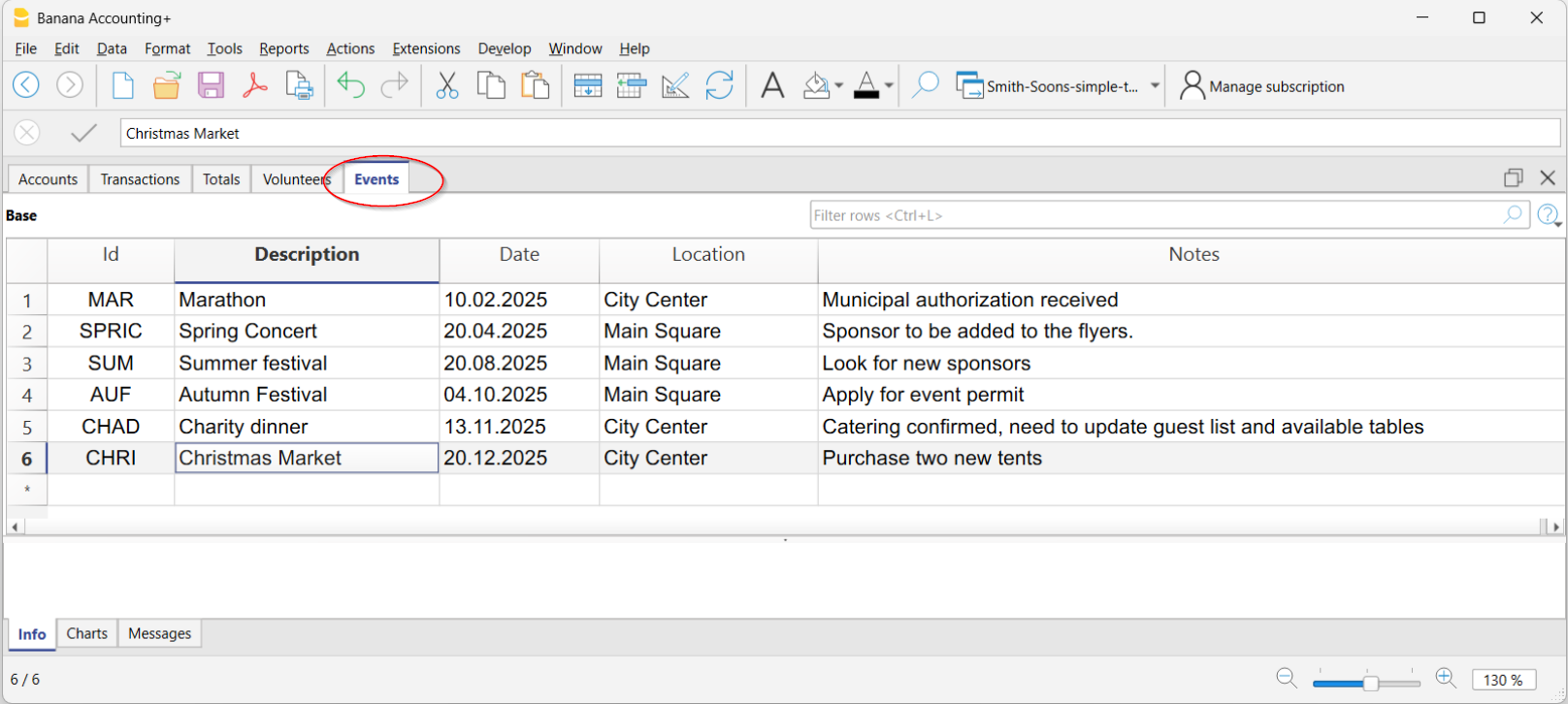
The Events table can include these columns:
- RowId → short code to identify the event (e.g. SPRIFEST).
- Description (DescriptionId) → name of the event (e.g. Spring Festival).
- Date → column added via Data > Organize columns > Add.
- Location → column added via Data > Organize columns > Add.
Creating a link between Volunteers and Events
In this example, the Volunteers columns were linked to the Events table.
- Tools > Add/Remove Functionalities > Add columns to link tables
- In the dialog window, select the Volunteers table.
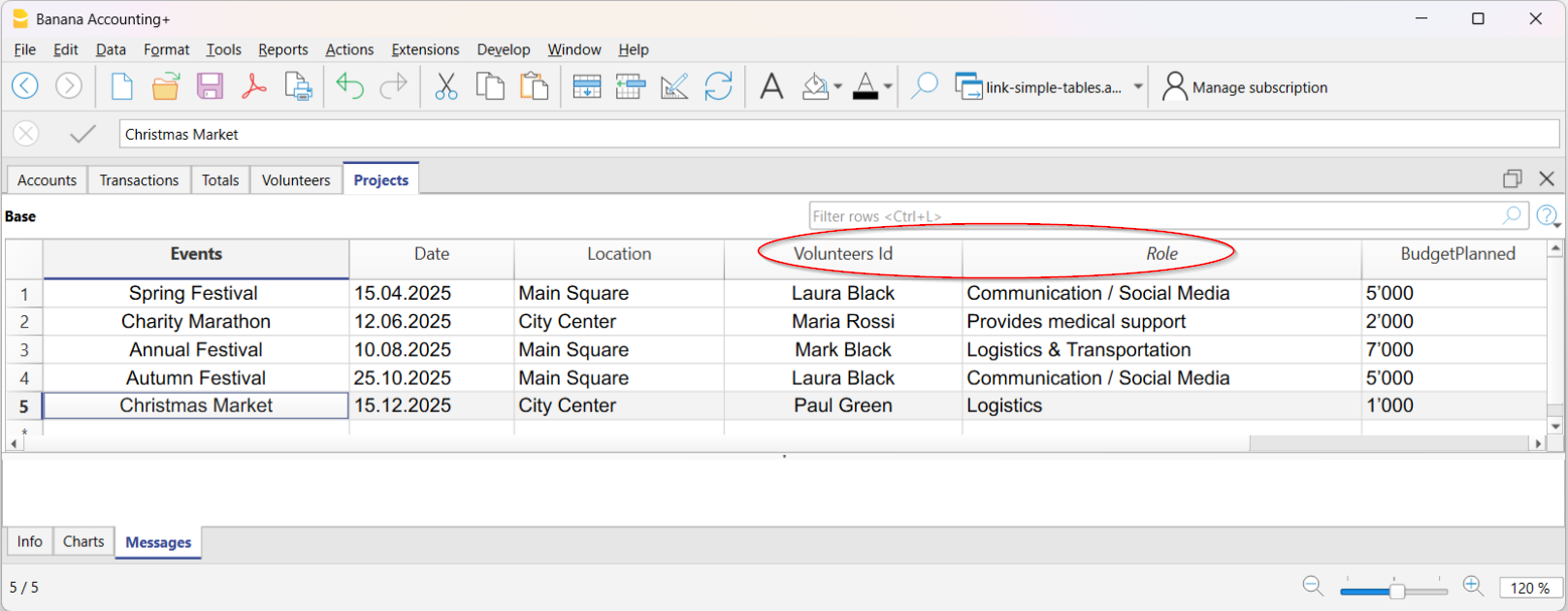
Banana automatically adds the following columns to the Events table:
- Volunteers Id → volunteer's code.
- Volunteers Description → name of the volunteer (or event manager)
When you enter the volunteer code in the Volunteers column, Banana automatically fills in the volunteer's name in the corresponding column.
Advantages of linking
- Clear overview → you immediately know who is participating in an event.
- Defined roles → assign specific tasks to each volunteer.
- Automatic updates → if you change data in the Volunteers table, Banana updates it in the Events table too.
- Simplified management → no more separate sheets, everything stays in the same file.
- Activity history → keep a record of volunteer participation over time.
This approach is ideal for cultural, sports, or charity associations that want to manage people and events in a simple, organized, and immediate way.